> For clean Markdown content of this page, append .md to this URL. For the complete documentation index, see https://learning.postman.com/llms.txt. For full content including API reference and SDK examples, see https://learning.postman.com/llms-full.txt.
# Manage Cloud Secret Detection findings
The Secret Scanner dashboard is available on Postman Enterprise plans. For more information, see the [pricing page](https://www.postman.com/pricing/).
With the Secret Scanner dashboard, [Admins and Super Admins](/docs/administration/roles-and-permissions/#team-roles) can view and manage secrets detected by [Cloud Secret Detection](/docs/administration/managing-your-team/secret-scanner/how-secret-scanner-works#cloud-secret-detection) in your team's workspaces. You can [resolve detected secrets](#resolve-detected-secrets) to indicate whether a secret is revoked, a false positive, or not relevant. You can also [change the status of resolved secrets](#change-the-status-of-resolved-detected-secrets) and [subscribe to summary emails](#secret-scanner-summary-emails) to stay informed.
Cloud Secret Detection scans public workspaces by default. On Enterprise plans with the Advanced Security Administration add-on, it can also scan internal workspaces and Partner Workspaces and display results in the dashboard.
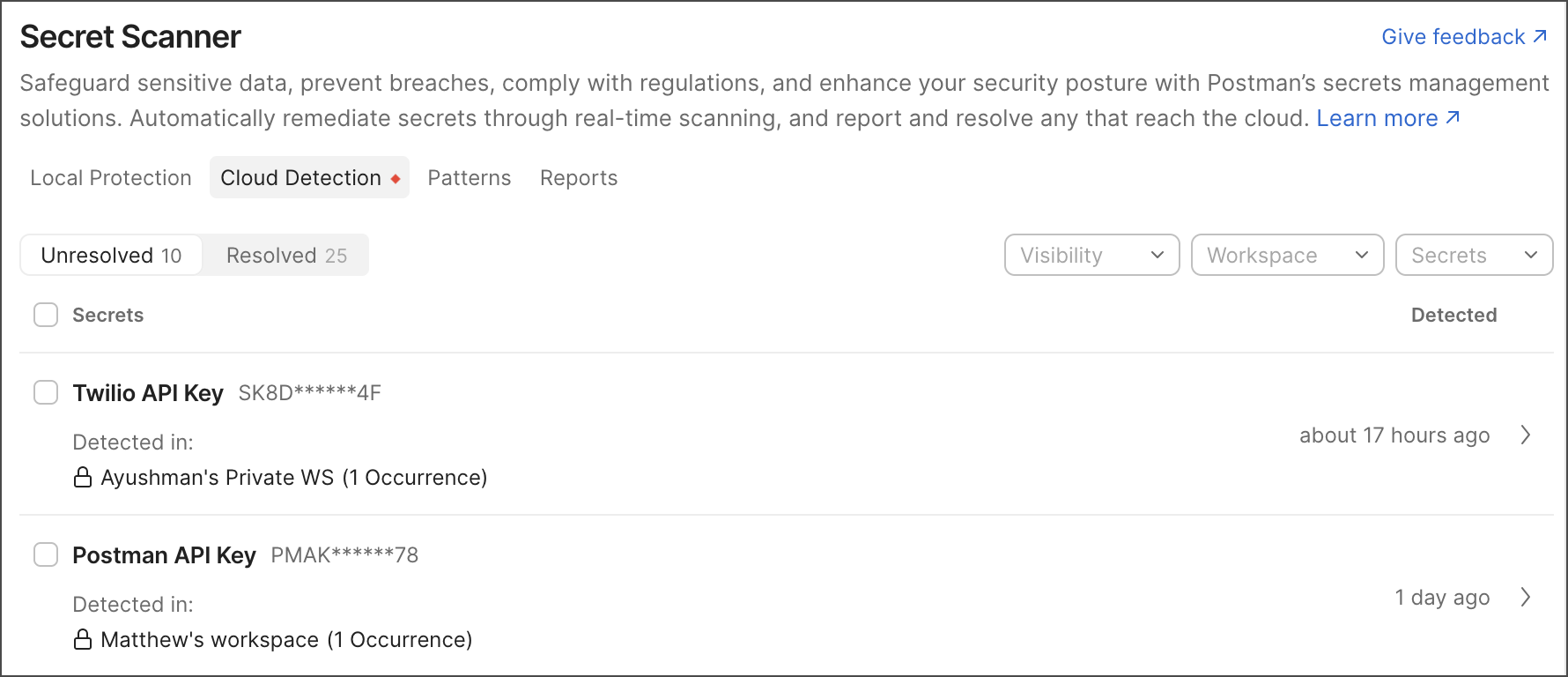
To open the dashboard, select **Organization > Organization settings** in the Postman header. Then, click **Secret Scanner** in the left sidebar, and click the **Cloud Detection** tab.
## Resolve detected secrets
[Admins and Super Admins](/docs/administration/roles-and-permissions/#team-roles) can review the [default](/docs/administration/managing-your-team/secret-scanner/secret-scanner-patterns#default-patterns) and [custom](/docs/administration/managing-your-team/secret-scanner/secret-scanner-patterns#custom-patterns) secrets that the Secret Scanner has found in the **Cloud Detection** tab of the [Secret Scanner dashboard](https://go.postman.co/settings/team/secret-scanner/findings). From the **Unresolved** tab, you can resolve detected secrets in bulk, or you can select a detected secret to view details and resolve it. Filter findings by visibility type, workspace name, and secret type.
Admins and Super Admins can access all identified secrets within a team, including ones in public workspaces. Workspace Admins can also view secrets within the workspaces they manage. Partner Managers can manage and resolve secrets detected in Partner Workspaces.
To resolve detected secrets in bulk with the same status, select the checkbox next to each detected secret. You can also select the checkbox next to **Secrets** to select all detected secrets on the page. Click **Resolve** and then select a status to resolve the secrets.
You can also select a detected secret to view more details and resolve it. Each detected secret shows where it was found and when it was detected. To view the SHA256 hash value of a detected secret, hover over the masked value and click  **Secret Details**. To resolve the secret, click **Unresolved** and then select a status.
You can resolve a detected secret with the following statuses:
* **Revoked** - This secret has been revoked.
* **False positive** - This secret isn't valid.
* **Won't fix** - This secret isn't relevant.
## Change the status of resolved detected secrets
After you [resolve a detected secret](#resolve-detected-secrets), Team and Super Admins can change the status of a resolved secret. From the **Resolved** tab, you can change the status of resolved secrets in bulk, or you can select a resolved secret to view details and change its status. You can also unresolve a secret if Team and Super Admins need to review it again. Filter findings by visibility type, workspace name, secret type, and status type.
To change resolved detected secrets to the same status in bulk, select the checkbox next to each resolved detected secret. You can also select the checkbox next to **Secrets** to select all resolved detected secrets on the page. Click **Change Status** and then select a different status to resolve the secrets.
You can also click a resolved detected secret to view more details and change its status. Each detected secret shows where it was found and when it was detected. To view the SHA256 hash value of a detected secret, hover over the masked value and click **Secret Details**. To change the resolved secret's status, click the status and then select a different status.
You can select **Unresolved** instead of changing the status for a detected secret. This moves it back to the **Unresolved** tab, where Team and Super Admins can review and resolve the secret again.
## Secret Scanner summary emails
Admins, Super Admins, and Workspace Admins can stay informed about Secret Scanner findings by subscribing to daily, weekly, or monthly summary emails. You'll receive the following based on your selections:
* A daily summary email every day at 12:00 AM UTC.
* A monthly summary email on the first of every month.
* A weekly summary email every Monday.
Navigate to [Notification preferences](https://go.postman.co/settings/me/notifications) or click your avatar in the Postman header, then select **Settings > Notifications** to view the Secret Scanner summary options. From there, you can select the box for either daily, weekly, monthly, or all summaries, and save your preferences.
## View secret scan metrics
With the Advanced Security Administration add-on, you can view Cloud Secret Detection metrics in the Secret Scanner reports dashboard. These reports provide insights into exposed secrets detected in resources stored in the Postman cloud, including detected, unresolved, and resolved secrets across your organization.
To learn more, see [View Secret Scanner reports](/docs/reports/secret-scanner-reports/).
**Secret Details**. To resolve the secret, click **Unresolved** and then select a status.
You can resolve a detected secret with the following statuses:
* **Revoked** - This secret has been revoked.
* **False positive** - This secret isn't valid.
* **Won't fix** - This secret isn't relevant.
## Change the status of resolved detected secrets
After you [resolve a detected secret](#resolve-detected-secrets), Team and Super Admins can change the status of a resolved secret. From the **Resolved** tab, you can change the status of resolved secrets in bulk, or you can select a resolved secret to view details and change its status. You can also unresolve a secret if Team and Super Admins need to review it again. Filter findings by visibility type, workspace name, secret type, and status type.
To change resolved detected secrets to the same status in bulk, select the checkbox next to each resolved detected secret. You can also select the checkbox next to **Secrets** to select all resolved detected secrets on the page. Click **Change Status** and then select a different status to resolve the secrets.
You can also click a resolved detected secret to view more details and change its status. Each detected secret shows where it was found and when it was detected. To view the SHA256 hash value of a detected secret, hover over the masked value and click **Secret Details**. To change the resolved secret's status, click the status and then select a different status.
You can select **Unresolved** instead of changing the status for a detected secret. This moves it back to the **Unresolved** tab, where Team and Super Admins can review and resolve the secret again.
## Secret Scanner summary emails
Admins, Super Admins, and Workspace Admins can stay informed about Secret Scanner findings by subscribing to daily, weekly, or monthly summary emails. You'll receive the following based on your selections:
* A daily summary email every day at 12:00 AM UTC.
* A monthly summary email on the first of every month.
* A weekly summary email every Monday.
Navigate to [Notification preferences](https://go.postman.co/settings/me/notifications) or click your avatar in the Postman header, then select **Settings > Notifications** to view the Secret Scanner summary options. From there, you can select the box for either daily, weekly, monthly, or all summaries, and save your preferences.
## View secret scan metrics
With the Advanced Security Administration add-on, you can view Cloud Secret Detection metrics in the Secret Scanner reports dashboard. These reports provide insights into exposed secrets detected in resources stored in the Postman cloud, including detected, unresolved, and resolved secrets across your organization.
To learn more, see [View Secret Scanner reports](/docs/reports/secret-scanner-reports/).