# Manage roles in Postman
Each team member must have one or more team roles assigned to them, which will enable them to perform different actions within your team. Roles can be granted to team members individually, or to members of a [group](/docs/administration/managing-your-team/user-groups/).
You can change a team member's roles at any time in the [team dashboard](https://go.postman.co/settings/team/members).
Search for a specific user by typing their name or email address in the search field. You can also filter users by role type. Select the roles next to the user you'd like to update, then select the roles you'd like to assign or remove. Click **Update Roles** to confirm your changes.
 Some team roles are only available with [Postman Professional and Enterprise plans](https://www.postman.com/pricing/).
Teams can have two support accounts at no extra cost. Support accounts are team members with only Admin or Billing roles. Team members with a Super Admin or Developer role will consume a paid seat on your team.
To learn more about the team roles that you can assign as an Admin, see [Team roles](/docs/administration/roles-and-permissions/#team-roles).
## Manage workspace roles
[Workspace roles](/docs/administration/roles-and-permissions/#workspace-roles) control access to elements within a workspace. Roles can be assigned to an individual user or to a [user group](/docs/administration/managing-your-team/user-groups/).
To change the role of users in a workspace, or to remove a user from a workspace, do the following:
1. Click **Workspaces** in the Postman header, and then select a workspace.
2. On the workspace's **Overview** tab, click **Settings**.
3. Select a different workspace **Role** for a user or group:
* **Admin** - Can manage workspace resources and settings.
* **Editor** - Can create and edit workspace resources.
* **Viewer** - Can view, fork, and export workspace resources.
* **Remove from workspace** - Removes the user from the workspace. (You can [invite the user](/docs/collaborating-in-postman/using-workspaces/internal-workspaces/manage-workspaces/#share-workspaces) again in the future.)
## Manage element-based roles
Team members with Admin access for the workspace or Editor access for an element in it can manage element-based roles assigned to team members. Learn more about [roles you can assign at the element level](/docs/administration/roles-and-permissions/#element-based-roles).
1. Hover over the element in the sidebar.
2. Select
Some team roles are only available with [Postman Professional and Enterprise plans](https://www.postman.com/pricing/).
Teams can have two support accounts at no extra cost. Support accounts are team members with only Admin or Billing roles. Team members with a Super Admin or Developer role will consume a paid seat on your team.
To learn more about the team roles that you can assign as an Admin, see [Team roles](/docs/administration/roles-and-permissions/#team-roles).
## Manage workspace roles
[Workspace roles](/docs/administration/roles-and-permissions/#workspace-roles) control access to elements within a workspace. Roles can be assigned to an individual user or to a [user group](/docs/administration/managing-your-team/user-groups/).
To change the role of users in a workspace, or to remove a user from a workspace, do the following:
1. Click **Workspaces** in the Postman header, and then select a workspace.
2. On the workspace's **Overview** tab, click **Settings**.
3. Select a different workspace **Role** for a user or group:
* **Admin** - Can manage workspace resources and settings.
* **Editor** - Can create and edit workspace resources.
* **Viewer** - Can view, fork, and export workspace resources.
* **Remove from workspace** - Removes the user from the workspace. (You can [invite the user](/docs/collaborating-in-postman/using-workspaces/internal-workspaces/manage-workspaces/#share-workspaces) again in the future.)
## Manage element-based roles
Team members with Admin access for the workspace or Editor access for an element in it can manage element-based roles assigned to team members. Learn more about [roles you can assign at the element level](/docs/administration/roles-and-permissions/#element-based-roles).
1. Hover over the element in the sidebar.
2. Select  **View more actions > Share**.
3. (Optional) Search for team members and [user groups](/docs/administration/managing-your-team/user-groups/) in the workspace to add to the element.
4. Select the role next to the name. Click **Invite** if you're adding for the first time. Otherwise, update the role. You can also click **Remove** to remove a team member or user group from the element.
**View more actions > Share**.
3. (Optional) Search for team members and [user groups](/docs/administration/managing-your-team/user-groups/) in the workspace to add to the element.
4. Select the role next to the name. Click **Invite** if you're adding for the first time. Otherwise, update the role. You can also click **Remove** to remove a team member or user group from the element.
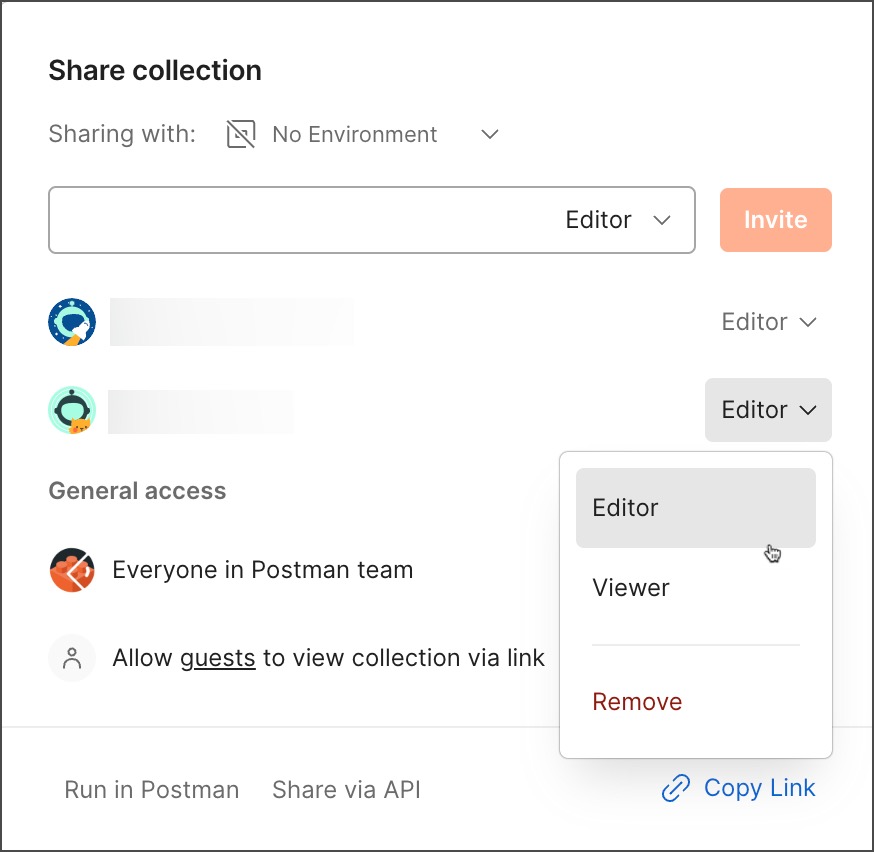 Team members inherit permissions from the workspace role they're assigned. Team members can be individually assigned a workspace role, and the user group they're a member of can be assigned a workspace role. For example, a team member assigned the Workspace Editor role and Collection Viewer role will have Editor access to all collections in the workspace.
If you're managing roles for a collection, you can learn more about [setting merge checks](/docs/collaborating-in-postman/using-version-control/creating-pull-requests/#assign-merge-checks).
You can also use the [Postman VS Code extension](/docs/developer/vs-code-extension/overview/) to manage collection and environment roles assigned to team members.
## Manage Super Admins
**[Super Admins are available with Postman Enterprise plans.](https://www.postman.com/pricing/)**
If your team doesn't have a [Super Admin](/docs/administration/roles-and-permissions/#team-roles) yet, an Admin can assign the role to anyone in the team. Once your team has at least one Super Admin, only a Super Admin can assign this role to another user.
Super Admins can assign the Super Admin role to a user in the [team dashboard](https://go.postman.co/settings/team/members), while [inviting a new team member](/docs/administration/managing-your-team/team-members/invite-members/), and to a [group](/docs/administration/managing-your-team/user-groups/#managing-a-group). If your team is using [SCIM](/docs/administration/scim-provisioning/scim-provisioning-overview/), a Super Admin must create the [SCIM credentials](/docs/administration/scim-provisioning/scim-provisioning-overview/#enabling-scim-provisioning) in order for SCIM to change the membership of a group that's been assigned the Super Admin role.
Regular Admins can't remove Super Admins from a team or remove their Super Admin role assignment.
It's recommended that you create a service user, such as `postman-admin@example.com`, that isn't tied to any individual and assign that user the Super Admin role. By doing so, your team can avoid the risk of a disruption in services due to an actual user leaving your company. This ensures that your team's management is able to sign in to the service account when needed. Learn more about [assigning the Super Admin role to a service account](/docs/administration/enterprise/enterprise-onboarding/#the-super-admin-role).
## Manage Partners
**[Partners are available with Postman Professional and Enterprise plans.](https://www.postman.com/pricing/)**
You can manage external partners similarly to internal team members. Learn more about [managing a Partner Workspace](/docs/collaborating-in-postman/using-workspaces/partner-workspaces/manage/).
## Manage Guests
You can manage [Guests](/docs/administration/roles-and-permissions/#team-roles) in your [team dashboard](https://go.postman.co/settings/team/members). To remove Guests, select
Team members inherit permissions from the workspace role they're assigned. Team members can be individually assigned a workspace role, and the user group they're a member of can be assigned a workspace role. For example, a team member assigned the Workspace Editor role and Collection Viewer role will have Editor access to all collections in the workspace.
If you're managing roles for a collection, you can learn more about [setting merge checks](/docs/collaborating-in-postman/using-version-control/creating-pull-requests/#assign-merge-checks).
You can also use the [Postman VS Code extension](/docs/developer/vs-code-extension/overview/) to manage collection and environment roles assigned to team members.
## Manage Super Admins
**[Super Admins are available with Postman Enterprise plans.](https://www.postman.com/pricing/)**
If your team doesn't have a [Super Admin](/docs/administration/roles-and-permissions/#team-roles) yet, an Admin can assign the role to anyone in the team. Once your team has at least one Super Admin, only a Super Admin can assign this role to another user.
Super Admins can assign the Super Admin role to a user in the [team dashboard](https://go.postman.co/settings/team/members), while [inviting a new team member](/docs/administration/managing-your-team/team-members/invite-members/), and to a [group](/docs/administration/managing-your-team/user-groups/#managing-a-group). If your team is using [SCIM](/docs/administration/scim-provisioning/scim-provisioning-overview/), a Super Admin must create the [SCIM credentials](/docs/administration/scim-provisioning/scim-provisioning-overview/#enabling-scim-provisioning) in order for SCIM to change the membership of a group that's been assigned the Super Admin role.
Regular Admins can't remove Super Admins from a team or remove their Super Admin role assignment.
It's recommended that you create a service user, such as `postman-admin@example.com`, that isn't tied to any individual and assign that user the Super Admin role. By doing so, your team can avoid the risk of a disruption in services due to an actual user leaving your company. This ensures that your team's management is able to sign in to the service account when needed. Learn more about [assigning the Super Admin role to a service account](/docs/administration/enterprise/enterprise-onboarding/#the-super-admin-role).
## Manage Partners
**[Partners are available with Postman Professional and Enterprise plans.](https://www.postman.com/pricing/)**
You can manage external partners similarly to internal team members. Learn more about [managing a Partner Workspace](/docs/collaborating-in-postman/using-workspaces/partner-workspaces/manage/).
## Manage Guests
You can manage [Guests](/docs/administration/roles-and-permissions/#team-roles) in your [team dashboard](https://go.postman.co/settings/team/members). To remove Guests, select  **Remove guest** next to the user. To upgrade a Guest user to a Developer, select **Convert**. When a Guest becomes a Developer, they get access to all internal workspaces and can collaborate with other team members.
If you're on an Enterprise team, only [Admins](/docs/administration/roles-and-permissions/#team-roles) can assign a Guest user the Developer role.
**Remove guest** next to the user. To upgrade a Guest user to a Developer, select **Convert**. When a Guest becomes a Developer, they get access to all internal workspaces and can collaborate with other team members.
If you're on an Enterprise team, only [Admins](/docs/administration/roles-and-permissions/#team-roles) can assign a Guest user the Developer role.
 Your team must have [available seats](/docs/billing/billing/#changing-your-plan) or [Auto-Flex enabled](/docs/billing/billing/#using-auto-flex) to change a user's role from the Guest role to the Developer role.
To review the workspaces and collections a Guest has access to, open your [team dashboard](https://go.postman.co/settings/team/members). Locate the Guest user and click **View resources**. You can select the workspace name or collection name to open it in a new tab, or click the user's name to go to their Postman profile.
Your team must have [available seats](/docs/billing/billing/#changing-your-plan) or [Auto-Flex enabled](/docs/billing/billing/#using-auto-flex) to change a user's role from the Guest role to the Developer role.
To review the workspaces and collections a Guest has access to, open your [team dashboard](https://go.postman.co/settings/team/members). Locate the Guest user and click **View resources**. You can select the workspace name or collection name to open it in a new tab, or click the user's name to go to their Postman profile.
 To learn more about sharing collections with Guests, see [Share collections with Guests](/docs/collaborating-in-postman/sharing/#share-collections-with-guests).
For information on how to remove a Guest from a team or collection, see [Change Guest access to collections](/docs/collaborating-in-postman/sharing/#change-guest-access-to-collections).
## Manage groups
**[Groups are available with Postman Enterprise plans.](https://www.postman.com/pricing/)**
You can assign roles and provide access to team resources at scale with Postman groups. To learn how to create and manage groups, see [Organize users into Postman groups](/docs/administration/managing-your-team/user-groups/).
To learn more about sharing collections with Guests, see [Share collections with Guests](/docs/collaborating-in-postman/sharing/#share-collections-with-guests).
For information on how to remove a Guest from a team or collection, see [Change Guest access to collections](/docs/collaborating-in-postman/sharing/#change-guest-access-to-collections).
## Manage groups
**[Groups are available with Postman Enterprise plans.](https://www.postman.com/pricing/)**
You can assign roles and provide access to team resources at scale with Postman groups. To learn how to create and manage groups, see [Organize users into Postman groups](/docs/administration/managing-your-team/user-groups/).