# Configure Organization or Team settings
Postman Organizations is available with **[Postman Enterprise plans](https://www.postman.com/pricing/)**.
Your [Organization or Team settings](https://go.postman.co/settings/team/general) enable you to manage items such as your organization or team publisher profile, discoverability, custom domains, authentication, and active invite links.
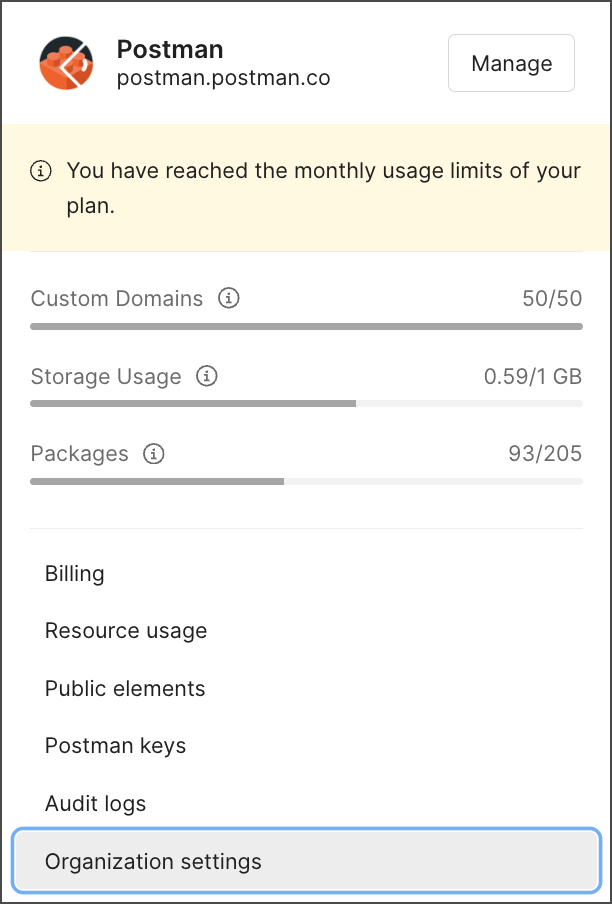
To access the settings, click the name of your organization or team in the header and then click **Organization settings** or **Team settings**, respectively.
 ## Manage member access
Decide your access policy and configure how you want people within your organization to be able to discover and join your teams in Postman and through shared resources.
### Enable joining through links
Users can share collections and other elements with their team and users who aren't part of their team. As an Admin, you can choose to automatically approve each request to join a team through a shared resource.
In **Organization settings** or **Team settings**, click **Organization access** or **Team access** on the left, then turn on **Allow people to automatically join from resource links**.
Upon approval, the new team member is assigned the Developer role.
Your team must have available seats or Auto-Flex enabled to invite more team members. If your team has SSO enabled, users who aren't part of your team will be required to sign in using your team's SSO.
### Enable organization or team discovery
Team discovery encourages collaboration by easing the onboarding process for new team members. When team discovery is enabled, users who have a verified email address with your company's domain can request to join your Postman team.
In **Organization settings** or **Team settings**, click **Organization access** or **Team access** on the left, then turn on **Make this organization (team) discoverable**. Anyone from your domain can find and request to join your team.
Admins receive an email notification when team discovery is active, and only if the user has verified their email address.
You can optionally add a question for pending team members to answer when they request to join your team. Enter your question and click **Save Question**. Anyone who requests to join the team will be prompted with the question. If you don't specify a question, team members can still add a note when they request to join the team.
All [Admins](/docs/administration/roles-and-permissions/#team-roles) will receive a notification when someone requests to join your team after verifying their email address. This includes their answer to any question you set, or an optional note.
### Enable automatic joining for team discovery
You can allow users with verified emails to automatically join your organization's team without requiring admin approval. Automatic joining reduces friction in collaboration and accelerates the time it takes for new members to begin working within teams.
Admins receive an email notification when users automatically join and can manage memberships by removing users if necessary.
In **Organization settings** or **Team settings**, click **Organization access** or **Team access** on the left, then turn on **Allow people to automatically join this team**. Anyone from your domain can find and join your team.
As a result of this action, the **Make this organization (team) discoverable** setting will also be turned on.
## Manage your publisher profile
Your publisher profile gives you a way to publicly share important information about your organization or team with other Postman users. The publisher profile brings together all your organization or team's public resources in one place, and can serve as a developer portal for your API's consumers.
[Super Admins, Admins, and Community Managers](/docs/administration/roles-and-permissions/#team-roles) can edit your publisher profile, customize your organization or team's branding, and manage the public visibility of your publisher profile.
Your publisher profile includes:
* A banner with your logo and a sentence describing the work you do.
* A [verified organization or team badge](/docs/postman-api-network/showcase/prepare/verify-publisher-team/) that, if approved, shows your organization or team is authentic.
* An **About us** section that contains a brief summary about your organization or team and the work you do.
* A **Get to know us** panel with links to your members' profiles.
* A **Social link** panel with links to your social media like your GitHub profile.
* An **Our content** section with your featured public workspaces.
* A **View Contents** link in each featured public workspace to your public collections, APIs, and flows.
### Edit your public profile
Click the name of your organization or team in the header, then click **Organization settings** or **Team settings**. Click **Edit Your Public Profile** to edit your organization or team's summary, description, social media links, and featured public workspaces.
* **About your team** - Click **Get started** to add a brief summary about your organization and the work you do. The editor supports Markdown, or you can use the built-in text formatting tools. To update your team description, hover over the section and click
## Manage member access
Decide your access policy and configure how you want people within your organization to be able to discover and join your teams in Postman and through shared resources.
### Enable joining through links
Users can share collections and other elements with their team and users who aren't part of their team. As an Admin, you can choose to automatically approve each request to join a team through a shared resource.
In **Organization settings** or **Team settings**, click **Organization access** or **Team access** on the left, then turn on **Allow people to automatically join from resource links**.
Upon approval, the new team member is assigned the Developer role.
Your team must have available seats or Auto-Flex enabled to invite more team members. If your team has SSO enabled, users who aren't part of your team will be required to sign in using your team's SSO.
### Enable organization or team discovery
Team discovery encourages collaboration by easing the onboarding process for new team members. When team discovery is enabled, users who have a verified email address with your company's domain can request to join your Postman team.
In **Organization settings** or **Team settings**, click **Organization access** or **Team access** on the left, then turn on **Make this organization (team) discoverable**. Anyone from your domain can find and request to join your team.
Admins receive an email notification when team discovery is active, and only if the user has verified their email address.
You can optionally add a question for pending team members to answer when they request to join your team. Enter your question and click **Save Question**. Anyone who requests to join the team will be prompted with the question. If you don't specify a question, team members can still add a note when they request to join the team.
All [Admins](/docs/administration/roles-and-permissions/#team-roles) will receive a notification when someone requests to join your team after verifying their email address. This includes their answer to any question you set, or an optional note.
### Enable automatic joining for team discovery
You can allow users with verified emails to automatically join your organization's team without requiring admin approval. Automatic joining reduces friction in collaboration and accelerates the time it takes for new members to begin working within teams.
Admins receive an email notification when users automatically join and can manage memberships by removing users if necessary.
In **Organization settings** or **Team settings**, click **Organization access** or **Team access** on the left, then turn on **Allow people to automatically join this team**. Anyone from your domain can find and join your team.
As a result of this action, the **Make this organization (team) discoverable** setting will also be turned on.
## Manage your publisher profile
Your publisher profile gives you a way to publicly share important information about your organization or team with other Postman users. The publisher profile brings together all your organization or team's public resources in one place, and can serve as a developer portal for your API's consumers.
[Super Admins, Admins, and Community Managers](/docs/administration/roles-and-permissions/#team-roles) can edit your publisher profile, customize your organization or team's branding, and manage the public visibility of your publisher profile.
Your publisher profile includes:
* A banner with your logo and a sentence describing the work you do.
* A [verified organization or team badge](/docs/postman-api-network/showcase/prepare/verify-publisher-team/) that, if approved, shows your organization or team is authentic.
* An **About us** section that contains a brief summary about your organization or team and the work you do.
* A **Get to know us** panel with links to your members' profiles.
* A **Social link** panel with links to your social media like your GitHub profile.
* An **Our content** section with your featured public workspaces.
* A **View Contents** link in each featured public workspace to your public collections, APIs, and flows.
### Edit your public profile
Click the name of your organization or team in the header, then click **Organization settings** or **Team settings**. Click **Edit Your Public Profile** to edit your organization or team's summary, description, social media links, and featured public workspaces.
* **About your team** - Click **Get started** to add a brief summary about your organization and the work you do. The editor supports Markdown, or you can use the built-in text formatting tools. To update your team description, hover over the section and click  **Edit team description**.
* **Social links** - Click **Add Social Links** to link to your website and social media accounts. To edit these links, hover over the section and click **Edit social links**.
* **Get to know us** - Hover over this section and click **Manage team** to manage your team members.
* **Edit featured content** - Manage your public Workspaces that appear as featured content. You can select up to three workspaces to display as featured content. The default is the top two workspaces by number of forks. If you have more public workspaces to add, they're available when a user clicks **View all**. The **View content** link under each public workspace displays the Collections, APIs, and Flows in that workspace.
### Customize your branding
You can add a logo, cover photo, and favicon to your team profile. These assets help you establish your team identity and ensure consistent branding.
To add these assets, click the name of your organization or team in the header and then click **Organization settings** or **Team settings**.
* To add a cover photo, hover over the section and click **Upload cover photo**, then upload the image you want to use. To remove it, click **Delete cover photo**.
* To add a team logo, hover over the section and select **Upload profile photo**, then upload the image you want to use. To remove it, click **Delete profile photo**.
* To add a favicon, click **Upload** under the **Favicon** section.
Keep the following in mind when you upload a logo, cover photo, or favicon:
* Logos and cover photos must be 500 KB or less in size and must be in JPG, JPEG, or PNG format.
* Logos must have a 1:1 aspect ratio (height:width), and cover photos must have a 1:7.5 aspect ratio. If your image has a different aspect ratio, Postman prompts you to select a part of your image to display.
* Favicons must be in ICO format, no larger than 32x32 pixels, and 500 KB or less in size. Your favicon appears on the browser tab of your team's published documentation site.
### Make your publisher profile public
A public publisher profile encourages other users to collaborate with you in a public workspace. You can ask for contributions, gather feedback, and increase your API's discovery in search results.
If you make your publisher profile public, your team is visible on [the Postman API Network](https://www.postman.com/explore/), along with your public workspaces, collections, APIs, and flows. Learn more about [the Postman API Network and best practices for sharing elements](/docs/collaborating-in-postman/public-api-network/public-api-network-overview/).
To make your [publisher profile](https://go.postman.co/settings/team/general) public, do the following:
1. In **Organization settings** or **Team settings**, click **Organization profile** or **Team profile**.
2. Select **Make my organization's (team's) profile public** to set the profile to public.
## Review Secret Scanner patterns
**[Custom patterns are available with Postman Enterprise plans.](https://www.postman.com/pricing/)**
Click **Secret Scanner** to review default patterns for tokens issued by common service providers that the Postman Secret Scanner scans for. You can also add and review custom patterns that scan for your team's proprietary tokens and third-party app tokens.
See [Secret Scanner](/docs/administration/managing-your-team/secret-scanner/overview/) to learn more about scanning public workspaces to detect exposed secrets.
## Add custom domains
Click **Custom Domains** to add, update, or remove custom domains for your API documentation.
See [Use custom domains](/docs/publishing-your-api/custom-doc-domains/) for information about adding, verifying, troubleshooting, and publishing to custom domains.
## Use installed apps
Click **Installed apps** to enable all members of a team to use the same stored authorization details when adding integrations.
See [Add new integrations using installed apps in Postman](/docs/integrations/installed-apps/) for more information about adding and using installed apps in integrations.
## Edit authentication methods
**[SSO is available with Postman Enterprise plans.](https://www.postman.com/pricing/)**
Click **Authentication** to configure or reconfigure your team's authentication methods.
See [Configure SSO](/docs/administration/sso/admin-sso/) for details explaining how to configure your team's custom SSO setup and manage user accounts.
**Edit team description**.
* **Social links** - Click **Add Social Links** to link to your website and social media accounts. To edit these links, hover over the section and click **Edit social links**.
* **Get to know us** - Hover over this section and click **Manage team** to manage your team members.
* **Edit featured content** - Manage your public Workspaces that appear as featured content. You can select up to three workspaces to display as featured content. The default is the top two workspaces by number of forks. If you have more public workspaces to add, they're available when a user clicks **View all**. The **View content** link under each public workspace displays the Collections, APIs, and Flows in that workspace.
### Customize your branding
You can add a logo, cover photo, and favicon to your team profile. These assets help you establish your team identity and ensure consistent branding.
To add these assets, click the name of your organization or team in the header and then click **Organization settings** or **Team settings**.
* To add a cover photo, hover over the section and click **Upload cover photo**, then upload the image you want to use. To remove it, click **Delete cover photo**.
* To add a team logo, hover over the section and select **Upload profile photo**, then upload the image you want to use. To remove it, click **Delete profile photo**.
* To add a favicon, click **Upload** under the **Favicon** section.
Keep the following in mind when you upload a logo, cover photo, or favicon:
* Logos and cover photos must be 500 KB or less in size and must be in JPG, JPEG, or PNG format.
* Logos must have a 1:1 aspect ratio (height:width), and cover photos must have a 1:7.5 aspect ratio. If your image has a different aspect ratio, Postman prompts you to select a part of your image to display.
* Favicons must be in ICO format, no larger than 32x32 pixels, and 500 KB or less in size. Your favicon appears on the browser tab of your team's published documentation site.
### Make your publisher profile public
A public publisher profile encourages other users to collaborate with you in a public workspace. You can ask for contributions, gather feedback, and increase your API's discovery in search results.
If you make your publisher profile public, your team is visible on [the Postman API Network](https://www.postman.com/explore/), along with your public workspaces, collections, APIs, and flows. Learn more about [the Postman API Network and best practices for sharing elements](/docs/collaborating-in-postman/public-api-network/public-api-network-overview/).
To make your [publisher profile](https://go.postman.co/settings/team/general) public, do the following:
1. In **Organization settings** or **Team settings**, click **Organization profile** or **Team profile**.
2. Select **Make my organization's (team's) profile public** to set the profile to public.
## Review Secret Scanner patterns
**[Custom patterns are available with Postman Enterprise plans.](https://www.postman.com/pricing/)**
Click **Secret Scanner** to review default patterns for tokens issued by common service providers that the Postman Secret Scanner scans for. You can also add and review custom patterns that scan for your team's proprietary tokens and third-party app tokens.
See [Secret Scanner](/docs/administration/managing-your-team/secret-scanner/overview/) to learn more about scanning public workspaces to detect exposed secrets.
## Add custom domains
Click **Custom Domains** to add, update, or remove custom domains for your API documentation.
See [Use custom domains](/docs/publishing-your-api/custom-doc-domains/) for information about adding, verifying, troubleshooting, and publishing to custom domains.
## Use installed apps
Click **Installed apps** to enable all members of a team to use the same stored authorization details when adding integrations.
See [Add new integrations using installed apps in Postman](/docs/integrations/installed-apps/) for more information about adding and using installed apps in integrations.
## Edit authentication methods
**[SSO is available with Postman Enterprise plans.](https://www.postman.com/pricing/)**
Click **Authentication** to configure or reconfigure your team's authentication methods.
See [Configure SSO](/docs/administration/sso/admin-sso/) for details explaining how to configure your team's custom SSO setup and manage user accounts.