***
title: Configure SCIM with Okta
updated: 2025-09-12T00:00:00.000Z
max-toc-depth: 2
----------------
Postman supports SCIM (System for Cross-domain Identity Management) provisioning through Okta with the [Postman Okta app](#set-up-scim-in-okta-with-postman-okta-app) or the [SCIM 2.0 test app (Header Auth)](#set-up-scim-in-okta-with-scim-test-app). These apps enable you to automate user provisioning and de-provisioning.
You must be a [Postman Admin or Super Admin](/docs/administration/roles-and-permissions/#team-roles) to enable SCIM. It's recommended that you enable SCIM with a [service account assigned the Super Admin role](/docs/administration/enterprise/enterprise-onboarding/#the-super-admin-role).
With SCIM enabled, users won't have the option to leave your organization or team on their own, and won't be able to change their account email or password. Only Admins and Super Admins have permission to remove members. Only administrators in Okta have permission to use SCIM to change user account emails if they're associated with your [verified](/docs/administration/domain-verification-and-capture/add-and-verify-a-domain/) domain.
## Set up SCIM in Okta with Postman Okta app
Postman is available as an app in the Okta Integration Network, allowing you to enable user provisioning directly through Okta.
It's recommended that you enable SCIM in Okta with the Postman Okta app.
### Enable SCIM in Okta with Postman Okta app
Prior to enabling SCIM in Okta, you must add the [Postman app in Okta](https://www.okta.com/integrations/postman/) and [configure Okta's SSO for your Postman team](/docs/administration/sso/okta/#configuring-sso-using-the-postman-okta-app).
To set up provisioning with Okta, do the following:
1. [Enable SCIM in Postman](/docs/administration/scim-provisioning/scim-provisioning-overview/#enabling-scim-in-postman) and [generate a SCIM API key](/docs/administration/scim-provisioning/scim-provisioning-overview/#generating-scim-api-key).
2. In Okta, go to the Postman app, click **Provisioning**, then click **Configure API Integration**.
 3. Click **Enable API integration**, and enter the following:
* **Base URL** - Enter `https://api.getpostman.com/scim/v2`.
If you're using the EU Data Residency plan, enter `https://api.eu.postman.com/scim/v2`.
* **API Token** - Enter your SCIM API key.
3. Click **Enable API integration**, and enter the following:
* **Base URL** - Enter `https://api.getpostman.com/scim/v2`.
If you're using the EU Data Residency plan, enter `https://api.eu.postman.com/scim/v2`.
* **API Token** - Enter your SCIM API key.
 4. Click **Test API Credentials**. If successful, a verification message appears.
If verification is unsuccessful, confirm that you have SCIM enabled for your team in Postman, are using the correct SCIM API key, and that your API key's status is **ACTIVE** in your [team authentication settings](https://go.postman.co/settings/team/auth). If you continue to face issues, [contact Postman support](https://www.postman.com/support/) for assistance.
5. Click **Save**. You can now [configure the Postman Okta app](#configure-the-postman-okta-app).
### Configure the Postman Okta app
The Postman Okta app supports the provisioning features listed in the [SCIM provisioning overview](/docs/administration/scim-provisioning/scim-provisioning-overview/#scim-features).
To turn these features on or off, do the following:
1. Go to the Postman app in Okta, click **To App** on the left, then click **Edit**.
4. Click **Test API Credentials**. If successful, a verification message appears.
If verification is unsuccessful, confirm that you have SCIM enabled for your team in Postman, are using the correct SCIM API key, and that your API key's status is **ACTIVE** in your [team authentication settings](https://go.postman.co/settings/team/auth). If you continue to face issues, [contact Postman support](https://www.postman.com/support/) for assistance.
5. Click **Save**. You can now [configure the Postman Okta app](#configure-the-postman-okta-app).
### Configure the Postman Okta app
The Postman Okta app supports the provisioning features listed in the [SCIM provisioning overview](/docs/administration/scim-provisioning/scim-provisioning-overview/#scim-features).
To turn these features on or off, do the following:
1. Go to the Postman app in Okta, click **To App** on the left, then click **Edit**.
 2. Select features to enable them, or clear to turn them off.
 3. Click **Save** to save your changes.
4. Click **Assignments**, then assign relevant people and groups to the app. Learn how to [assign people and groups to an app in Okta](https://help.okta.com/en-us/content/topics/apps/apps-assign-applications.htm?cshid=ext_Apps_Apps_Page-assign).
## Set up SCIM in Okta with SCIM test app
The [SCIM 2.0 test app (Header Auth)](https://www.okta.com/integrations/scim-2-0-test-app-header-auth/) is available in the Okta Integration Network, allowing you to enable user provisioning directly through Okta.
It's recommended that you [enable SCIM in Okta with the Postman Okta app](#enable-scim-in-okta-with-postman-okta-app).
### Enable SCIM in Okta with SCIM test app
Prior to enabling SCIM in Okta, you must [configure Okta's SSO for your Postman team](/docs/administration/sso/okta/#configuring-sso-using-the-postman-okta-app).
To set up provisioning with Okta, do the following:
1. [Enable SCIM in Postman](/docs/administration/scim-provisioning/scim-provisioning-overview/#enabling-scim-in-postman) and [generate a SCIM API key](/docs/administration/scim-provisioning/scim-provisioning-overview/#generating-scim-api-key).
2. Open your Okta admin console in a new tab.
3. Go to **Applications**, and then click **Applications**.
4. Click **Browse App Catalog**.

5. Search for "SCIM 2.0 Test App (Header Auth)". Select the app from the results, and then click **Add Integration**.

6. In the **General Settings** tab, enter an app name you'll recognize later, and then click **Next**.
7. In the **Sign-On Options** tab, click **Done**.
8. In Okta, go to the SCIM 2.0 test app (Header Auth), click **Provisioning**, then click **Configure API Integration**.
3. Click **Save** to save your changes.
4. Click **Assignments**, then assign relevant people and groups to the app. Learn how to [assign people and groups to an app in Okta](https://help.okta.com/en-us/content/topics/apps/apps-assign-applications.htm?cshid=ext_Apps_Apps_Page-assign).
## Set up SCIM in Okta with SCIM test app
The [SCIM 2.0 test app (Header Auth)](https://www.okta.com/integrations/scim-2-0-test-app-header-auth/) is available in the Okta Integration Network, allowing you to enable user provisioning directly through Okta.
It's recommended that you [enable SCIM in Okta with the Postman Okta app](#enable-scim-in-okta-with-postman-okta-app).
### Enable SCIM in Okta with SCIM test app
Prior to enabling SCIM in Okta, you must [configure Okta's SSO for your Postman team](/docs/administration/sso/okta/#configuring-sso-using-the-postman-okta-app).
To set up provisioning with Okta, do the following:
1. [Enable SCIM in Postman](/docs/administration/scim-provisioning/scim-provisioning-overview/#enabling-scim-in-postman) and [generate a SCIM API key](/docs/administration/scim-provisioning/scim-provisioning-overview/#generating-scim-api-key).
2. Open your Okta admin console in a new tab.
3. Go to **Applications**, and then click **Applications**.
4. Click **Browse App Catalog**.

5. Search for "SCIM 2.0 Test App (Header Auth)". Select the app from the results, and then click **Add Integration**.

6. In the **General Settings** tab, enter an app name you'll recognize later, and then click **Next**.
7. In the **Sign-On Options** tab, click **Done**.
8. In Okta, go to the SCIM 2.0 test app (Header Auth), click **Provisioning**, then click **Configure API Integration**.
 9. Click **Enable API integration**, and enter the following:
* **Base URL** - Enter `https://api.getpostman.com/scim/v2`.
* **API Token** - Enter your SCIM API key.
9. Click **Enable API integration**, and enter the following:
* **Base URL** - Enter `https://api.getpostman.com/scim/v2`.
* **API Token** - Enter your SCIM API key.
 10. Click **Test API Credentials**. If successful, a verification message appears.
If verification is unsuccessful, confirm that you have SCIM enabled for your team in Postman, are using the correct SCIM API key, and that your API key's status is **ACTIVE** in your [team authentication settings](https://go.postman.co/settings/team/auth). If you continue to face issues, [contact Postman support](https://www.postman.com/support/) for assistance.
11. Click **Save**. Then you can [configure the SCIM 2.0 test app (Header Auth)](#configure-the-scim-test-app).
### Configure the SCIM test app
After you [enable SCIM in Okta with the SCIM 2.0 test app (Header Auth)](#enable-scim-in-okta-with-scim-test-app), you can configure the app. The SCIM 2.0 test app (Header Auth) supports the provisioning features listed in the [SCIM provisioning overview](/docs/administration/scim-provisioning/scim-provisioning-overview/#scim-features). The app also supports updating group information from Postman to your identity provider (IdP).
To turn these features on or off, do the following:
1. Go to the SCIM 2.0 test app (Header Auth) in Okta, click **Provisioning**, click **To App** on the left, then click **Edit**.
10. Click **Test API Credentials**. If successful, a verification message appears.
If verification is unsuccessful, confirm that you have SCIM enabled for your team in Postman, are using the correct SCIM API key, and that your API key's status is **ACTIVE** in your [team authentication settings](https://go.postman.co/settings/team/auth). If you continue to face issues, [contact Postman support](https://www.postman.com/support/) for assistance.
11. Click **Save**. Then you can [configure the SCIM 2.0 test app (Header Auth)](#configure-the-scim-test-app).
### Configure the SCIM test app
After you [enable SCIM in Okta with the SCIM 2.0 test app (Header Auth)](#enable-scim-in-okta-with-scim-test-app), you can configure the app. The SCIM 2.0 test app (Header Auth) supports the provisioning features listed in the [SCIM provisioning overview](/docs/administration/scim-provisioning/scim-provisioning-overview/#scim-features). The app also supports updating group information from Postman to your identity provider (IdP).
To turn these features on or off, do the following:
1. Go to the SCIM 2.0 test app (Header Auth) in Okta, click **Provisioning**, click **To App** on the left, then click **Edit**.
 2. Select features to enable them, or clear to turn them off. Postman supports the **Create users**, **Update User Attributes**, and **Deactivate Users** features. Postman doesn't support the **Sync Password** feature.
 3. Click **Save** to save your changes.
4. Make sure only the **Username**, **Given name**, and **Family name** attributes are mapped. Delete other attributes if they're mapped.
3. Click **Save** to save your changes.
4. Make sure only the **Username**, **Given name**, and **Family name** attributes are mapped. Delete other attributes if they're mapped.
 5. Click **Assignments**, then assign relevant people and groups to the app. Learn how to [assign people and groups to an app in Okta](https://help.okta.com/en-us/content/topics/apps/apps-assign-applications.htm?cshid=ext_Apps_Apps_Page-assign).
## Assign people to Postman in Okta
Postman recommends creating and pushing groups from Okta to ensure they're synced and set with the right permissions. To learn more, see [Push groups in Okta](#push-groups-in-okta).
You can assign people and groups to the Postman app in Okta.
To assign people to Postman in Okta, do the following:
1. Sign in to the Okta Admin Console.
2. Go to **Applications** and select your app.
3. Click **Assignments**.
4. Select **Assign > Assign to People** or **Assign to Groups** to assign people to the app.
5. Click **Assignments**, then assign relevant people and groups to the app. Learn how to [assign people and groups to an app in Okta](https://help.okta.com/en-us/content/topics/apps/apps-assign-applications.htm?cshid=ext_Apps_Apps_Page-assign).
## Assign people to Postman in Okta
Postman recommends creating and pushing groups from Okta to ensure they're synced and set with the right permissions. To learn more, see [Push groups in Okta](#push-groups-in-okta).
You can assign people and groups to the Postman app in Okta.
To assign people to Postman in Okta, do the following:
1. Sign in to the Okta Admin Console.
2. Go to **Applications** and select your app.
3. Click **Assignments**.
4. Select **Assign > Assign to People** or **Assign to Groups** to assign people to the app.
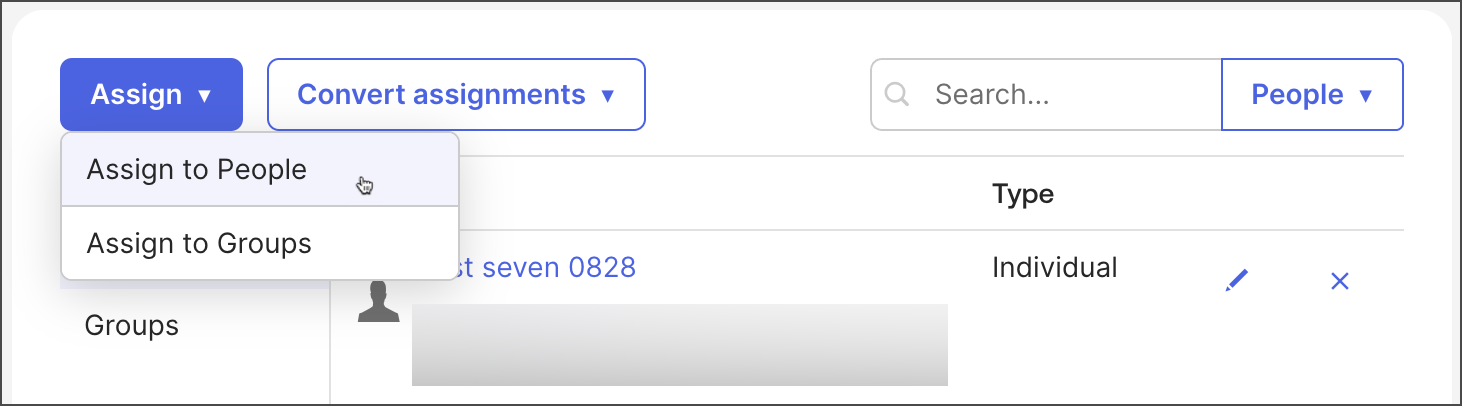 5. Search for the person or group and click **Assign**.
Learn how to [assign people and groups to an app in Okta](https://help.okta.com/en-us/content/topics/apps/apps-assign-applications.htm?cshid=ext_Apps_Apps_Page-assign).
## Push groups in Okta
Postman recommends creating and pushing groups from Okta to ensure they're synced with the Active Directory (AD) group. You can find and link an existing group or create a new group using your AD group.
### Find and link a group in Okta
Group linking allows you to link an AD group to an existing Postman group. When you search for a Postman group to link to, only groups without members are displayed. When you select a group to link to, the Postman group is renamed. This option is recommended when you want to assign a permission to a group in Postman, then link it to your AD group in Okta.
To link an AD group to a Postman group from Okta, do the following:
1. Sign in to the Okta Admin Console.
2. Go to **Applications** and select your app.
3. Click **Push Groups**.
4. Select **By name** and enter the name of the group you want to push.
5. Click **Link Group**, then select an existing Postman group.
5. Search for the person or group and click **Assign**.
Learn how to [assign people and groups to an app in Okta](https://help.okta.com/en-us/content/topics/apps/apps-assign-applications.htm?cshid=ext_Apps_Apps_Page-assign).
## Push groups in Okta
Postman recommends creating and pushing groups from Okta to ensure they're synced with the Active Directory (AD) group. You can find and link an existing group or create a new group using your AD group.
### Find and link a group in Okta
Group linking allows you to link an AD group to an existing Postman group. When you search for a Postman group to link to, only groups without members are displayed. When you select a group to link to, the Postman group is renamed. This option is recommended when you want to assign a permission to a group in Postman, then link it to your AD group in Okta.
To link an AD group to a Postman group from Okta, do the following:
1. Sign in to the Okta Admin Console.
2. Go to **Applications** and select your app.
3. Click **Push Groups**.
4. Select **By name** and enter the name of the group you want to push.
5. Click **Link Group**, then select an existing Postman group.
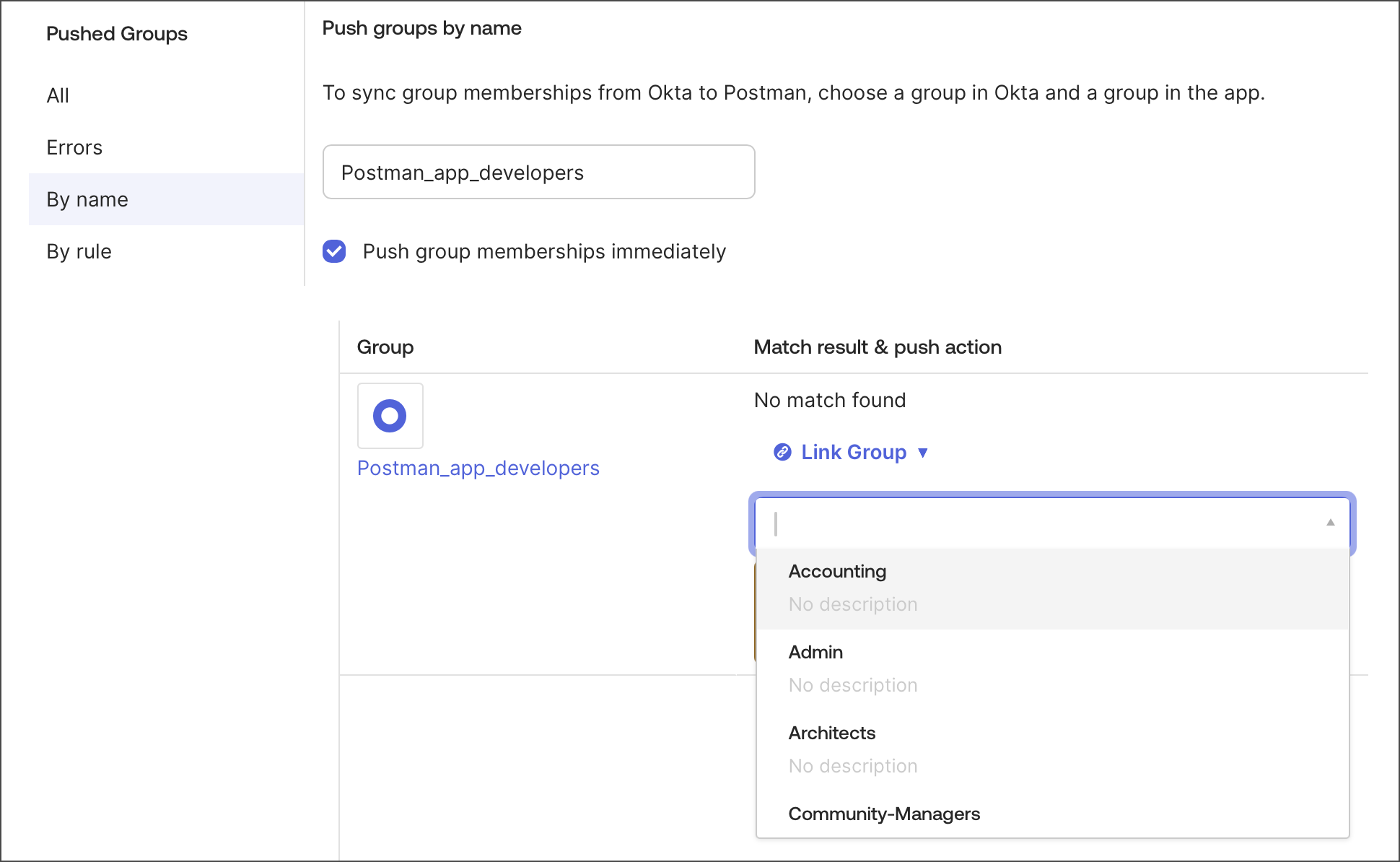 Ensure that the **Push group membership immediately** option is selected.
6. Click **Save**.
7. Refresh your browser and click **All** to check that your group is **Active**.
Ensure that the **Push group membership immediately** option is selected.
6. Click **Save**.
7. Refresh your browser and click **All** to check that your group is **Active**.
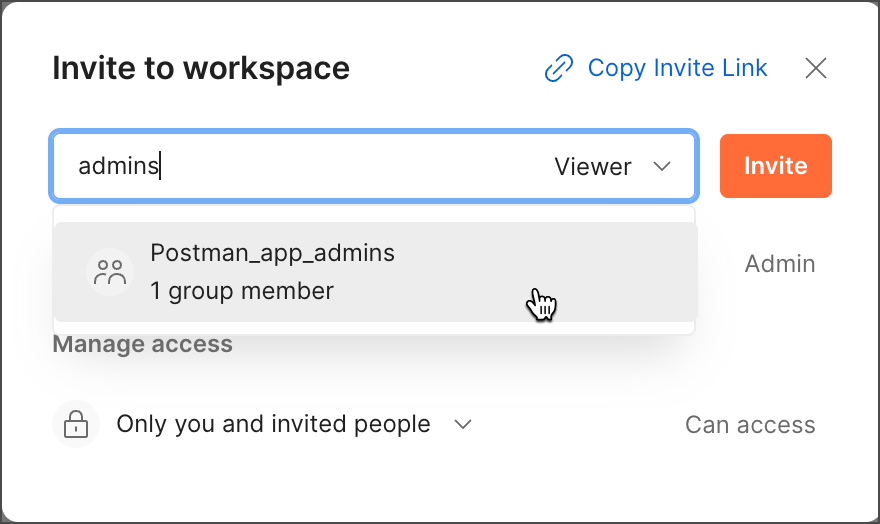
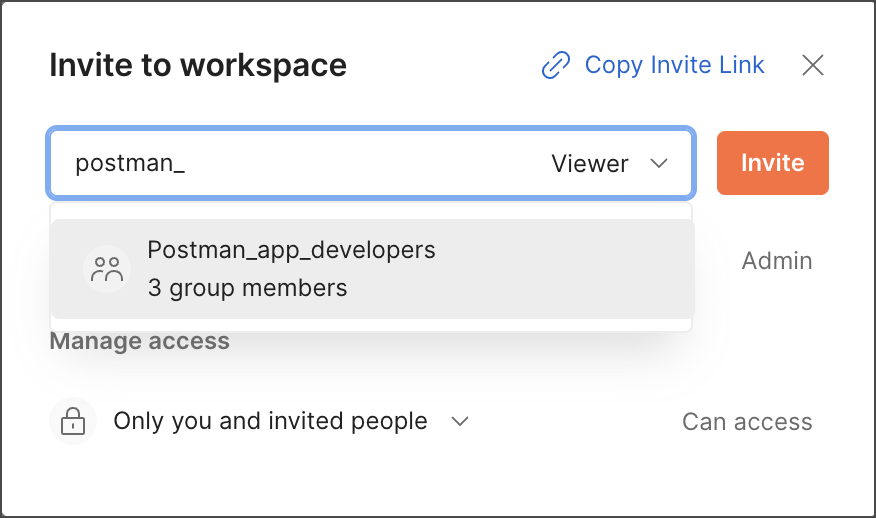
 Now, Postman users can invite the group to their workspaces.
 ### Create a new group in Okta
To create a new group in Postman using your AD Group, do the following:
1. Sign in to the Okta Admin Console.
2. Go to **Applications** and select your app.
3. Click **Push Groups**.
4. Select **By name** and enter the name of the group you want to push.
5. Click **Create Group**.
### Create a new group in Okta
To create a new group in Postman using your AD Group, do the following:
1. Sign in to the Okta Admin Console.
2. Go to **Applications** and select your app.
3. Click **Push Groups**.
4. Select **By name** and enter the name of the group you want to push.
5. Click **Create Group**.
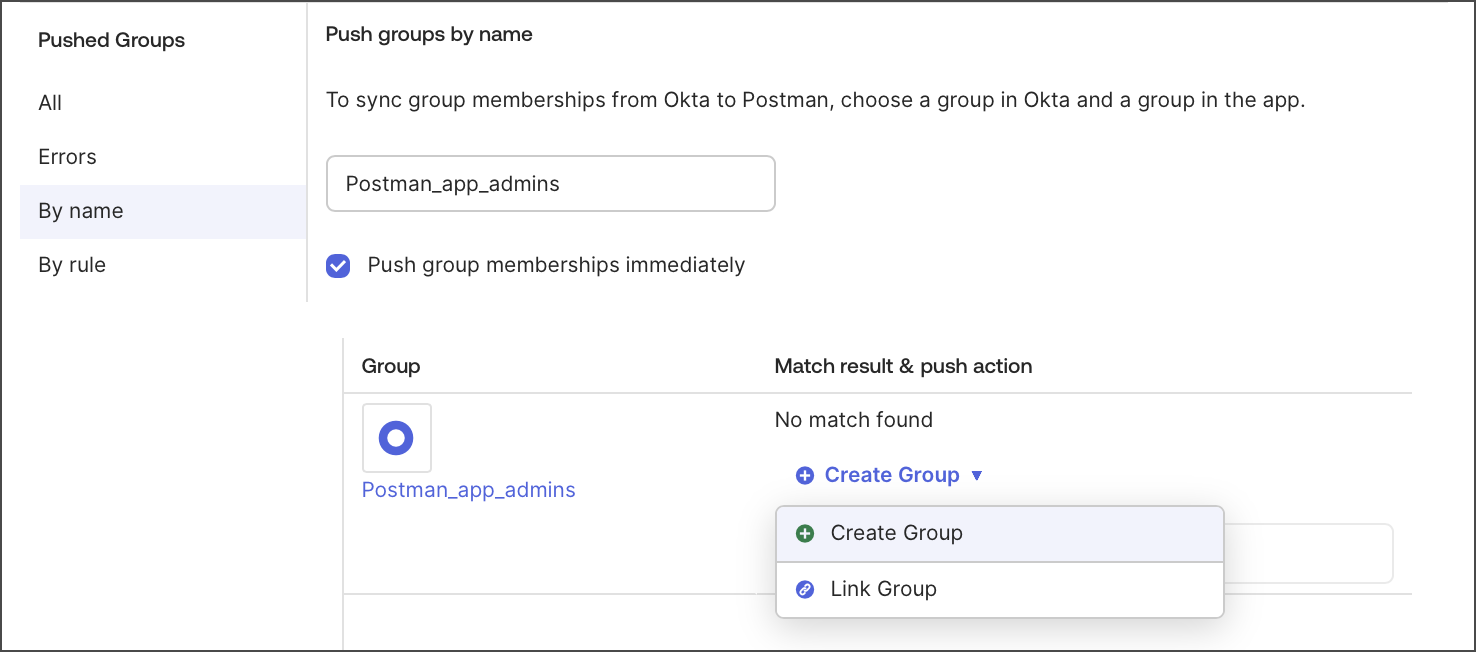 Ensure that the **Push group membership immediately** option is selected.
6. Click **Save**.
7. Refresh your browser and click **All** to check that your group is **Active**.
Ensure that the **Push group membership immediately** option is selected.
6. Click **Save**.
7. Refresh your browser and click **All** to check that your group is **Active**.
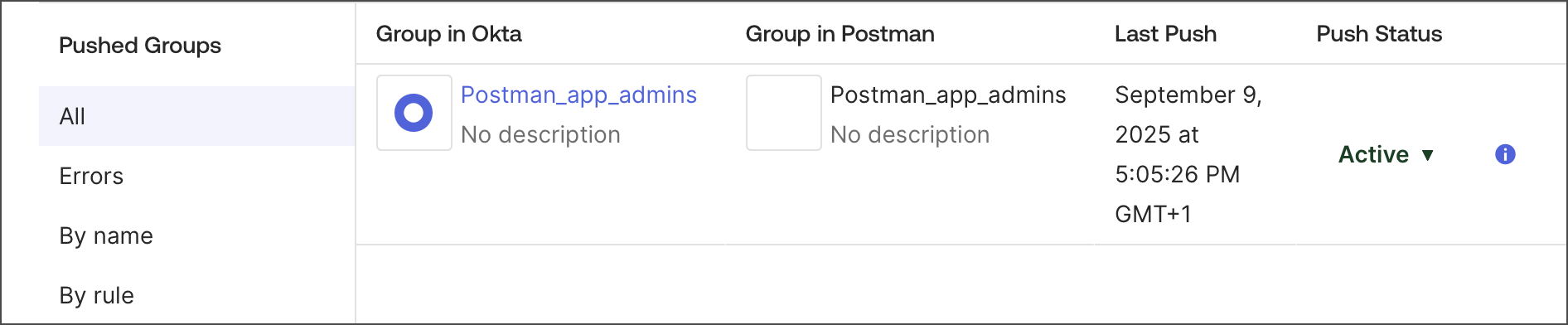 Now, Postman users can invite the group to their workspaces.