***
title: Sign in to SSO
updated: 2025-08-15T00:00:00.000Z
max-toc-depth: 2
----------------
SSO is available with **[Postman Enterprise plans.](https://www.postman.com/pricing/)**
When your [Organization Manager or Admin](/docs/administration/roles-and-permissions/#team-roles) has enabled single sign-on (SSO) for Postman, you can sign in to Postman with a [configured identity provider (IdP)](/docs/administration/sso/intro-sso/#supported-idps).
Your Admin can share a **Login URL** that was generated during the SSO configuration. The **Login URL** automatically redirects you to your configured IdP.
## Signing in to Postman with SSO
{/* "Sign In" is a UI element */}
{/* vale Vale.Repetition = NO */}
To [sign in to Postman](/docs/getting-started/first-steps/sign-up-for-postman) using the Postman desktop app, click **Sign In** in the upper-right corner or click **Home** in the upper-left corner, then **Sign In**. You can also use the [Postman's web app](https://www.postman.com/) and click **Sign In** in the upper-right corner of the page.
{/* vale Vale.Repetition = YES */}
When you sign in using the Postman desktop app, the app opens a new screen that directs you to sign in from your browser. Your default browser automatically opens a webpage asking you to sign in to Postman.
Your browser will open within a few seconds. If it doesn't, click **open it manually** or **copy the URL** in Postman.  {/*Do we really need this image? */}
You must finish signing in within five minutes once you start the process from Postman. If you exceed this time, you must return to Postman and restart the sign-in process.
To sign in to Postman with SSO, do the following:
1. On the sign-in page, click **Sign in with SSO**.
{/*Do we really need this image? */}
You must finish signing in within five minutes once you start the process from Postman. If you exceed this time, you must return to Postman and restart the sign-in process.
To sign in to Postman with SSO, do the following:
1. On the sign-in page, click **Sign in with SSO**.
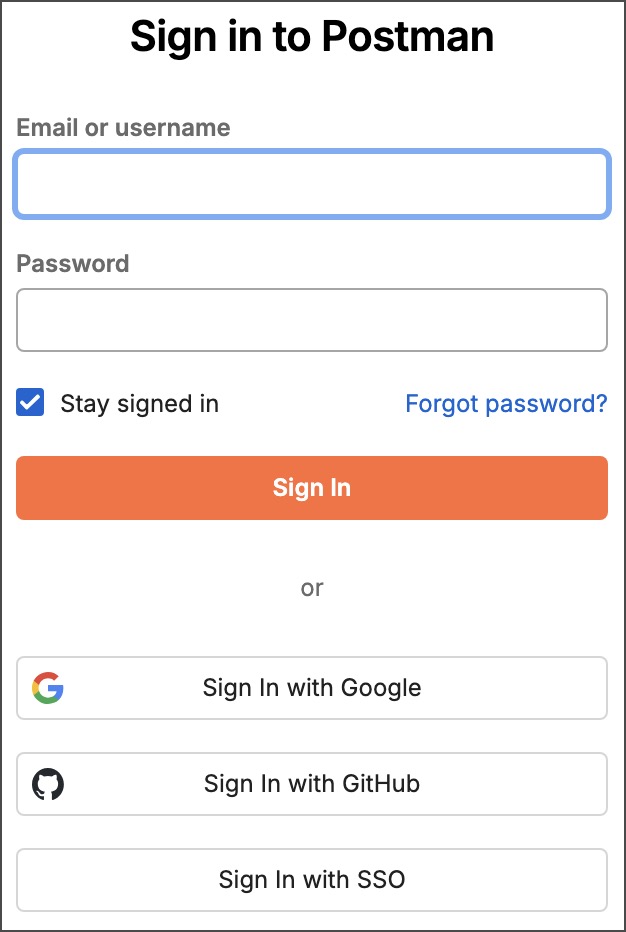 2. Enter your domain, then click **Continue**.
Select **Stay signed in** if you want to remain signed in until you are inactive for 30 days or until you reach your configured maximum session duration. Clear the checkbox if you don't want to stay signed in on the computer you're working on. Note that Postman prompts you to sign in again after 30 minutes.
3. Select the authentication method you want to sign in with.
4. Postman redirects you to the configured IdP. Enter your SSO details to sign in.
When you sign in to Postman with SSO for the first time and use an email address associated with an existing account, you may need to link your identity provider (IdP) account to Postman. This is required if your email address doesn't use a domain or subdomain that your organization has [verified](/docs/administration/domain-verification-and-capture/add-and-verify-a-domain/). Sign in using SSO and follow the steps to [link your IdP account to Postman](/docs/getting-started/account/manage/#link-your-account-to-postman).
If you're a member of multiple Postman instances with varying authentication methods, you must sign in to those instances separately. To do so, click your avatar in the upper-right corner, then select the team to proceed.
2. Enter your domain, then click **Continue**.
Select **Stay signed in** if you want to remain signed in until you are inactive for 30 days or until you reach your configured maximum session duration. Clear the checkbox if you don't want to stay signed in on the computer you're working on. Note that Postman prompts you to sign in again after 30 minutes.
3. Select the authentication method you want to sign in with.
4. Postman redirects you to the configured IdP. Enter your SSO details to sign in.
When you sign in to Postman with SSO for the first time and use an email address associated with an existing account, you may need to link your identity provider (IdP) account to Postman. This is required if your email address doesn't use a domain or subdomain that your organization has [verified](/docs/administration/domain-verification-and-capture/add-and-verify-a-domain/). Sign in using SSO and follow the steps to [link your IdP account to Postman](/docs/getting-started/account/manage/#link-your-account-to-postman).
If you're a member of multiple Postman instances with varying authentication methods, you must sign in to those instances separately. To do so, click your avatar in the upper-right corner, then select the team to proceed.