***
title: Get started with Postman AI
updated: 2025-11-21T00:00:00.000Z
topictype: multiple
slug: docs/agent-mode/get-started
max-toc-depth: 2
----------------
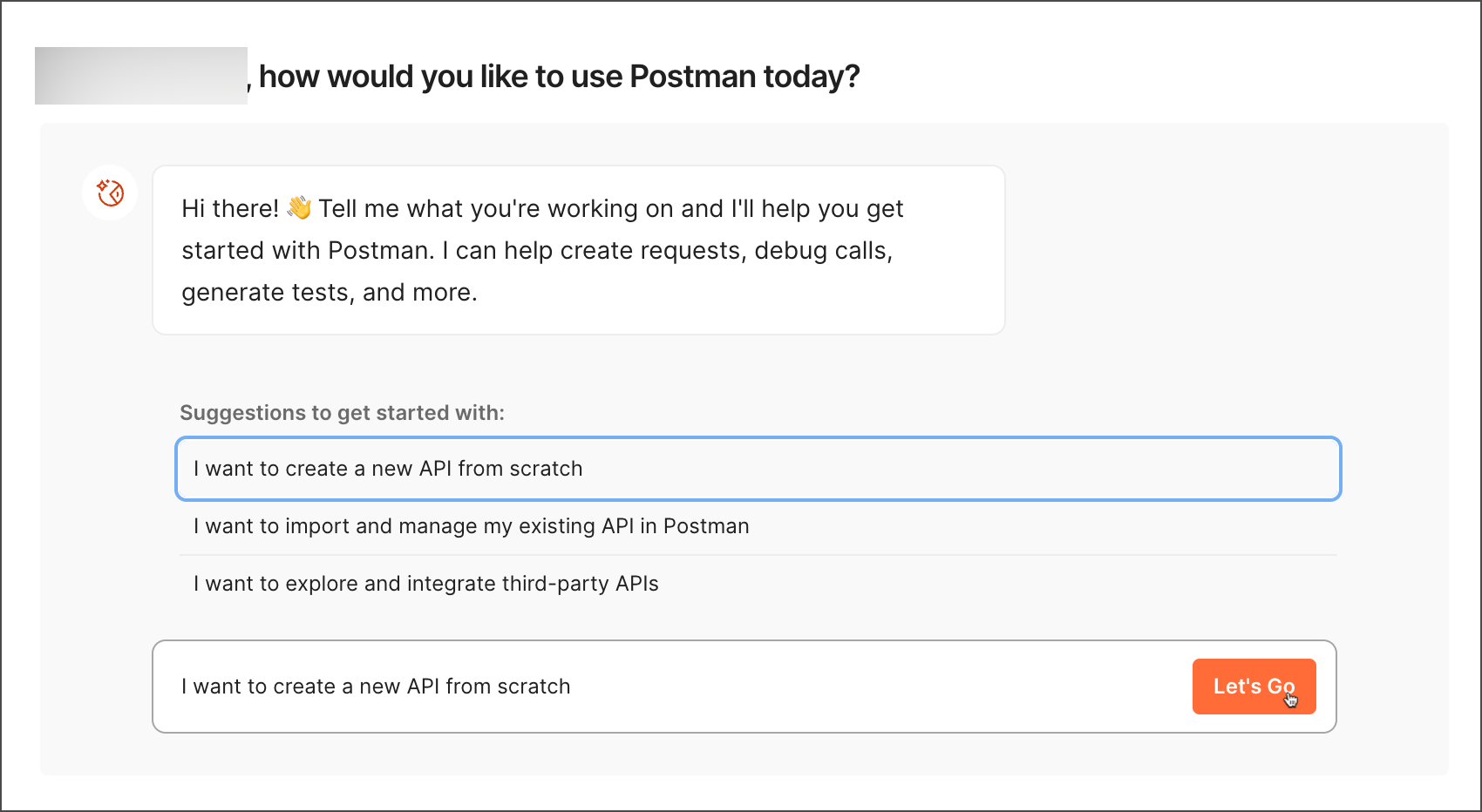
You can access Agent Mode directly from the [Homepage](https://go.postman.co). Type in your query or use one of the suggestions. Click **Let's go**, and you'll be taken to your most recently visited workspace with edit access. When the workspace opens, Agent Mode will already be loaded with your query.
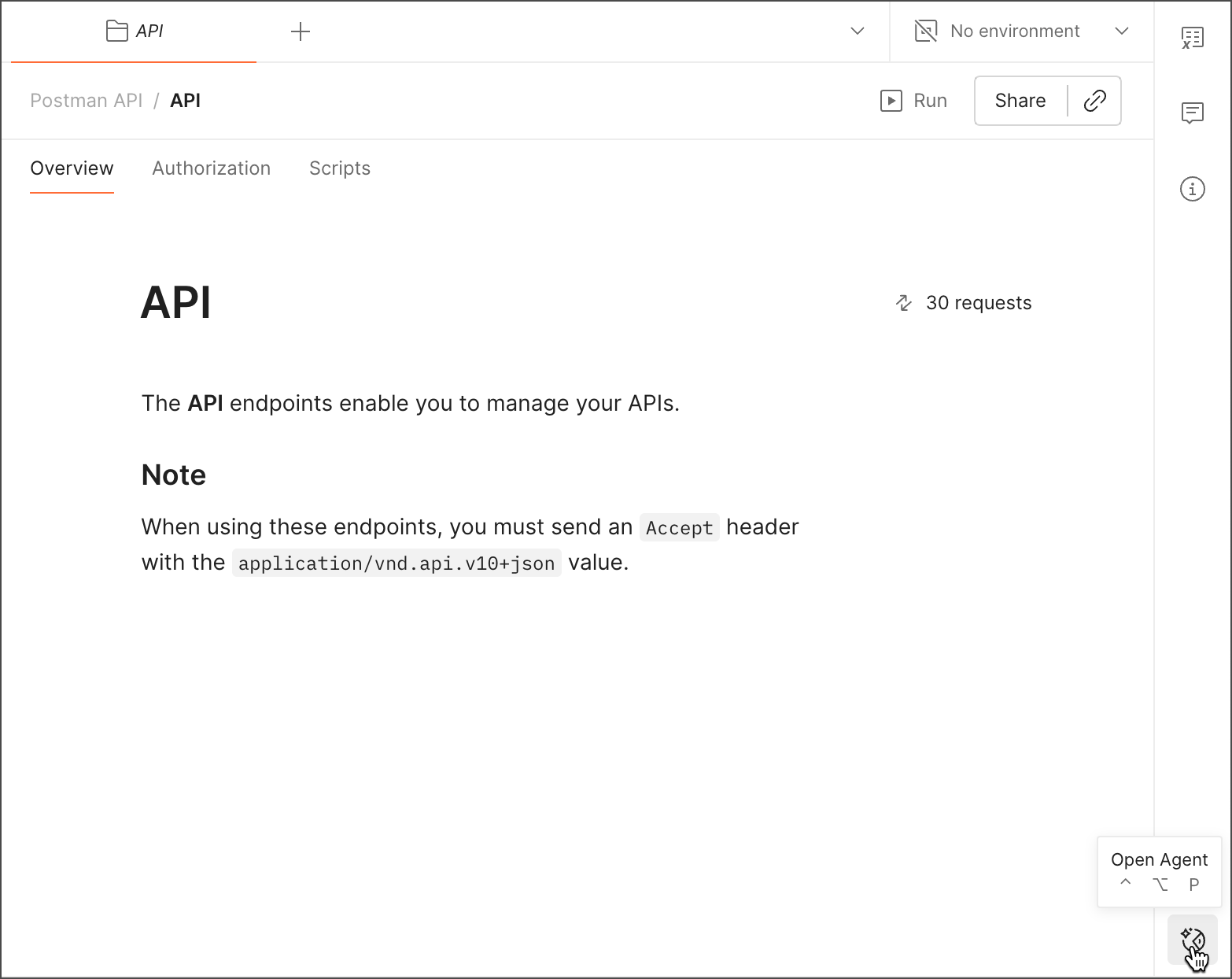
You can also get started from a workspace by clicking  **Open Agent** in the bottom-right corner.
## Start your chat
Based on the task you want to perform. Agent Mode will ask clarifying questions or request your approval before performing an action.
You can do any of the following:
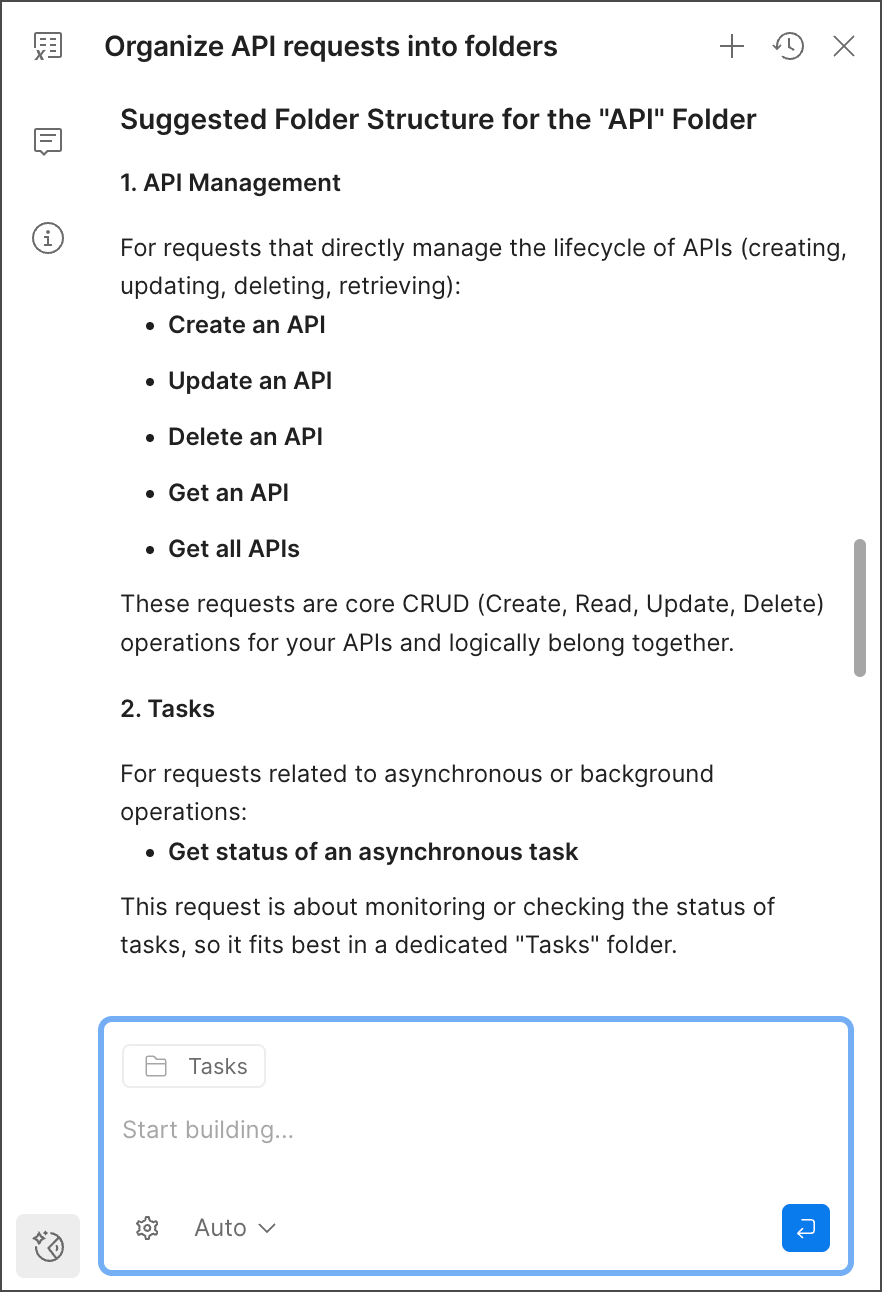
* **Select a suggestion** — For example, select "Organize existing requests into logical folders". Agent Mode identifies requests that can be grouped into folders and makes suggestions for you to approve and implement.
**Open Agent** in the bottom-right corner.

## Start your chat
Based on the task you want to perform. Agent Mode will ask clarifying questions or request your approval before performing an action.
You can do any of the following:
* **Select a suggestion** — For example, select "Organize existing requests into logical folders". Agent Mode identifies requests that can be grouped into folders and makes suggestions for you to approve and implement.
 * **Type "@" to select the context for your work** — For example, select **Collections** and find a request in a collection to modify.
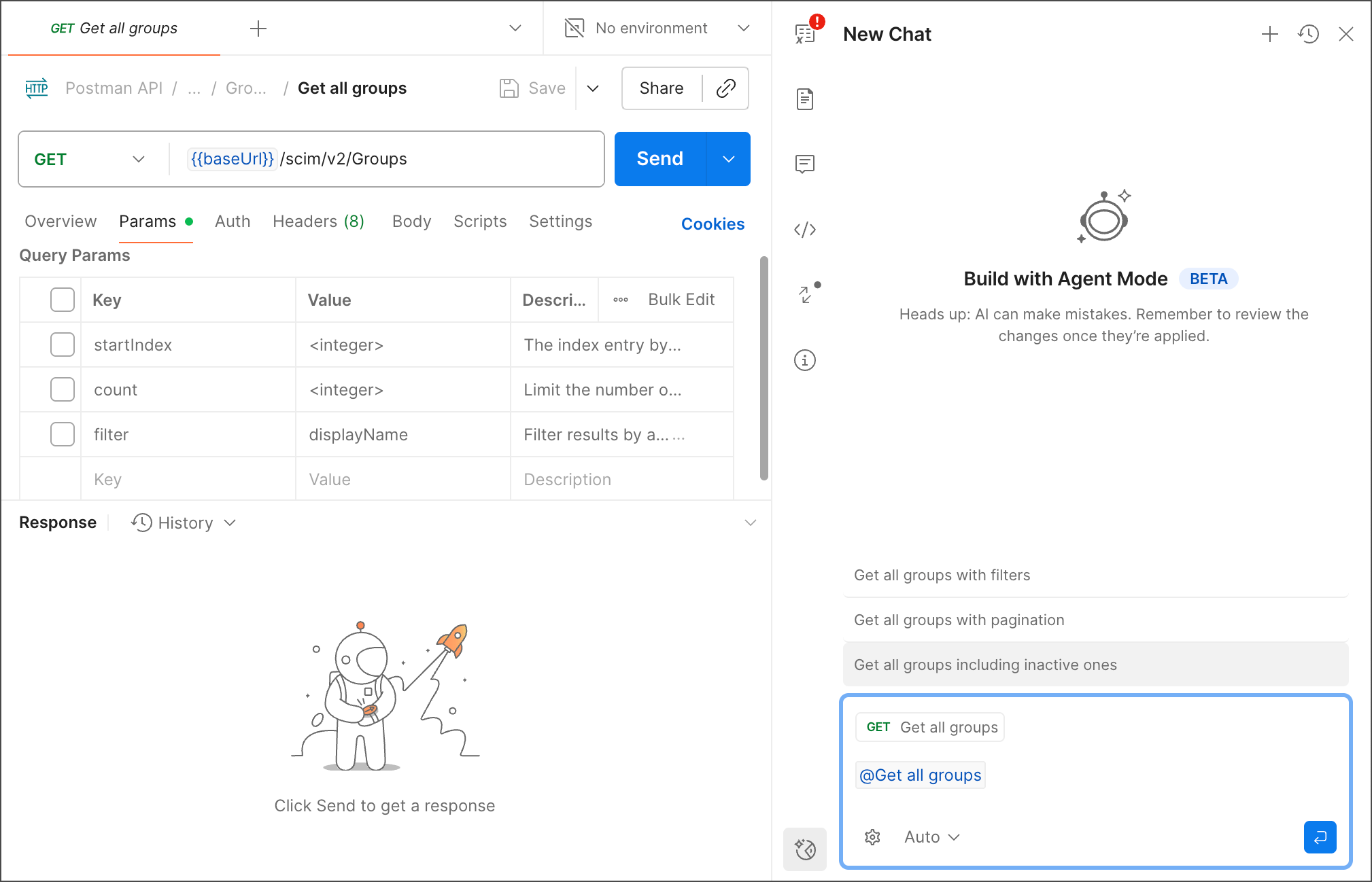 Postman lets you add collections, folders, requests, environments, and API specifications as context. Your active tab shows in the chat and also serves as context.
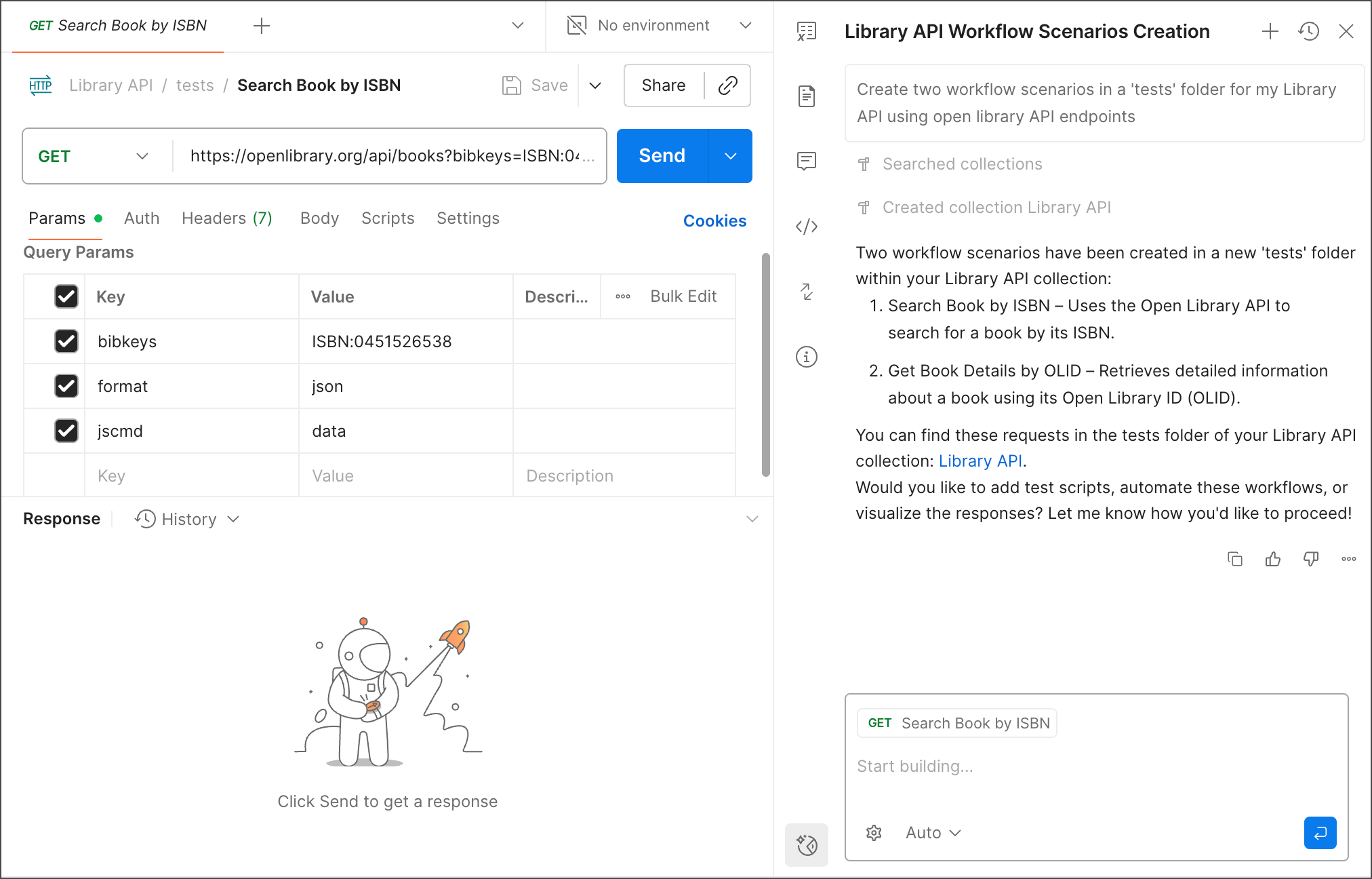
* **Describe your task in plain language** — For example, type "Create two workflow scenarios in a 'tests' folder for my Library API using open library API endpoints", and watch Agent Mode carry it out.
Not sure what to do? Try asking "What tasks can I do in Agent Mode?" for a full list of its capabilities and common tasks you can use to work more efficiently with your API development and testing workflows.
## Agent Mode options
To switch your AI model, click the model dropdown (**Auto** by default) and select a specific AI model.
Postman lets you add collections, folders, requests, environments, and API specifications as context. Your active tab shows in the chat and also serves as context.
* **Describe your task in plain language** — For example, type "Create two workflow scenarios in a 'tests' folder for my Library API using open library API endpoints", and watch Agent Mode carry it out.

Not sure what to do? Try asking "What tasks can I do in Agent Mode?" for a full list of its capabilities and common tasks you can use to work more efficiently with your API development and testing workflows.
## Agent Mode options
To switch your AI model, click the model dropdown (**Auto** by default) and select a specific AI model.
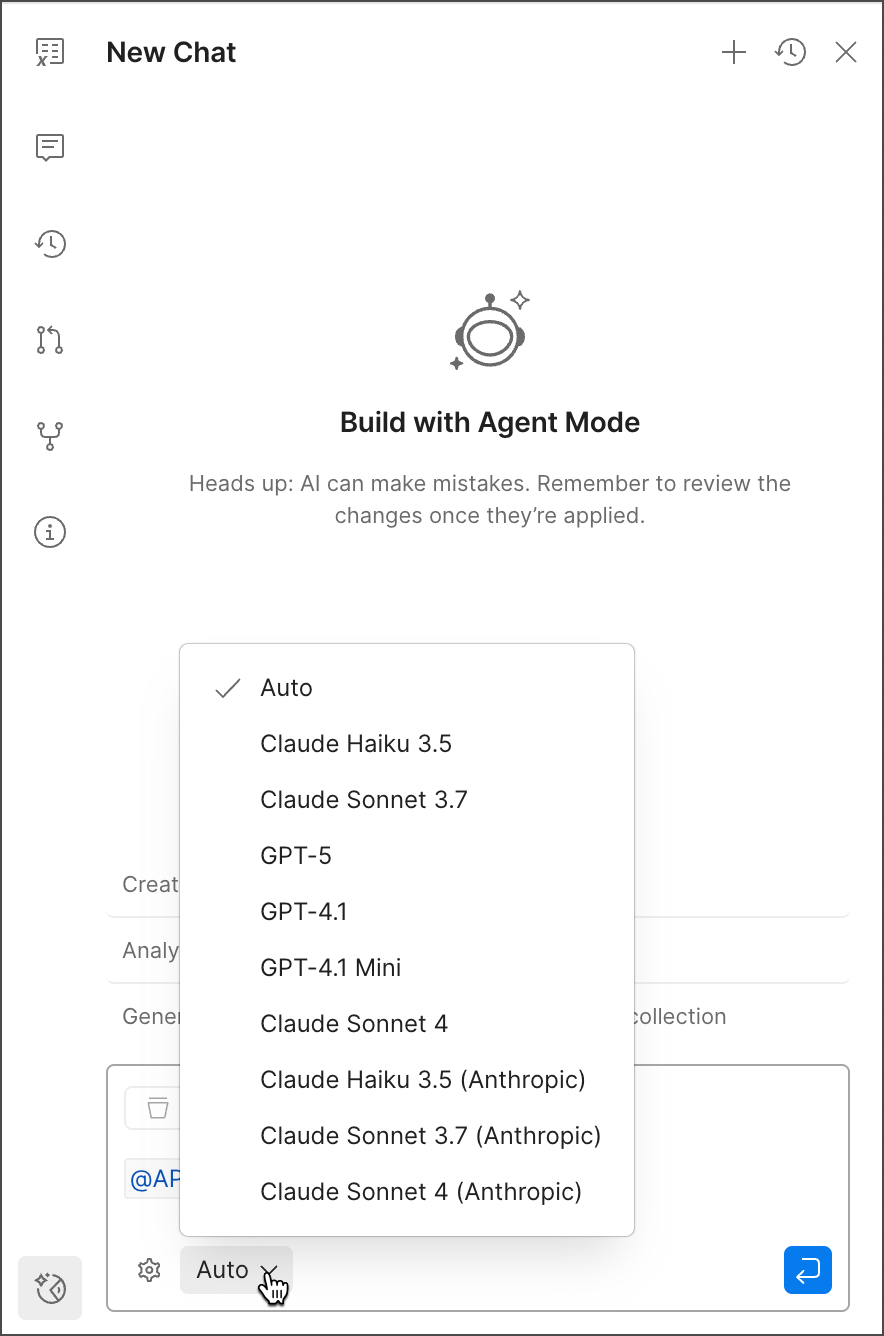 Postman recommends **Auto** as an optimized model based on Postman's heuristics. But if you see suboptimal output, try selecting a different model.
The
Postman recommends **Auto** as an optimized model based on Postman's heuristics. But if you see suboptimal output, try selecting a different model.
The  **Settings** also gives you options to run Agent Mode automatically and configure MCP servers.
 To learn more about using MCP servers in Postman, see [Create MCP requests and add them to your collections](/docs/postman-ai/mcp-requests/export-mcp-server-config/).