***
title: About Native Git
updated: 2026-02-03T00:00:00.000Z
topic\_type: multiple
plan: beta
slug: docs/agent-mode/native-git
max-toc-depth: 2
----------------
Native Git is available in the Postman desktop app on Free plans.
With Postman's file system support (Native Git), API iterations are authored and iterated locally in Git, alongside code, and intentionally not synced to Postman Cloud until the API reaches a stable, deployable state.
In Postman, you can open the local instance of your remote Git repository where your API is implemented. The collections, specifications, and environments you work on in Postman are saved as a folder inside the source code folder. You keep your collection and project files in sync, then commit your local changes to Postman Cloud.
* **Local View** represents the collection and environments stored in your local Git repository. This is your editable workspace, where all API changes are made.
* **Cloud View** represents the collection and environments stored on Postman Cloud. It is recommended to be used as the read-only source that other teams rely on. Cloud View should mirror the state of the API that's deployed.
In Local View, you can edit the collection file directly in your IDE or in Postman. You can also make changes to your local files using Postman Agent Mode or the LLM in your IDE. All development changes flow through the **Local View → Git → automated CI sync → Cloud View** pipeline.
## Native Git benefits
As a developer, you can work in a branch on a feature, like adding a new endpoint or changing the implementation, while the rest of your team works on something else. When your feature is ready, the PRs can contain code and collection changes and be version controlled together.
You can use the Postman CLI to run tests as part of the CI/CD pipeline before merging changes. Collections stored in a branch can have tests specific to the branch code.
## Set up your workspace with Native Git
Follow these recommendations to ensure access to both the collection and the underlying implementation code. The Postman Agent’s capabilities, such as AI-assisted debugging and test generation, are significantly more efficient with such setup.
### Repos with a single service
For repos with a single service, connect your Postman workspace to a root folder that contains both your API collections and your application code.
#### Example: Workspace setup for a single-service repo
...
### Mono-repos with multiple services
For mono-repos containing multiple services, connect each individual service folder to a separate Postman workspace rather than connecting the entire repo to a single workspace.
#### Example: Workspace setup for a mono-repo with multiple services
...
## Sync securely with CI/CD and Postman Cloud
While you as a developer may work primarily with local Git collections, maintaining an up-to-date **Cloud View** is essential for collaborating with teammates (like frontend developers) who may not have or may not want to have the local repository cloned. Consider local mode to be the builder's view, and cloud mode to be the consumer's view.
To ensure smooth collaboration, everyone working on the project should be on the same Postman team and same Postman workspace. Personal workspaces can't be used for Native Git workflows.
Keep your local environment values stored in the Postman app, while committing
**Shared**
values to the Git repository. Do not store sensitive secrets in the Git repo. Learn more about
[managing](/docs/sending-requests/variables/managing-environments)
and
[editing](/docs/sending-requests/variables/environment-variables)
environment variables in Postman.
To avoid manual errors and outdated cloud collections, automate the synchronization process using the [Postman CLI push command](/docs/postman-cli/postman-cli-options#sync-local-elements-with-workspaces) within a CI/CD pipeline, triggered by events like merging a pull request.
If you have existing workspaces, you can transition to the local Git setup by connecting your current workspace to a repository and pulling the cloud collections down into your local file system.
## Integrate your service with Postman's Native Git
To integrate your service with Postman's Native Git, you have to have write access to the collection and its associated environments. Then you can do the following:
1. Select the service you want to integrate.
2. Identify the blueprint collection for this service and verify write access.
3. Ensure the corresponding environments are pinned.
4. Verify the secrets aren't shared with the cloud.
5. Create a new workspace for this service and add a workspace tag.
6. Move the blueprint collection and its pinned environments to the new workspace.
7. Check out a new branch from `develop`.
8. [Connect](#connect-your-git-project-to-your-workspace) the new project workspace to the repo. Validate this step by ensuring `.postman/config.json` appears in your root directory. This file maps your local files to specific Postman Cloud entities.
9. Pull the collection and environments into your file system. This step brings collections to your Git repo.
## Connect your Git project to your workspace
To connect your Git project to your workspace, do the following:
1. Open your project workspace.
2. From the Postman sidebar, click  **Files**.
3. Click **Open Folder**.
4. Open the Git project you want to connect to your workspace.
5. Click **Connect**. Postman connects your local Git project to your workspace. Now you have the option to see the branch in **Local View** or access **Cloud View** in the bottom left.
**Files**.
3. Click **Open Folder**.
4. Open the Git project you want to connect to your workspace.
5. Click **Connect**. Postman connects your local Git project to your workspace. Now you have the option to see the branch in **Local View** or access **Cloud View** in the bottom left.
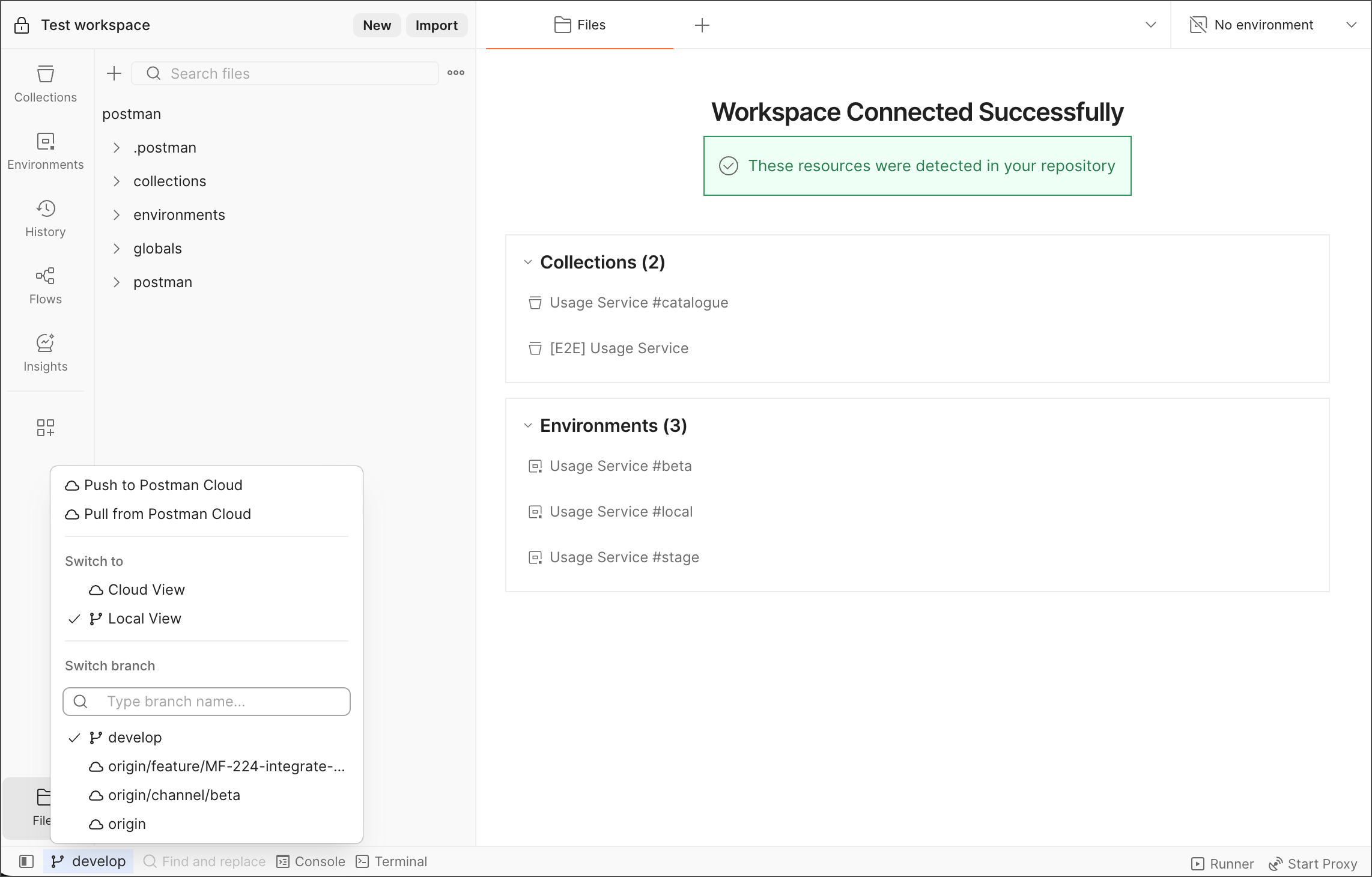 You can only connect one folder in your filesystem to a workspace at a time. To open your files in a different workspace, you must disconnect from the workspace your file are connected to. Select **File viewer options > Disconnect**.
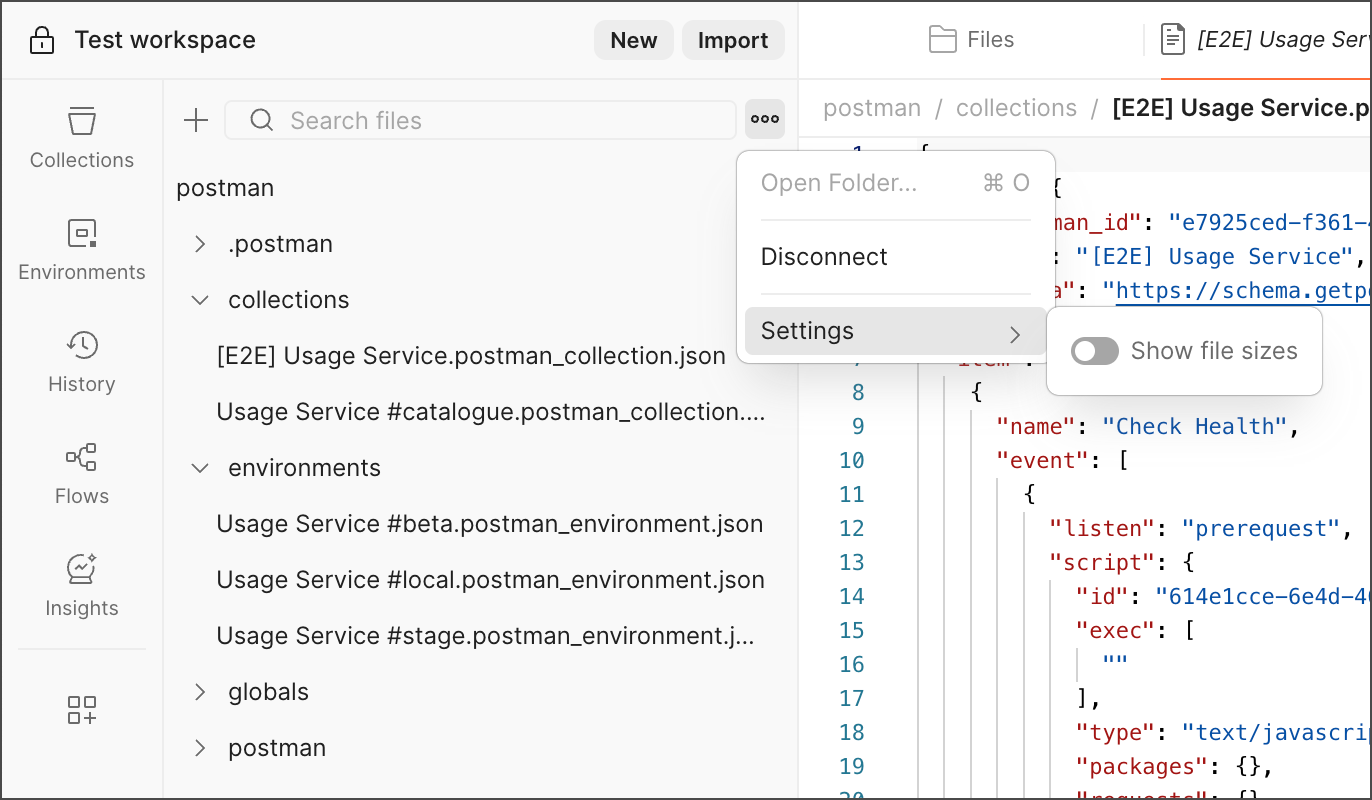 When you connect to a workspace, Postman automatically adds two directories: `.postman` (hidden) and `postman`. The visible `postman` directory includes subfolders for your collections and environments.
You can sync and push local elements to workspaces in the cloud with [the Postman CLI](/docs/postman-cli/postman-cli-overview/). To learn more, see [Sync local elements with workspaces](/docs/postman-cli/postman-cli-options/#sync-local-elements-with-workspaces).
## Add a GitHub workflow to publish to Postman Cloud
1. Set up your CI/CD Secret. To generate an API Key, create a Postman API key from your [Postman account settings](https://go.postman.co/settings/me/api-keys). Add this key as a protected secret (for example, `POSTMAN_API_KEY`) in your repository’s settings (for example, GitHub Secrets, GitLab Variables, and so on).
2. Add the synchronization step to your pipeline. The primary command recommended for this workflow is `postman workspace push`. This command validates and synchronizes your local files with the cloud workspace.
### Example: GitHub Actions workflow
Create or update your `.github/workflows/postman-publish.yml` file with the following steps:
```yaml
name: Publish changes to Postman
on:
push:
branches:
- main # Trigger sync when code is merged to main
jobs:
publish-changes:
runs-on: ubuntu-latest
steps:
- name: Checkout repository
uses: actions/checkout@v4
- name: Install Postman CLI
run: |
curl -o- "https://dl-cli.pstmn.io/install/unix.sh" | sh
- name: Verify Postman CLI version
run: postman --version
- name: Login to Postman
run: postman login --with-api-key ${{ secrets.POSTMAN_API_KEY }}
- name: Publish changes to Cloud
run: postman workspace push -y
```
### Recommended best practices
* **Use the `--yes` flag:** In a CI/CD environment, use the `-y` or `--yes` option to skip manual confirmation prompts.
* **Mono-repo Support:** If you follow the team's recommendation for mono-repos, use the `--collections-dir` and `--environments-dir` flags to specify paths for each service.
* **Validation:** The push command automatically performs a "prepare" step to validate your files before syncing. You can skip this with `--no-prepare` if needed, though it's not recommended for production pipelines.
## Merge and validate your integration
To complete your setup, do the following:
1. Commit the Postman files + GitHub workflow and push your branch.
2. Create a PR to `develop` and merge it.
3. Trigger a release to `main`.
## Develop with Native Git
1. Open the service-specific project workspace. This workspace contains your blueprint collection and its pinned environments, and is already connected to your Git repo.
2. Switch Postman to Local View. This ensures you are editing the local JSON files generated by the Git-backed connection.
3. (One-time per machine) Set the repo directory. Point Postman to the root of your service’s Git repository. This enables the app to read/write the collection dumps under `postman/`.
4. Create a new feature branch. From your terminal or Git client:
```bash
git checkout main
git pull
git checkout -b feature/
```
The branch switch is automatically reflected inside the Postman App.
1. Make API changes in the Postman App. Edit the blueprint collection or its pinned environments from Local View only.
Examples:
* Adding new endpoints
* Updating request structures
* Updating test scripts
* Editing `STAGE/BETA` environment variables
All edits are saved directly into the JSON dumps under `postman/`.
Any changes made directly in Cloud View will get deleted upon subsequent invocation of
`postman workspace push`
due to absence of corresponding changes in local files.
2. Commit and push the JSON diff. Your changes will appear as modified .json files. Commit the changes and push the feature branch:
```bash
git add .
git commit -m "Update API blueprint for "
git push
```
3. Raise a PR and merge to `main`. Review and merge the changes like any other code change.
Cloud View is still not updated at this stage.
4. Understand what's not synced yet. After the merge, the project workspace still shows previous data in Cloud View, and the catalog workspace forks (used by PAN) also show previous data. This is expected because updates only propagate to Cloud after a release.
5. Create a new release. Follow your usual service release process. Creating a release merges the branch to `main`, triggers a push to `main`, and kicks off the Postman sync GitHub Action.
6. Validate release creation in your usual communication channels.
7. Verify the GitHub Action run. Open your repository's **Actions tab** and look for “Publish Changes to Postman Cloud”. Ensure it completed successfully.
8. Confirm Cloud sync. Your blueprint collection and environments should now show updated content. Forked copies should reflect the same updates.
{/*
Other flows we need to document:
* Action menu choices (...) like "show file size" and "disconnect"
* terminal
* Guidance on project file structure.
* How to sync changes between the collection and source code, and then commit changes to the remote repo.
* How to switch between local and cloud view (in footer)
* All options in File viewer options in sidebar.
* Push changes from local to the cloud, and the impact of doing this. (in footer)
* End-to-end workflow of committing changes to the remote repo, and then pushing the changes to the Postman Cloud.
*/}
When you connect to a workspace, Postman automatically adds two directories: `.postman` (hidden) and `postman`. The visible `postman` directory includes subfolders for your collections and environments.
You can sync and push local elements to workspaces in the cloud with [the Postman CLI](/docs/postman-cli/postman-cli-overview/). To learn more, see [Sync local elements with workspaces](/docs/postman-cli/postman-cli-options/#sync-local-elements-with-workspaces).
## Add a GitHub workflow to publish to Postman Cloud
1. Set up your CI/CD Secret. To generate an API Key, create a Postman API key from your [Postman account settings](https://go.postman.co/settings/me/api-keys). Add this key as a protected secret (for example, `POSTMAN_API_KEY`) in your repository’s settings (for example, GitHub Secrets, GitLab Variables, and so on).
2. Add the synchronization step to your pipeline. The primary command recommended for this workflow is `postman workspace push`. This command validates and synchronizes your local files with the cloud workspace.
### Example: GitHub Actions workflow
Create or update your `.github/workflows/postman-publish.yml` file with the following steps:
```yaml
name: Publish changes to Postman
on:
push:
branches:
- main # Trigger sync when code is merged to main
jobs:
publish-changes:
runs-on: ubuntu-latest
steps:
- name: Checkout repository
uses: actions/checkout@v4
- name: Install Postman CLI
run: |
curl -o- "https://dl-cli.pstmn.io/install/unix.sh" | sh
- name: Verify Postman CLI version
run: postman --version
- name: Login to Postman
run: postman login --with-api-key ${{ secrets.POSTMAN_API_KEY }}
- name: Publish changes to Cloud
run: postman workspace push -y
```
### Recommended best practices
* **Use the `--yes` flag:** In a CI/CD environment, use the `-y` or `--yes` option to skip manual confirmation prompts.
* **Mono-repo Support:** If you follow the team's recommendation for mono-repos, use the `--collections-dir` and `--environments-dir` flags to specify paths for each service.
* **Validation:** The push command automatically performs a "prepare" step to validate your files before syncing. You can skip this with `--no-prepare` if needed, though it's not recommended for production pipelines.
## Merge and validate your integration
To complete your setup, do the following:
1. Commit the Postman files + GitHub workflow and push your branch.
2. Create a PR to `develop` and merge it.
3. Trigger a release to `main`.
## Develop with Native Git
1. Open the service-specific project workspace. This workspace contains your blueprint collection and its pinned environments, and is already connected to your Git repo.
2. Switch Postman to Local View. This ensures you are editing the local JSON files generated by the Git-backed connection.
3. (One-time per machine) Set the repo directory. Point Postman to the root of your service’s Git repository. This enables the app to read/write the collection dumps under `postman/`.
4. Create a new feature branch. From your terminal or Git client:
```bash
git checkout main
git pull
git checkout -b feature/
```
The branch switch is automatically reflected inside the Postman App.
1. Make API changes in the Postman App. Edit the blueprint collection or its pinned environments from Local View only.
Examples:
* Adding new endpoints
* Updating request structures
* Updating test scripts
* Editing `STAGE/BETA` environment variables
All edits are saved directly into the JSON dumps under `postman/`.
Any changes made directly in Cloud View will get deleted upon subsequent invocation of
`postman workspace push`
due to absence of corresponding changes in local files.
2. Commit and push the JSON diff. Your changes will appear as modified .json files. Commit the changes and push the feature branch:
```bash
git add .
git commit -m "Update API blueprint for "
git push
```
3. Raise a PR and merge to `main`. Review and merge the changes like any other code change.
Cloud View is still not updated at this stage.
4. Understand what's not synced yet. After the merge, the project workspace still shows previous data in Cloud View, and the catalog workspace forks (used by PAN) also show previous data. This is expected because updates only propagate to Cloud after a release.
5. Create a new release. Follow your usual service release process. Creating a release merges the branch to `main`, triggers a push to `main`, and kicks off the Postman sync GitHub Action.
6. Validate release creation in your usual communication channels.
7. Verify the GitHub Action run. Open your repository's **Actions tab** and look for “Publish Changes to Postman Cloud”. Ensure it completed successfully.
8. Confirm Cloud sync. Your blueprint collection and environments should now show updated content. Forked copies should reflect the same updates.
{/*
Other flows we need to document:
* Action menu choices (...) like "show file size" and "disconnect"
* terminal
* Guidance on project file structure.
* How to sync changes between the collection and source code, and then commit changes to the remote repo.
* How to switch between local and cloud view (in footer)
* All options in File viewer options in sidebar.
* Push changes from local to the cloud, and the impact of doing this. (in footer)
* End-to-end workflow of committing changes to the remote repo, and then pushing the changes to the Postman Cloud.
*/}