# Collaborate in Postman using comments
Commenting is one of Postman's most practical collaborative tools that can be used on both the publisher and consumer sides of APIs. Through interactive communication, commenting removes ambiguity, improves user experience, and helps to increase the adoption of API-driven services.
API publishers can use commenting throughout the API lifecycle to improve the API design and resolve API consumers' issues. API consumers can use commenting to ask API publishers questions and receive support about the APIs they use.
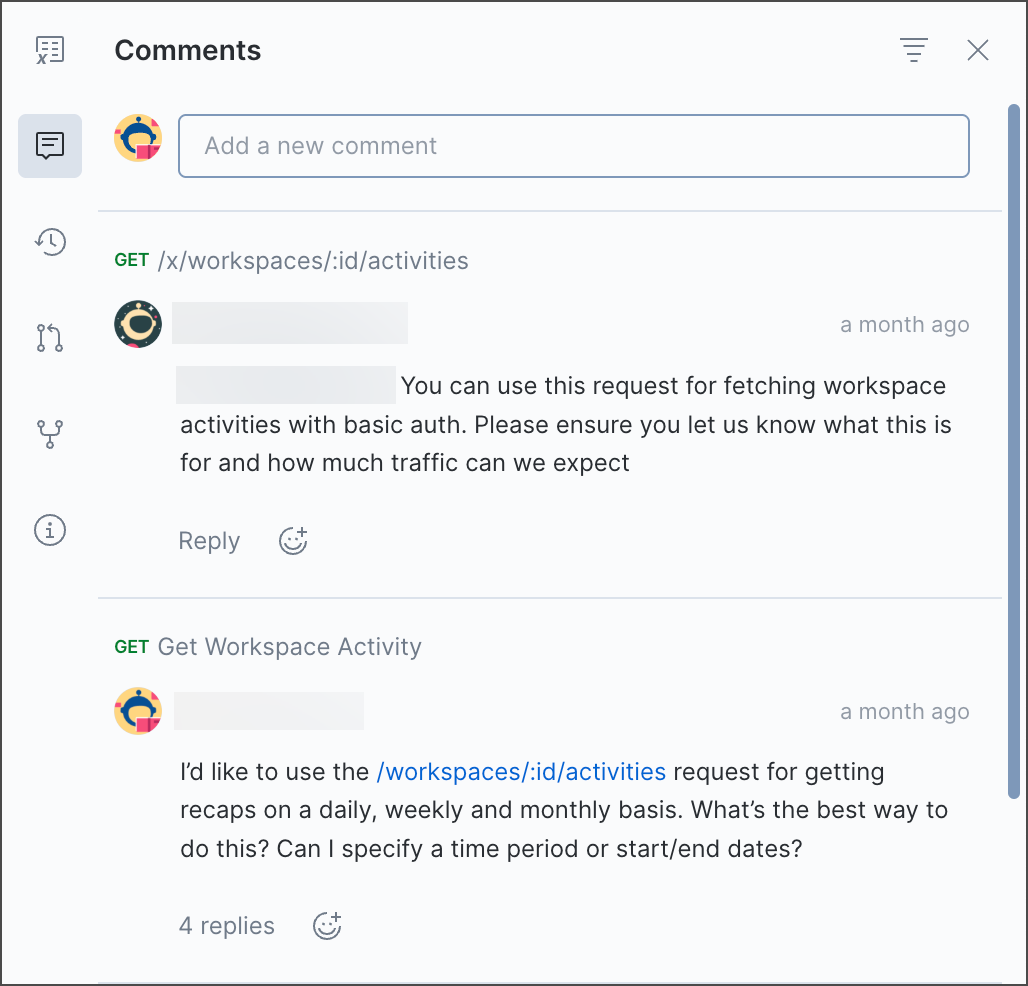
Comments aggregate at the collection level so that you can check all communication about various elements of the collection in one place. Click the comment header to jump to the commented element.
 ## Use comments in Postman
Postman provides two types of commenting: [global](#global-comments) and [inline](#inline-comments). When you add a comment, Postman notifies other collection contributors about your comment. To specify a teammate, use `@`, then select the person from the list. They'll receive an email and an in-app notification. Select the notifications icon
## Use comments in Postman
Postman provides two types of commenting: [global](#global-comments) and [inline](#inline-comments). When you add a comment, Postman notifies other collection contributors about your comment. To specify a teammate, use `@`, then select the person from the list. They'll receive an email and an in-app notification. Select the notifications icon  in the Postman header to view in-app notifications. You can also copy a link to the comment and paste it in your team channels.
If your teammate doesn't have access to the collection they've been mentioned in, they'll need to [request access](/docs/collaborating-in-postman/requesting-access-to-elements/) before they can read the comment.
For general questions about a collection and its elements, you can use global comments in the right sidebar.
in the Postman header to view in-app notifications. You can also copy a link to the comment and paste it in your team channels.
If your teammate doesn't have access to the collection they've been mentioned in, they'll need to [request access](/docs/collaborating-in-postman/requesting-access-to-elements/) before they can read the comment.
For general questions about a collection and its elements, you can use global comments in the right sidebar.
 You can add inline comments on the following items:
* Parameters, the request body, and scripts that are part of a request or example response
* Pull requests in forked collections
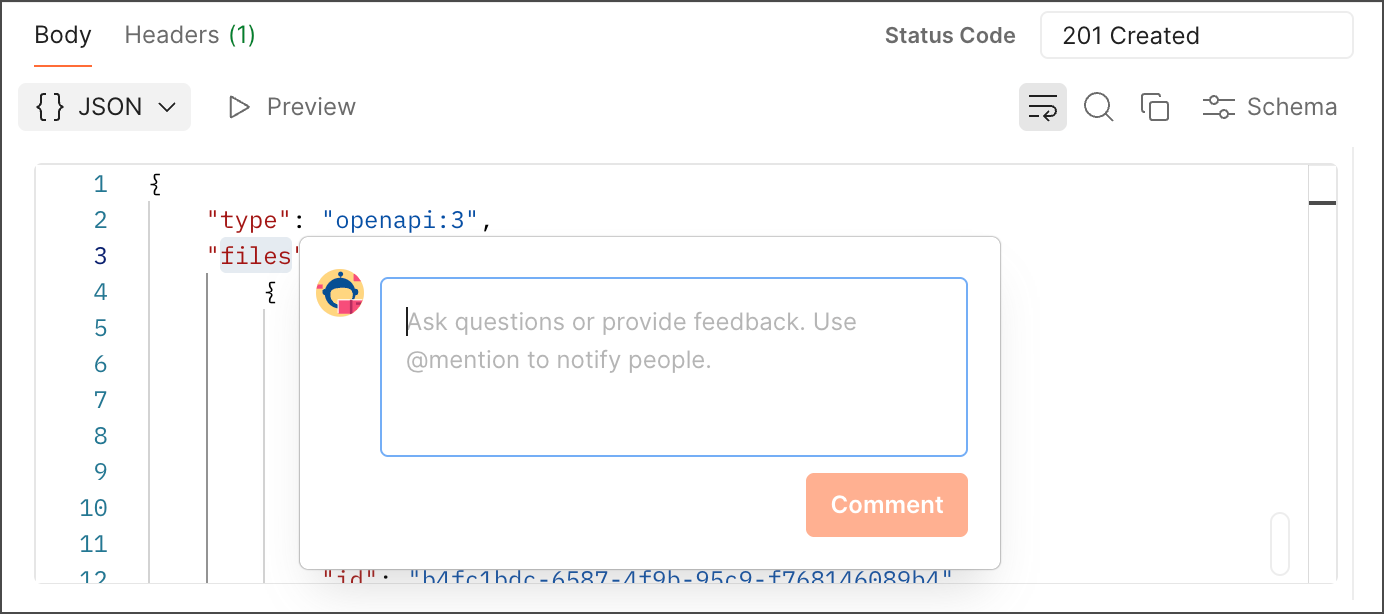
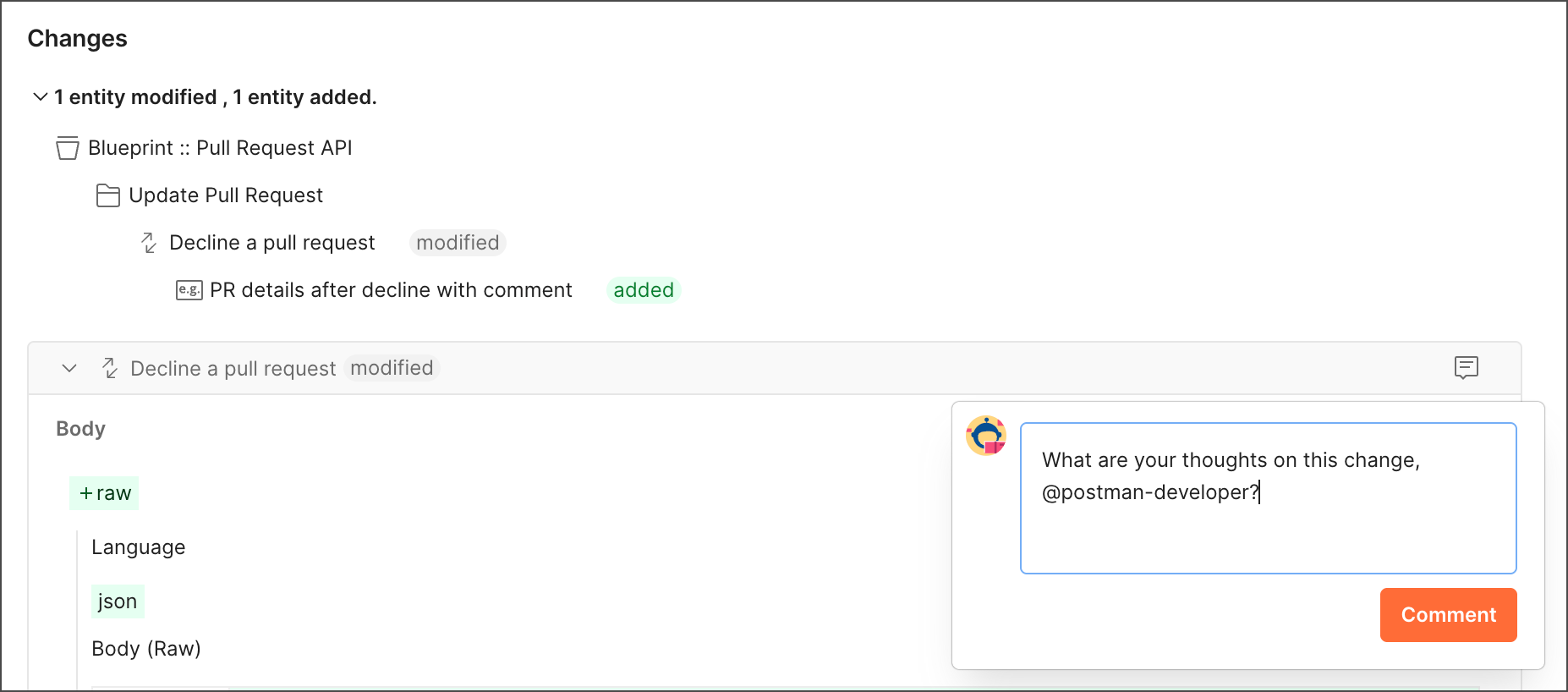
The following example shows an inline comment on an example response.
You can add inline comments on the following items:
* Parameters, the request body, and scripts that are part of a request or example response
* Pull requests in forked collections
The following example shows an inline comment on an example response.
 You can also add comments to APIs and API definitions in the Postman API Builder. Learn more about commenting on [APIs](/docs/design-apis/api-builder/managing-apis/#commenting-on-apis).
## Commenting best practices
Use comments to discuss your work with your teammates in Postman. Reply to a comment to keep the discussion going, or resolve a comment if it's been addressed. If you have questions or feedback, you can let your teammates know by mentioning them in your comments.
Encourage users in your public workspace or Partner Workspace to use comments if they get errors or have any questions. Doing so will help establish a rapport with your users and help to resolve their errors faster. For example, your users might get a `400` response and wonder why or have questions about how to enter an API key.
Avoid using comments to document your APIs. Postman automatically generates [documentation](/docs/publishing-your-api/api-documentation-overview/) for your collection. To access it, select your collection in the sidebar, then select **View complete documentation** in the workbench. You can edit and build upon your documentation to make it better for your users.
## Global comments
You can add global comments to a collection, folder, request, example, manual collection run, or pull request in Postman.
You must have access to a collection to add comments to it.
To add a comment to a collection, do the following:
1. Select **Collections** in the sidebar and select the collection, folder, request, example, manual collection run, or pull request you want to comment on.
2. Select
You can also add comments to APIs and API definitions in the Postman API Builder. Learn more about commenting on [APIs](/docs/design-apis/api-builder/managing-apis/#commenting-on-apis).
## Commenting best practices
Use comments to discuss your work with your teammates in Postman. Reply to a comment to keep the discussion going, or resolve a comment if it's been addressed. If you have questions or feedback, you can let your teammates know by mentioning them in your comments.
Encourage users in your public workspace or Partner Workspace to use comments if they get errors or have any questions. Doing so will help establish a rapport with your users and help to resolve their errors faster. For example, your users might get a `400` response and wonder why or have questions about how to enter an API key.
Avoid using comments to document your APIs. Postman automatically generates [documentation](/docs/publishing-your-api/api-documentation-overview/) for your collection. To access it, select your collection in the sidebar, then select **View complete documentation** in the workbench. You can edit and build upon your documentation to make it better for your users.
## Global comments
You can add global comments to a collection, folder, request, example, manual collection run, or pull request in Postman.
You must have access to a collection to add comments to it.
To add a comment to a collection, do the following:
1. Select **Collections** in the sidebar and select the collection, folder, request, example, manual collection run, or pull request you want to comment on.
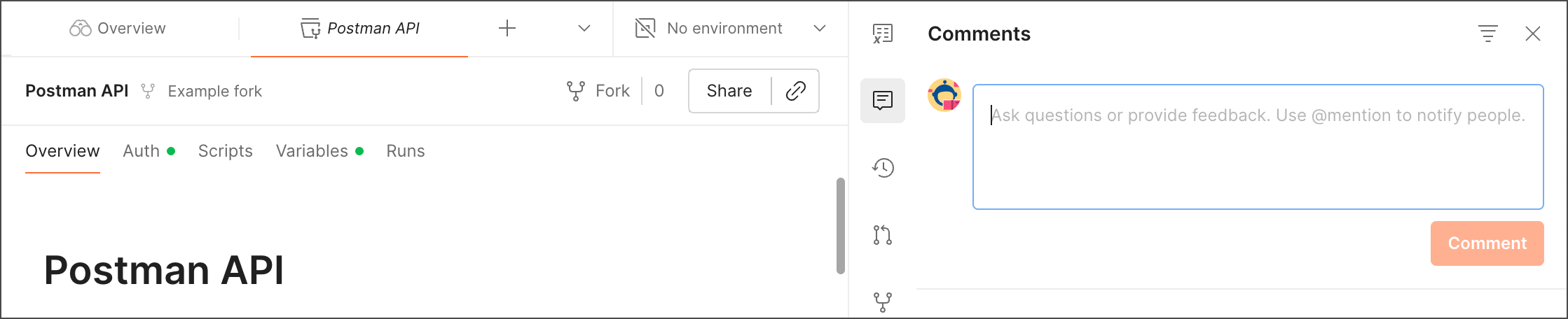
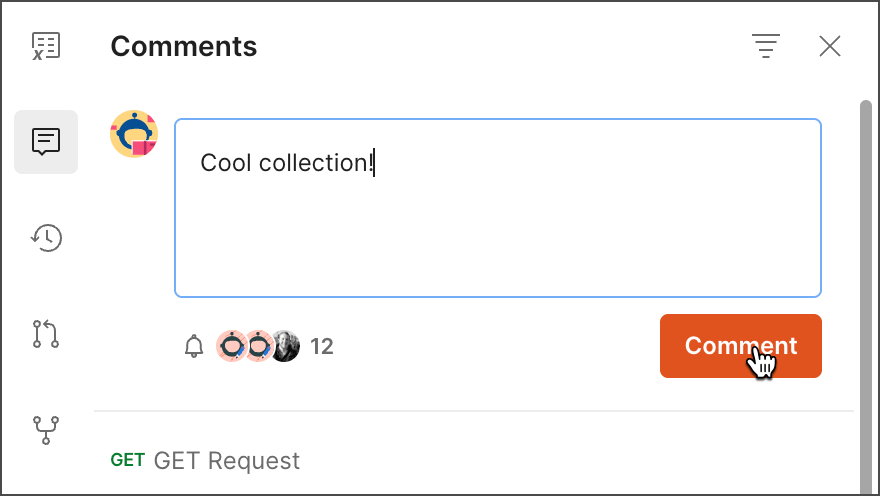
2. Select  **Comments** in the right sidebar and enter your comment.
Postman supports Markdown in comments. See the [Markdown Cheatsheet on GitHub](https://github.com/adam-p/markdown-here/wiki/Markdown-Cheatsheet) for tips on formatting.
3. Select **Comment** to add your comment.
**Comments** in the right sidebar and enter your comment.
Postman supports Markdown in comments. See the [Markdown Cheatsheet on GitHub](https://github.com/adam-p/markdown-here/wiki/Markdown-Cheatsheet) for tips on formatting.
3. Select **Comment** to add your comment.
 ### Format comments
Comments (including [inline comments](#inline-comments)) support the same formatting features as the [Postman editor](/docs/publishing-your-api/authoring-your-documentation/#write-descriptions-in-the-postman-editor). Use common keyboard shortcuts to format text, like **⌘+B** or **Ctrl+B** to make text bold, or paste formatted text and tables from a word processor or other source. You can also drag or paste an image into your comment, or add and edit links.
Postman supports [Markdown](https://github.com/adam-p/markdown-here/wiki/Markdown-Cheatsheet) in comments. For example, enter `#` followed by a space to start a new heading, or enter `---` to add a horizontal line. You can also copy existing Markdown code, including lists and tables, and paste it into the editor to instantly format it.
To learn more about formatting content, go to [Write descriptions in the Postman editor](/docs/publishing-your-api/authoring-your-documentation/#write-descriptions-in-the-postman-editor).
## Inline comments
Use inline comments to comment on a specific part of a request, example, or script. You can add comments to parameters, headers, request bodies, and lines of code in scripts.
### Comment on part of a request or example
To add an inline comment to a request or example, do the following:
1. Open the request or example.
2. Select the part of the request or example you want to comment on. You can select text within a query parameter, path parameter, header, and request body (**form-data**, **x-www-form-urlencoded**, and **raw**).
3. Right-click the selection, then select **Comment**.
### Format comments
Comments (including [inline comments](#inline-comments)) support the same formatting features as the [Postman editor](/docs/publishing-your-api/authoring-your-documentation/#write-descriptions-in-the-postman-editor). Use common keyboard shortcuts to format text, like **⌘+B** or **Ctrl+B** to make text bold, or paste formatted text and tables from a word processor or other source. You can also drag or paste an image into your comment, or add and edit links.
Postman supports [Markdown](https://github.com/adam-p/markdown-here/wiki/Markdown-Cheatsheet) in comments. For example, enter `#` followed by a space to start a new heading, or enter `---` to add a horizontal line. You can also copy existing Markdown code, including lists and tables, and paste it into the editor to instantly format it.
To learn more about formatting content, go to [Write descriptions in the Postman editor](/docs/publishing-your-api/authoring-your-documentation/#write-descriptions-in-the-postman-editor).
## Inline comments
Use inline comments to comment on a specific part of a request, example, or script. You can add comments to parameters, headers, request bodies, and lines of code in scripts.
### Comment on part of a request or example
To add an inline comment to a request or example, do the following:
1. Open the request or example.
2. Select the part of the request or example you want to comment on. You can select text within a query parameter, path parameter, header, and request body (**form-data**, **x-www-form-urlencoded**, and **raw**).
3. Right-click the selection, then select **Comment**.
 4. Enter your comment.
5. Select **Comment** to add your comment.
### Comment on a script
To add an inline comment to a script, do the following:
1. Open a [pre-request](/docs/tests-and-scripts/write-scripts/pre-request-scripts/) or [post-response](/docs/tests-and-scripts/write-scripts/test-scripts/) script.
2. Select a line of code in the script. A comments icon appears next to the line of code.
3. Select the comments icon .
4. Enter your comment and select **Comment**. A comments icon remains next to each line that has a comment.
### Comment on a pull request
To add an inline comment to a pull request, do the following:
1. Open the pull request.
2. Click the comments icon next to a change and enter your comment.
3. Click **Comment** to add your comment.
4. Enter your comment.
5. Select **Comment** to add your comment.
### Comment on a script
To add an inline comment to a script, do the following:
1. Open a [pre-request](/docs/tests-and-scripts/write-scripts/pre-request-scripts/) or [post-response](/docs/tests-and-scripts/write-scripts/test-scripts/) script.
2. Select a line of code in the script. A comments icon appears next to the line of code.
3. Select the comments icon .
4. Enter your comment and select **Comment**. A comments icon remains next to each line that has a comment.
### Comment on a pull request
To add an inline comment to a pull request, do the following:
1. Open the pull request.
2. Click the comments icon next to a change and enter your comment.
3. Click **Comment** to add your comment.
 To learn more about forking collections and using version control in Postman, go to [Version control for Postman collections and environments](/docs/collaborating-in-postman/using-version-control/version-control-overview/).
## Share a link to a comment
You can get a link to a comment you can share with others. You can also edit or delete a comment.
1. Select a collection, folder, request, example, or pull request, then click **Comments** in the right sidebar. Or select an [inline comment](#inline-comments).
2. Click
To learn more about forking collections and using version control in Postman, go to [Version control for Postman collections and environments](/docs/collaborating-in-postman/using-version-control/version-control-overview/).
## Share a link to a comment
You can get a link to a comment you can share with others. You can also edit or delete a comment.
1. Select a collection, folder, request, example, or pull request, then click **Comments** in the right sidebar. Or select an [inline comment](#inline-comments).
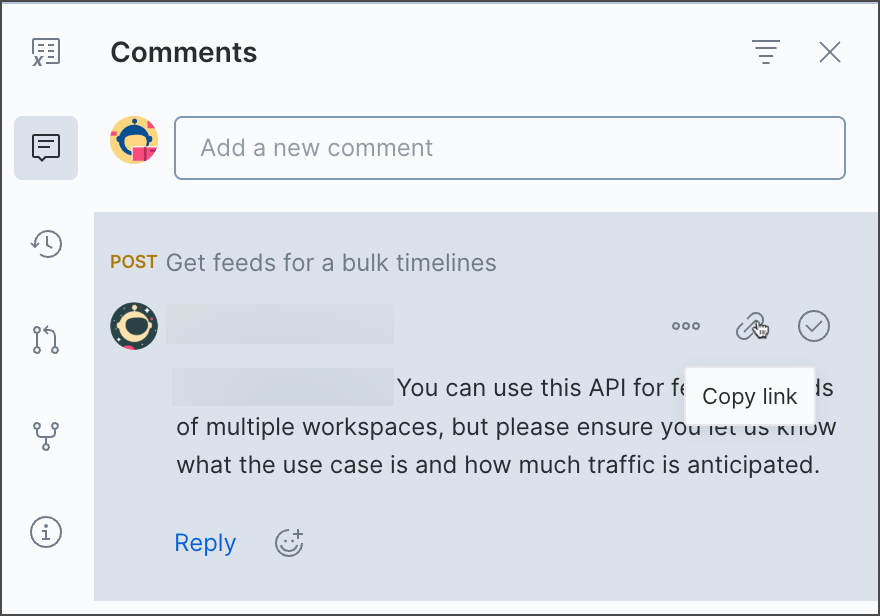
2. Click  **Copy link** to copy a direct link to the comment to your clipboard.
 If you're a [Workspace Admin](/docs/administration/roles-and-permissions/#workspace-roles), you can delete contributor comments, but you can't edit contributor comments.
## Respond to comments
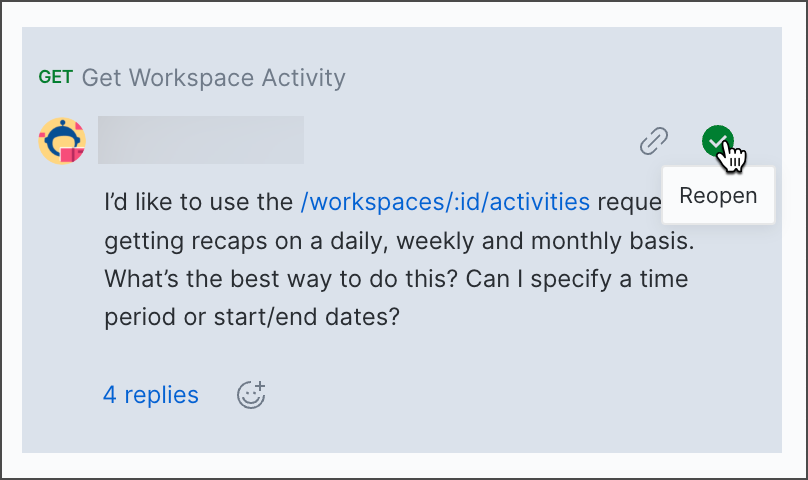
You can reply or react to a comment to keep the conversation going. Replies are grouped with the original comment, so you can have more than one comment thread on a collection, folder, request, example, or pull request. When you reply to a comment, the user who added the comment will receive a notification about your reply. You can resolve a comment after it's been addressed. You can also reopen a comment.
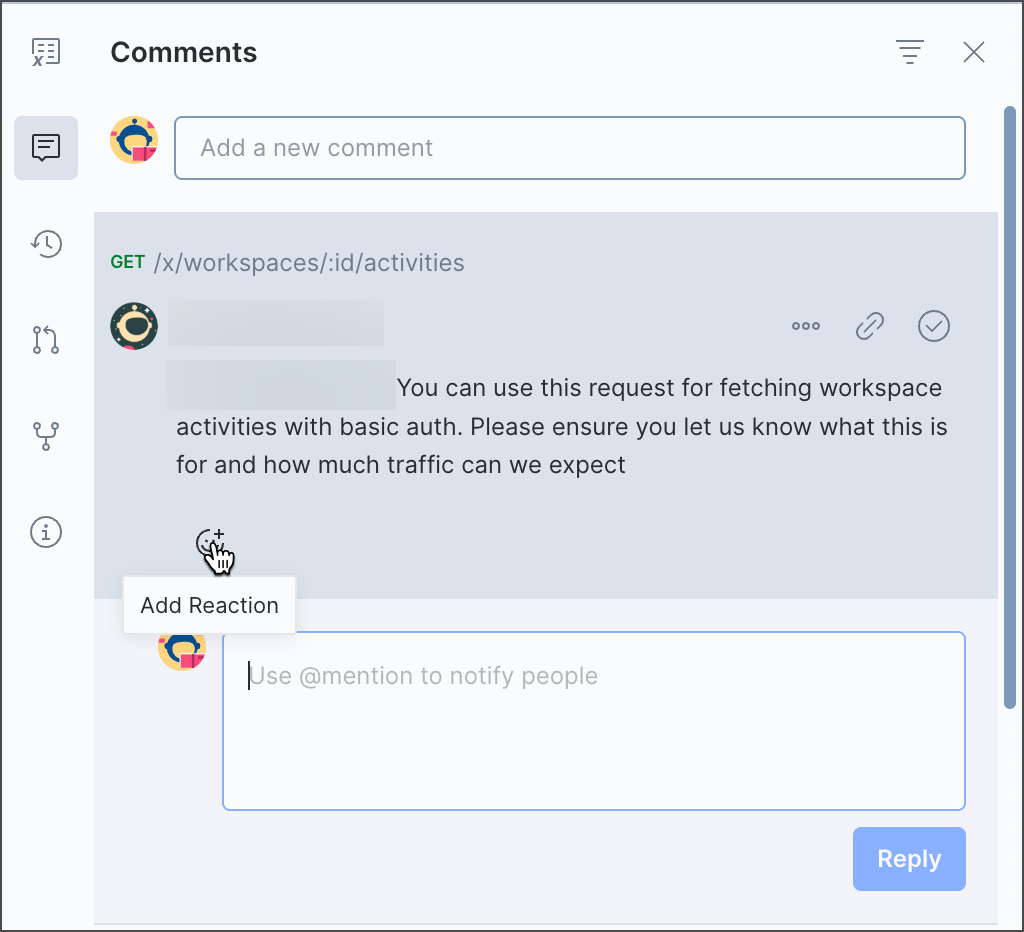
On a comment, click **Reply** or **Add Reaction**.
If you're a [Workspace Admin](/docs/administration/roles-and-permissions/#workspace-roles), you can delete contributor comments, but you can't edit contributor comments.
## Respond to comments
You can reply or react to a comment to keep the conversation going. Replies are grouped with the original comment, so you can have more than one comment thread on a collection, folder, request, example, or pull request. When you reply to a comment, the user who added the comment will receive a notification about your reply. You can resolve a comment after it's been addressed. You can also reopen a comment.
On a comment, click **Reply** or **Add Reaction**.
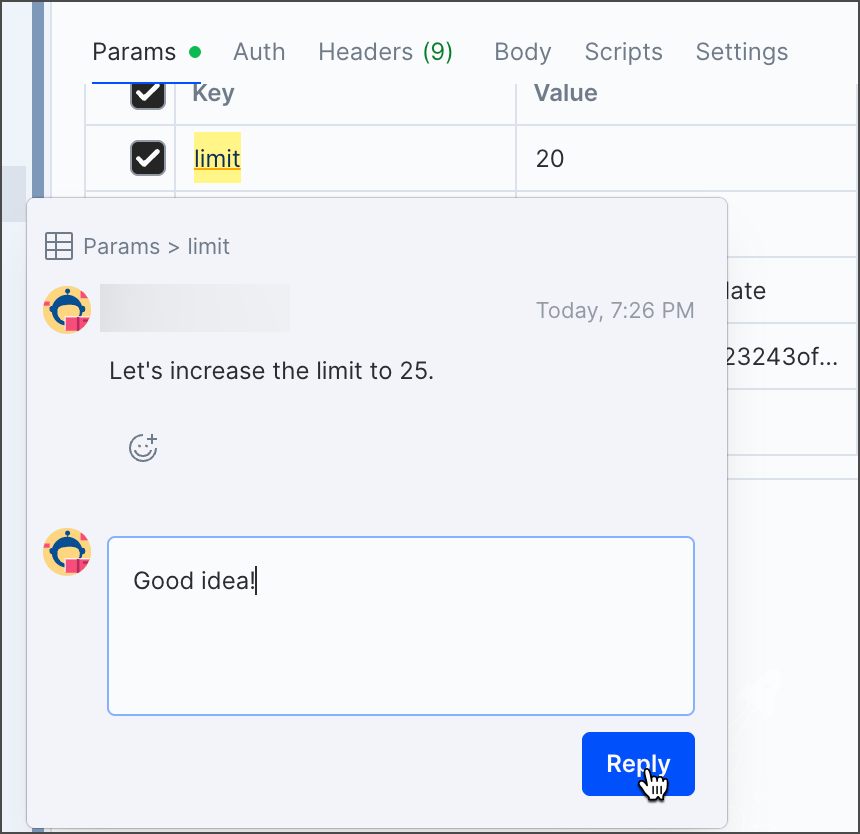
 If you're replying to an inline comment on a request or example, you can also click the highlighted part of the request or example.
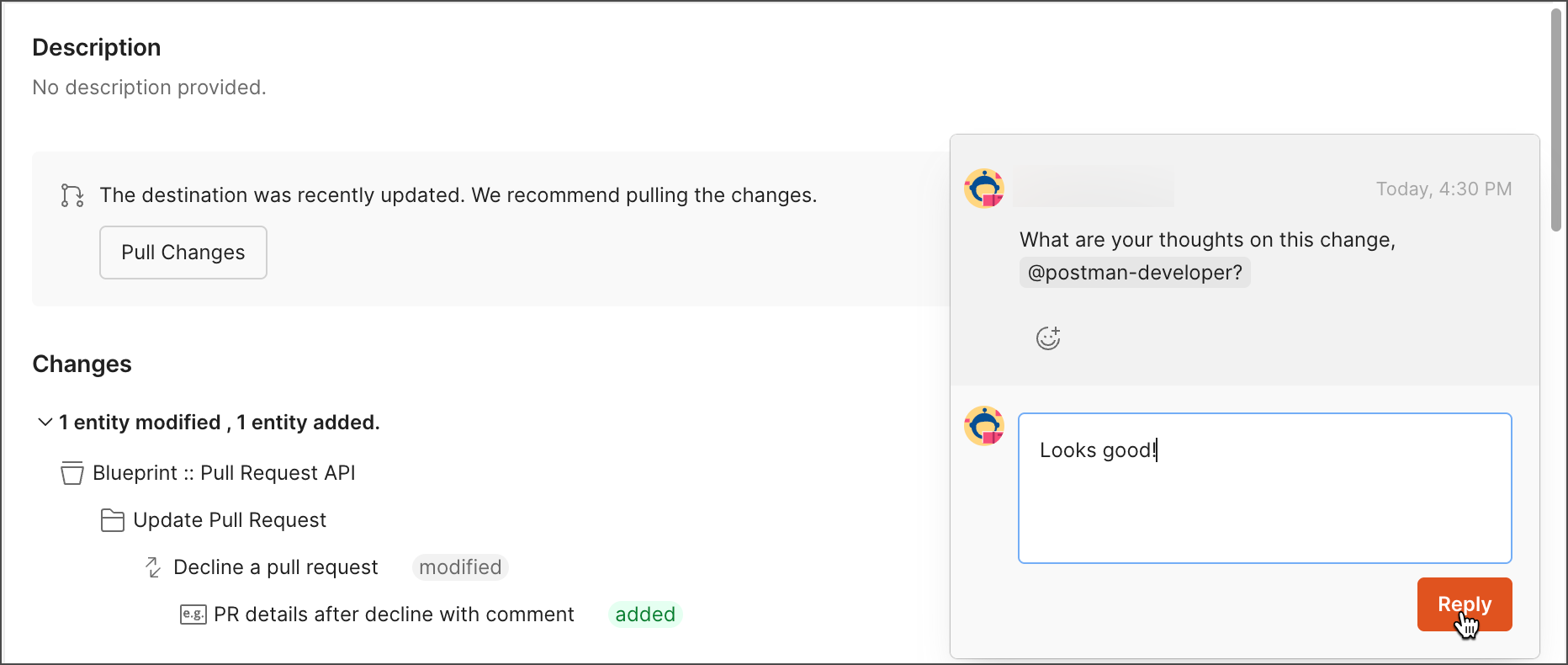
 If you're replying to a comment on a change in a pull request, you can also click the notification comments icon
  next to a change.
 Click
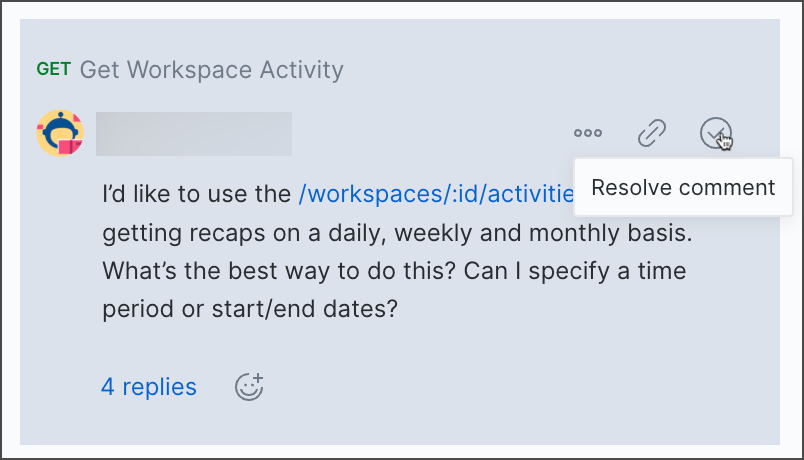
Click  **Resolve comment** to close the comment and any associated replies.
 To reopen a comment, do the following:
1. Click the filter icon
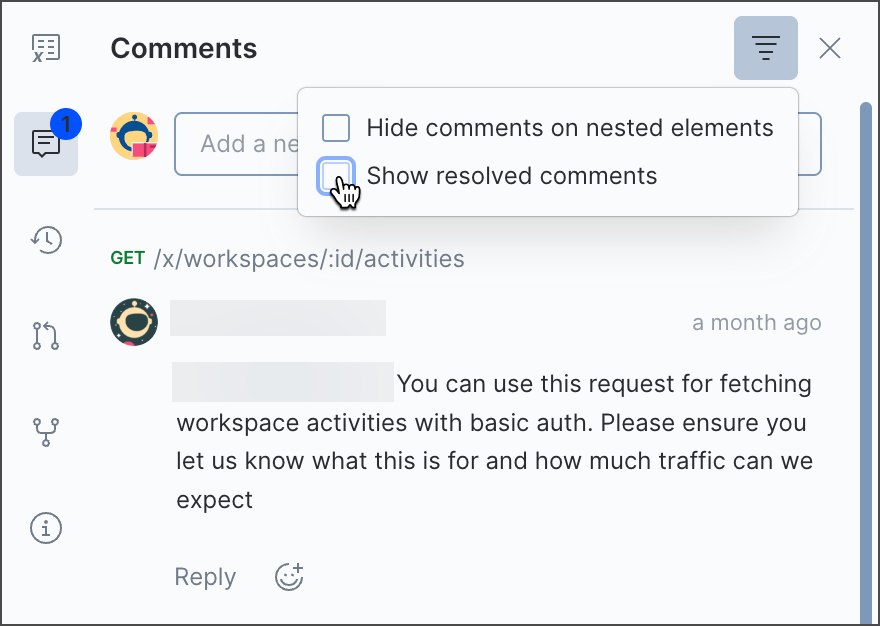
To reopen a comment, do the following:
1. Click the filter icon  in the comments pane and select **Show resolved comments**.
 2. Click **Reopen** next to the comment.