***
title: Document a collection with Fern
updated: 2026-03-01T00:00:00.000Z
max-toc-depth: 2
topictype: procedure
ux: v12
-------
When you publish a Postman Collection with Fern, Fern automatically generates your API reference documentation from your collection. Your site is deployed live and backed by a GitHub repository that your team owns.
From there, you can add guides, overview pages, tutorials, and other content alongside your API reference to build a complete documentation site.
## Publish a collection with Fern
To publish your collection documentation with Fern, do the following:
1. Go to your public workspace. In the left sidebar, expand Collections and click your collection.
2. Scroll to the bottom of the collection and click **View complete documentation**.
3. Click **Publish** in the upper right corner, select Fern, and click **Get started**.
4. Configure your documentation site:
* **Site name** - Choose a name for your documentation site.
* **Primary color** - Select a primary color scheme for your site's branding.
* **Logo** - Upload a logo for your site, or paste a URL (like a marketing site or blog) and Fern will automatically extract your brand information. If you've previously published documentation with Postman, your existing logo and color scheme will be imported automatically.
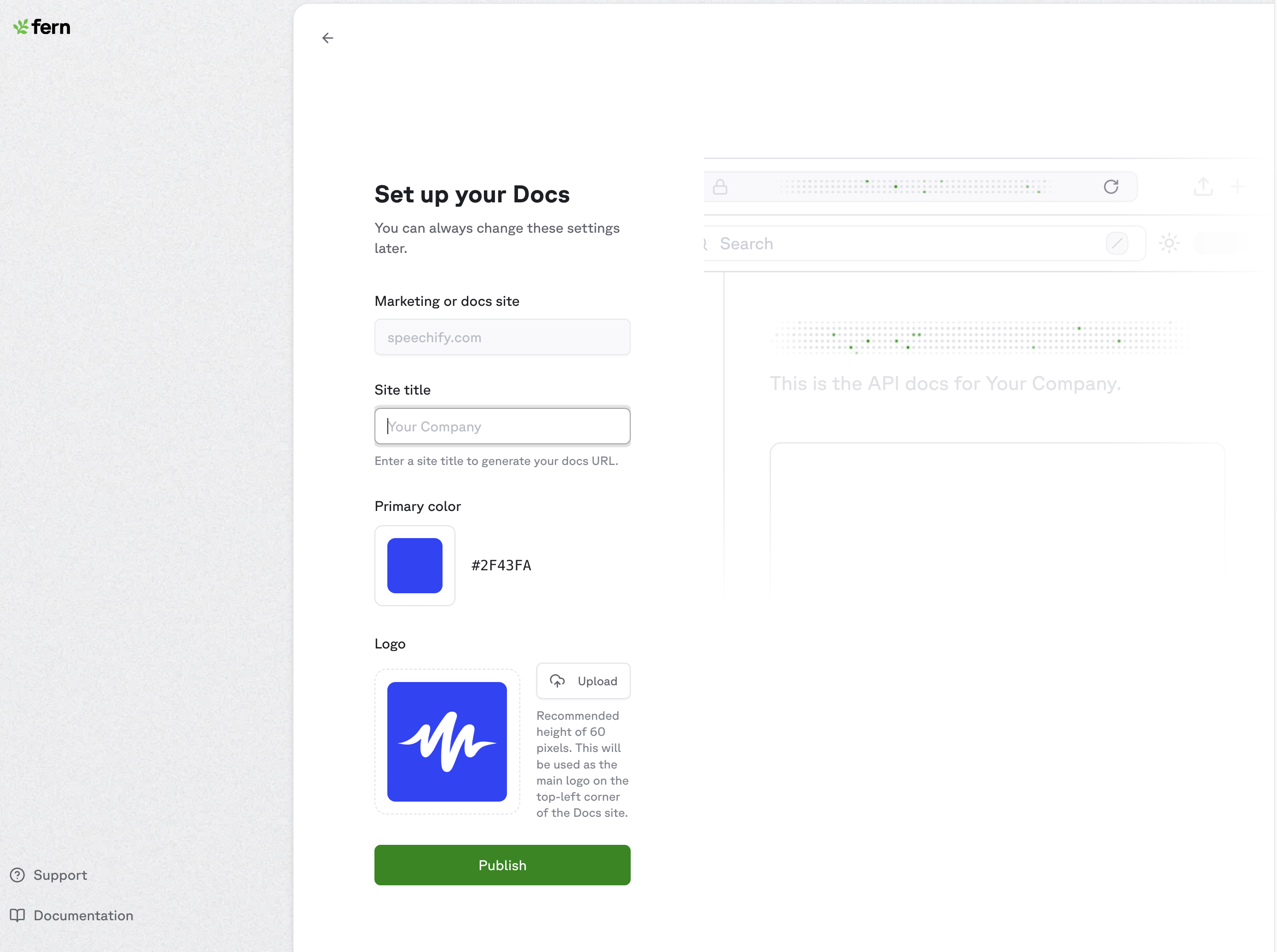
5. Click **Publish**. Your documentation is published to a GitHub repository that your team owns and deployed live onto a new documentation site. You can modify all of these settings later.
Each collection can only be published once through Fern. If you try to publish a collection that has already been published by another team member, you'll receive an error.
### View your published documentation
After Fern publishes your site, your documentation is deployed live and backed by a GitHub repository. You can edit the documentation, take ownership of the repository, navigate to your live site URL, or share with your team.
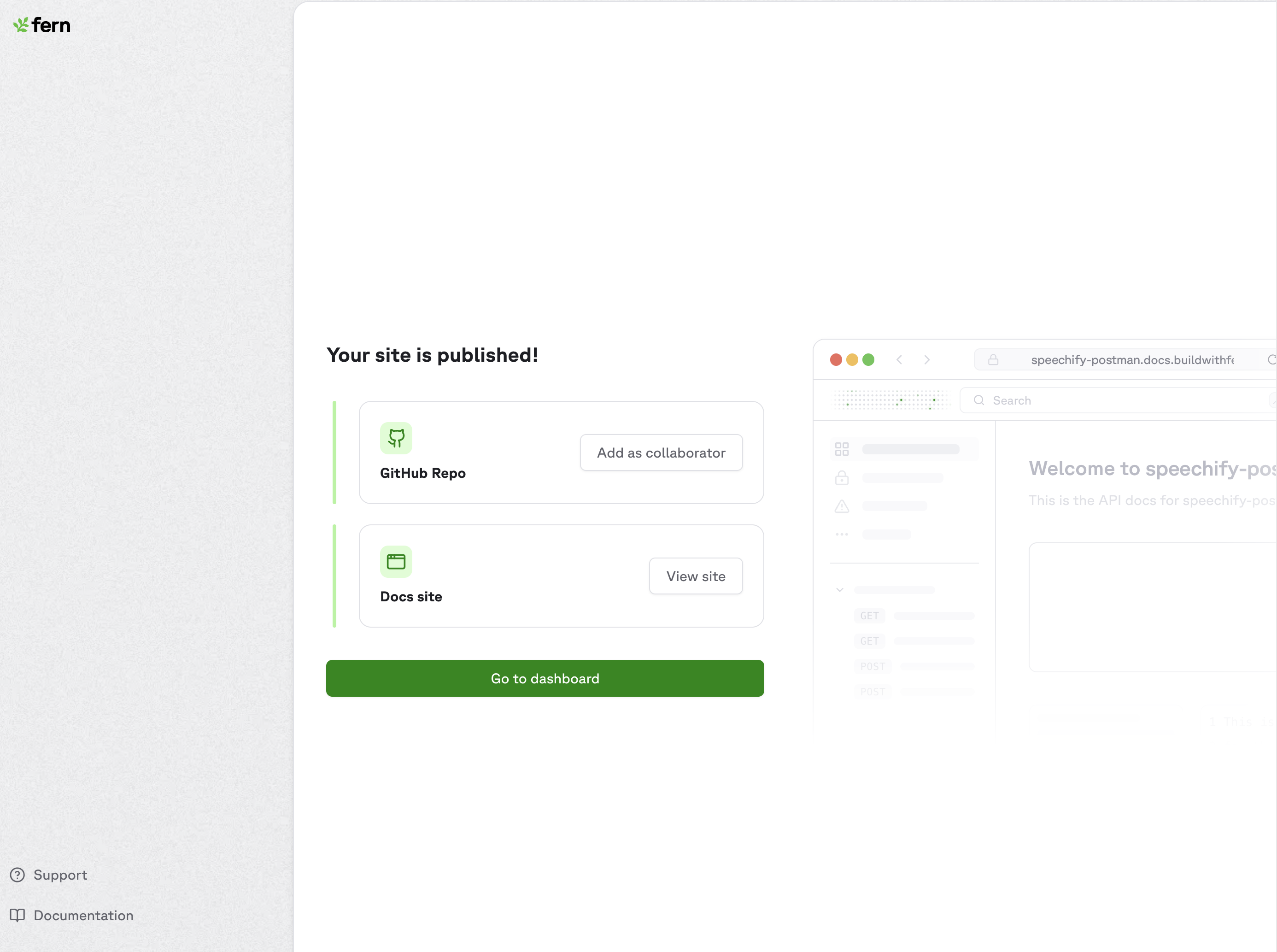
To view your published documentation from your collection, do the following:
1. Expand **Collections** in the sidebar, then click your published collection.
2. Click **Published**, then click the link to open your live documentation site.
### Unpublish your documentation
If you no longer want your documentation to be publicly available, you can unpublish it.
1. Expand **Collections** in the sidebar, then click a collection with published documentation.
2. Click **Published**, then click  **Unpublish** to unpublish your docs with Fern. Your auto-generated documentation in Postman won't be affected.
## Manage your Fern documentation
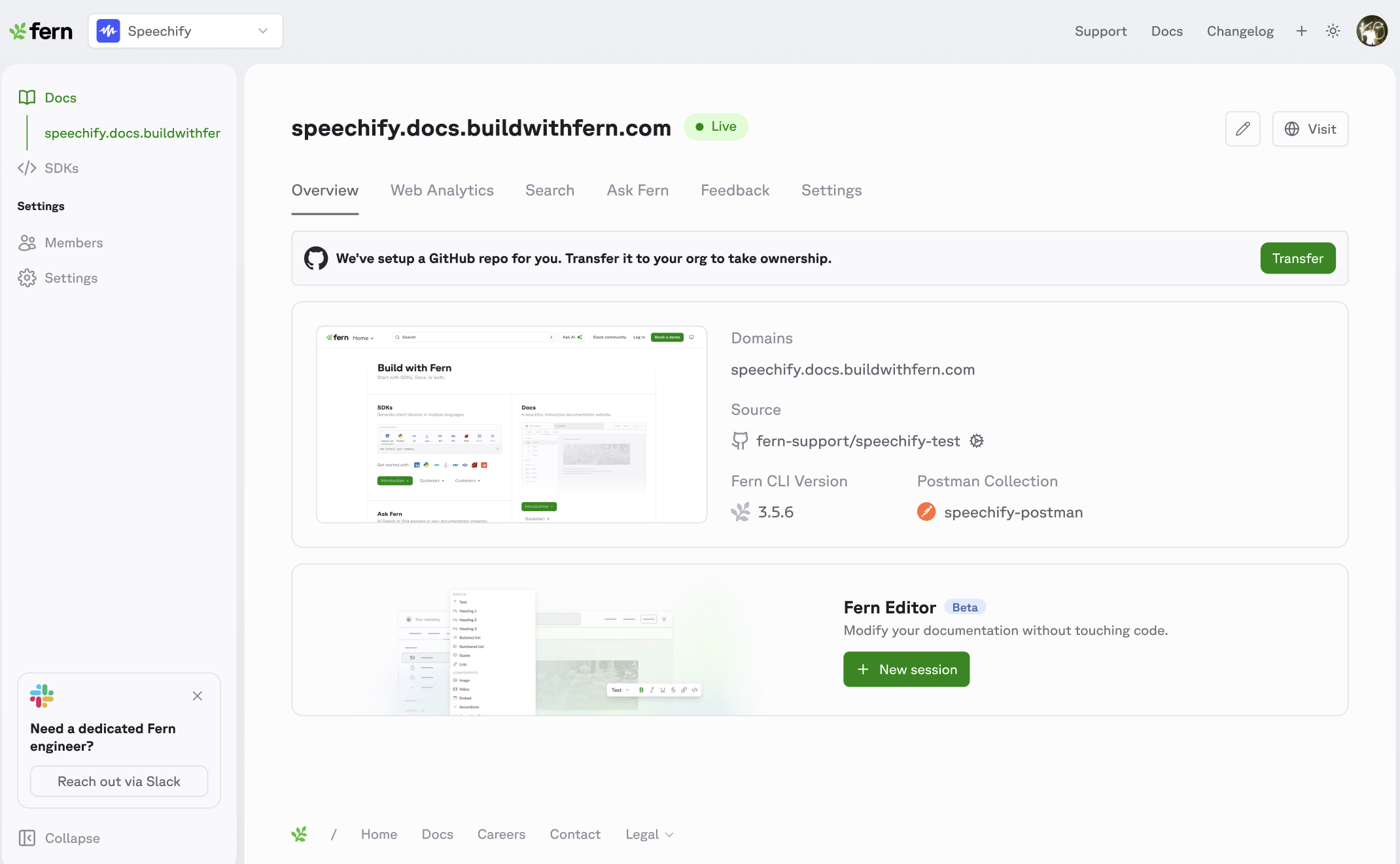
After your collection is published, the [Fern Dashboard](https://buildwithfern.com/learn/dashboard/getting-started/overview) provides a central place to manage your projects, team members, and settings. You have full edit rights and ownership of your documentation.
Configure your custom domain with automatic DNS record provisioning.
Assign Admin, Editor, or Viewer roles to manage Dashboard and CLI access.
Connect your GitHub repository to your project.
Set up AI-powered chat for your documentation.
Track how developers and bots interact with your documentation.
View deployment status, domains, CLI version, and GitHub repo details.
## Edit published documentation
After Fern generates your API reference, you can edit your documentation to add guides, overview pages, tutorials, and other content alongside it.
To edit your published documentation, do the following:
1. Expand **Collections** in the sidebar, then click your published collection.
2. Click **Published**, then click
**Unpublish** to unpublish your docs with Fern. Your auto-generated documentation in Postman won't be affected.
## Manage your Fern documentation
After your collection is published, the [Fern Dashboard](https://buildwithfern.com/learn/dashboard/getting-started/overview) provides a central place to manage your projects, team members, and settings. You have full edit rights and ownership of your documentation.

Configure your custom domain with automatic DNS record provisioning.
Assign Admin, Editor, or Viewer roles to manage Dashboard and CLI access.
Connect your GitHub repository to your project.
Set up AI-powered chat for your documentation.
Track how developers and bots interact with your documentation.
View deployment status, domains, CLI version, and GitHub repo details.
## Edit published documentation
After Fern generates your API reference, you can edit your documentation to add guides, overview pages, tutorials, and other content alongside it.
To edit your published documentation, do the following:
1. Expand **Collections** in the sidebar, then click your published collection.
2. Click **Published**, then click  **Edit published documentation**. You can make a PR and edit in your code environment. Alternatively, you can edit using [Fern Editor](https://buildwithfern.com/learn/docs/writing-content/fern-editor), a browser-based editor backed by GitHub.
You can preview changes in your local development environment and publish them to production when you're ready using the [Fern CLI](https://buildwithfern.com/learn/cli-api-reference/cli-reference/overview).
Explore Fern features to get more out of your documentation site:
A Slack-based AI agent that drafts and updates your documentation via GitHub pull requests.
Let users make real API calls directly from your documentation to reduce time to first successful request.
AI-powered search that helps users find answers instantly and reduces support burden.
Use built-in components like accordions, callouts, tabs, code blocks, and interactive API snippets in your docs.
**Edit published documentation**. You can make a PR and edit in your code environment. Alternatively, you can edit using [Fern Editor](https://buildwithfern.com/learn/docs/writing-content/fern-editor), a browser-based editor backed by GitHub.
You can preview changes in your local development environment and publish them to production when you're ready using the [Fern CLI](https://buildwithfern.com/learn/cli-api-reference/cli-reference/overview).
Explore Fern features to get more out of your documentation site:
A Slack-based AI agent that drafts and updates your documentation via GitHub pull requests.
Let users make real API calls directly from your documentation to reduce time to first successful request.
AI-powered search that helps users find answers instantly and reduces support burden.
Use built-in components like accordions, callouts, tabs, code blocks, and interactive API snippets in your docs.