# Share your work in Postman
Postman enables you to [collaboratively iterate on your APIs](https://www.postman.com/api-platform/api-collaboration/) with developers, testers, architects, and other business stakeholders. You can share your work in Postman by sharing your workspace. You can also share individual Postman elements including collections, requests, examples, and [flows](/docs/postman-flows/overview/).
## Share your Postman workspace
You can share a workspace using the **Invite** option or copying a link to your workspace. For more information, go to [Share workspaces](/docs/collaborating-in-postman/using-workspaces/internal-workspaces/manage-workspaces/#share-workspaces).
To share your work with external partners, use a [Partner Workspace](/docs/collaborating-in-postman/using-workspaces/partner-workspaces/overview/). If you want to share your work with developers globally, use a [public workspace](/docs/collaborating-in-postman/using-workspaces/public-workspaces/).
## Share Postman collections and other elements
You can share your collections, APIs, flows, and environments with and outside your team and enable [Guests who are part of your organization](#share-collections-with-guests) to view your collections.
Other Postman elements are shared differently:
* To share a flow, refer to [Share links to flows and embed flows in websites](/docs/postman-flows/build-flows/organize/share-and-embed-flows/).
* To share a collection run, refer to [Test your API using the Collection Runner](/docs/collections/running-collections/intro-to-collection-runs/).
* To share a collection as a file, refer to [Data import and export in Postman](/docs/getting-started/importing-and-exporting/importing-and-exporting-overview/).
* To share a monitor, refer to [Work with monitors](/docs/monitoring-your-api/setting-up-monitor/#work-with-monitors).
You can share Postman elements with your team by selecting specific people or using the **Run in Postman** button, the Postman API, or sharing a link.
For all sharing options except the **Run in Postman** button, the user receiving the link has the option to open the link in the Postman desktop app by default. To change this setting, you can do the following:
1. Go to  **Settings** in the Postman header
2. Click **Settings > General**, and under **Application** turn off **Always open in desktop app**.
### Share Postman elements with specific team members
To share Postman elements by selecting team members, do the following:
1. Select
**Settings** in the Postman header
2. Click **Settings > General**, and under **Application** turn off **Always open in desktop app**.
### Share Postman elements with specific team members
To share Postman elements by selecting team members, do the following:
1. Select  **View more actions** next to the element you want to share, then select **Share**.
If you have unsaved changes in your collection, you'll be prompted to save and share, share without saving, or save and overwrite.
2. Enter the name, email address, or [group name](/docs/administration/managing-your-team/user-groups/).
3. If you have an Editor role on a Professional or Enterprise plan, you can specify the Viewer or Editor [role](/docs/administration/roles-and-permissions/#element-based-roles) and whether the entire [organization](/docs/administration/managing-your-team/create-org/) has access to the element you are sharing.
If you share a request or a saved response, the existing roles will be inherited from the collection.
4. If you're sharing a collection, collection folder, request, or example, you can also specify an active environment. Click **Include environment** and select the environment.
To change the active environment for the team members and groups you want to share with, you must share the collection, collection folder, request, or example with them again. Choose a new environment in the environment dropdown list, then click **Invite**.
5. Click **Invite**.
**View more actions** next to the element you want to share, then select **Share**.
If you have unsaved changes in your collection, you'll be prompted to save and share, share without saving, or save and overwrite.
2. Enter the name, email address, or [group name](/docs/administration/managing-your-team/user-groups/).
3. If you have an Editor role on a Professional or Enterprise plan, you can specify the Viewer or Editor [role](/docs/administration/roles-and-permissions/#element-based-roles) and whether the entire [organization](/docs/administration/managing-your-team/create-org/) has access to the element you are sharing.
If you share a request or a saved response, the existing roles will be inherited from the collection.
4. If you're sharing a collection, collection folder, request, or example, you can also specify an active environment. Click **Include environment** and select the environment.
To change the active environment for the team members and groups you want to share with, you must share the collection, collection folder, request, or example with them again. Choose a new environment in the environment dropdown list, then click **Invite**.
5. Click **Invite**.
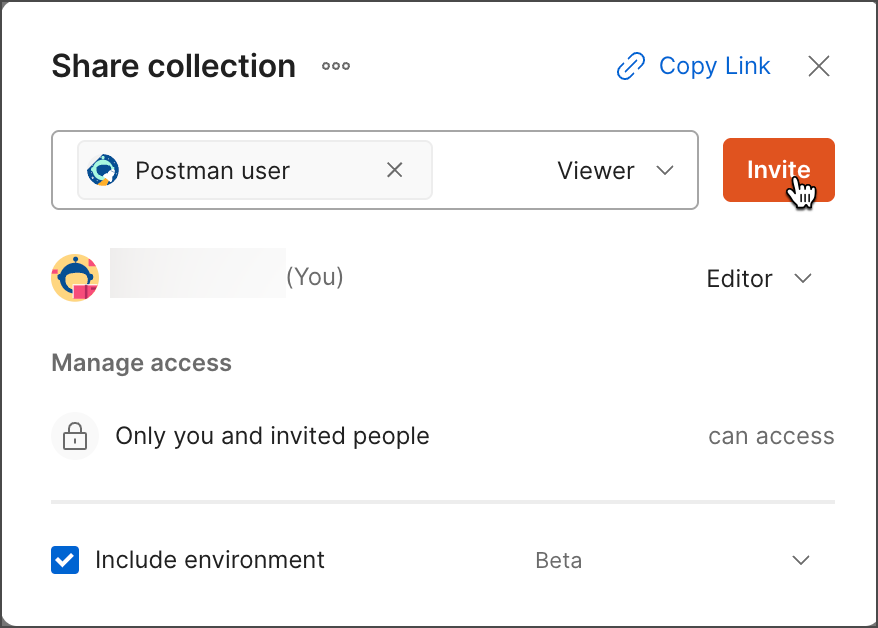 Postman emails the selected people that you shared the element with.
### Share using a Run in Postman button
You can share collections in a public page such as a website or README by embedding a **Run in Postman** button.
1. From the collection you want to share, select **View more actions**, then select **Share**.
2. From the share dialog, click **View more actions** and select **Run in Postman**.
Postman emails the selected people that you shared the element with.
### Share using a Run in Postman button
You can share collections in a public page such as a website or README by embedding a **Run in Postman** button.
1. From the collection you want to share, select **View more actions**, then select **Share**.
2. From the share dialog, click **View more actions** and select **Run in Postman**.
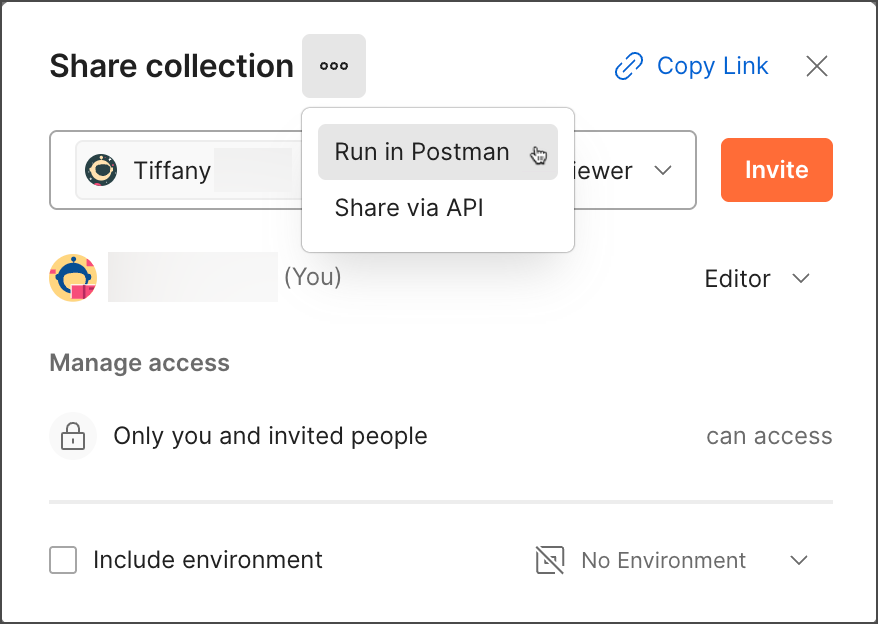 3. Select the code format and select
  **Copy Code**.
You can create a **Run in Postman** button for any of your public collections from the Postman API Network. For more information on creating and using a **Run in Postman** button, visit [Create a Run in Postman button](/docs/publishing-your-api/run-in-postman/creating-run-button/).
### Share using the Postman API
To share the collection JSON using the Postman API, do the following:
1. From the collection that you want to share, select **Share**.
2. Select **Via API**.
3. Select **Get collection JSON using Collection Access Key**.
4. Select **Generate New Key** to create a read-only collection access key. This key expires after 60 days of inactivity.
**Make sure you remove any sensitive information from your collection before sharing collection access keys.**
5. (Optional) If you have permission to [manage public elements](/docs/collaborating-in-postman/manage-public-elements/), you can select **Manage keys** to view or revoke this collection access key on the [Manage public elements page](https://go.postman.co/manage-public). You can also view or revoke collection access keys you created on your [API keys page](https://go.postman.co/settings/me/api-keys). To learn more about collection access keys, visit [Generate a collection access key](/docs/developer/postman-api/authentication/#generate-a-collection-access-key).
Anyone with this link has read-only access to the collection's JSON. The data that this Postman API endpoint serves reflects the current state of the collection.

If you want to share a link with other users, select **Link to collection in public workspace** to provide a link to the collection. The collection must be in a public workspace. If the collection isn't in a public workspace, select **Move Collection**, then choose a public workspace to move it to. Select **Copy link** to copy the link to your clipboard, then share the link with others. Anyone with this link can view and fork your public collection.
### Share using a URL
You can share collections and other elements with your team and coworkers who aren't part of your team.
Select the collection, folder, request, or example and click **View more actions**, then select **Copy link** next to the collection or request name to copy a URL you can paste in a messaging app or email.
To share a URL to a collection, folder, request, or example with a specific environment selected, select **View more actions > Share**.
You can also use the [Postman VS Code extension](/docs/developer/vs-code-extension/overview/) to share a collection and environment, or a URL to a collection and environment.
If the person you're sharing a link with isn't part of your team, they'll be prompted to request to join the team.
If enabled in the [team settings](/docs/collaborating-in-postman/requesting-access-to-elements/#manage-team-access-through-shared-resources), users on Free, Basic, and Professional plans from verified domains can automatically join your team using a shared link.

An [Admin](/docs/administration/roles-and-permissions/#team-roles) will then approve or deny the request.

Your team must have [available seats](/docs/billing/billing/#changing-your-plan) or [Auto-Flex enabled](/docs/billing/billing/#using-auto-flex) to invite more team members. If your team has [SSO enabled](/docs/administration/sso/intro-sso/), users who aren't part of your team will be required to sign in using your team's SSO.
## Share a request with its response
[Share a link](#share-a-request-and-its-response-with-collaborators) to an HTTP request and its response with your team members or external partners. You can also share a previous response from the request's history. To share a response, open a request and send it, then copy the link to the response. Others can use the link to [view the same response you're getting](#view-a-shared-request-and-its-response), along with the request configuration. If collaborators no longer need access to the shared response, you can [stop sharing the link](#manage-a-shared-request-and-its-response).
You can share responses for HTTP requests that were created on October 7, 2024, and later. You can't share responses for HTTP requests created before this date.
Response sharing is useful for sharing a working example with your collaborators and debugging your request with help from others. You can also share an unexpected response with collaborators to report issues you experience.
To share a response, the HTTP request must be in an internal or a Partner Workspace that collaborators you're sharing with can access. Postman doesn't support sharing a request and its response from public workspaces. Also, partners in [Partner Workspaces with multi-partner mode enabled](/docs/collaborating-in-postman/using-workspaces/partner-workspaces/multipartner-workspaces/) won't be able to share a request and its response.
If you install the [Postman app for Slack](/docs/integrations/available-integrations/slack/slack-app/) or [Postman app in Teams](/docs/integrations/available-integrations/microsoft-teams/), links for HTTP responses you share in Slack or Teams will display extra information such as the request URL and response code. Only HTTP responses shared from unrestricted workspaces will display the response body.
**Notes:**
* If the response returns sensitive data, it will be visible to collaborators you share with. Make sure to consider the sensitivity of data returned in a response when deciding which collaborators you share with. Postman recommends checking your organization's policies to understand what qualifies as sensitive data.
* By default, responses in your request's history are only visible to you. Collaborators in an internal or a Partner Workspace can only view [responses you've shared](#share-a-request-and-its-response-with-collaborators) with them.
### Share a request and its response with collaborators
After sending an HTTP request, you can share the current response with others, along with the request configuration. If the request isn't already saved to a collection, you'll be prompted to do so. You can also share a previous response from the request's history, as long as [saving responses](/docs/getting-started/basics/navigating-postman/#saving-responses-in-history) was turned on at the time the request was sent.
To share the current response from the request, do the following:
1. Select **Collections** in the sidebar, and open an HTTP request.
2. Select **Send** to send the request, then view its response.
3. Select
**Copy Code**.
You can create a **Run in Postman** button for any of your public collections from the Postman API Network. For more information on creating and using a **Run in Postman** button, visit [Create a Run in Postman button](/docs/publishing-your-api/run-in-postman/creating-run-button/).
### Share using the Postman API
To share the collection JSON using the Postman API, do the following:
1. From the collection that you want to share, select **Share**.
2. Select **Via API**.
3. Select **Get collection JSON using Collection Access Key**.
4. Select **Generate New Key** to create a read-only collection access key. This key expires after 60 days of inactivity.
**Make sure you remove any sensitive information from your collection before sharing collection access keys.**
5. (Optional) If you have permission to [manage public elements](/docs/collaborating-in-postman/manage-public-elements/), you can select **Manage keys** to view or revoke this collection access key on the [Manage public elements page](https://go.postman.co/manage-public). You can also view or revoke collection access keys you created on your [API keys page](https://go.postman.co/settings/me/api-keys). To learn more about collection access keys, visit [Generate a collection access key](/docs/developer/postman-api/authentication/#generate-a-collection-access-key).
Anyone with this link has read-only access to the collection's JSON. The data that this Postman API endpoint serves reflects the current state of the collection.

If you want to share a link with other users, select **Link to collection in public workspace** to provide a link to the collection. The collection must be in a public workspace. If the collection isn't in a public workspace, select **Move Collection**, then choose a public workspace to move it to. Select **Copy link** to copy the link to your clipboard, then share the link with others. Anyone with this link can view and fork your public collection.
### Share using a URL
You can share collections and other elements with your team and coworkers who aren't part of your team.
Select the collection, folder, request, or example and click **View more actions**, then select **Copy link** next to the collection or request name to copy a URL you can paste in a messaging app or email.
To share a URL to a collection, folder, request, or example with a specific environment selected, select **View more actions > Share**.
You can also use the [Postman VS Code extension](/docs/developer/vs-code-extension/overview/) to share a collection and environment, or a URL to a collection and environment.
If the person you're sharing a link with isn't part of your team, they'll be prompted to request to join the team.
If enabled in the [team settings](/docs/collaborating-in-postman/requesting-access-to-elements/#manage-team-access-through-shared-resources), users on Free, Basic, and Professional plans from verified domains can automatically join your team using a shared link.

An [Admin](/docs/administration/roles-and-permissions/#team-roles) will then approve or deny the request.

Your team must have [available seats](/docs/billing/billing/#changing-your-plan) or [Auto-Flex enabled](/docs/billing/billing/#using-auto-flex) to invite more team members. If your team has [SSO enabled](/docs/administration/sso/intro-sso/), users who aren't part of your team will be required to sign in using your team's SSO.
## Share a request with its response
[Share a link](#share-a-request-and-its-response-with-collaborators) to an HTTP request and its response with your team members or external partners. You can also share a previous response from the request's history. To share a response, open a request and send it, then copy the link to the response. Others can use the link to [view the same response you're getting](#view-a-shared-request-and-its-response), along with the request configuration. If collaborators no longer need access to the shared response, you can [stop sharing the link](#manage-a-shared-request-and-its-response).
You can share responses for HTTP requests that were created on October 7, 2024, and later. You can't share responses for HTTP requests created before this date.
Response sharing is useful for sharing a working example with your collaborators and debugging your request with help from others. You can also share an unexpected response with collaborators to report issues you experience.
To share a response, the HTTP request must be in an internal or a Partner Workspace that collaborators you're sharing with can access. Postman doesn't support sharing a request and its response from public workspaces. Also, partners in [Partner Workspaces with multi-partner mode enabled](/docs/collaborating-in-postman/using-workspaces/partner-workspaces/multipartner-workspaces/) won't be able to share a request and its response.
If you install the [Postman app for Slack](/docs/integrations/available-integrations/slack/slack-app/) or [Postman app in Teams](/docs/integrations/available-integrations/microsoft-teams/), links for HTTP responses you share in Slack or Teams will display extra information such as the request URL and response code. Only HTTP responses shared from unrestricted workspaces will display the response body.
**Notes:**
* If the response returns sensitive data, it will be visible to collaborators you share with. Make sure to consider the sensitivity of data returned in a response when deciding which collaborators you share with. Postman recommends checking your organization's policies to understand what qualifies as sensitive data.
* By default, responses in your request's history are only visible to you. Collaborators in an internal or a Partner Workspace can only view [responses you've shared](#share-a-request-and-its-response-with-collaborators) with them.
### Share a request and its response with collaborators
After sending an HTTP request, you can share the current response with others, along with the request configuration. If the request isn't already saved to a collection, you'll be prompted to do so. You can also share a previous response from the request's history, as long as [saving responses](/docs/getting-started/basics/navigating-postman/#saving-responses-in-history) was turned on at the time the request was sent.
To share the current response from the request, do the following:
1. Select **Collections** in the sidebar, and open an HTTP request.
2. Select **Send** to send the request, then view its response.
3. Select  **Copy link** in the response area. This copies the link to your clipboard, and the **Shared** tag displays.

4. Share the link with a collaborator who has permission to access the request.
To share a previous response from the request's history, do the following:
1. Select **Collections** in the sidebar, and open an HTTP request.
2. Select
**Copy link** in the response area. This copies the link to your clipboard, and the **Shared** tag displays.

4. Share the link with a collaborator who has permission to access the request.
To share a previous response from the request's history, do the following:
1. Select **Collections** in the sidebar, and open an HTTP request.
2. Select  **History** in the response area. This displays a dropdown list of each date and time you previously sent the request and the response status code that was returned. Hover over each item to view the request method and URL.
3. Select a response from the dropdown list to view it and the request configuration.
**History** in the response area. This displays a dropdown list of each date and time you previously sent the request and the response status code that was returned. Hover over each item to view the request method and URL.
3. Select a response from the dropdown list to view it and the request configuration.
 4. Select **Copy link** in the response area. This copies the link to your clipboard, and the **Shared** tag displays.

5. Share the link with a collaborator who has permission to access the request.
Select **Copy link** to copy the direct link to the shared response again for later. You can also select **Options** > **Copy Link** next to the shared response in the dropdown list.
When you select a previous response from the **History** dropdown list, the date and time you sent the request will display in the response area. Select the date and time to display the dropdown list again, and choose a different response if you'd like. You can select **Current** to return to the latest version of the request configuration. Note that you already shared a response that has the
4. Select **Copy link** in the response area. This copies the link to your clipboard, and the **Shared** tag displays.

5. Share the link with a collaborator who has permission to access the request.
Select **Copy link** to copy the direct link to the shared response again for later. You can also select **Options** > **Copy Link** next to the shared response in the dropdown list.
When you select a previous response from the **History** dropdown list, the date and time you sent the request will display in the response area. Select the date and time to display the dropdown list again, and choose a different response if you'd like. You can select **Current** to return to the latest version of the request configuration. Note that you already shared a response that has the  **Shared** icon next to it.
If you try to share a response from **History** in the sidebar, you'll be prompted to save it to a collection first. No responses will be saved in the request's history. You must send the request again, and then follow the steps to share a response.
### View a shared request and its response
Open the link a collaborator shared with you to view the response in Postman along with the request configuration. You can open the request-response pair again from the response area. If a collaborator [stops sharing](#manage-a-shared-request-and-its-response) a response, you'll no longer be able to view it.
To view a shared response using a link, do the following:
1. In your browser, enter the link to a response that a collaborator shared with you. The link opens the [Postman web app](/docs/getting-started/installation/installation-and-updates/#use-the-postman-web-app) and the request in its workspace.
2. Review the shared response and its request configuration.
To return to a shared response from the response area, do the following:
1. Select **Collections** in the sidebar, and open an HTTP request with a response that a collaborator shared with you. Make sure you previously opened the link to the response in your browser.
2. In the response area, select **History**, then select a response that a collaborator previously shared with you. A response with a collaborator's avatar next to it was shared with you. You can hover over the their avatar to display their username.
If a collaborator stops sharing the response, it will no longer be visible to you in the dropdown list.
3. Review the shared request configuration and its response.
When you select a shared response from the **History** dropdown list, the date and time your collaborator sent the request will display in the response area, along with their avatar.
Select **Copy link** to copy the direct link to the shared response for later. You can also select **Options** > **Copy Link** next to the shared response in the dropdown list.
### Manage a shared request and its response
You can stop sharing a response and its request configuration if collaborators no longer need access. You can also delete a response from your request's history.
To stop sharing a response with collaborators, do the following:
1. Select **Collections** in the sidebar, and open an HTTP request with a response you shared from your history.
2. In the response area, select **History**, then select a response with the **Shared** icon next to it. A response with this icon next to it can be viewed by collaborators you shared the response with.
**Shared** icon next to it.
If you try to share a response from **History** in the sidebar, you'll be prompted to save it to a collection first. No responses will be saved in the request's history. You must send the request again, and then follow the steps to share a response.
### View a shared request and its response
Open the link a collaborator shared with you to view the response in Postman along with the request configuration. You can open the request-response pair again from the response area. If a collaborator [stops sharing](#manage-a-shared-request-and-its-response) a response, you'll no longer be able to view it.
To view a shared response using a link, do the following:
1. In your browser, enter the link to a response that a collaborator shared with you. The link opens the [Postman web app](/docs/getting-started/installation/installation-and-updates/#use-the-postman-web-app) and the request in its workspace.
2. Review the shared response and its request configuration.
To return to a shared response from the response area, do the following:
1. Select **Collections** in the sidebar, and open an HTTP request with a response that a collaborator shared with you. Make sure you previously opened the link to the response in your browser.
2. In the response area, select **History**, then select a response that a collaborator previously shared with you. A response with a collaborator's avatar next to it was shared with you. You can hover over the their avatar to display their username.
If a collaborator stops sharing the response, it will no longer be visible to you in the dropdown list.
3. Review the shared request configuration and its response.
When you select a shared response from the **History** dropdown list, the date and time your collaborator sent the request will display in the response area, along with their avatar.
Select **Copy link** to copy the direct link to the shared response for later. You can also select **Options** > **Copy Link** next to the shared response in the dropdown list.
### Manage a shared request and its response
You can stop sharing a response and its request configuration if collaborators no longer need access. You can also delete a response from your request's history.
To stop sharing a response with collaborators, do the following:
1. Select **Collections** in the sidebar, and open an HTTP request with a response you shared from your history.
2. In the response area, select **History**, then select a response with the **Shared** icon next to it. A response with this icon next to it can be viewed by collaborators you shared the response with.
 3. Hover over the **Shared** tag in the response area then select **Stop Sharing**. Once you've stopped sharing a response, the link will continue to take collaborators to the associated workspace. The request and its response from your history will no longer be visible to collaborators.
 You can also select **Options** > **Stop Sharing** next to a shared response in the dropdown list.
To delete a response from your request's history, do the following:
1. Select **Collections** in the sidebar, and open an HTTP request.
2. In the response area, select **History**.
3. Next to a response in the dropdown list, select **Options** > **Delete**.
## Share collections with Guests
Collection Editors can enable Guests who aren't in your Postman team to view a collection and send requests. You must have the Editor role in the collection you want to share with Guests. Guests must be able to SSO into the team.
If you're on an Enterprise team, [Admins and Super Admins](/docs/administration/roles-and-permissions/#team-roles) can enable or prohibit Collection Editors from [sharing collections with Guests](/docs/administration/managing-your-team/manage-team-workspaces/#manage-collections) in internal workspaces.
Once you enable Guests to view a specific collection, send them the collection URL to sign in to Postman and view the collection. Guest users who sign in to Postman using the collection URL are assigned the [Guest role](/docs/administration/roles-and-permissions/#team-roles) at the team level and a limited [Viewer role](/docs/administration/roles-and-permissions/#collection-roles) at the collection level.
Assigning a user the Guest role doesn't consume paid seats.
To enable a Guest to view a collection, do the following:
1. From the collection you want to share, select **Share**.
2. Select **Guests can view collection via link**.
3. Select **Copy Link** to copy the collection URL.
You can also select **Options** > **Stop Sharing** next to a shared response in the dropdown list.
To delete a response from your request's history, do the following:
1. Select **Collections** in the sidebar, and open an HTTP request.
2. In the response area, select **History**.
3. Next to a response in the dropdown list, select **Options** > **Delete**.
## Share collections with Guests
Collection Editors can enable Guests who aren't in your Postman team to view a collection and send requests. You must have the Editor role in the collection you want to share with Guests. Guests must be able to SSO into the team.
If you're on an Enterprise team, [Admins and Super Admins](/docs/administration/roles-and-permissions/#team-roles) can enable or prohibit Collection Editors from [sharing collections with Guests](/docs/administration/managing-your-team/manage-team-workspaces/#manage-collections) in internal workspaces.
Once you enable Guests to view a specific collection, send them the collection URL to sign in to Postman and view the collection. Guest users who sign in to Postman using the collection URL are assigned the [Guest role](/docs/administration/roles-and-permissions/#team-roles) at the team level and a limited [Viewer role](/docs/administration/roles-and-permissions/#collection-roles) at the collection level.
Assigning a user the Guest role doesn't consume paid seats.
To enable a Guest to view a collection, do the following:
1. From the collection you want to share, select **Share**.
2. Select **Guests can view collection via link**.
3. Select **Copy Link** to copy the collection URL.
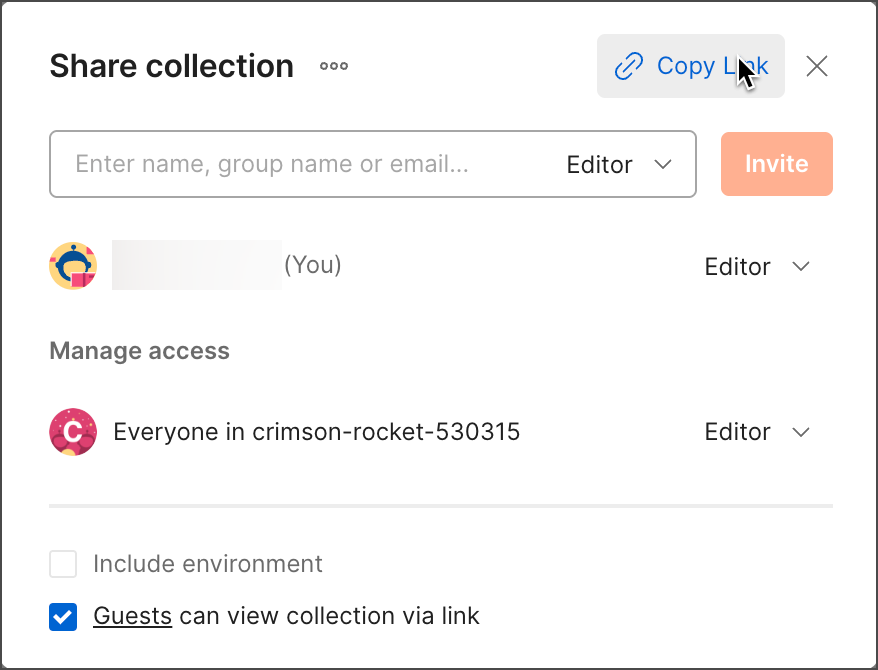 4. Send the collection URL to Guests who you want to view the collection. Postman requires Guests to sign in to Postman before they can view the collection.
### Rules of sharing with Guests
Anyone with access to the collection URL can view it if **Allow guests to view collection via link** is enabled.
Your team must have [available seats](/docs/billing/billing/#changing-your-plan) or [Auto-Flex enabled](/docs/billing/billing/#using-auto-flex) to invite more team members. If your team has [SSO enabled](/docs/administration/sso/intro-sso/), users who aren't part of your team will be required to sign in using your team's SSO.
The following permissions by role apply when sharing a collection with Guests:
| Role | Permissions |
| ----------------------------------------------------------------------------------------------------------------------- | ------------------------------------------------------------------------------------------------------------------------------ |
| [Admin or Super Admin](/docs/administration/roles-and-permissions/#team-roles) | Users who aren't on your Postman team will receive an invitation to join your team. |
| [Developer](/docs/administration/roles-and-permissions/#team-roles) on your team on a Free, Basic, or Professional plan | Users you share an element with are added to your team as Developers automatically, without the need for approval by an Admin. |
| Not a Developer on a Free, Basic or Professional plan or an Admin on any plan | An Admin must approve your request to share an element with a user who isn't part of the team. |
### Change Guest access to collections
You can change the Guest role at the team and collection levels. You can also revoke access to viewing collections for new and existing Guests.
To learn how to change a Guest's team role, view [Manage Guests](/docs/administration/managing-your-team/team-members/manage-roles/#manage-guests). To learn how a Guest can request a role change, visit [Request Editor role access for a collection as a Guest](/docs/collaborating-in-postman/requesting-access-to-elements/#request-editor-access-to-a-collection-as-a-guest).
You can turn off **Allow Guests to join your team and view this collection with the link**. When you turn this off, new Guests can't be assigned the Guest role. Guest users already assigned the Guest role will continue to have access to the collection.
To remove Guests at the team level, view [Remove members](/docs/administration/managing-your-team/team-members/scale-team/#remove-members). In certain cases, Guests with access to only one collection are automatically removed from the team:
* If the Workspace Admin removes them from the collection.
* If the Workspace Admin removes the Guest from the workspace the collection is in.
* If the Workspace Admin deletes the workspace the collection is in.
To remove Guests at the collection level, do the following:
1. Select **View more actions** next to the collection name, then select **Share**.
2. From the dropdown next to the user's name, select **Remove**.
Removing Guests from collections doesn't revoke their access to the workspace the collection is in. To revoke their entire access to the team, view [Remove members](/docs/administration/managing-your-team/team-members/scale-team/#remove-members).
4. Send the collection URL to Guests who you want to view the collection. Postman requires Guests to sign in to Postman before they can view the collection.
### Rules of sharing with Guests
Anyone with access to the collection URL can view it if **Allow guests to view collection via link** is enabled.
Your team must have [available seats](/docs/billing/billing/#changing-your-plan) or [Auto-Flex enabled](/docs/billing/billing/#using-auto-flex) to invite more team members. If your team has [SSO enabled](/docs/administration/sso/intro-sso/), users who aren't part of your team will be required to sign in using your team's SSO.
The following permissions by role apply when sharing a collection with Guests:
| Role | Permissions |
| ----------------------------------------------------------------------------------------------------------------------- | ------------------------------------------------------------------------------------------------------------------------------ |
| [Admin or Super Admin](/docs/administration/roles-and-permissions/#team-roles) | Users who aren't on your Postman team will receive an invitation to join your team. |
| [Developer](/docs/administration/roles-and-permissions/#team-roles) on your team on a Free, Basic, or Professional plan | Users you share an element with are added to your team as Developers automatically, without the need for approval by an Admin. |
| Not a Developer on a Free, Basic or Professional plan or an Admin on any plan | An Admin must approve your request to share an element with a user who isn't part of the team. |
### Change Guest access to collections
You can change the Guest role at the team and collection levels. You can also revoke access to viewing collections for new and existing Guests.
To learn how to change a Guest's team role, view [Manage Guests](/docs/administration/managing-your-team/team-members/manage-roles/#manage-guests). To learn how a Guest can request a role change, visit [Request Editor role access for a collection as a Guest](/docs/collaborating-in-postman/requesting-access-to-elements/#request-editor-access-to-a-collection-as-a-guest).
You can turn off **Allow Guests to join your team and view this collection with the link**. When you turn this off, new Guests can't be assigned the Guest role. Guest users already assigned the Guest role will continue to have access to the collection.
To remove Guests at the team level, view [Remove members](/docs/administration/managing-your-team/team-members/scale-team/#remove-members). In certain cases, Guests with access to only one collection are automatically removed from the team:
* If the Workspace Admin removes them from the collection.
* If the Workspace Admin removes the Guest from the workspace the collection is in.
* If the Workspace Admin deletes the workspace the collection is in.
To remove Guests at the collection level, do the following:
1. Select **View more actions** next to the collection name, then select **Share**.
2. From the dropdown next to the user's name, select **Remove**.
Removing Guests from collections doesn't revoke their access to the workspace the collection is in. To revoke their entire access to the team, view [Remove members](/docs/administration/managing-your-team/team-members/scale-team/#remove-members).