***
title: Communicate API changes using workspace updates
updated: 2025-09-12T00:00:00.000Z
max-toc-depth: 2
----------------
Workspace updates keep your team and your users aware of your API changes. API publishers can share updates across multiple collections, with links to the resources that changed. API consumers who fork or watch a workspace get notified and can engage with these updates by visiting, commenting, and reacting.
Workspace updates are available in internal, public, and partner workspaces. Users with the [Workspace Admin or Workspace Editor](/docs/administration/roles-and-permissions/#workspace-roles) role can post and edit workspace updates.
Find the **Updates** tab at the workspace level, between the **Overview** and the **Settings** tabs.
 When you create a workspace update, give it a title and description. Then, add a tag for the type of change you've made. It's optional but recommended that you include links to updated collections, requests, or saved examples, and a change summary.
If you have a [Microsoft Teams](/docs/integrations/available-integrations/microsoft-teams/) or [Slack](/docs/integrations/available-integrations/slack/) integration configured, you can post your update to a channel.
## Post a workspace update
If you opt in to use Postman's AI features, you can click **Write with AI** to autogenerate your update based on your workspace changes.
To post a workspace update, do the following:
1. Open a workspace and select **Updates**.
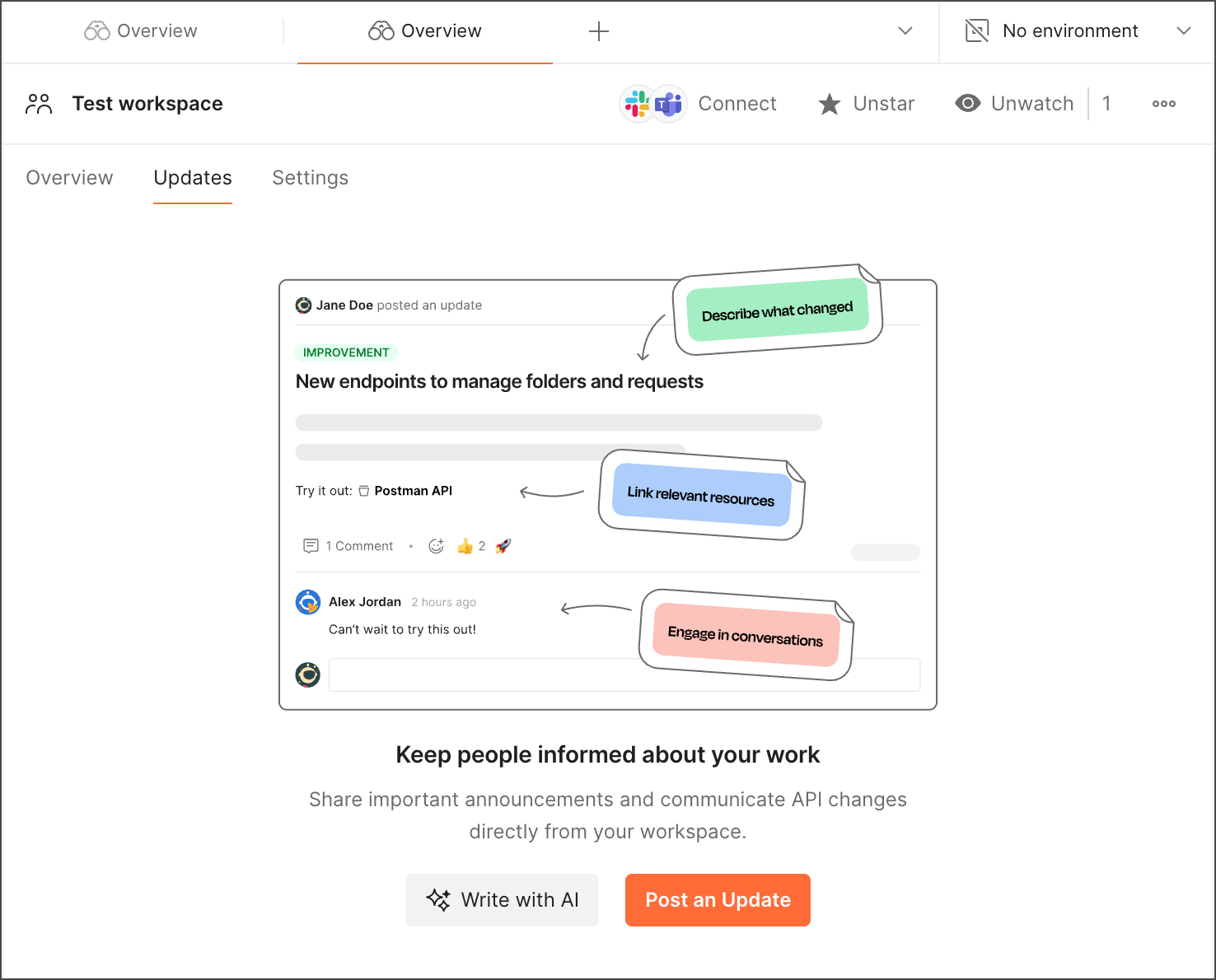
2. If this is the first update, select **Post an Update**. Otherwise, you'll see a **Post an update** field above other updates.
When you create a workspace update, give it a title and description. Then, add a tag for the type of change you've made. It's optional but recommended that you include links to updated collections, requests, or saved examples, and a change summary.
If you have a [Microsoft Teams](/docs/integrations/available-integrations/microsoft-teams/) or [Slack](/docs/integrations/available-integrations/slack/) integration configured, you can post your update to a channel.
## Post a workspace update
If you opt in to use Postman's AI features, you can click **Write with AI** to autogenerate your update based on your workspace changes.
To post a workspace update, do the following:
1. Open a workspace and select **Updates**.
2. If this is the first update, select **Post an Update**. Otherwise, you'll see a **Post an update** field above other updates.
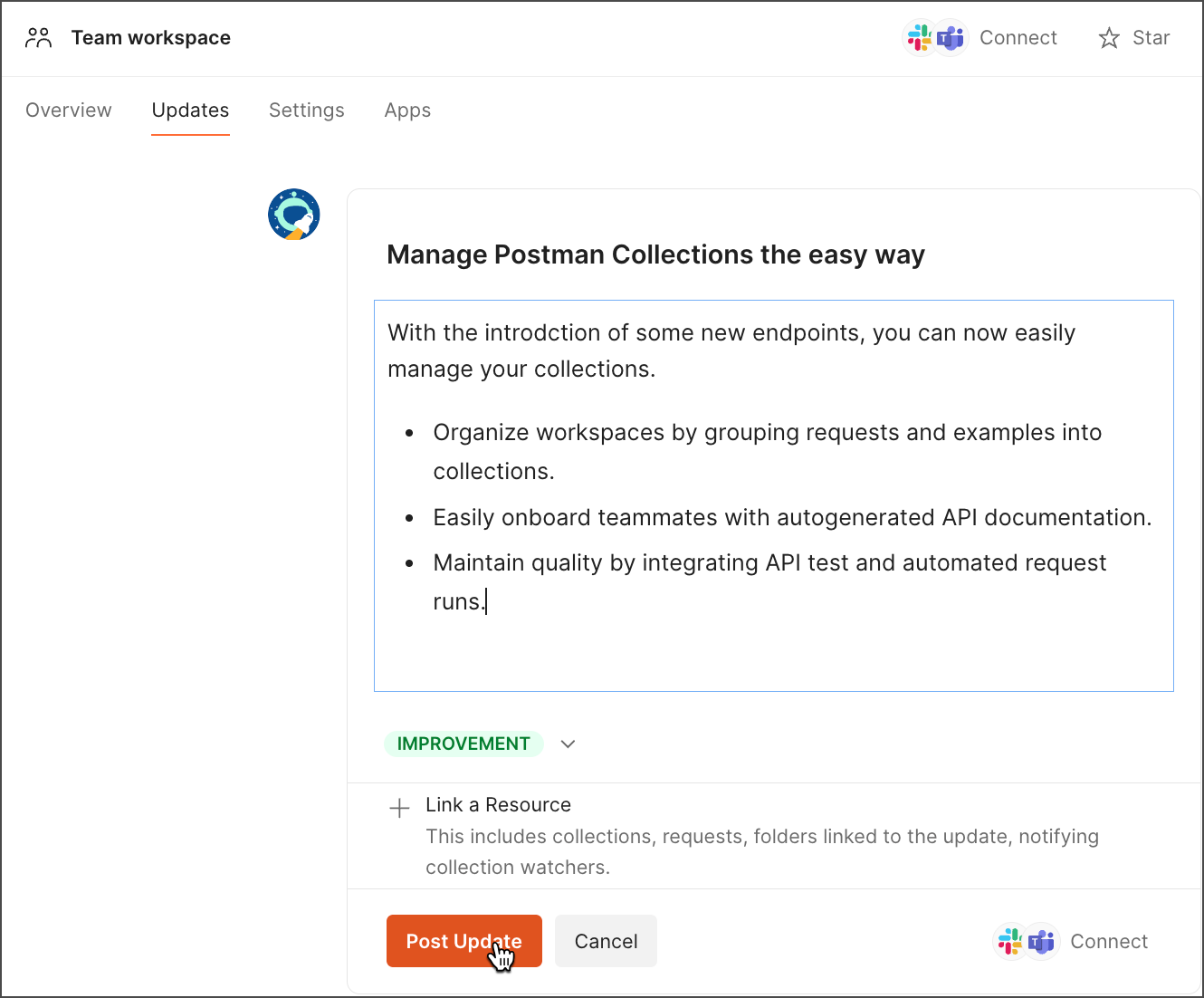
 3. Enter a title and a description of your update.
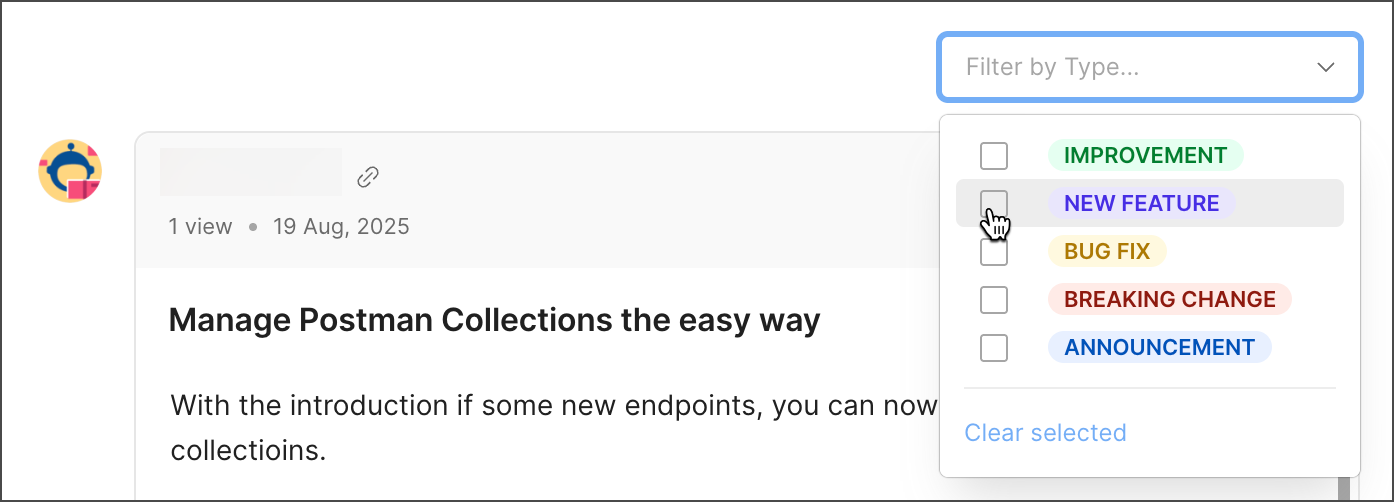
4. Select a tag from the dropdown list: **Improvement**, **New Feature**, **Bug Fix**, **Breaking Change**, or **Announcement**.
5. (Optional but recommended) Select **Link Resource** to include links to collections, requests, and saved examples in your update.
When you add links to collections or requests, the watchers of the collections, who may not be watching the workspace, also get notified about the update alongside workspace watchers.
6. (Optional) Add a summary describing the change.
7. If you've integrated Postman with Slack or Teams, you can post a team or public workspace update to a channel on one or both of those apps. Select **Post Update**.
If a social channel is already subscribed to workspace updates, the checkbox next to **Share on Slack (or Teams)** on the bottom right of the post will be checked. If not, select
3. Enter a title and a description of your update.
4. Select a tag from the dropdown list: **Improvement**, **New Feature**, **Bug Fix**, **Breaking Change**, or **Announcement**.
5. (Optional but recommended) Select **Link Resource** to include links to collections, requests, and saved examples in your update.
When you add links to collections or requests, the watchers of the collections, who may not be watching the workspace, also get notified about the update alongside workspace watchers.
6. (Optional) Add a summary describing the change.
7. If you've integrated Postman with Slack or Teams, you can post a team or public workspace update to a channel on one or both of those apps. Select **Post Update**.
If a social channel is already subscribed to workspace updates, the checkbox next to **Share on Slack (or Teams)** on the bottom right of the post will be checked. If not, select 
 **Connect** in the workspace overview to subscribe to a channel. Ensure the box is checked to send notifications when someone posts a workspace update. To learn more, visit the [Slack](/docs/integrations/available-integrations/slack/slack-app/) and [Teams](/docs/integrations/available-integrations/teams/teams-app/) integrations pages, respectively.
 ## Manage workspace updates
To share, pin, edit, or delete an update, do the following:
1. Open a workspace and select **Updates**.
2. Select
## Manage workspace updates
To share, pin, edit, or delete an update, do the following:
1. Open a workspace and select **Updates**.
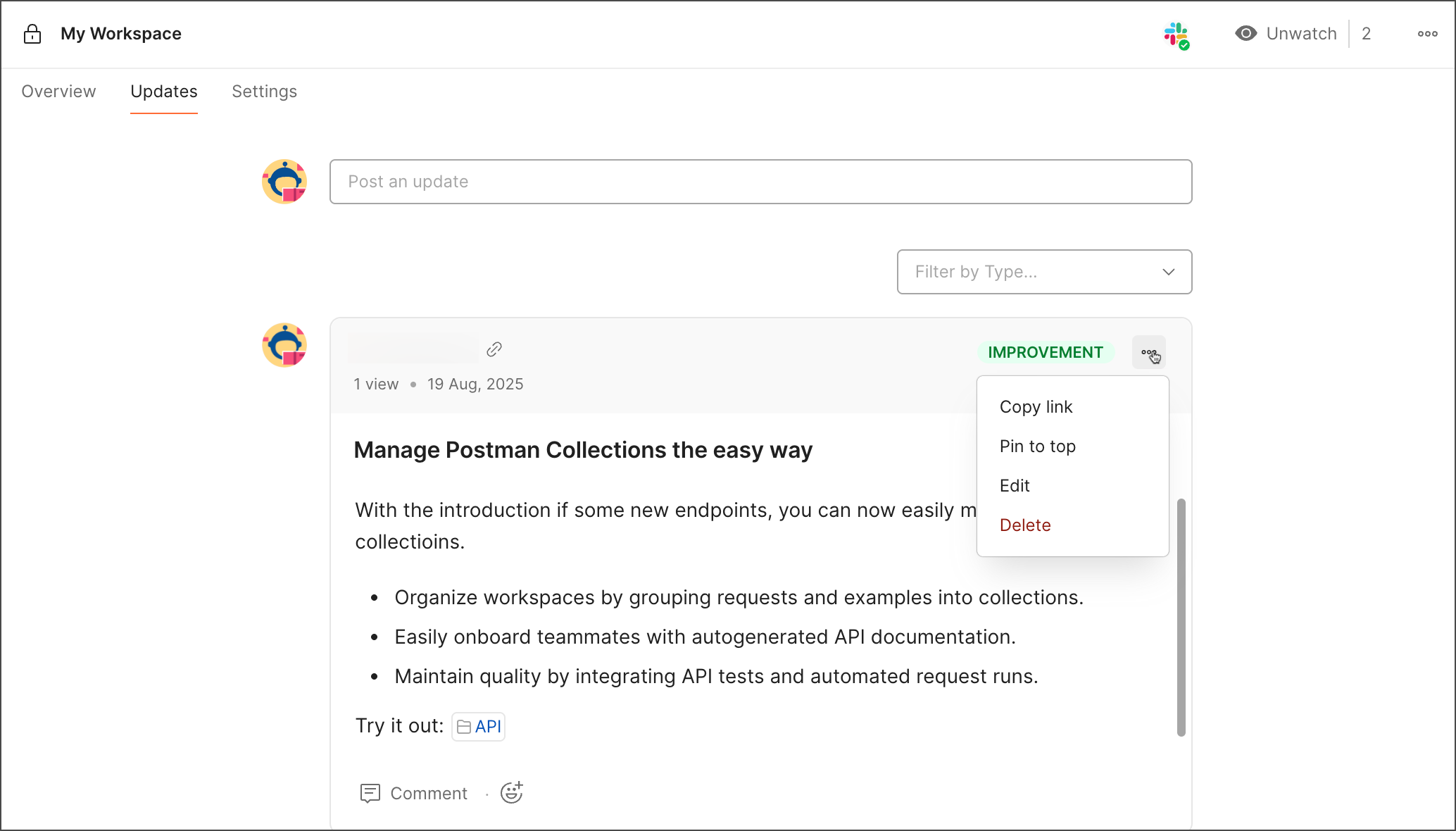
2. Select  **View more actions**.
3. Select **Copy link**, **Pin to top**, **Edit**, or **Delete**.
**View more actions**.
3. Select **Copy link**, **Pin to top**, **Edit**, or **Delete**.
 You can also filter your updates by type.
 ## Respond to a workspace update
You can respond to a workspace update by adding a comment or reacting with an emoji response.
## Respond to a workspace update
You can respond to a workspace update by adding a comment or reacting with an emoji response.
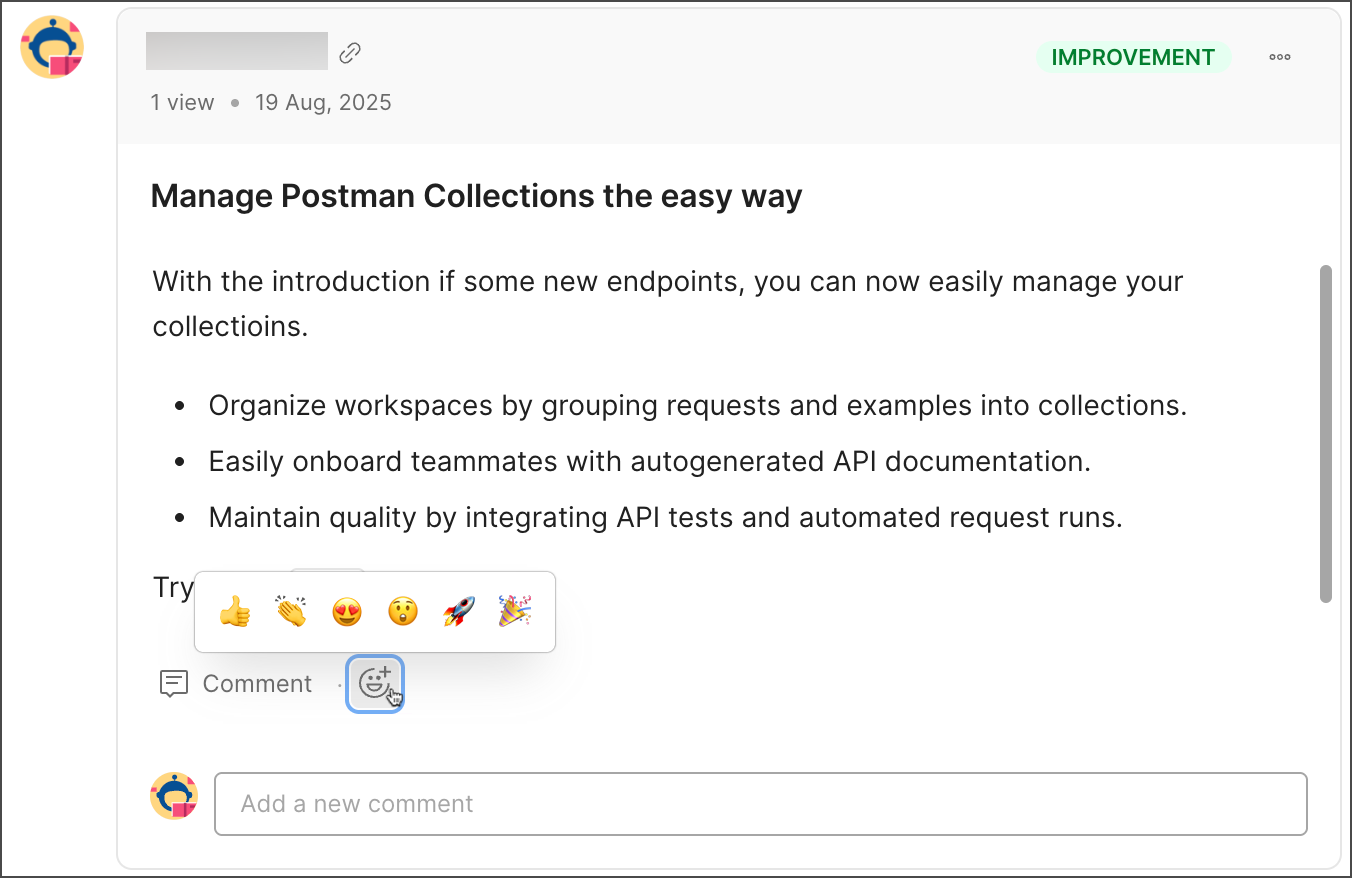 You can also interact with a workspace update from a Slack message.
