***
title: Share and collaborate on Postman Collections
updated: 2025-08-13T00:00:00.000Z
max-toc-depth: 2
----------------
You can collaborate on Postman Collections with your team and other Postman users. Share collections with others, watch collections to get notified when changes are made, and comment on collections to let others know your thoughts. You can also use collection tags to help organize and find collections.
Forking offers another way to collaborate on collections. You can fork a collection into your own workspace, make changes, and then create a pull request to merge your changes back to the original collection.
## Share a collection
To share a collection with other Postman users, use any of the following methods:
{/* vale postman-style-guide.Vocab = NO */}
* Select a collection in the sidebar, then click **Share** in the workbench. You can enter the users you want to share the collection with, or copy a link you can share with others. Learn more about [sharing elements in Postman](/docs/collaborating-in-postman/sharing/#share-postman-collections-and-other-elements).
To share a link with users who aren't in your Postman team, turn on **Allow guests to view collection via link**. Learn more about [sharing collections with Guests](/docs/collaborating-in-postman/sharing/#share-collections-with-guests).
* In the workbench, click  **Copy link to collection** next to a collection's name. You can then share the link with others.
To share a link to a collection, folder, request, or example with an active environment selected, [choose an environment using the environment selector](/docs/sending-requests/variables/managing-environments/#switch-between-environments) and copy the element's link to your clipboard. You can then share the link with others.
* Move the collection to a shared workspace. In the sidebar, click
**Copy link to collection** next to a collection's name. You can then share the link with others.
To share a link to a collection, folder, request, or example with an active environment selected, [choose an environment using the environment selector](/docs/sending-requests/variables/managing-environments/#switch-between-environments) and copy the element's link to your clipboard. You can then share the link with others.
* Move the collection to a shared workspace. In the sidebar, click  **View more actions** next to a collection, then click **Move**. Learn more about [moving Postman elements](/docs/collaborating-in-postman/using-workspaces/internal-workspaces/manage-workspaces/#move-elements-to-workspaces).
* Publish a [**Run in Postman**](/docs/publishing-your-api/run-in-postman/creating-run-button/) button. Others can use the **Run in Postman** button to view and run your collection in their own environment.
* If you're on an [Enterprise plan](https://www.postman.com/pricing/), you can add the collection to your team's [Private API Network](/docs/collaborating-in-postman/private-api-network/private-network-requests/#request-to-add-a-collection-from-the-workbench).
{/* vale postman-style-guide.Vocab = YES */}
## Watch a collection
If you watch a collection, Postman notifies you when a change is made to the collection. Changes you'll get notified about include adding a request, changing a request, adding or updating variables, editing pre-request or post-response scripts, and adding or deleting a folder.
You can watch collections in internal, partner, and public [workspaces](/docs/collaborating-in-postman/using-workspaces/create-workspaces/). You can't watch collections in workspaces restricted only to you.
To watch a collection, do the following:
1. Click
**View more actions** next to a collection, then click **Move**. Learn more about [moving Postman elements](/docs/collaborating-in-postman/using-workspaces/internal-workspaces/manage-workspaces/#move-elements-to-workspaces).
* Publish a [**Run in Postman**](/docs/publishing-your-api/run-in-postman/creating-run-button/) button. Others can use the **Run in Postman** button to view and run your collection in their own environment.
* If you're on an [Enterprise plan](https://www.postman.com/pricing/), you can add the collection to your team's [Private API Network](/docs/collaborating-in-postman/private-api-network/private-network-requests/#request-to-add-a-collection-from-the-workbench).
{/* vale postman-style-guide.Vocab = YES */}
## Watch a collection
If you watch a collection, Postman notifies you when a change is made to the collection. Changes you'll get notified about include adding a request, changing a request, adding or updating variables, editing pre-request or post-response scripts, and adding or deleting a folder.
You can watch collections in internal, partner, and public [workspaces](/docs/collaborating-in-postman/using-workspaces/create-workspaces/). You can't watch collections in workspaces restricted only to you.
To watch a collection, do the following:
1. Click  **Collections** in the sidebar and select a collection.
2. Click
**Collections** in the sidebar and select a collection.
2. Click  **Watch** in the workbench.
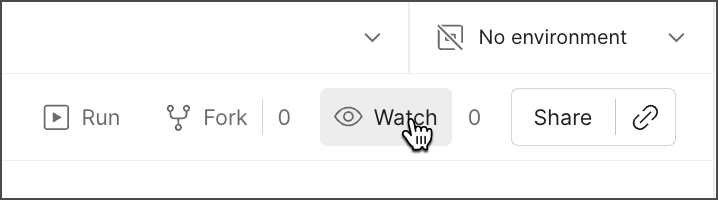
To view changes for a collection at any time, select the collection in the sidebar and then click
**Watch** in the workbench.

To view changes for a collection at any time, select the collection in the sidebar and then click  **Changelog** in the right sidebar. You can also use [Postman-built integrations](/docs/integrations/available-integrations/postman-integrations/) to get alerts about your collection.
If you create a collection and change it from the same Postman account, you won't receive notifications for changes you make to that collection.
## Add comments to a collection
You can add a comment to a collection to collaborate with your team or give feedback to other users.
1. Click **Collections** in the sidebar and select a collection.
2. Click
**Changelog** in the right sidebar. You can also use [Postman-built integrations](/docs/integrations/available-integrations/postman-integrations/) to get alerts about your collection.
If you create a collection and change it from the same Postman account, you won't receive notifications for changes you make to that collection.
## Add comments to a collection
You can add a comment to a collection to collaborate with your team or give feedback to other users.
1. Click **Collections** in the sidebar and select a collection.
2. Click  **Comments** in the right sidebar and enter your comment.
3. Click **Comment** to add your comment.
To learn more about using comments to collaborate on collections and requests, go to [Collaborate in Postman using comments](/docs/collaborating-in-postman/comments/).
## Tag a collection
**[Tagging collections is available with Postman Enterprise plans.](https://www.postman.com/pricing/)**
You can use shared tags to organize and search for collections. Once you add tags to a collection, you can select a tag to search for collections and other elements with the same tag.
You can apply shared tags to workspaces, collections, and APIs. Tags can be two to 64 alphanumeric characters in length and must start with an alphabetical character. Tags can contain dashes but no other special characters or spaces. You can add up to five tags.
To learn more about searching using tags in Postman, go to [Search Postman](/docs/getting-started/basics/navigating-postman/#search-postman). You can search by tags in your Private API Network. Use tags to search for [elements on your Private API Network](/docs/collaborating-in-postman/private-api-network/use-private-network/#search-filter-and-sort). You can also use tags to search for [elements to add](/docs/collaborating-in-postman/private-api-network/organizing-private-network/#add-elements-in-your-private-api-network) and [elements to request to add](/docs/collaborating-in-postman/private-api-network/private-network-requests/#request-to-add-elements-in-your-private-api-network) to your Private API Network.
To add tags to a collection, do the following:
1. Click **Collections** in the sidebar and select a collection.
2. Click the **Select status or other tags** section to edit it.
**Comments** in the right sidebar and enter your comment.
3. Click **Comment** to add your comment.
To learn more about using comments to collaborate on collections and requests, go to [Collaborate in Postman using comments](/docs/collaborating-in-postman/comments/).
## Tag a collection
**[Tagging collections is available with Postman Enterprise plans.](https://www.postman.com/pricing/)**
You can use shared tags to organize and search for collections. Once you add tags to a collection, you can select a tag to search for collections and other elements with the same tag.
You can apply shared tags to workspaces, collections, and APIs. Tags can be two to 64 alphanumeric characters in length and must start with an alphabetical character. Tags can contain dashes but no other special characters or spaces. You can add up to five tags.
To learn more about searching using tags in Postman, go to [Search Postman](/docs/getting-started/basics/navigating-postman/#search-postman). You can search by tags in your Private API Network. Use tags to search for [elements on your Private API Network](/docs/collaborating-in-postman/private-api-network/use-private-network/#search-filter-and-sort). You can also use tags to search for [elements to add](/docs/collaborating-in-postman/private-api-network/organizing-private-network/#add-elements-in-your-private-api-network) and [elements to request to add](/docs/collaborating-in-postman/private-api-network/private-network-requests/#request-to-add-elements-in-your-private-api-network) to your Private API Network.
To add tags to a collection, do the following:
1. Click **Collections** in the sidebar and select a collection.
2. Click the **Select status or other tags** section to edit it.
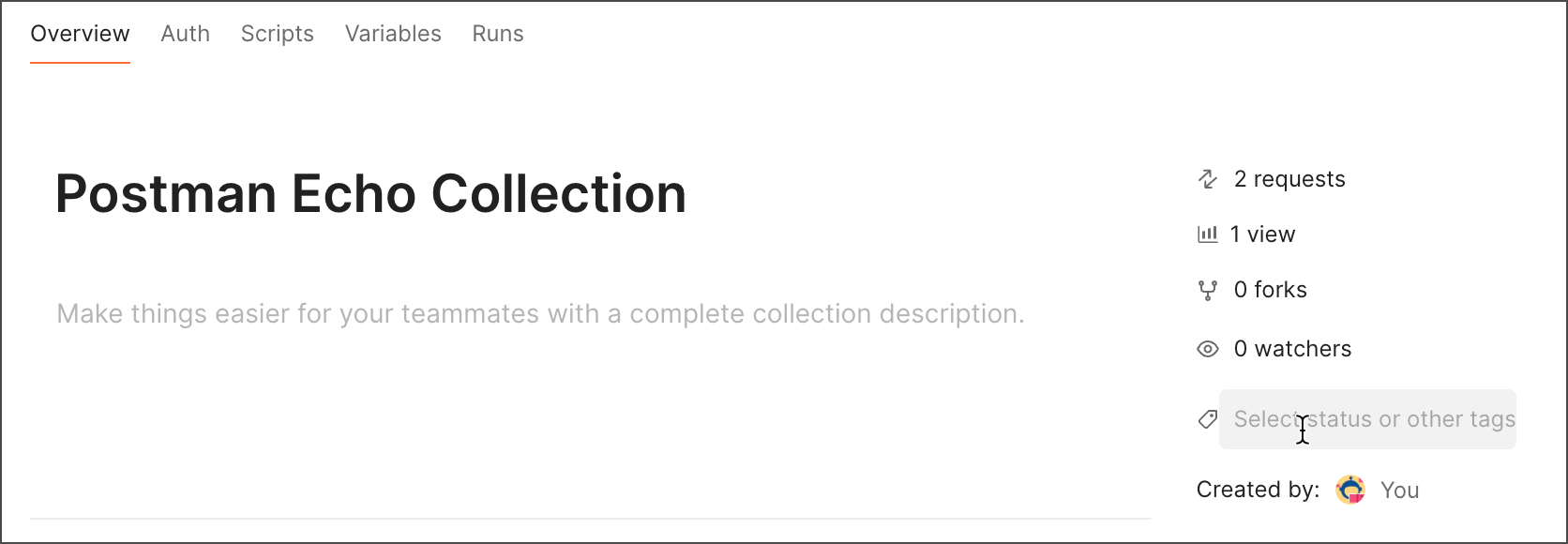 3. Select an existing tag or add a new tag. To add a new tag, enter the tag name and Click **Create "tag-name"**.
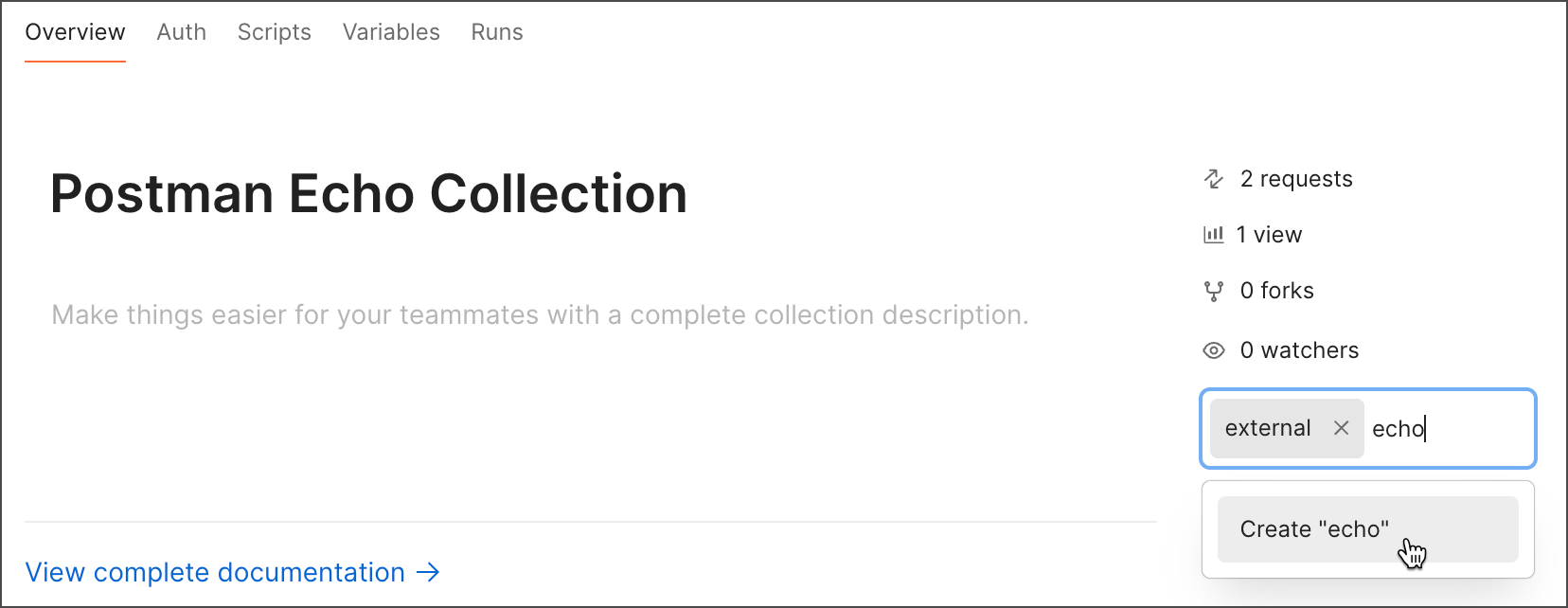 4. Click outside the **Select status or other tags** section to save your changes.
To remove tags from a collection, do the following:
1. Click **Collections** in the sidebar and select a collection.
2. Click the **Select status or other tags** section to edit it.
3. Click
4. Click outside the **Select status or other tags** section to save your changes.
To remove tags from a collection, do the following:
1. Click **Collections** in the sidebar and select a collection.
2. Click the **Select status or other tags** section to edit it.
3. Click  next to a tag.
4. Click outside the **Select status or other tags** section to save your changes.
## Set a collection's status
**[Status tags are available with Postman Enterprise plans.](https://www.postman.com/pricing/)** You can apply status tags to internal collections.
You can indicate a collection's lifecycle status with *status* tags. Status tags are special tags that let developers know that a collection is in development, in review, ready to use, or deprecated. Use Postman's pre-defined status tags or create your own. You can search status tags the same way you [search other tags](/docs/getting-started/basics/navigating-postman/#search-postman).
Status tags can be two to 64 alphanumeric characters in length, must start with an alphabetical character, and must include an emoji. Status tags can contain dashes but no other special characters or spaces. You can apply one status tag at a time to a collection.
To apply a status tag to a collection, do the following:
1. Click **Collections** in the sidebar and select a collection.
2. Click the **Select status or other tags** section to edit it.
3. Hover over **Status** and select a status tag from the dropdown list.
To create a custom status tag, do the following:
1. Click **Collections** in the sidebar and select a collection.
2. Click the **Select status or other tags** section to edit it.
3. Hover over **Status** and select **+ Create custom status**.
4. Enter a status and select an emoji.
5. Click **Create**.
To remove a status tag from a collection, do the following:
1. Click **Collections** in the sidebar and select a collection.
2. Click the **Select status or other tags** section to edit it.
3. Click next to a status tag.
4. Click outside the **Select status or other tags** section to save your changes.
## Fork a collection
If you don't have edit access to a collection, you can make changes by forking the collection into your own workspace. You can then create a pull request to submit your changes to the original collection.
To fork a collection, do the following:
1. Click **Collections** in the sidebar and select a collection.
2. Click
next to a tag.
4. Click outside the **Select status or other tags** section to save your changes.
## Set a collection's status
**[Status tags are available with Postman Enterprise plans.](https://www.postman.com/pricing/)** You can apply status tags to internal collections.
You can indicate a collection's lifecycle status with *status* tags. Status tags are special tags that let developers know that a collection is in development, in review, ready to use, or deprecated. Use Postman's pre-defined status tags or create your own. You can search status tags the same way you [search other tags](/docs/getting-started/basics/navigating-postman/#search-postman).
Status tags can be two to 64 alphanumeric characters in length, must start with an alphabetical character, and must include an emoji. Status tags can contain dashes but no other special characters or spaces. You can apply one status tag at a time to a collection.
To apply a status tag to a collection, do the following:
1. Click **Collections** in the sidebar and select a collection.
2. Click the **Select status or other tags** section to edit it.
3. Hover over **Status** and select a status tag from the dropdown list.
To create a custom status tag, do the following:
1. Click **Collections** in the sidebar and select a collection.
2. Click the **Select status or other tags** section to edit it.
3. Hover over **Status** and select **+ Create custom status**.
4. Enter a status and select an emoji.
5. Click **Create**.
To remove a status tag from a collection, do the following:
1. Click **Collections** in the sidebar and select a collection.
2. Click the **Select status or other tags** section to edit it.
3. Click next to a status tag.
4. Click outside the **Select status or other tags** section to save your changes.
## Fork a collection
If you don't have edit access to a collection, you can make changes by forking the collection into your own workspace. You can then create a pull request to submit your changes to the original collection.
To fork a collection, do the following:
1. Click **Collections** in the sidebar and select a collection.
2. Click  **Fork** in the workbench.
To learn more, go to [Version control for Postman collections and environments](/docs/collaborating-in-postman/using-version-control/version-control-overview/).
## View pull requests, forks, and collection details
To get more details about a collection, select the collection in the sidebar and then do any of the following:
* To view pull requests for the collection, click
**Fork** in the workbench.
To learn more, go to [Version control for Postman collections and environments](/docs/collaborating-in-postman/using-version-control/version-control-overview/).
## View pull requests, forks, and collection details
To get more details about a collection, select the collection in the sidebar and then do any of the following:
* To view pull requests for the collection, click  **Pull Requests** in the right sidebar.
* To view forks created from the collection, click **Forks** in the right sidebar.
* To view more information about the collection, including mock servers, monitors, and integrations, click
**Pull Requests** in the right sidebar.
* To view forks created from the collection, click **Forks** in the right sidebar.
* To view more information about the collection, including mock servers, monitors, and integrations, click  **Info** in the right sidebar.