# Share and collaborate on APIs in the Postman API Builder
When you [define your APIs](/docs/design-apis/api-builder/overview/) in Postman using the API Builder, each API is associated with a workspace. You can share access to your APIs, discuss them in comments, and view schema activity.
## Share APIs
You can share APIs with collaborators by going to the API you want to share in the sidebar.
To share an API, do the following:
1. Click  **View more actions** next to the API you want to share, then select **Share**.
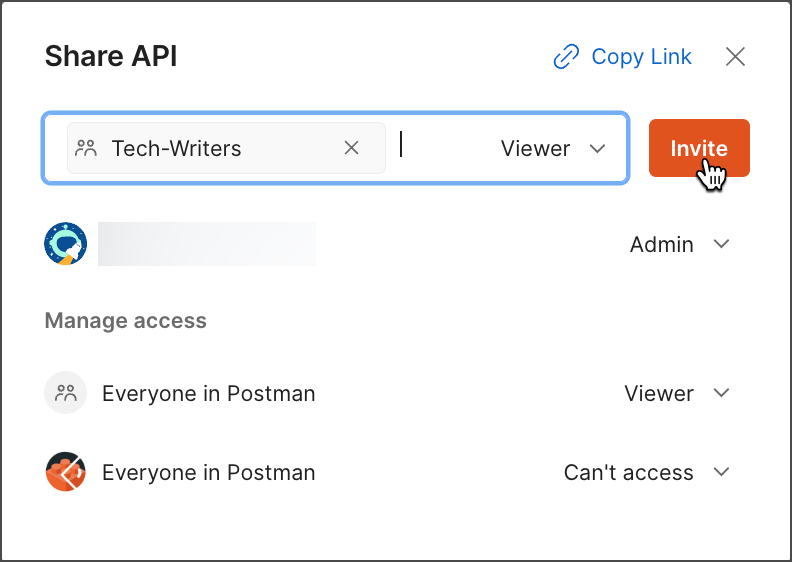
2. Enter the names or groups of your collaborators, then click **Invite**. Alternatively, copy the link to share.
**View more actions** next to the API you want to share, then select **Share**.
2. Enter the names or groups of your collaborators, then click **Invite**. Alternatively, copy the link to share.
 For more details about sharing APIs, see [Share your work in Postman](/docs/collaborating-in-postman/sharing/).
## Collaborating on APIs
You can move APIs to shared internal workspaces to [collaborate with your team](https://www.postman.com/api-platform/api-collaboration/) on API development.
You must be an [Admin](/docs/administration/roles-and-permissions/#api-roles) on an API or the [Workspace Admin](/docs/administration/roles-and-permissions/#workspace-roles) to move the API to another workspace. Learn more about [roles and permissions](/docs/administration/roles-and-permissions/).
To move an API to a shared workspace, do the following:
1. Click **APIs** in the sidebar.
2. Click **View more actions** next to an API and select **Move**.
3. Use the search box to find the workspace you want to move the API to, or click
For more details about sharing APIs, see [Share your work in Postman](/docs/collaborating-in-postman/sharing/).
## Collaborating on APIs
You can move APIs to shared internal workspaces to [collaborate with your team](https://www.postman.com/api-platform/api-collaboration/) on API development.
You must be an [Admin](/docs/administration/roles-and-permissions/#api-roles) on an API or the [Workspace Admin](/docs/administration/roles-and-permissions/#workspace-roles) to move the API to another workspace. Learn more about [roles and permissions](/docs/administration/roles-and-permissions/).
To move an API to a shared workspace, do the following:
1. Click **APIs** in the sidebar.
2. Click **View more actions** next to an API and select **Move**.
3. Use the search box to find the workspace you want to move the API to, or click  **Filter by visibility**.
You can move APIs to internal and public workspaces that you have access to. You can't move APIs from internal workspaces to a workspace restricted only to you.
4. Select the workspace, then click **Move API**. Any collections in the API will move with the API to the new workspace.
**Filter by visibility**.
You can move APIs to internal and public workspaces that you have access to. You can't move APIs from internal workspaces to a workspace restricted only to you.
4. Select the workspace, then click **Move API**. Any collections in the API will move with the API to the new workspace.
 ## Tagging APIs
**[Tagging APIs is available with Postman Enterprise plans](https://www.postman.com/pricing/).**
You can use shared tags to organize and search for APIs. Once you add tags to an API, you can select a tag to search for APIs and other elements with the same tag.
You can apply up to five shared tags to workspaces, collections, and APIs. Tags can be 2 to 64 alphanumeric characters in length and must start with an alphabetical character. Tags can contain dashes but no other special characters or spaces.
To learn more about searching using tag names in Postman, see [Search Postman](/docs/getting-started/basics/navigating-postman/#search-postman). You can use tags when searching [elements in your Private API Network](/docs/collaborating-in-postman/private-api-network/use-private-network/#search-filter-and-sort). You can also use tags to search for [elements to add](/docs/collaborating-in-postman/private-api-network/organizing-private-network/#add-elements-in-your-private-api-network) and [elements to request to add](/docs/collaborating-in-postman/private-api-network/private-network-requests/#request-to-add-elements-in-your-private-api-network) to your Private API Network.
To add tags to an API, do the following:
1. Click **APIs** in the sidebar.
2. Select an API.
3. Click the **Tags** section to edit it.
4. Select an existing tag or enter a new tag. If you're adding a new tag, enter the new tag name and then click **Create "tag-name"**.
## Tagging APIs
**[Tagging APIs is available with Postman Enterprise plans](https://www.postman.com/pricing/).**
You can use shared tags to organize and search for APIs. Once you add tags to an API, you can select a tag to search for APIs and other elements with the same tag.
You can apply up to five shared tags to workspaces, collections, and APIs. Tags can be 2 to 64 alphanumeric characters in length and must start with an alphabetical character. Tags can contain dashes but no other special characters or spaces.
To learn more about searching using tag names in Postman, see [Search Postman](/docs/getting-started/basics/navigating-postman/#search-postman). You can use tags when searching [elements in your Private API Network](/docs/collaborating-in-postman/private-api-network/use-private-network/#search-filter-and-sort). You can also use tags to search for [elements to add](/docs/collaborating-in-postman/private-api-network/organizing-private-network/#add-elements-in-your-private-api-network) and [elements to request to add](/docs/collaborating-in-postman/private-api-network/private-network-requests/#request-to-add-elements-in-your-private-api-network) to your Private API Network.
To add tags to an API, do the following:
1. Click **APIs** in the sidebar.
2. Select an API.
3. Click the **Tags** section to edit it.
4. Select an existing tag or enter a new tag. If you're adding a new tag, enter the new tag name and then click **Create "tag-name"**.
 5. Click the area outside the **Tags** section to save your changes.
To remove tags from an API, do the following:
1. Click **APIs** in the sidebar.
2. Select an API.
3. Click the **Tags** section to edit it.
4. Click
5. Click the area outside the **Tags** section to save your changes.
To remove tags from an API, do the following:
1. Click **APIs** in the sidebar.
2. Select an API.
3. Click the **Tags** section to edit it.
4. Click  next to a tag.
5. Click the area outside the **Tags** section to save your changes.
## Watching APIs
The watch option enables you to receive an email or in-app notification when a team member belonging to the same workspace modifies the API. For example, you'll receive a notification when a team member updates the API's definition, adds an element to the API, or adds a comment to the API.
Click **Watch** to start watching the API.
next to a tag.
5. Click the area outside the **Tags** section to save your changes.
## Watching APIs
The watch option enables you to receive an email or in-app notification when a team member belonging to the same workspace modifies the API. For example, you'll receive a notification when a team member updates the API's definition, adds an element to the API, or adds a comment to the API.
Click **Watch** to start watching the API.
 For more information about the changes to the API, click
  **Notifications** in the Postman header.
You will also receive an email with the information regarding who made the change, what the change was, and when it was made.
You won't receive notifications for changes that you made.
## Commenting on APIs
You can add one or more comments to an API. Use comments to discuss your APIs with collaborators in Postman, keeping the conversation in context and available to other stakeholders.
API producers ([Admin role](/docs/administration/roles-and-permissions/#api-roles) or [Editor role](/docs/administration/roles-and-permissions/#api-roles)) can add comments to an API. API consumers ([Viewer role](/docs/administration/roles-and-permissions/#api-roles)) can't add comments to an API and won't see comments made by API producers. However, API consumers can comment on [published versions](#commenting-on-published-apis) of an API.
To add a new comment to an API, do the following:
1. Click **APIs** in the sidebar and select the API you want to comment on.
2. Click
**Notifications** in the Postman header.
You will also receive an email with the information regarding who made the change, what the change was, and when it was made.
You won't receive notifications for changes that you made.
## Commenting on APIs
You can add one or more comments to an API. Use comments to discuss your APIs with collaborators in Postman, keeping the conversation in context and available to other stakeholders.
API producers ([Admin role](/docs/administration/roles-and-permissions/#api-roles) or [Editor role](/docs/administration/roles-and-permissions/#api-roles)) can add comments to an API. API consumers ([Viewer role](/docs/administration/roles-and-permissions/#api-roles)) can't add comments to an API and won't see comments made by API producers. However, API consumers can comment on [published versions](#commenting-on-published-apis) of an API.
To add a new comment to an API, do the following:
1. Click **APIs** in the sidebar and select the API you want to comment on.
2. Click  **Comments** in the right sidebar.
3. Enter your comment and click **Comment**.
**Comments** in the right sidebar.
3. Enter your comment and click **Comment**.
 You can also add comments to collections you've added to your API and to requests and folders in that collection. Learn more about [commenting on a collection](/docs/collaborating-in-postman/comments/#global-comments).
To leave an inline comment on an API definition, do the following:
1. Click an API in the sidebar to expand it.
2. Click **Definition** under the API, then select the definition file you want to comment on.
3. Switch to comment mode by clicking **Switch to comment mode** in the editor pane.
4. Highlight part of the definition, enter your comment, and click **Comment**.

### Formatting API comments
Comments (including inline comments) support the same formatting features as the [Postman editor](/docs/publishing-your-api/authoring-your-documentation/#write-descriptions-in-the-postman-editor). Use common keyboard shortcuts to format text, like **⌘+B** or **Ctrl+B** to make text bold, or paste formatted text and tables from a word processor or other source. You can also drag or paste an image into your comment, or add and edit links.
Postman supports [Markdown](https://github.com/adam-p/markdown-here/wiki/Markdown-Cheatsheet) in comments. For example, enter `#` followed by a space to start a new heading, or enter `---` to add a horizontal line. You can also copy existing Markdown code, including lists and tables, and paste it into the editor to instantly format it.
To mention a collaborator in a comment, type `@` followed by their name, then choose the person from the auto-suggested list. When you mention a teammate in a comment, Postman sends them a notification.
To learn more about formatting content, go to [Write descriptions in the Postman editor](/docs/publishing-your-api/authoring-your-documentation/#write-descriptions-in-the-postman-editor).
### Editing, deleting, or linking to an API comment
To manage API comments, select an API or a definition file in the sidebar, then click **Comments** in the right sidebar.
Click **View more actions** next to a comment and do one of the following:
* Select **Copy link** to copy a direct link to the comment to your clipboard. Share the link with your teammates so they can view or reply to the comment.
* Select **Edit** to make changes to the comment.
* Select **Delete** to delete the comment.
You can also add comments to collections you've added to your API and to requests and folders in that collection. Learn more about [commenting on a collection](/docs/collaborating-in-postman/comments/#global-comments).
To leave an inline comment on an API definition, do the following:
1. Click an API in the sidebar to expand it.
2. Click **Definition** under the API, then select the definition file you want to comment on.
3. Switch to comment mode by clicking **Switch to comment mode** in the editor pane.
4. Highlight part of the definition, enter your comment, and click **Comment**.

### Formatting API comments
Comments (including inline comments) support the same formatting features as the [Postman editor](/docs/publishing-your-api/authoring-your-documentation/#write-descriptions-in-the-postman-editor). Use common keyboard shortcuts to format text, like **⌘+B** or **Ctrl+B** to make text bold, or paste formatted text and tables from a word processor or other source. You can also drag or paste an image into your comment, or add and edit links.
Postman supports [Markdown](https://github.com/adam-p/markdown-here/wiki/Markdown-Cheatsheet) in comments. For example, enter `#` followed by a space to start a new heading, or enter `---` to add a horizontal line. You can also copy existing Markdown code, including lists and tables, and paste it into the editor to instantly format it.
To mention a collaborator in a comment, type `@` followed by their name, then choose the person from the auto-suggested list. When you mention a teammate in a comment, Postman sends them a notification.
To learn more about formatting content, go to [Write descriptions in the Postman editor](/docs/publishing-your-api/authoring-your-documentation/#write-descriptions-in-the-postman-editor).
### Editing, deleting, or linking to an API comment
To manage API comments, select an API or a definition file in the sidebar, then click **Comments** in the right sidebar.
Click **View more actions** next to a comment and do one of the following:
* Select **Copy link** to copy a direct link to the comment to your clipboard. Share the link with your teammates so they can view or reply to the comment.
* Select **Edit** to make changes to the comment.
* Select **Delete** to delete the comment.
 If you have the Admin role for the workspace, you can delete comments made by any contributor, but you can't edit comments made by others.
### Replying to an API comment
To reply to an API comment, select an API or a definition file in the sidebar, then click **Comments** in the right sidebar. Click **Reply** on the comment you want to reply to. Enter your reply and select **Reply**.
If you have the Admin role for the workspace, you can delete comments made by any contributor, but you can't edit comments made by others.
### Replying to an API comment
To reply to an API comment, select an API or a definition file in the sidebar, then click **Comments** in the right sidebar. Click **Reply** on the comment you want to reply to. Enter your reply and select **Reply**.
 ### Resolving API comments
You can resolve a comment after it's been addressed. Select an API or a definition file in the sidebar, then click **Comments** in the right sidebar. Click
### Resolving API comments
You can resolve a comment after it's been addressed. Select an API or a definition file in the sidebar, then click **Comments** in the right sidebar. Click  **Resolve comment** to resolve a comment and any associated replies.
 You can't undo resolving a comment, but you can view resolved comments by clicking in the comments pane.
### Commenting on published APIs
You can [publish your API](/docs/design-apis/api-builder/versioning-an-api/api-versions/) to share the current state of your API with consumers. Keep in mind the following when publishing an API:
* When you publish an API version, comments made by API producers aren't published with the API.
* API consumers can't add comments to an API, but they can add comments to a published API version.
### Commenting on Git-linked APIs
You can [connect a Git repository](/docs/design-apis/api-builder/versioning-an-api/overview/) to your API to sync your API between Postman and the repository. Keep in mind the following differences when commenting on Git-linked APIs:
* Comments are associated with a branch. If you add a comment while working on one branch, those comments won't be visible when you [switch to another branch](/docs/design-apis/api-builder/versioning-an-api/managing-git-changes/#switch-branches).
* You must [commit and push changes](/docs/design-apis/api-builder/versioning-an-api/managing-git-changes/#commit-and-push-changes) on a branch before you can add a new comment on that branch. (You can reply to an existing comment without committing and pushing changes.)
* When you [merge a branch](/docs/design-apis/api-builder/versioning-an-api/managing-git-changes/#create-a-pull-request), comments remain on the branch being merged and aren't merged to the target branch.
## Use the changelog
You can view a history of changes to your API definitions and all linked collections. To access the changelog, open an API, then click
You can't undo resolving a comment, but you can view resolved comments by clicking in the comments pane.
### Commenting on published APIs
You can [publish your API](/docs/design-apis/api-builder/versioning-an-api/api-versions/) to share the current state of your API with consumers. Keep in mind the following when publishing an API:
* When you publish an API version, comments made by API producers aren't published with the API.
* API consumers can't add comments to an API, but they can add comments to a published API version.
### Commenting on Git-linked APIs
You can [connect a Git repository](/docs/design-apis/api-builder/versioning-an-api/overview/) to your API to sync your API between Postman and the repository. Keep in mind the following differences when commenting on Git-linked APIs:
* Comments are associated with a branch. If you add a comment while working on one branch, those comments won't be visible when you [switch to another branch](/docs/design-apis/api-builder/versioning-an-api/managing-git-changes/#switch-branches).
* You must [commit and push changes](/docs/design-apis/api-builder/versioning-an-api/managing-git-changes/#commit-and-push-changes) on a branch before you can add a new comment on that branch. (You can reply to an existing comment without committing and pushing changes.)
* When you [merge a branch](/docs/design-apis/api-builder/versioning-an-api/managing-git-changes/#create-a-pull-request), comments remain on the branch being merged and aren't merged to the target branch.
## Use the changelog
You can view a history of changes to your API definitions and all linked collections. To access the changelog, open an API, then click  **Changelog** in the right sidebar.
If you connect your API to a Git repository, the changelog is replaced by the **Source Control** pane. Learn more about [API version control](/docs/design-apis/api-builder/versioning-an-api/overview/).
The changelog shows a list of changes made to the definition and associated elements. Select each entry for more details.
**Changelog** in the right sidebar.
If you connect your API to a Git repository, the changelog is replaced by the **Source Control** pane. Learn more about [API version control](/docs/design-apis/api-builder/versioning-an-api/overview/).
The changelog shows a list of changes made to the definition and associated elements. Select each entry for more details.
