# Create and use a mock server using the Postman API
Set up a [mock server](/docs/design-apis/mock-apis/set-up-mock-servers/) to simulate the behavior of a real API for development or testing purposes. In Postman, you [mock a collection](/docs/design-apis/mock-apis/tutorials/mock-with-examples/) by adding examples and creating a mock server. You can automate the process of setting up a mock server using the [Postman API](https://api.postman.com/).
Follow the steps below to get a hands-on demonstration of how to mock a collection with the Postman API.
## Set up a collection for mocking
To set up a mock server for calling the collection's endpoints, do the following:
1. [Create a new collection](/docs/collections/use-collections/create-collections/#create-a-new-collection) called "testAPI". Optionally, you can also [create a new environment](/docs/sending-requests/variables/managing-environments/) called "testAPI" to store variables for your collection.
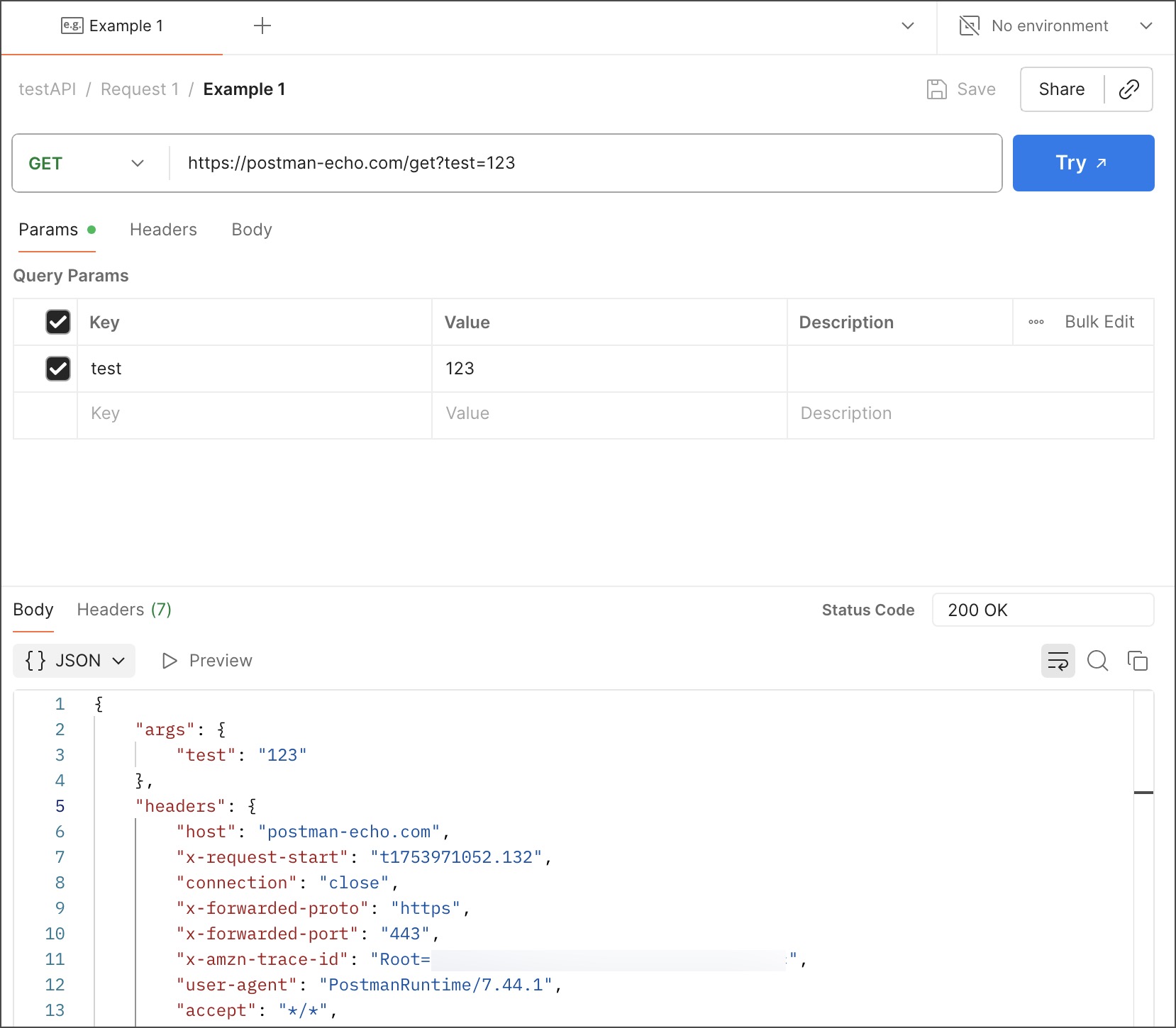
2. [Add an HTTP request](/docs/sending-requests/create-requests/request-basics/#create-a-new-request) to the collection. For this example, the collection uses a **Request 1** request that sends a GET request to `https://postman-echo.com/get?test=123`.
3. Open the request in the collection and click **Send**.
4. In the response pane, click  **Save Response**. Your mock server uses this [saved example](/docs/sending-requests/response-data/examples/) to return mock data.
You can [edit your example](/docs/sending-requests/response-data/examples/#edit-an-example) to include the specific response body, header, or status code that you want the mocked endpoint to return. A request can have more than one example, in which case the mock server follows a [matching algorithm](/docs/design-apis/mock-apis/matching-algorithm/) to decide which example to return.
## Get the collection and environment ID
To get the **testAPI** collection's ID, do the following:
1. Click
**Save Response**. Your mock server uses this [saved example](/docs/sending-requests/response-data/examples/) to return mock data.
You can [edit your example](/docs/sending-requests/response-data/examples/#edit-an-example) to include the specific response body, header, or status code that you want the mocked endpoint to return. A request can have more than one example, in which case the mock server follows a [matching algorithm](/docs/design-apis/mock-apis/matching-algorithm/) to decide which example to return.

## Get the collection and environment ID
To get the **testAPI** collection's ID, do the following:
1. Click  **Info** in the right sidebar of the **testAPI** collection.
2. Click
**Info** in the right sidebar of the **testAPI** collection.
2. Click  **Copy collection ID** to copy the ID, then save it for later.
To get the environment's ID, do the following:
1. Click **Environments** in the sidebar, then select the environment you want.
2. Click **Info** in the right sidebar to access the environment ID.
3. Click **Copy environment ID** to copy it, then save it for later.
You can also use the Postman API's [GET](https://www.postman.com/postman/postman-public-workspace/request/9b3bkoy/get-all-collections) `/collections` and [GET](https://www.postman.com/postman/postman-public-workspace/request/bqbz8iw/get-all-environments) `/environments` endpoints to get the IDs.
## Create a mock server with the Postman API
After getting the collection ID and environment ID, you'll use the [POST](https://www.postman.com/postman/postman-public-workspace/request/5y0q4k4/create-a-mock-server) `/mocks` endpoint to create a mock server.
1. Create a new request in Postman and select the **POST** method.
2. Enter the `https://api.getpostman.com/mocks` endpoint URL.
3. In the **Authorization** tab, select **Postman API** for the **Auth Type**. Then, enter a valid [Postman API key](https://go.postman.co/settings/me/api-keys/) in the **Auth credentials** text box.
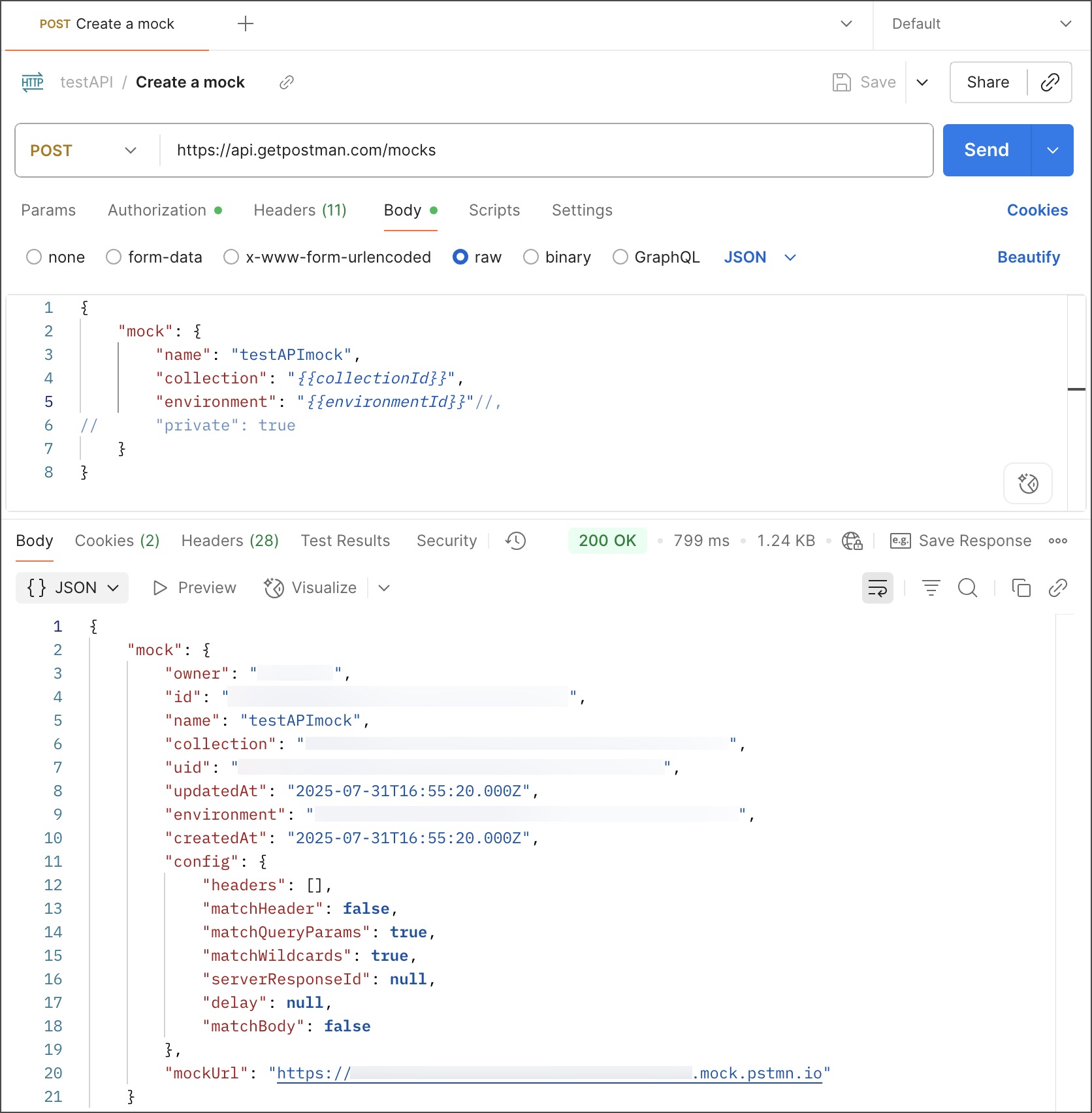
4. In the request's **Body** tab, select **raw** and enter the following JSON:
```json
{
"mock": {
"name": "testAPImock",
"collection": "{{collectionId}}",
"environment": "{{environmentId}}" // Optional
}
}
```
5. Update the request body's variables with the copied collection and environment IDs.
If you aren't using an environment, comment out or remove the `environment` property.
6. Click **Send**.
By default, this creates a public mock server. Public mock servers can receive requests from anyone and anywhere (such as a browser, application code, or a curl command). Private mock servers require a Postman API key in an `x-api-key` header. To create a private mock server, include `"private": true` in the request body.
## Get the mock server URL
To send a request to your mock server, you'll need to know its URL.
1. Click **Mock servers** in the sidebar. Then, select the **testAPI** mock server.
2. Click **Copy URL**.
You can also use the Postman API to get the mock server's URL. The [POST](https://www.postman.com/postman/postman-public-workspace/request/5y0q4k4/create-a-mock-server) `/mocks` endpoint returns the URL in the response when it [creates the mock server](#create-a-mock-server-with-the-postman-api). If you need to get the URL, make a request to the [GET](https://www.postman.com/postman/postman-public-workspace/request/6v89u2r/get-all-mock-servers) `/mocks` endpoint and copy the `mockUrl` value.
## Send a request to the mock server
You're ready to simulate requests using your **testAPI** collection.
1. In the **Request 1** request, append the `{{mockUrl}}` variable to the URL: `https://{{mockUrl}}/get?test=123`.
2. Update the `{{mockUrl}}` variable with your mock server's URL.
Because this is a public mock server, you don't need to include an `x-api-key` header in the request.
3. Click **Send**. The response pane displays the mock server's response.
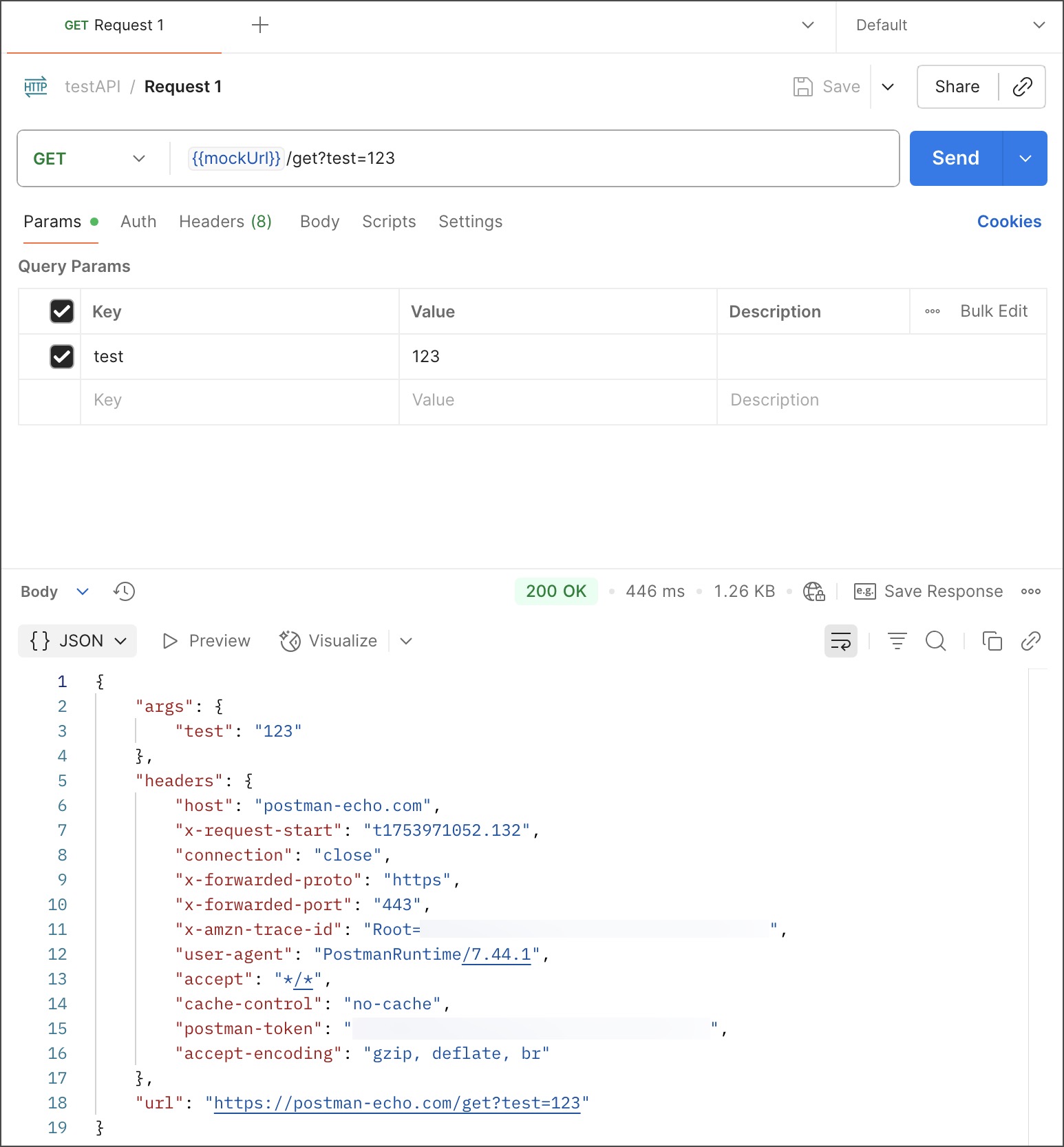
Notice that the response is the same as the example you saved for **Request 1**. That's because the mock server uses the example to create its response. If you added more requests and examples to the collection, send them to the mock server using the mock server URL and the request path.
## Add optional request headers
Postman mock servers accept optional headers that you can use to customize how the mock server responds to requests. Using these headers, you can specify which saved examples the mock server returns. Without these headers, the mock server follows a [matching algorithm](/docs/design-apis/mock-apis/matching-algorithm/) to decide which example to return in a response.
To add a custom header to a request, do the following:
1. Open the collection's request and select the **Headers** tab.
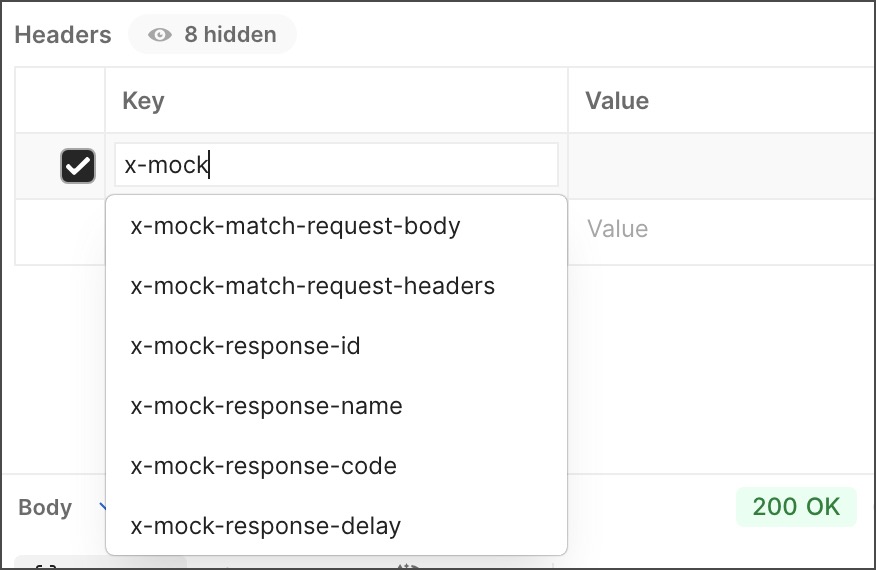
2. Enter a custom header in the **Key** field, then enter a **Value** for the header. You can enter `x-mock` in the **Key** field to view a list of the available mock server headers.
**Copy collection ID** to copy the ID, then save it for later.
To get the environment's ID, do the following:
1. Click **Environments** in the sidebar, then select the environment you want.
2. Click **Info** in the right sidebar to access the environment ID.
3. Click **Copy environment ID** to copy it, then save it for later.
You can also use the Postman API's [GET](https://www.postman.com/postman/postman-public-workspace/request/9b3bkoy/get-all-collections) `/collections` and [GET](https://www.postman.com/postman/postman-public-workspace/request/bqbz8iw/get-all-environments) `/environments` endpoints to get the IDs.
## Create a mock server with the Postman API
After getting the collection ID and environment ID, you'll use the [POST](https://www.postman.com/postman/postman-public-workspace/request/5y0q4k4/create-a-mock-server) `/mocks` endpoint to create a mock server.
1. Create a new request in Postman and select the **POST** method.
2. Enter the `https://api.getpostman.com/mocks` endpoint URL.
3. In the **Authorization** tab, select **Postman API** for the **Auth Type**. Then, enter a valid [Postman API key](https://go.postman.co/settings/me/api-keys/) in the **Auth credentials** text box.
4. In the request's **Body** tab, select **raw** and enter the following JSON:
```json
{
"mock": {
"name": "testAPImock",
"collection": "{{collectionId}}",
"environment": "{{environmentId}}" // Optional
}
}
```
5. Update the request body's variables with the copied collection and environment IDs.
If you aren't using an environment, comment out or remove the `environment` property.
6. Click **Send**.
By default, this creates a public mock server. Public mock servers can receive requests from anyone and anywhere (such as a browser, application code, or a curl command). Private mock servers require a Postman API key in an `x-api-key` header. To create a private mock server, include `"private": true` in the request body.

## Get the mock server URL
To send a request to your mock server, you'll need to know its URL.
1. Click **Mock servers** in the sidebar. Then, select the **testAPI** mock server.
2. Click **Copy URL**.
You can also use the Postman API to get the mock server's URL. The [POST](https://www.postman.com/postman/postman-public-workspace/request/5y0q4k4/create-a-mock-server) `/mocks` endpoint returns the URL in the response when it [creates the mock server](#create-a-mock-server-with-the-postman-api). If you need to get the URL, make a request to the [GET](https://www.postman.com/postman/postman-public-workspace/request/6v89u2r/get-all-mock-servers) `/mocks` endpoint and copy the `mockUrl` value.
## Send a request to the mock server
You're ready to simulate requests using your **testAPI** collection.
1. In the **Request 1** request, append the `{{mockUrl}}` variable to the URL: `https://{{mockUrl}}/get?test=123`.
2. Update the `{{mockUrl}}` variable with your mock server's URL.
Because this is a public mock server, you don't need to include an `x-api-key` header in the request.
3. Click **Send**. The response pane displays the mock server's response.

Notice that the response is the same as the example you saved for **Request 1**. That's because the mock server uses the example to create its response. If you added more requests and examples to the collection, send them to the mock server using the mock server URL and the request path.
## Add optional request headers
Postman mock servers accept optional headers that you can use to customize how the mock server responds to requests. Using these headers, you can specify which saved examples the mock server returns. Without these headers, the mock server follows a [matching algorithm](/docs/design-apis/mock-apis/matching-algorithm/) to decide which example to return in a response.
To add a custom header to a request, do the following:
1. Open the collection's request and select the **Headers** tab.
2. Enter a custom header in the **Key** field, then enter a **Value** for the header. You can enter `x-mock` in the **Key** field to view a list of the available mock server headers.
 ### Match a specific response code
Use the `x-mock-response-code` header to specify an HTTP response code the response will match. For example, `500` returns an example with the HTTP 500 response.
### Match a response name or ID
Use the `x-mock-response-name` or `x-mock-response-id` headers to specify the exact response you want the mock server to return by matching the `id` or `name` of the saved example. You can get the example response `id` or `name` using the Postman API's [GET](https://www.postman.com/postman/postman-public-workspace/request/ypuwpio/get-a-collection) `/collections/{collectionId}` endpoint, then find your example in the response.
**Make sure to use unique names for all saved examples in the mocked collection.** If more than one example in the collection has the same name, you may not get the expected response when using the `x-mock-response-name` header. Optionally, use the `x-mock-response-id` header to get the correct response.
### Match a request body or header
Use the `x-mock-match-request-body` or `x-mock-match-request-headers` headers to specify the exact response you want the mock server to return by matching the headers or body of the saved example.
* To enable request body matching, set the `x-mock-match-request-body` value to `true`. You must also add the `Content-Type` header to your examples and use the same value as your request.
* To enable request header matching, include the `x-mock-match-request-headers` header and set its value to a comma-separated string of header keys that you want to match in the saved examples. Header matching isn't case-sensitive.
You can also enable body and header matching in the [mock server configuration](/docs/design-apis/mock-apis/set-up-mock-servers/#match-request-body-and-headers).
### Set a custom response delay
Use the `x-mock-response-delay` header to add a delay to the response from the mock server. You can specify a value range of `1` to `180000` milliseconds. After receiving the request, the mock server waits the specified period of time before sending the response.
You can also specify a delay in the [mock server configuration](/docs/design-apis/mock-apis/set-up-mock-servers/#edit-the-mock-server-configuration). The delay value set by the `x-mock-response-delay` header takes precedence over the value set in the mock server configuration.
### Match a specific response code
Use the `x-mock-response-code` header to specify an HTTP response code the response will match. For example, `500` returns an example with the HTTP 500 response.
### Match a response name or ID
Use the `x-mock-response-name` or `x-mock-response-id` headers to specify the exact response you want the mock server to return by matching the `id` or `name` of the saved example. You can get the example response `id` or `name` using the Postman API's [GET](https://www.postman.com/postman/postman-public-workspace/request/ypuwpio/get-a-collection) `/collections/{collectionId}` endpoint, then find your example in the response.
**Make sure to use unique names for all saved examples in the mocked collection.** If more than one example in the collection has the same name, you may not get the expected response when using the `x-mock-response-name` header. Optionally, use the `x-mock-response-id` header to get the correct response.
### Match a request body or header
Use the `x-mock-match-request-body` or `x-mock-match-request-headers` headers to specify the exact response you want the mock server to return by matching the headers or body of the saved example.
* To enable request body matching, set the `x-mock-match-request-body` value to `true`. You must also add the `Content-Type` header to your examples and use the same value as your request.
* To enable request header matching, include the `x-mock-match-request-headers` header and set its value to a comma-separated string of header keys that you want to match in the saved examples. Header matching isn't case-sensitive.
You can also enable body and header matching in the [mock server configuration](/docs/design-apis/mock-apis/set-up-mock-servers/#match-request-body-and-headers).
### Set a custom response delay
Use the `x-mock-response-delay` header to add a delay to the response from the mock server. You can specify a value range of `1` to `180000` milliseconds. After receiving the request, the mock server waits the specified period of time before sending the response.
You can also specify a delay in the [mock server configuration](/docs/design-apis/mock-apis/set-up-mock-servers/#edit-the-mock-server-configuration). The delay value set by the `x-mock-response-delay` header takes precedence over the value set in the mock server configuration.