***
title: Generate collections from your API specification
approved: 2025-10-15T00:00:00.000Z
max-toc-depth: 2
ux: v12
-------
You can [generate a collection from a specification](#generate-collections-from-a-specification) to share it with your team members and consumers. With the generated collection, they can test your API or explore its capabilities. You can also [keep a collection in sync](#keep-collections-in-sync-with-an-openapi-specification) with its specification if it was generated from an OpenAPI 2.0, 3.0, or 3.1 specification.
To learn more about generating and syncing collections, see [Sync collections and specifications reference](/docs/design-apis/sync-specifications-reference/).
## Generate collections from a specification
You can generate a [Postman Collection](/docs/collections/collections-overview/) from your OpenAPI and AsyncAPI [specifications](/docs/design-apis/specifications/overview#supported-specification-formats) that use the WebSocket protocol. Postman automatically creates a collection with folders, requests, and response examples based on the specification. You can generate more than one collection from the same specification.
To generate a collection from a specification, do the following:
1. Expand **Specs** in the sidebar, then select a supported specification.
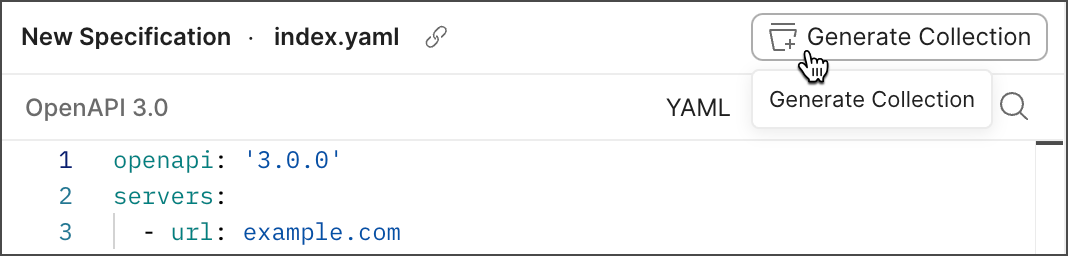
2. Click  **Generate Collection** in the upper right. You can also click
  **More actions** next to the specification and then select **Generate Collection**.
3. Enter a name for your collection.
4. (OpenAPI specifications only) Change any settings to customize the new collection:
* **Naming requests** - Determines how request names in the generated collection. Select **Fallback** (default) to name the requests based on one of the following schema values: `summary`, `operationId`, `description`, or `url`. Select **URL** to name the requests based on the path parameter.
* **Folder organization** - Choose whether to create folders based on the specification's **Paths** (default) or **Tags**.
* **Nested folder organization using tags** - If you created folders based on the specification's tags, turn this on to create a nested folder structure based on the order of tags used to group operations.
* **Set indent character** - Set character indentation to **Space** (default) or **Tab**.
* **Include auth info in example requests** - Turn this on to include authentication parameters from example requests.
* **Enable optional parameters** - Turn this on to enable optional parameters in the generated collection and its requests.
* **Keep implicit headers** - Turn this on to include implicit headers in the generated collection and its requests. This is turned off by default.
* **Include deprecated properties** - Turn this on to include deprecated operations, parameters, and properties in the generated collection.
* **Always inherit authentication** - Turn this on to include authentication details in every request and inherit authentication details from the parent collection. This is turned off by default.
The **Parameter generation** setting is deprecated. Generated collections will use examples for parameter generation by default. Any existing collections generated using the schema parameter generation will continue to sync using their existing strategy.
5. Click **Generate Collection**.
To view the generated collection, click **Collections**, then click the generated collection's name. You can also click **Collections** in the sidebar to navigate to your generated collection.
## Keep collections in sync with an OpenAPI specification
Syncing isn't available for collections generated from AsyncAPI specifications.
When you [generate a collection](#generate-collections-from-a-specification) from your OpenAPI specifications, Postman creates a collection with requests that match what's defined in the specification. If you update the collection or specification, such as by adding a new request or path, Postman alerts you that the generated collection isn't in sync with the specification.
Postman doesn't delete elements from a collection when you sync it with the specification. For example, if you change the name of an existing path in your specification, Postman creates a new path in your collection when it's updated. The existing path still exists with the previous name in your generated collection, and you can choose to delete the path.
### Sync changes to a collection
To sync changes made in an OpenAPI specification to a generated collection, do the following:
1. Expand **Specs** in the sidebar, then select an OpenAPI specification.
2. Click
**More actions** next to the specification and then select **Generate Collection**.

3. Enter a name for your collection.
4. (OpenAPI specifications only) Change any settings to customize the new collection:
* **Naming requests** - Determines how request names in the generated collection. Select **Fallback** (default) to name the requests based on one of the following schema values: `summary`, `operationId`, `description`, or `url`. Select **URL** to name the requests based on the path parameter.
* **Folder organization** - Choose whether to create folders based on the specification's **Paths** (default) or **Tags**.
* **Nested folder organization using tags** - If you created folders based on the specification's tags, turn this on to create a nested folder structure based on the order of tags used to group operations.
* **Set indent character** - Set character indentation to **Space** (default) or **Tab**.
* **Include auth info in example requests** - Turn this on to include authentication parameters from example requests.
* **Enable optional parameters** - Turn this on to enable optional parameters in the generated collection and its requests.
* **Keep implicit headers** - Turn this on to include implicit headers in the generated collection and its requests. This is turned off by default.
* **Include deprecated properties** - Turn this on to include deprecated operations, parameters, and properties in the generated collection.
* **Always inherit authentication** - Turn this on to include authentication details in every request and inherit authentication details from the parent collection. This is turned off by default.
The **Parameter generation** setting is deprecated. Generated collections will use examples for parameter generation by default. Any existing collections generated using the schema parameter generation will continue to sync using their existing strategy.
5. Click **Generate Collection**.
To view the generated collection, click **Collections**, then click the generated collection's name. You can also click **Collections** in the sidebar to navigate to your generated collection.
## Keep collections in sync with an OpenAPI specification
Syncing isn't available for collections generated from AsyncAPI specifications.
When you [generate a collection](#generate-collections-from-a-specification) from your OpenAPI specifications, Postman creates a collection with requests that match what's defined in the specification. If you update the collection or specification, such as by adding a new request or path, Postman alerts you that the generated collection isn't in sync with the specification.
Postman doesn't delete elements from a collection when you sync it with the specification. For example, if you change the name of an existing path in your specification, Postman creates a new path in your collection when it's updated. The existing path still exists with the previous name in your generated collection, and you can choose to delete the path.
### Sync changes to a collection
To sync changes made in an OpenAPI specification to a generated collection, do the following:
1. Expand **Specs** in the sidebar, then select an OpenAPI specification.
2. Click  **Update Collection** in the upper right.
3. Click **Update** next to the generated collection.
### Sync changes to a specification
Syncing collections to [multi-file OpenAPI specifications](/docs/design-apis/specifications/add-files-to-a-specification/) isn't supported.
To sync changes made in a generated collection to your OpenAPI specification, do the following:
1. Expand **Collections** in the sidebar, then select the collection you want to sync.
2. In the collection's **Overview** tab, click
**Update Collection** in the upper right.
3. Click **Update** next to the generated collection.
### Sync changes to a specification
Syncing collections to [multi-file OpenAPI specifications](/docs/design-apis/specifications/add-files-to-a-specification/) isn't supported.
To sync changes made in a generated collection to your OpenAPI specification, do the following:
1. Expand **Collections** in the sidebar, then select the collection you want to sync.
2. In the collection's **Overview** tab, click  **Sync specification**.
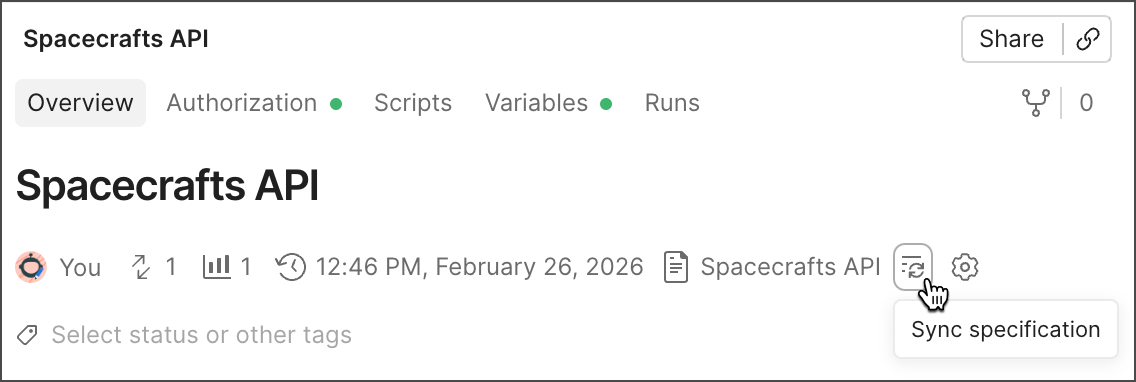
Changes to vendor extensions, operations, and requests made directly to the specification won't be overwritten by the collection.
## Configure sync settings
You can configure settings that enable you to customize the syncing behavior between collections and OpenAPI specifications.
To configure sync settings, do the following:
1. Expand **Specs** in the sidebar and select an OpenAPI specification with a generated collection.
2. Click **Collections** in the upper right.
3. Click
**Sync specification**.

Changes to vendor extensions, operations, and requests made directly to the specification won't be overwritten by the collection.
## Configure sync settings
You can configure settings that enable you to customize the syncing behavior between collections and OpenAPI specifications.
To configure sync settings, do the following:
1. Expand **Specs** in the sidebar and select an OpenAPI specification with a generated collection.
2. Click **Collections** in the upper right.
3. Click  **Configure update settings** next to a collection.
4. [Configure sync settings](#sync-settings) between the collection and specification.
5. Click **Save**.
You can also [configure sync settings](/docs/design-apis/collections/generate-specifications/#configure-sync-settings) from a collection.
### Sync settings
You can configure the following sync settings between collections and OpenAPI specifications:
* **Sync example values between Spec and Collection** - Turn this on to keep examples in the specification and values in the collection in sync.
**Configure update settings** next to a collection.
4. [Configure sync settings](#sync-settings) between the collection and specification.
5. Click **Save**.
You can also [configure sync settings](/docs/design-apis/collections/generate-specifications/#configure-sync-settings) from a collection.
### Sync settings
You can configure the following sync settings between collections and OpenAPI specifications:
* **Sync example values between Spec and Collection** - Turn this on to keep examples in the specification and values in the collection in sync.