# Send API requests from the Postman VS Code extension
The Postman VS Code extension enables you to create and send [HTTP](#send-http-api-requests) and [multi-protocol](#send-multi-protocol-api-requests) requests, or your [request history](#send-api-requests-from-your-history). Use the Postman Console in the VS Code extension to [debug and troubleshoot](#troubleshoot-with-the-postman-console) issues with your requests. It also supports [creating code snippets](#generate-code-snippets) from your API requests for various languages, such as Node.js or cURL. You can also use [cookies](#use-cookies) with the VS Code extension.
Requests sent in the Postman VS Code extension appear in your workspace's request history in both the VS Code extension and the Postman app.
## Send HTTP API requests
To create and send an HTTP request, do the following:
1. Select a workspace from the workspace dropdown list in the sidebar.
2. Click  in the request dropdown list in the sidebar, then select **HTTP** to use Postman's REST client.
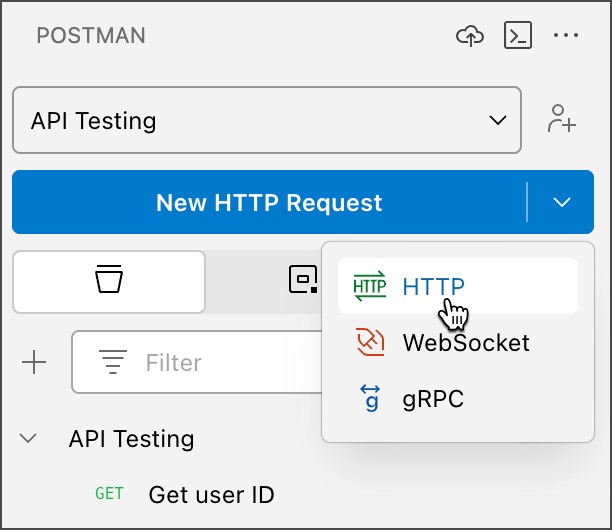 If you selected **HTTP** from the request dropdown list, you can create another HTTP request by clicking **New HTTP Request** in the sidebar.
3. Enter your request's details.
4. Click **Send**.
To learn more about creating and sending HTTP requests in Postman, see [Send API requests and get response data in Postman](/docs/sending-requests/requests/).
You can also use the `Postman: Create a new HTTP Request` command from the [Command Palette](https://code.visualstudio.com/docs/getstarted/userinterface#_command-palette) to create a request.
## Send multi-protocol API requests
When you create a request, click in the request dropdown list. Then, select **WebSocket** or **gRPC** to create a WebSocket or gRPC client.
### WebSocket
To create a WebSocket request, do the following:
1. Enter the WebSocket server URL. A WebSocket URL begins with `ws://` or `wss://`.
2. Click **Connect**.
3. To disconnect your WebSocket request's connection, click **Disconnect**.
To learn more about creating and sending WebSocket requests in Postman, see [Create a WebSocket Request](/docs/sending-requests/websocket/create-a-websocket-request/).
### gRPC
To create a gRPC request, do the following:
1. Enter a URL into **Server URL**.
2. Click the **Method selection** dropdown and select the method you want to invoke.
3. Configure a [service definition](/docs/sending-requests/grpc/using-service-definition/).
4. Click **Invoke**.
To learn more about creating and sending gRPC requests in Postman, see [Invoke a gRPC request in Postman](/docs/sending-requests/grpc/first-grpc-request/).
## Send API requests from your history
You can send requests that were sent with the Postman VS Code extension or the Postman app.
1. Select a workspace from the workspace dropdown list in the sidebar.
2. Click
If you selected **HTTP** from the request dropdown list, you can create another HTTP request by clicking **New HTTP Request** in the sidebar.
3. Enter your request's details.
4. Click **Send**.
To learn more about creating and sending HTTP requests in Postman, see [Send API requests and get response data in Postman](/docs/sending-requests/requests/).
You can also use the `Postman: Create a new HTTP Request` command from the [Command Palette](https://code.visualstudio.com/docs/getstarted/userinterface#_command-palette) to create a request.
## Send multi-protocol API requests
When you create a request, click in the request dropdown list. Then, select **WebSocket** or **gRPC** to create a WebSocket or gRPC client.
### WebSocket
To create a WebSocket request, do the following:
1. Enter the WebSocket server URL. A WebSocket URL begins with `ws://` or `wss://`.
2. Click **Connect**.
3. To disconnect your WebSocket request's connection, click **Disconnect**.
To learn more about creating and sending WebSocket requests in Postman, see [Create a WebSocket Request](/docs/sending-requests/websocket/create-a-websocket-request/).
### gRPC
To create a gRPC request, do the following:
1. Enter a URL into **Server URL**.
2. Click the **Method selection** dropdown and select the method you want to invoke.
3. Configure a [service definition](/docs/sending-requests/grpc/using-service-definition/).
4. Click **Invoke**.
To learn more about creating and sending gRPC requests in Postman, see [Invoke a gRPC request in Postman](/docs/sending-requests/grpc/first-grpc-request/).
## Send API requests from your history
You can send requests that were sent with the Postman VS Code extension or the Postman app.
1. Select a workspace from the workspace dropdown list in the sidebar.
2. Click  **History**.
3. Select a request from your history, and edit the request if you'd like.
4. Click **Send**.
## Store variables
You can store and reuse variables in the VS Code extension. Each collection, environment, and global variable has an [initial value and a current value](#variable-values) you can define for different uses. You can [set a global or environment variable as secret type](#set-a-variable-as-secret-type), masking the initial and current values. You can also learn more about [sharing variable values with your team](#share-variable-values).
The steps for defining and sharing variable values are different in the Postman app. Learn about [variable values in the Postman app](/docs/sending-requests/variables/variables/#variable-values).
### Variable values
Define the current value for a variable to use it locally with your requests. You can define the initial value for a variable to share it with your team and use it with Postman features that run on the cloud. Make sure you understand the differences between current and initial values before adding your own data.
* **Initial value** - The initial value is synced to the Postman cloud and shared with your team. The initial value is also used when sending requests from scheduled collection runs, monitors, the Postman CLI, and Newman. Learn more about [sharing variable values](#share-variable-values) in the VS Code extension.
* **Current value** - The current value is only available locally in your instance of Postman and used to send requests. It isn't synced to the Postman cloud. Current values enable you to develop and test using private credentials or experimental values, without risk of exposing sensitive data to others on your team. Learn how to [define a current value for your variables](/docs/sending-requests/variables/variables/#defining-variables).
### Set a variable as secret type
You can set the variable type for global and environment variables as default type or secret type. When you create a variable, its type is automatically set to default type. You can set the variable to secret type to mask the initial and current values.
* **Default type** - Default type is automatically assigned to variables. This type displays as plain text and doesn't have extra properties.
* **Secret type** - Secret type masks the initial and current values. This helps you avoid unintentionally sharing sensitive tokens, for example, during screen sharing or live streaming.
To set a variable to secret type, click the **Type** dropdown list next to a global or environment variable, and select **secret**. To change the variable back to default type, click the **Type** dropdown list, and select **default**.
Postman recommends that you use your [Postman Vault](/docs/sending-requests/postman-vault/postman-vault-secrets/) to store sensitive data, such as API keys, as encrypted vault secrets. Only you can access and use values associated with your vault secrets, and they aren't synced to the Postman cloud.
### Share variable values
Provide an initial value for a variable to sync its value with the Postman cloud and share it with your team. Even if you've shared an initial value, you can continue to update your current value without affecting the initial value.
You can choose to sync your current value with the Postman cloud. Enter a new initial value or you can persist your current value, sharing it with your team. To persist the current value to the initial value, click
**History**.
3. Select a request from your history, and edit the request if you'd like.
4. Click **Send**.
## Store variables
You can store and reuse variables in the VS Code extension. Each collection, environment, and global variable has an [initial value and a current value](#variable-values) you can define for different uses. You can [set a global or environment variable as secret type](#set-a-variable-as-secret-type), masking the initial and current values. You can also learn more about [sharing variable values with your team](#share-variable-values).
The steps for defining and sharing variable values are different in the Postman app. Learn about [variable values in the Postman app](/docs/sending-requests/variables/variables/#variable-values).
### Variable values
Define the current value for a variable to use it locally with your requests. You can define the initial value for a variable to share it with your team and use it with Postman features that run on the cloud. Make sure you understand the differences between current and initial values before adding your own data.
* **Initial value** - The initial value is synced to the Postman cloud and shared with your team. The initial value is also used when sending requests from scheduled collection runs, monitors, the Postman CLI, and Newman. Learn more about [sharing variable values](#share-variable-values) in the VS Code extension.
* **Current value** - The current value is only available locally in your instance of Postman and used to send requests. It isn't synced to the Postman cloud. Current values enable you to develop and test using private credentials or experimental values, without risk of exposing sensitive data to others on your team. Learn how to [define a current value for your variables](/docs/sending-requests/variables/variables/#defining-variables).
### Set a variable as secret type
You can set the variable type for global and environment variables as default type or secret type. When you create a variable, its type is automatically set to default type. You can set the variable to secret type to mask the initial and current values.
* **Default type** - Default type is automatically assigned to variables. This type displays as plain text and doesn't have extra properties.
* **Secret type** - Secret type masks the initial and current values. This helps you avoid unintentionally sharing sensitive tokens, for example, during screen sharing or live streaming.
To set a variable to secret type, click the **Type** dropdown list next to a global or environment variable, and select **secret**. To change the variable back to default type, click the **Type** dropdown list, and select **default**.
Postman recommends that you use your [Postman Vault](/docs/sending-requests/postman-vault/postman-vault-secrets/) to store sensitive data, such as API keys, as encrypted vault secrets. Only you can access and use values associated with your vault secrets, and they aren't synced to the Postman cloud.
### Share variable values
Provide an initial value for a variable to sync its value with the Postman cloud and share it with your team. Even if you've shared an initial value, you can continue to update your current value without affecting the initial value.
You can choose to sync your current value with the Postman cloud. Enter a new initial value or you can persist your current value, sharing it with your team. To persist the current value to the initial value, click  **View more actions** next to a variable and select **Persist**. This updates the variable's initial value based on your current value.
You can also reset your current value, returning it to the value shared in the initial value. Click **View more actions** next to a variable and select **Reset**.
To persist or reset all variables, click **View more actions** at the top of the column, then select **Persist all** or **Reset all**.
## Troubleshoot with the Postman Console
You can use the Postman Console to [troubleshoot your requests](/docs/sending-requests/response-data/troubleshooting-api-requests/). You can also use the Console to debug [pre-request scripts](/docs/tests-and-scripts/write-scripts/pre-request-scripts/) and [tests scripts](/docs/developer/vs-code-extension/tests-and-scripts/test/), logging output to the Console. To open the Postman Console, click
**View more actions** next to a variable and select **Persist**. This updates the variable's initial value based on your current value.
You can also reset your current value, returning it to the value shared in the initial value. Click **View more actions** next to a variable and select **Reset**.
To persist or reset all variables, click **View more actions** at the top of the column, then select **Persist all** or **Reset all**.
## Troubleshoot with the Postman Console
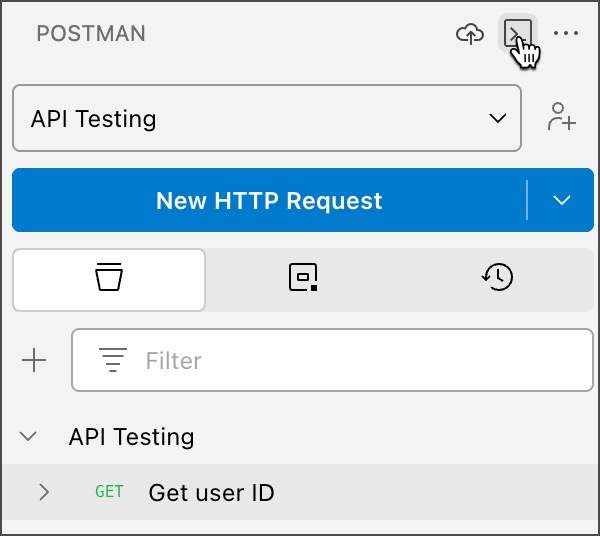
You can use the Postman Console to [troubleshoot your requests](/docs/sending-requests/response-data/troubleshooting-api-requests/). You can also use the Console to debug [pre-request scripts](/docs/tests-and-scripts/write-scripts/pre-request-scripts/) and [tests scripts](/docs/developer/vs-code-extension/tests-and-scripts/test/), logging output to the Console. To open the Postman Console, click  **Open Postman console** at the top of the sidebar.
 ## Generate code snippets
You can convert an API request into a code snippet in the language of your choice. Available languages and frameworks include cURL, Node.js, Python, and more.
To generate a code snippet, open an HTTP request, then click **Code** (below **Send**). Select a [language or framework](/docs/sending-requests/create-requests/generate-code-snippets/#supported-languages-and-client-libraries) from the dropdown list, then copy the code snippet to your clipboard.
## Use cookies
You can view and edit cookies associated with different domains. You can then use the cookies stored in the cookie jar when sending HTTP requests in Postman.
To manage cookies in the Postman VS Code extension, open an HTTP request, then select **Cookies** (below **Send**).
You can also open the cookie editor with the `Postman: Open cookies editor` command in the [Command Palette](https://code.visualstudio.com/docs/getstarted/userinterface#_command-palette).
To learn more about using cookies in Postman, see [Create and capture cookies using Postman's cookie manager](/docs/sending-requests/response-data/cookies/).
## Generate code snippets
You can convert an API request into a code snippet in the language of your choice. Available languages and frameworks include cURL, Node.js, Python, and more.
To generate a code snippet, open an HTTP request, then click **Code** (below **Send**). Select a [language or framework](/docs/sending-requests/create-requests/generate-code-snippets/#supported-languages-and-client-libraries) from the dropdown list, then copy the code snippet to your clipboard.
## Use cookies
You can view and edit cookies associated with different domains. You can then use the cookies stored in the cookie jar when sending HTTP requests in Postman.
To manage cookies in the Postman VS Code extension, open an HTTP request, then select **Cookies** (below **Send**).
You can also open the cookie editor with the `Postman: Open cookies editor` command in the [Command Palette](https://code.visualstudio.com/docs/getstarted/userinterface#_command-palette).
To learn more about using cookies in Postman, see [Create and capture cookies using Postman's cookie manager](/docs/sending-requests/response-data/cookies/).