***
title: Manage your Postman account settings
updated: 2025-12-30T00:00:00.000Z
topictype: procedure
max-toc-depth: 2
----------------
You can manage account settings, including two-factor authentication, your email address, password, and workspace data on your [account settings](https://go.postman.co/settings/me/account/) page.
## Set up two-factor authentication
If you sign in to Postman using a username or email and a password, you can set up two-factor authentication for your account:
1. Open your [account settings](https://go.postman.co/settings/me/account/) page by clicking your avatar in the Postman header, then clicking **Settings > Account**.
2. Click **Enable 2FA**.
Enabling 2FA will revoke all of your active Postman sessions.
3. Install an authenticator app on your phone if you don't have one available, and have your password with you.
4. Click **Continue**.
5. Enter your password and click **Verify**.
6. Link your authenticator app, then enter the six digit authentication code generated by your app and click **Next**.
7. Download your recovery codes and store them in a secure location. If you lose your device, you'll be able to use one of the recovery codes to sign in. You can only use each recovery code once.
8. Click **Done**.
Once you've enabled two-factor authentication, you must provide both your password and the authentication code to sign in unless you [turn off two-factor authentication](#turn-off-two-factor-authentication).
If you're signed in to Postman and would like to regenerate your recovery codes, open your [account settings](https://go.postman.co/settings/me/account/) and click **Regenerate recovery codes**.
If you lose access to your device and can't access your authenticator app, click **Use a recovery code** when signing in to Postman. If you've lost your recovery codes, [email Postman support](mailto:help@postman.com) from a registered email address for help.
## Turn off two-factor authentication
You can turn off two-factor authentication at any time:
{/* vale postman-style-guide.Inclusive = NO */}
1. Open your [account settings](https://go.postman.co/settings/me/account/) page by clicking your avatar in the Postman header, then clicking **Settings > Account**.
2. Click **Disable 2FA**.
3. Enter your password and click **Disable 2FA**.
{/* vale postman-style-guide.Inclusive = YES */}
You can [enable two-factor authentication](#set-up-two-factor-authentication) again at any time in your account settings.
## Update your notification preferences
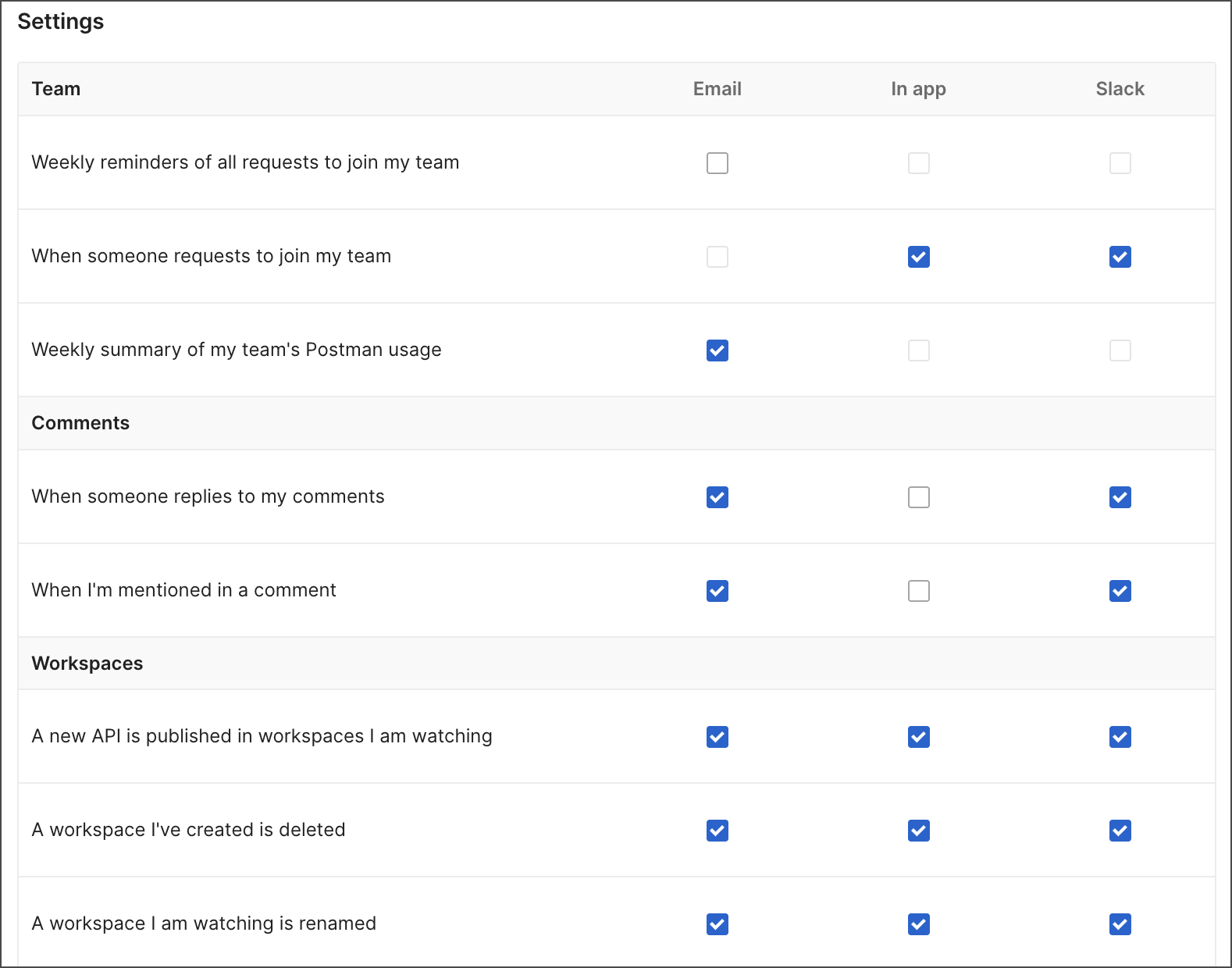
You can update your [notification preferences](https://go.postman.co/settings/me/notifications/) by clicking your avatar in the Postman header, then clicking **Settings > Notifications**.
You can opt in to or out of email or in-app notifications about security, usage, monitors, and comments by selecting or clearing the checkboxes next to each item. Click **Update Preferences** to save changes.
In addition to email and in-app notifications, you can also send many notifications to Slack using the [integration for Slack](/docs/integrations/available-integrations/slack/). After you add the integration for Slack, you can select notification events in the **Slack** column. These notifications are sent to Slack by the integration.
## Manage your active sessions
You can manage your [active Postman sessions](https://go.postman.co/settings/me/sessions/) by clicking your avatar in the Postman header, clicking **Settings**, then clicking **Active sessions**. You can view all of the devices you're signed in to Postman on and revoke any sessions you no longer use or recognize. You can also choose to **Revoke all sessions**.
 ## Change your email address
If you're a member of a free or paid team, you can change the email address associated with your Postman account. Open your [account settings](https://go.postman.co/settings/me/account/) page. Click your avatar in the Postman header, then click **Settings > Account**. Edit your email address and click **Update Email Address** to save changes.
If you're a member of an Enterprise team with SCIM (System for Cross-domain Identity Management) enabled, you must contact an Admin to change the email address associated with your Postman account. An Admin must edit your email address in your SCIM identity provider.
## Reset your password
If you're on a Professional, Basic, or Free plan, you can change your password if you're already signed in by navigating to your [account settings](https://go.postman.co/settings/me/account/) page. Click your avatar in the Postman header, then click **Settings > Account**. Click **Change Password**.
{/* vale Microsoft.FirstPerson = NO */}
If you aren't signed in to your Postman account, you can recover your username or reset your password from the [**Sign In**](https://identity.getpostman.com/login) page. Click **Trouble signing in?**. Enter your account email, select the **I'm not a robot** checkbox, and click **Submit**. Postman will send you an email with instructions for recovering access to your account.
{/* vale Microsoft.FirstPerson = YES */}
If you still have trouble signing in to your Postman account, contact [Postman support](https://support.postman.com/hc/en-us).
If you're on an Enterprise plan, you must contact your Admins to update the password associated with your Postman account.
## Change your email address
If you're a member of a free or paid team, you can change the email address associated with your Postman account. Open your [account settings](https://go.postman.co/settings/me/account/) page. Click your avatar in the Postman header, then click **Settings > Account**. Edit your email address and click **Update Email Address** to save changes.
If you're a member of an Enterprise team with SCIM (System for Cross-domain Identity Management) enabled, you must contact an Admin to change the email address associated with your Postman account. An Admin must edit your email address in your SCIM identity provider.
## Reset your password
If you're on a Professional, Basic, or Free plan, you can change your password if you're already signed in by navigating to your [account settings](https://go.postman.co/settings/me/account/) page. Click your avatar in the Postman header, then click **Settings > Account**. Click **Change Password**.
{/* vale Microsoft.FirstPerson = NO */}
If you aren't signed in to your Postman account, you can recover your username or reset your password from the [**Sign In**](https://identity.getpostman.com/login) page. Click **Trouble signing in?**. Enter your account email, select the **I'm not a robot** checkbox, and click **Submit**. Postman will send you an email with instructions for recovering access to your account.
{/* vale Microsoft.FirstPerson = YES */}
If you still have trouble signing in to your Postman account, contact [Postman support](https://support.postman.com/hc/en-us).
If you're on an Enterprise plan, you must contact your Admins to update the password associated with your Postman account.