# Navigating Postman
Postman has a variety of tools, views, and controls to help you manage your API projects. This guide is a high-level overview of Postman's primary interface areas:
* [Header](#header)
* [Sidebar](#sidebar)
* [Workbench](#workbench)
* [Tabs](#tabs)
* [Right sidebar](#right-sidebar)
* [Environment selector and variables pane](#environment-selector-and-variables-pane)
* [Quick Help](#quick-help)
* [Footer](#footer)

## Header
The header enables you to create workspaces, access reports, explore the Postman API Network, search in Postman, view sync status and notifications, and access your settings, account, and [Postman plan](/docs/billing/buying/).
* **← →** - *(Available on the [Postman desktop app](/docs/getting-started/installation/installation-and-updates/))* Navigate backward and forward through pages you've visited within Postman.
 * **Home** - Go to your personal [home page](#home-page), which includes your recently visited workspaces, and links to resources for [your team](/docs/administration/managing-your-team/manage-team-workspaces/) if applicable.
* **Workspaces** - Search for workspaces, view your recently visited workspaces, or [create a new workspace](/docs/collaborating-in-postman/using-workspaces/create-workspaces/).
* **API Network** - Explore the [Postman API Network](/docs/getting-started/first-steps/exploring-public-api-network/).
*
* **Home** - Go to your personal [home page](#home-page), which includes your recently visited workspaces, and links to resources for [your team](/docs/administration/managing-your-team/manage-team-workspaces/) if applicable.
* **Workspaces** - Search for workspaces, view your recently visited workspaces, or [create a new workspace](/docs/collaborating-in-postman/using-workspaces/create-workspaces/).
* **API Network** - Explore the [Postman API Network](/docs/getting-started/first-steps/exploring-public-api-network/).
*  **Search Postman** - Search all workspaces, collections, requests, APIs, flows, and teams in Postman. For more details on searching in Postman, see [Search Postman](#search-postman).
* **Invite** - If you have an [Admin role](/docs/administration/roles-and-permissions/#workspace-roles) on a workspace, you can invite other users to collaborate.
**Search Postman** - Search all workspaces, collections, requests, APIs, flows, and teams in Postman. For more details on searching in Postman, see [Search Postman](#search-postman).

* **Invite** - If you have an [Admin role](/docs/administration/roles-and-permissions/#workspace-roles) on a workspace, you can invite other users to collaborate.
 *
*  **Settings** - Access [Postman settings](/docs/getting-started/installation/settings/) and other Postman resources.
*
**Settings** - Access [Postman settings](/docs/getting-started/installation/settings/) and other Postman resources.
*  **Notifications** - View recent activity from your team, get notifications about Postman updates, and see pull requests, comment activity, and other important information.
* **Your avatar** - View your profile, access your [account and notification settings](/docs/getting-started/account/settings/), see all active sessions for your account, or sign out of your account.
* **Team** (*paid plans*) or **Upgrade** (*free plan*) - View [resource usage](/docs/billing/resource-usage/) and access your [billing dashboard](/docs/billing/billing/) and other account management tools.
### Home page
The home page helps you get started quickly, discover relevant content, and stay on top of important updates.
* **Agent Mode** (if enabled) --- Type or select a prompt from the recommendations. Clicking **Let’s Go** takes you to the latest visited workspace where you have edit access. Agent Mode opens and the prompt runs.
* **Pick up where you left off** --- View your most recently visited elements and starred workspaces.
* **Needs your attention** --- View the pending actions depending on your role:
* Team join requests --- Open requests to join your team (or organization, if enabled).
* Requests for access --- Open request for access to your collections and workspaces.
* Request to edit --- Open requests to edit your collections and workspaces.
* PRs waiting for your review --- Open pull requests that are waiting for your review.
* PRs opened by you -- Your pull requests that are under review.
### Search Postman
To search in Postman, do the following:
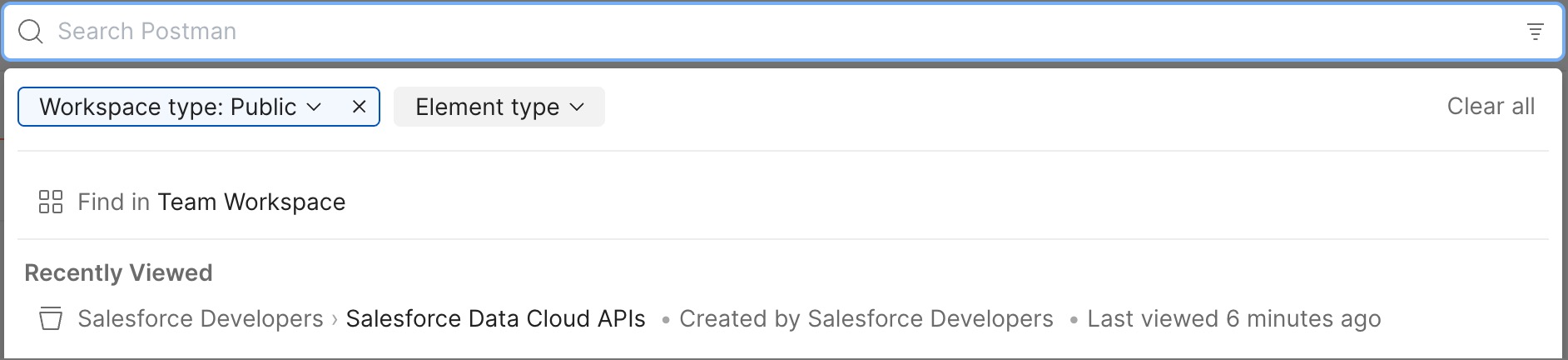
1. Click **Search Postman** in the header, then enter your search terms. You can also use the keyboard shortcut **⌘+K** or **Ctrl+K**. Search results contain an additional line of information such as the creator or last updated information to help you quickly scan and identify relevant results.
2. You can search for APIs in your [Private API Network](/docs/collaborating-in-postman/private-api-network/overview/) using the **Private API Network** filter. A checkmark next to the results indicates they're trusted internal APIs that are approved for use.
3. You can filter the scope of your search by workspace type. Click the **Workspace** dropdown list under the search bar and click **Internal**, **Partner**, or **Public** workspaces to set the scope for your search.
4. You can search for an element type within the selected workspace type. Click the **Element type** dropdown list and click **Workspaces**, **Collections**, **API**, **Request**, **Folder**, or **Publisher**. The options available in the **Element type** list depend on the selected workspace type.
5. You can also use additional filters **In**, **By**, and **Tag**, to narrow down results. Available status tags appear at the top of the suggestion list before the other tags. You can search [collections](/docs/collections/use-collections/collaborate-with-collections/#tag-a-collection), [APIs](/docs/design-apis/api-builder/managing-apis/#tagging-apis), and [workspaces](/docs/collaborating-in-postman/using-workspaces/internal-workspaces/use-workspaces/#tag-a-workspace) ([Enterprise plans only](https://www.postman.com/pricing/)) that have tags.
6. You can search within your active workspace or collection by selecting it from the options that display under the **Workspace type** and **Element type** dropdown lists. Click **Search Postman** and your current workspace is the first option. If you're working in a collection when you search, then both your current workspace and the collection are displayed as options. You can also enter "in:" and select a workplace or collection.
To search the [Postman API Network](/docs/collaborating-in-postman/public-api-network/public-api-network-overview/), click **Public** from the **Workspace** dropdown list and **API** from the **Element type** dropdown list.
For signed-out users, search results only include public resources.
If you don't find what you are looking for in the list of results, click **View all results** to see all the results on one page.
Depending on the element type, the search results contain different information:
* For *workspaces*, the search result shows the workspace type, summary, who published it, and when was it published.
* For *collections*, the search result shows the workspace type, a preview of the collection's description, any shared or status tags, the workspace name, and when the collection was published.
* For *APIs*, the search result shows the name and summary of the API, the API's owner (either an individual user or a team), and the workspace type.
* For *teams*, the search result shows the name and summary of the team. Clicking the team name redirects you to the team profile.
## Sidebar
The Postman sidebar provides access to the fundamental [elements of Postman](/docs/getting-started/basics/postman-elements/).
Each element offers more actions for you to choose from. Click an element in the sidebar and hover over an item to expose
**Notifications** - View recent activity from your team, get notifications about Postman updates, and see pull requests, comment activity, and other important information.
* **Your avatar** - View your profile, access your [account and notification settings](/docs/getting-started/account/settings/), see all active sessions for your account, or sign out of your account.
* **Team** (*paid plans*) or **Upgrade** (*free plan*) - View [resource usage](/docs/billing/resource-usage/) and access your [billing dashboard](/docs/billing/billing/) and other account management tools.
### Home page
The home page helps you get started quickly, discover relevant content, and stay on top of important updates.
* **Agent Mode** (if enabled) --- Type or select a prompt from the recommendations. Clicking **Let’s Go** takes you to the latest visited workspace where you have edit access. Agent Mode opens and the prompt runs.
* **Pick up where you left off** --- View your most recently visited elements and starred workspaces.
* **Needs your attention** --- View the pending actions depending on your role:
* Team join requests --- Open requests to join your team (or organization, if enabled).
* Requests for access --- Open request for access to your collections and workspaces.
* Request to edit --- Open requests to edit your collections and workspaces.
* PRs waiting for your review --- Open pull requests that are waiting for your review.
* PRs opened by you -- Your pull requests that are under review.
### Search Postman
To search in Postman, do the following:
1. Click **Search Postman** in the header, then enter your search terms. You can also use the keyboard shortcut **⌘+K** or **Ctrl+K**. Search results contain an additional line of information such as the creator or last updated information to help you quickly scan and identify relevant results.
2. You can search for APIs in your [Private API Network](/docs/collaborating-in-postman/private-api-network/overview/) using the **Private API Network** filter. A checkmark next to the results indicates they're trusted internal APIs that are approved for use.
3. You can filter the scope of your search by workspace type. Click the **Workspace** dropdown list under the search bar and click **Internal**, **Partner**, or **Public** workspaces to set the scope for your search.
4. You can search for an element type within the selected workspace type. Click the **Element type** dropdown list and click **Workspaces**, **Collections**, **API**, **Request**, **Folder**, or **Publisher**. The options available in the **Element type** list depend on the selected workspace type.
5. You can also use additional filters **In**, **By**, and **Tag**, to narrow down results. Available status tags appear at the top of the suggestion list before the other tags. You can search [collections](/docs/collections/use-collections/collaborate-with-collections/#tag-a-collection), [APIs](/docs/design-apis/api-builder/managing-apis/#tagging-apis), and [workspaces](/docs/collaborating-in-postman/using-workspaces/internal-workspaces/use-workspaces/#tag-a-workspace) ([Enterprise plans only](https://www.postman.com/pricing/)) that have tags.
6. You can search within your active workspace or collection by selecting it from the options that display under the **Workspace type** and **Element type** dropdown lists. Click **Search Postman** and your current workspace is the first option. If you're working in a collection when you search, then both your current workspace and the collection are displayed as options. You can also enter "in:" and select a workplace or collection.
To search the [Postman API Network](/docs/collaborating-in-postman/public-api-network/public-api-network-overview/), click **Public** from the **Workspace** dropdown list and **API** from the **Element type** dropdown list.
For signed-out users, search results only include public resources.
If you don't find what you are looking for in the list of results, click **View all results** to see all the results on one page.
Depending on the element type, the search results contain different information:
* For *workspaces*, the search result shows the workspace type, summary, who published it, and when was it published.
* For *collections*, the search result shows the workspace type, a preview of the collection's description, any shared or status tags, the workspace name, and when the collection was published.
* For *APIs*, the search result shows the name and summary of the API, the API's owner (either an individual user or a team), and the workspace type.
* For *teams*, the search result shows the name and summary of the team. Clicking the team name redirects you to the team profile.
## Sidebar
The Postman sidebar provides access to the fundamental [elements of Postman](/docs/getting-started/basics/postman-elements/).
Each element offers more actions for you to choose from. Click an element in the sidebar and hover over an item to expose  **View more actions**. The options vary based on the element type.
To delete or move multiple collections, folders, and requests inside a collection and in **History**, press and hold **⌘** or **Ctrl**, then select the items. For collections and their contents, you can also use [keyboard shortcuts](/docs/getting-started/installation/settings/#shortcuts) for tasks like copying, pasting, and deleting.
To create new instances of Postman elements, requests and workspaces, click **New** next to the name of your workspace. You can also pin the elements you use most often. To pin an element, hover over an element and click the pin icon
**View more actions**. The options vary based on the element type.
To delete or move multiple collections, folders, and requests inside a collection and in **History**, press and hold **⌘** or **Ctrl**, then select the items. For collections and their contents, you can also use [keyboard shortcuts](/docs/getting-started/installation/settings/#shortcuts) for tasks like copying, pasting, and deleting.
To create new instances of Postman elements, requests and workspaces, click **New** next to the name of your workspace. You can also pin the elements you use most often. To pin an element, hover over an element and click the pin icon  . To unpin an element, hover over the pinned element and click the pin element icon
  .
.
 To hide the sidebar, click
  **Collapse Sidebar** from the [footer](#footer) or right-click in an empty part of the sidebar and click **Collapse sidebar**. You can also right-click in the sidebar to show or hide labels, collapse the sidebar, and configure the sidebar.
### Add elements to the sidebar
By default, the sidebar shows only **Collections**, **Environments**, and **History**. You can add other elements to the sidebar including **Flows**, **APIs**, **Mock servers**, **Monitors**, and **Specs**. To add an element to the sidebar, do the following:
1. In your workspace's sidebar, click
**Collapse Sidebar** from the [footer](#footer) or right-click in an empty part of the sidebar and click **Collapse sidebar**. You can also right-click in the sidebar to show or hide labels, collapse the sidebar, and configure the sidebar.
### Add elements to the sidebar
By default, the sidebar shows only **Collections**, **Environments**, and **History**. You can add other elements to the sidebar including **Flows**, **APIs**, **Mock servers**, **Monitors**, and **Specs**. To add an element to the sidebar, do the following:
1. In your workspace's sidebar, click  **Configure workspace sidebar**.
2. In **Workspace settings**, turn on the toggle
**Configure workspace sidebar**.
2. In **Workspace settings**, turn on the toggle  next to the element you want to add to the sidebar.
 If you have admin privileges in other types of workspaces, you can choose which elements to make visible in the sidebar for all members in a workspace.
To see all the elements you created in one place, in the Postman header, click your avatar, then click **View Profile**.
### History
To access the requests you've made, click **History** in the sidebar. When you're signed in to Postman, your history [syncs](/docs/getting-started/basics/syncing/) across your devices.
Click a request to open it again in a new tab. To select more than one request, press and hold **⌘** or **Ctrl**, then select the requests.
Your history also includes [collection runs](/docs/collections/running-collections/intro-to-collection-runs/). These remain as the summarized version of the run and aren't logged as single requests.
* Click
If you have admin privileges in other types of workspaces, you can choose which elements to make visible in the sidebar for all members in a workspace.
To see all the elements you created in one place, in the Postman header, click your avatar, then click **View Profile**.
### History
To access the requests you've made, click **History** in the sidebar. When you're signed in to Postman, your history [syncs](/docs/getting-started/basics/syncing/) across your devices.
Click a request to open it again in a new tab. To select more than one request, press and hold **⌘** or **Ctrl**, then select the requests.
Your history also includes [collection runs](/docs/collections/running-collections/intro-to-collection-runs/). These remain as the summarized version of the run and aren't logged as single requests.
* Click  **Add request to Collection** to save the request to a collection.
* Click
**Add request to Collection** to save the request to a collection.
* Click  **Delete request** to remove the request from your history.
* Click **View more actions** to access other actions, including creating a monitor, documentation, or mock server for the request.
When you make requests in a [shared workspace](/docs/collaborating-in-postman/using-workspaces/create-workspaces/), your request history is visible to you but not to other team members in the workspace.
#### Clearing your history
To remove all requests from your history, click **View more actions** next to the History search bar, then click **Clear all**.
#### Saving responses in history
To save request responses in your history, click **History** in the sidebar, click **View more actions**, then turn on **Save Responses**.
You must also turn on **Save Responses** to [share an HTTP request and its response](/docs/collaborating-in-postman/sharing/#share-a-request-with-its-response) from your request's history with collaborators. If this is turned off when you send a request, you won't be able to view or share the response from your request's history.
You can't use the **Save Responses** option with requests from [Collection Runner](/docs/collections/running-collections/intro-to-collection-runs/).
## Workbench
Whether you're working with a collection, an API, or another element type, the Postman workbench is where you do the majority of your work. [Tabs](#tabs) enable you to organize your work, while the [right sidebar](#right-sidebar) gives you access to element-specific tools like comments. The [environment selector and variables pane](#environment-selector-and-variables-pane) enable you to manage variables.
### Tabs
Tabs allow you to organize and work between requests.
This section describes how tabs work in the Postman desktop app. By default, tabs in the Postman web app work this way as well. You can choose to use browser tabs instead, which enables you to use a different tab for each open Postman element. For more information, see [Browser tabs in the Postman web app](#browser-tabs-in-the-postman-web-app).
#### Opening a new tab
To open a new tab, click **+** in the workbench.
You can also press **⌘+T** or **Ctrl+T** to open a new tab.
**Delete request** to remove the request from your history.
* Click **View more actions** to access other actions, including creating a monitor, documentation, or mock server for the request.
When you make requests in a [shared workspace](/docs/collaborating-in-postman/using-workspaces/create-workspaces/), your request history is visible to you but not to other team members in the workspace.
#### Clearing your history
To remove all requests from your history, click **View more actions** next to the History search bar, then click **Clear all**.
#### Saving responses in history
To save request responses in your history, click **History** in the sidebar, click **View more actions**, then turn on **Save Responses**.
You must also turn on **Save Responses** to [share an HTTP request and its response](/docs/collaborating-in-postman/sharing/#share-a-request-with-its-response) from your request's history with collaborators. If this is turned off when you send a request, you won't be able to view or share the response from your request's history.
You can't use the **Save Responses** option with requests from [Collection Runner](/docs/collections/running-collections/intro-to-collection-runs/).
## Workbench
Whether you're working with a collection, an API, or another element type, the Postman workbench is where you do the majority of your work. [Tabs](#tabs) enable you to organize your work, while the [right sidebar](#right-sidebar) gives you access to element-specific tools like comments. The [environment selector and variables pane](#environment-selector-and-variables-pane) enable you to manage variables.
### Tabs
Tabs allow you to organize and work between requests.
This section describes how tabs work in the Postman desktop app. By default, tabs in the Postman web app work this way as well. You can choose to use browser tabs instead, which enables you to use a different tab for each open Postman element. For more information, see [Browser tabs in the Postman web app](#browser-tabs-in-the-postman-web-app).
#### Opening a new tab
To open a new tab, click **+** in the workbench.
You can also press **⌘+T** or **Ctrl+T** to open a new tab.
 If you open a request and don't edit or send it, then open another request, the second tab replaces the first tab. When the tab is in preview mode, it displays in italics.
You can set whether Postman opens requests and other sidebar items in new tabs. Click the settings icon in the header and click **Settings**. Under **User interface**, click the **Always open sidebar item in new tab** toggle to turn this option on or off.
#### Saving or discarding changes
If a tab has unsaved changes, Postman displays a dot next to the tab name. Click
If you open a request and don't edit or send it, then open another request, the second tab replaces the first tab. When the tab is in preview mode, it displays in italics.
You can set whether Postman opens requests and other sidebar items in new tabs. Click the settings icon in the header and click **Settings**. Under **User interface**, click the **Always open sidebar item in new tab** toggle to turn this option on or off.
#### Saving or discarding changes
If a tab has unsaved changes, Postman displays a dot next to the tab name. Click  **Save** to save the changes. To close the tab and discard changes, click the close icon
  then click **Don't save**.
#### Renaming and linking elements
To rename an element, click the element's name and enter a new name.
then click **Don't save**.
#### Renaming and linking elements
To rename an element, click the element's name and enter a new name.
 You can also click a collection or its elements (folders, requests, and examples) in the sidebar and press the **Enter** or **Return** key to rename it.
To copy a link to an element, hover over the element's name in the workbench to display the link icon
You can also click a collection or its elements (folders, requests, and examples) in the sidebar and press the **Enter** or **Return** key to rename it.
To copy a link to an element, hover over the element's name in the workbench to display the link icon  . Click the link icon to copy the element's URL to your clipboard.
 If the element is in a workspace that no one can access, a popup window displays when you click the link icon. The popup window enables you to invite people to your workspace before sharing the link. To invite people to your workspace, click **Invite People**. To learn more about inviting people to collaborate in a workspace, see [Share workspaces](/docs/collaborating-in-postman/using-workspaces/internal-workspaces/manage-workspaces/#share-workspaces).
 #### Viewing conflicts
If you are making changes to the same request in two different tabs, before you can save the changes, the tab alerts you to a conflict. Clicking the tab displays a message that the request was modified since the last time you opened the tab. By clicking **Save**, you can either override the previous change or save the request as a new one.
#### Viewing conflicts
If you are making changes to the same request in two different tabs, before you can save the changes, the tab alerts you to a conflict. Clicking the tab displays a message that the request was modified since the last time you opened the tab. By clicking **Save**, you can either override the previous change or save the request as a new one.
 #### Managing tabs
You can have many tabs open at the same time. To rearrange your open tabs, click and drag them in the desired order.
You can double-click an element's tab to persist it as you navigate the Postman app. You can also double-click a collection or its elements in the sidebar to persist their tabs.
To manage your open tabs, right-click the open tab to activate a menu with action options:
* **Duplicate Tab** - *(Available on the [Postman desktop app](/docs/getting-started/installation/installation-and-updates/))* Duplicates the current tab. This doesn't create a copy of the request, so when you duplicate a tab any edits you make are reflected in the original request.
* **Close Tab** - Closes the current tab. If the tab has unsaved changes, Postman asks if you want to save before closing.
* **Force Close Tab** - Closes the current tab without saving any changes.
* **Close Other Tabs** - Closes all tabs except the one you're working in.
* **Close All Tabs** - Closes all tabs. If any tabs contain unsaved changes, Postman will ask if you want to save before closing.
* **Force Close All Tabs** - Closes all tabs without saving any changes.
#### Managing tabs
You can have many tabs open at the same time. To rearrange your open tabs, click and drag them in the desired order.
You can double-click an element's tab to persist it as you navigate the Postman app. You can also double-click a collection or its elements in the sidebar to persist their tabs.
To manage your open tabs, right-click the open tab to activate a menu with action options:
* **Duplicate Tab** - *(Available on the [Postman desktop app](/docs/getting-started/installation/installation-and-updates/))* Duplicates the current tab. This doesn't create a copy of the request, so when you duplicate a tab any edits you make are reflected in the original request.
* **Close Tab** - Closes the current tab. If the tab has unsaved changes, Postman asks if you want to save before closing.
* **Force Close Tab** - Closes the current tab without saving any changes.
* **Close Other Tabs** - Closes all tabs except the one you're working in.
* **Close All Tabs** - Closes all tabs. If any tabs contain unsaved changes, Postman will ask if you want to save before closing.
* **Force Close All Tabs** - Closes all tabs without saving any changes.
 **Closing unsaved tabs.** You can set whether Postman asks you to save when you close a tab that has changes. Click the settings icon in the header and click **Settings**. Under **General > Request**, click the **Always ask when closing unsaved tabs** toggle to turn this option on or off.
If you have a lot of tabs open, they might overflow the area of the tab bar. To go to tabs that are outside the viewable area, click the arrows next to the tab bar.
**Closing unsaved tabs.** You can set whether Postman asks you to save when you close a tab that has changes. Click the settings icon in the header and click **Settings**. Under **General > Request**, click the **Always ask when closing unsaved tabs** toggle to turn this option on or off.
If you have a lot of tabs open, they might overflow the area of the tab bar. To go to tabs that are outside the viewable area, click the arrows next to the tab bar.
 #### Tab search
To search open tabs or access recently closed tabs, click the tab search dropdown list.
#### Tab search
To search open tabs or access recently closed tabs, click the tab search dropdown list.
 #### Browser tabs in the Postman web app
By default, the Postman web app uses in-app tabs like the Postman desktop app does. You can optionally choose to use browser tabs instead. With this setting turned on, there is only one collection overview or request in the main work area at a time, and you can open more Postman elements in new browser tabs. This enables you to work across workspaces or to use different environments in the same workspace.
If you've saved changes to a request, when you click a new element Postman will open it in the main work area. If the request has unsaved changes, Postman prompts you to save or discard your changes.
To open a workspace, environment, or request in a new browser tab, press and hold **⌘+Shift** or **Ctrl+Shift** and click the element you want to open.
To open an in-app link in a new browser tab, press and hold **⌘** or **Ctrl** and click the link you want to open.
To turn this behavior on or off in the Postman web app, click the settings icon in the header, then click **Remove tabs** in the **User interface** section.
### Right sidebar
The right sidebar gives you access to more tools, including comments, code snippets, and request information, based on which kind of Postman element you choose.
| Tool | Available for | Description |
| --------------------------------------------------------------------------------------------------------------------------------------------------------------------- | ---------------------------------------------------------------------------------------- | ------------------------------------------------------------------------------------------------------------------------------------------------------------------------------------------------------------------------------------------------ |
| **Comments**
#### Browser tabs in the Postman web app
By default, the Postman web app uses in-app tabs like the Postman desktop app does. You can optionally choose to use browser tabs instead. With this setting turned on, there is only one collection overview or request in the main work area at a time, and you can open more Postman elements in new browser tabs. This enables you to work across workspaces or to use different environments in the same workspace.
If you've saved changes to a request, when you click a new element Postman will open it in the main work area. If the request has unsaved changes, Postman prompts you to save or discard your changes.
To open a workspace, environment, or request in a new browser tab, press and hold **⌘+Shift** or **Ctrl+Shift** and click the element you want to open.
To open an in-app link in a new browser tab, press and hold **⌘** or **Ctrl** and click the link you want to open.
To turn this behavior on or off in the Postman web app, click the settings icon in the header, then click **Remove tabs** in the **User interface** section.
### Right sidebar
The right sidebar gives you access to more tools, including comments, code snippets, and request information, based on which kind of Postman element you choose.
| Tool | Available for | Description |
| --------------------------------------------------------------------------------------------------------------------------------------------------------------------- | ---------------------------------------------------------------------------------------- | ------------------------------------------------------------------------------------------------------------------------------------------------------------------------------------------------------------------------------------------------ |
| **Comments**  | Collections, requests, APIs | Leave [comments](/docs/collaborating-in-postman/comments/) on a specific part of a request or an API. |
| **Code**
| Collections, requests, APIs | Leave [comments](/docs/collaborating-in-postman/comments/) on a specific part of a request or an API. |
| **Code**  | Requests, APIs, history | Generate [code snippets](/docs/sending-requests/create-requests/generate-code-snippets/) in a variety of languages and frameworks that you can use in other apps. |
| **Related requests**
| Requests, APIs, history | Generate [code snippets](/docs/sending-requests/create-requests/generate-code-snippets/) in a variety of languages and frameworks that you can use in other apps. |
| **Related requests**  | Requests, history | View [public requests](/docs/sending-requests/create-requests/request-basics/#leverage-public-api-examples) from verified or popular collections on the Postman API Network that are related to your request. |
| **Info**
| Requests, history | View [public requests](/docs/sending-requests/create-requests/request-basics/#leverage-public-api-examples) from verified or popular collections on the Postman API Network that are related to your request. |
| **Info**  | Collections, requests, APIs, environments, mock servers, monitors, flows, specifications | See details about the element, including its ID, when it was created, who created it, and more. |
| **Changelog**
| Collections, requests, APIs, environments, mock servers, monitors, flows, specifications | See details about the element, including its ID, when it was created, who created it, and more. |
| **Changelog**  | Collections, APIs | Use the changelog to see changes that you and your collaborators have made in [collections](/docs/collections/use-collections/manage-collections/#use-the-changelog) and [APIs](/docs/design-apis/api-builder/managing-apis/#use-the-changelog). |
| **Pull requests**
| Collections, APIs | Use the changelog to see changes that you and your collaborators have made in [collections](/docs/collections/use-collections/manage-collections/#use-the-changelog) and [APIs](/docs/design-apis/api-builder/managing-apis/#use-the-changelog). |
| **Pull requests**  | Collections, environments | View any [pull requests](/docs/collaborating-in-postman/using-version-control/creating-pull-requests/) for a Postman element. |
| **Forks**
| Collections, environments | View any [pull requests](/docs/collaborating-in-postman/using-version-control/creating-pull-requests/) for a Postman element. |
| **Forks**  | Collections, environments | View any [forks](/docs/collaborating-in-postman/using-version-control/forking-elements/) of a Postman element. |
| **Activity feed**
| Collections, environments | View any [forks](/docs/collaborating-in-postman/using-version-control/forking-elements/) of a Postman element. |
| **Activity feed**  | Monitors | View the activity feed for a [monitor](/docs/monitoring-your-api/intro-monitors/). |
| **Flow Element Info**
| Monitors | View the activity feed for a [monitor](/docs/monitoring-your-api/intro-monitors/). |
| **Flow Element Info**  | Flows | View the input and output of a single block. |
| **Released Versions**
| Flows | View the input and output of a single block. |
| **Released Versions**  | Flows | View your released flows. |
| **Execution issues**
| Flows | View your released flows. |
| **Execution issues**  | Flows | View a flow's execution issues, if any. |
### Environment selector and variables pane
The environment selector enables you to choose which [environment](/docs/sending-requests/variables/managing-environments/) to use in your work. Click an environment from the menu to set it as the active environment, which gives you access to the variables in that environment. You can [pin environments](/docs/sending-requests/variables/pinned-environments/) to collections to show other Postman users which environments work with that collection.
You can also click **Add** in the environment selector to create a new environment and make it the active environment.
| Flows | View a flow's execution issues, if any. |
### Environment selector and variables pane
The environment selector enables you to choose which [environment](/docs/sending-requests/variables/managing-environments/) to use in your work. Click an environment from the menu to set it as the active environment, which gives you access to the variables in that environment. You can [pin environments](/docs/sending-requests/variables/pinned-environments/) to collections to show other Postman users which environments work with that collection.
You can also click **Add** in the environment selector to create a new environment and make it the active environment.
 Use the variables pane to view the variables and vault secrets used in and accessible from your Postman elements. Click
  **Variables** in the upper-right of the workbench to open the variables pane. To learn more about the variables pane, see [Viewing and editing variables in an element](/docs/sending-requests/variables/variables/#viewing-and-editing-variables-in-an-element).
### Quick Help
If you have a quick question about something in the Postman app, look for *Learn more* links or the information icon
**Variables** in the upper-right of the workbench to open the variables pane. To learn more about the variables pane, see [Viewing and editing variables in an element](/docs/sending-requests/variables/variables/#viewing-and-editing-variables-in-an-element).
### Quick Help
If you have a quick question about something in the Postman app, look for *Learn more* links or the information icon  in the Workbench. These will open context-sensitive help from the Postman Docs in a side pane in the Postman app.
You can open the displayed Quick Help in a new web browser window with the open in icon
in the Workbench. These will open context-sensitive help from the Postman Docs in a side pane in the Postman app.
You can open the displayed Quick Help in a new web browser window with the open in icon  .
## Footer
The footer on the bottom of Postman enables you to find and replace text, open the Console, capture requests and cookies, and access several other tools.
.
## Footer
The footer on the bottom of Postman enables you to find and replace text, open the Console, capture requests and cookies, and access several other tools.
 * **Hide sidebar** - Close or reopen the [sidebar](#sidebar).
*
* **Hide sidebar** - Close or reopen the [sidebar](#sidebar).
*  **Sync status** - See if you are connected to Postman's servers and your data is [syncing](/docs/getting-started/basics/syncing/).
*
**Sync status** - See if you are connected to Postman's servers and your data is [syncing](/docs/getting-started/basics/syncing/).
*  **Find and replace** - *(Available on the [Postman desktop app](/docs/getting-started/installation/installation-and-updates/))* Search the current workspace. You can also use the shortcuts **⌘+Shift+F** or **Ctrl+Shift+F**. Enter your search string then click **Find**. Limit your search to a specific element type by clicking **Collections**, **Environments**, **Globals**, or **Open tabs**. To replace your search term in a selected element, click **Replace in selected**.
*
**Find and replace** - *(Available on the [Postman desktop app](/docs/getting-started/installation/installation-and-updates/))* Search the current workspace. You can also use the shortcuts **⌘+Shift+F** or **Ctrl+Shift+F**. Enter your search string then click **Find**. Limit your search to a specific element type by clicking **Collections**, **Environments**, **Globals**, or **Open tabs**. To replace your search term in a selected element, click **Replace in selected**.
*  **Console** - [Inspect and debug](/docs/sending-requests/response-data/troubleshooting-api-requests/#debugging-in-the-console) your Postman requests.
 *
*  **Postbot** - Open the [Postbot](/docs/getting-started/basics/about-postbot/) AI assistant to ask questions and search for answers.
*
**Postbot** - Open the [Postbot](/docs/getting-started/basics/about-postbot/) AI assistant to ask questions and search for answers.
*  **Git branch icon** - For [APIs using a Git repository](/docs/design-apis/api-builder/versioning-an-api/managing-git-changes/), switch branches and open the **Source Control** pane.
*
**Git branch icon** - For [APIs using a Git repository](/docs/design-apis/api-builder/versioning-an-api/managing-git-changes/), switch branches and open the **Source Control** pane.
*  **Runner** - Open the [Collection Runner](/docs/collections/running-collections/intro-to-collection-runs/).
*
**Runner** - Open the [Collection Runner](/docs/collections/running-collections/intro-to-collection-runs/).
*  **Capture requests** - *(Available on the [Postman web app](/docs/getting-started/installation/installation-and-updates/#use-the-postman-web-app))* Download the [Postman Interceptor extension](/docs/sending-requests/capturing-request-data/interceptor/).
* **Start Proxy** - *(Available on the [Postman desktop app](/docs/getting-started/installation/installation-and-updates/))* Start the [Postman proxy](/docs/sending-requests/capturing-request-data/capture-overview/).
* **Select Postman Agent** - *(Available on the [Postman web app](/docs/getting-started/installation/installation-and-updates/#use-the-postman-web-app))* Select which [Postman Agent](/docs/getting-started/basics/about-postman-agent/) is used: the Cloud Agent, Desktop Agent, Browser Agent, Interceptor Agent, or auto-select an agent.
*
**Capture requests** - *(Available on the [Postman web app](/docs/getting-started/installation/installation-and-updates/#use-the-postman-web-app))* Download the [Postman Interceptor extension](/docs/sending-requests/capturing-request-data/interceptor/).
* **Start Proxy** - *(Available on the [Postman desktop app](/docs/getting-started/installation/installation-and-updates/))* Start the [Postman proxy](/docs/sending-requests/capturing-request-data/capture-overview/).
* **Select Postman Agent** - *(Available on the [Postman web app](/docs/getting-started/installation/installation-and-updates/#use-the-postman-web-app))* Select which [Postman Agent](/docs/getting-started/basics/about-postman-agent/) is used: the Cloud Agent, Desktop Agent, Browser Agent, Interceptor Agent, or auto-select an agent.
*  **Cookies** - View, manage, and sync [cookies](/docs/sending-requests/response-data/cookies/).
*
**Cookies** - View, manage, and sync [cookies](/docs/sending-requests/response-data/cookies/).
*  **Vault** - Store vault secrets in your [Postman Vault](/docs/sending-requests/postman-vault/postman-vault-secrets/), and use them in your local instance of Postman.
*
**Vault** - Store vault secrets in your [Postman Vault](/docs/sending-requests/postman-vault/postman-vault-secrets/), and use them in your local instance of Postman.
*  **Trash** - Recover or permanently delete any deleted collections.
*
**Trash** - Recover or permanently delete any deleted collections.
*  **Two-pane view** - Toggle between a single pane view and a two pane view.
*
**Two-pane view** - Toggle between a single pane view and a two pane view.
*  **Help** - Access more resources, including release notes and Postman Support.