# Create your first collection
To create a new [collection](/docs/getting-started/basics/postman-elements/#collections), in this example, you'll start by creating a new request first. You can create a new request from the sidebar in Postman.
To create a collection and save a request in the new collection, do the following:
1. If you haven't already, [install the Postman desktop app](/docs/getting-started/first-steps/get-postman/) and [sign in to Postman](/docs/getting-started/first-steps/sign-up-for-postman/).
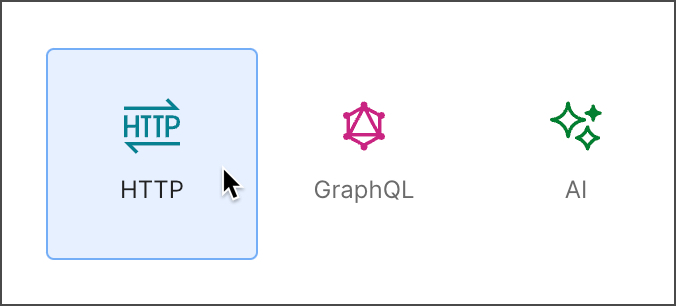
2. Click **New > HTTP**.
 3. Enter a request in the request builder and click **Save**.
4. Click **New Collection**. Name the request and collection.
3. Enter a request in the request builder and click **Save**.
4. Click **New Collection**. Name the request and collection.
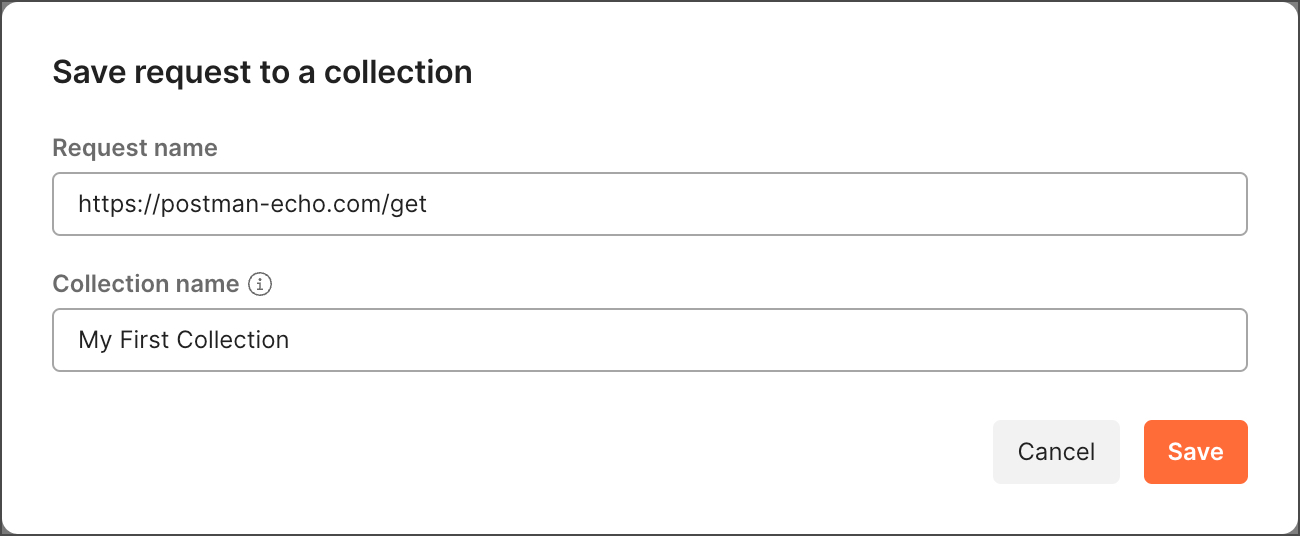 5. Click **Save** to add the request to the collection.
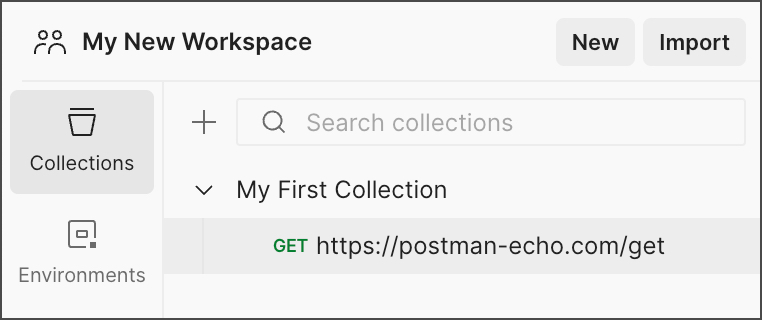
After you save the request, your new collection and the request are listed under **Collections** in the sidebar.
5. Click **Save** to add the request to the collection.
After you save the request, your new collection and the request are listed under **Collections** in the sidebar.
 Every request you send in Postman appears under the **History** tab of the sidebar. On a small scale, reusing requests through the history section is convenient. As your Postman usage grows, it can be time-consuming to find a particular request in your history. Instead of scrolling through your history section, you can save all your requests in a collection for easier access.
## Next steps
* To learn more about collections, visit the [Collections overview](/docs/collections/collections-overview/).
* To create, edit, delete, and work with your collections, visit [Create and manage request collections in Postman](/docs/collections/use-collections/use-collections-overview/).
* For details on how to run your collection, visit the [Collection Runner overview](/docs/collections/running-collections/running-collections-overview/).
Every request you send in Postman appears under the **History** tab of the sidebar. On a small scale, reusing requests through the history section is convenient. As your Postman usage grows, it can be time-consuming to find a particular request in your history. Instead of scrolling through your history section, you can save all your requests in a collection for easier access.
## Next steps
* To learn more about collections, visit the [Collections overview](/docs/collections/collections-overview/).
* To create, edit, delete, and work with your collections, visit [Create and manage request collections in Postman](/docs/collections/use-collections/use-collections-overview/).
* For details on how to run your collection, visit the [Collection Runner overview](/docs/collections/running-collections/running-collections-overview/).