# Send your first API request
Postman's API client enables you to create and send API [requests](/docs/getting-started/basics/postman-elements/#requests), including HTTP, GraphQL, and gRPC requests. Using Postman, you can send a request to an endpoint, retrieve data from a data source, or test an API's functionality. You don't need to enter commands in a terminal or write any code. When you create a new request and click **Send**, the API response returns directly in Postman.
## Send an API request
Make sure you've [downloaded and installed the Postman desktop app](/docs/getting-started/first-steps/get-postman/). When you're ready, open the Postman desktop app and send your first API request.
1. Click  **Add** in the workbench to open a new [tab](/docs/getting-started/basics/navigating-postman/#tabs).
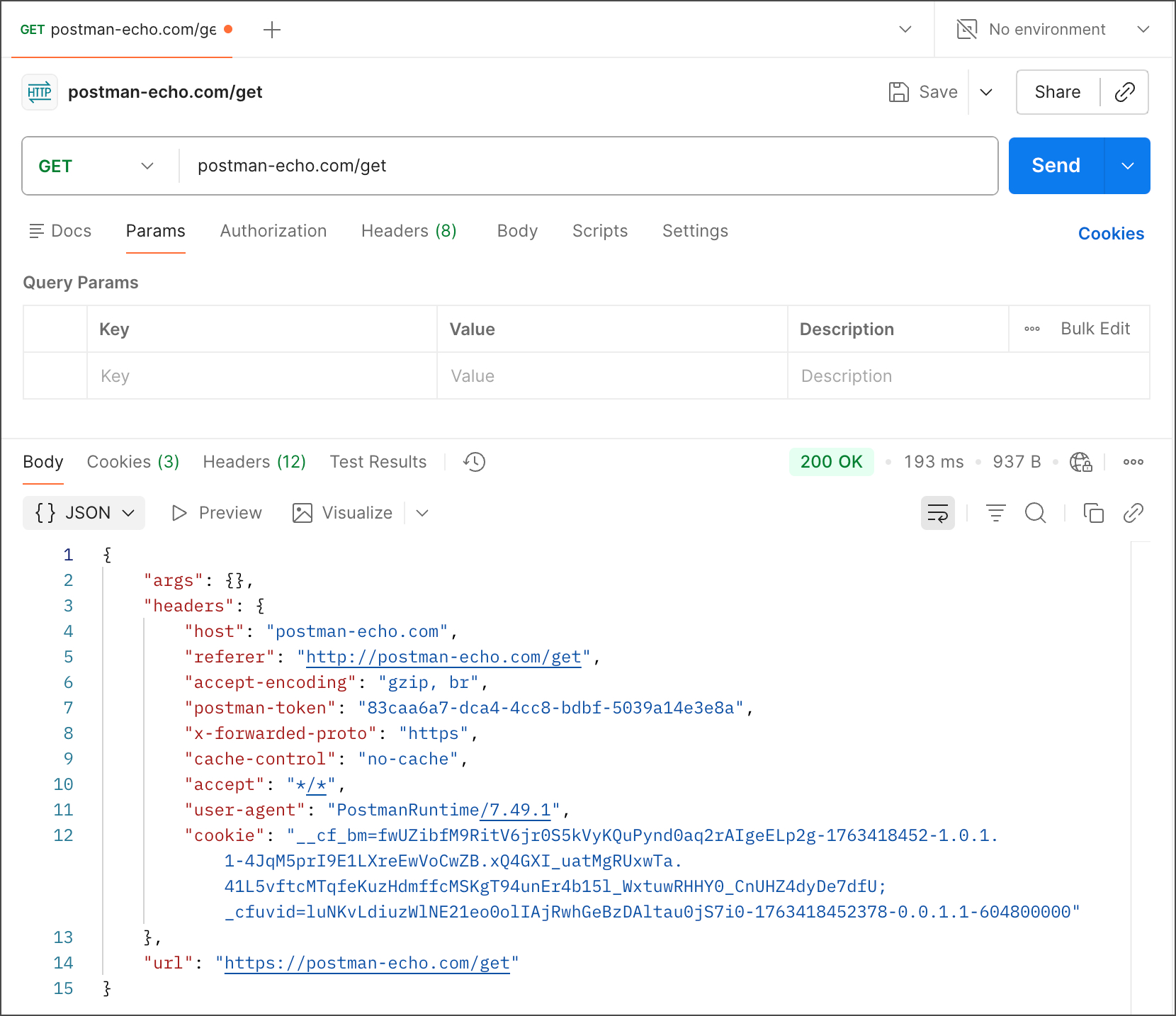
2. Enter "postman-echo.com/get" for the request URL.
3. Click **Send**.
Postman displays the response data sent from the server in the lower pane.
**Add** in the workbench to open a new [tab](/docs/getting-started/basics/navigating-postman/#tabs).
2. Enter "postman-echo.com/get" for the request URL.
3. Click **Send**.
Postman displays the response data sent from the server in the lower pane.
 ## How it works
In this example, Postman acts as the client application and communicates with an API server. Here's what happened when you clicked **Send**:
1. Postman sent a GET request to the [Postman Echo API](/docs/developer/echo-api/) server located at `postman-echo.com`.
2. The API server received the request, processed it, and returned a response to Postman.
3. Postman received the response and displayed it in the **Response** pane.
You used Postman to send an API request and got a response from the API server.
## Next steps
You've sent your first API request, and you're ready to do more with Postman!
* Send more requests to the Postman Echo API, a handy tool you can use to test API requests in Postman. To learn more about using the Echo API, see the [Postman Echo API documentation](/docs/developer/echo-api/).
* When you're ready to learn more about building and sending requests in Postman, see [Create and send API requests in Postman](/docs/sending-requests/create-requests/create-requests/).
## How it works
In this example, Postman acts as the client application and communicates with an API server. Here's what happened when you clicked **Send**:
1. Postman sent a GET request to the [Postman Echo API](/docs/developer/echo-api/) server located at `postman-echo.com`.
2. The API server received the request, processed it, and returned a response to Postman.
3. Postman received the response and displayed it in the **Response** pane.
You used Postman to send an API request and got a response from the API server.
## Next steps
You've sent your first API request, and you're ready to do more with Postman!
* Send more requests to the Postman Echo API, a handy tool you can use to test API requests in Postman. To learn more about using the Echo API, see the [Postman Echo API documentation](/docs/developer/echo-api/).
* When you're ready to learn more about building and sending requests in Postman, see [Create and send API requests in Postman](/docs/sending-requests/create-requests/create-requests/).