***
title: Debug with Insights
updated: 2025-09-03T00:00:00.000Z
max-toc-depth: 2
----------------
Repro Mode aims to make it seamless to rerun requests using real user data from production. The Insights Agent prefills the data for you from the observed traffic, eliminating the need to check logs and traces to find the elements needed to send the request and fix your failing endpoint.
**Coming soon:** You'll be able to use Repro Mode to replicate bugs and errors in lower environments, such as staging or development, where deeper debugging is possible.
Before you can reproduce your errors, you need to decide which data needs to be redacted and turn on Repro Mode in the [**Settings**](/docs/insights/reference/app/settings-tab/) tab.
## Locate your error
If you know you have an error but don't know exactly which endpoint, or if you are wondering whether you have errors at all, there are a couple of ways to find them:
* From the [**Global insights**](/docs/insights/reference/app/global-insights/) page.
* From the [**Error overview**](/docs/insights/reference/app/errors-tab/#errors-overview) page.
* From the [**Alerts**](/docs/insights/reference/app/alerts-tab/) page.
Each of these pages provides error details you can select to inspect the cause of your errors.
## Analyze your alert AI summary
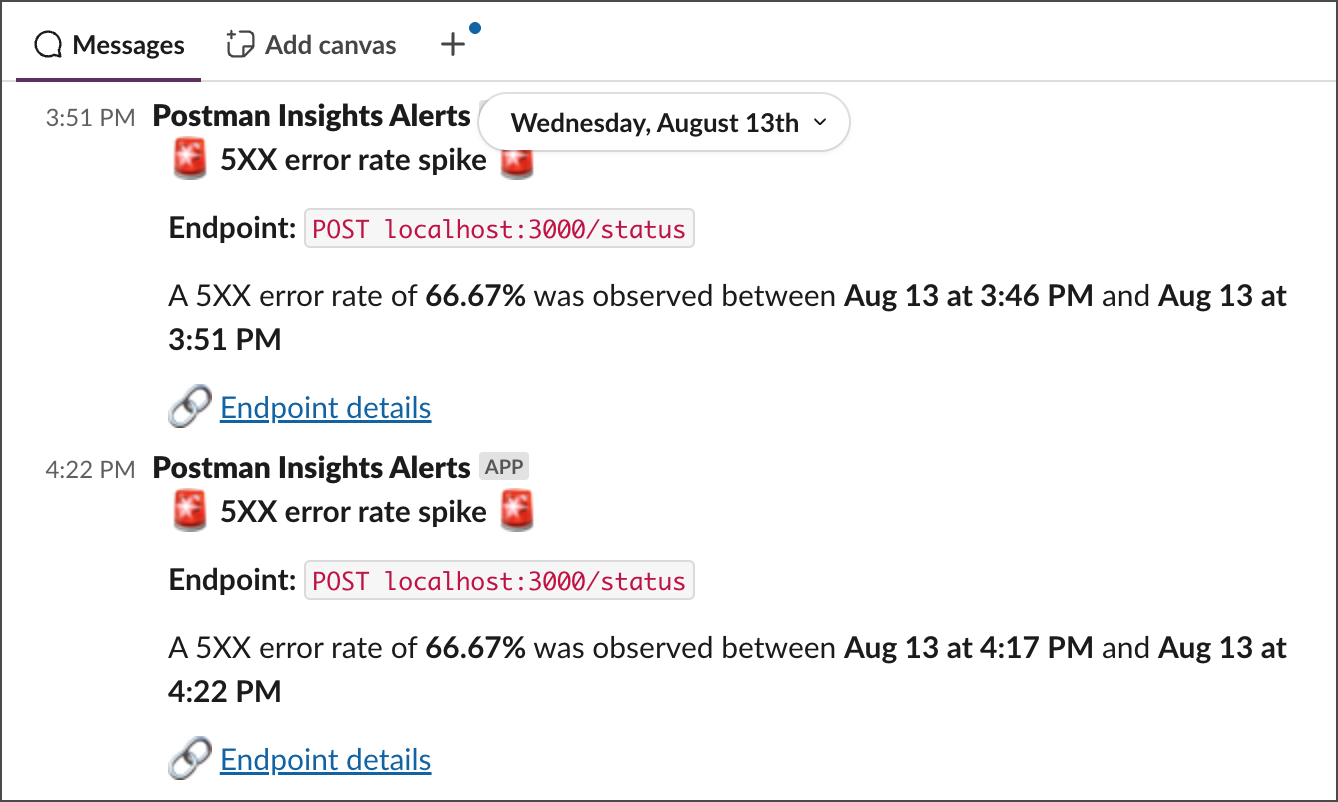
If you [integrate your alerts with Slack](/docs/insights/reference/app/alerts-tab/#configure-insights-alerts), you'll receive notifications about your errors in real time. You can click **Endpoint details** to get more information about your error.
 The **Endpoint details** page displays an option to use AI to get an alerts summary. To enable the AI alerts, click
  **Settings** in the header, select **Settings > AI**, and activate Agent Mode.
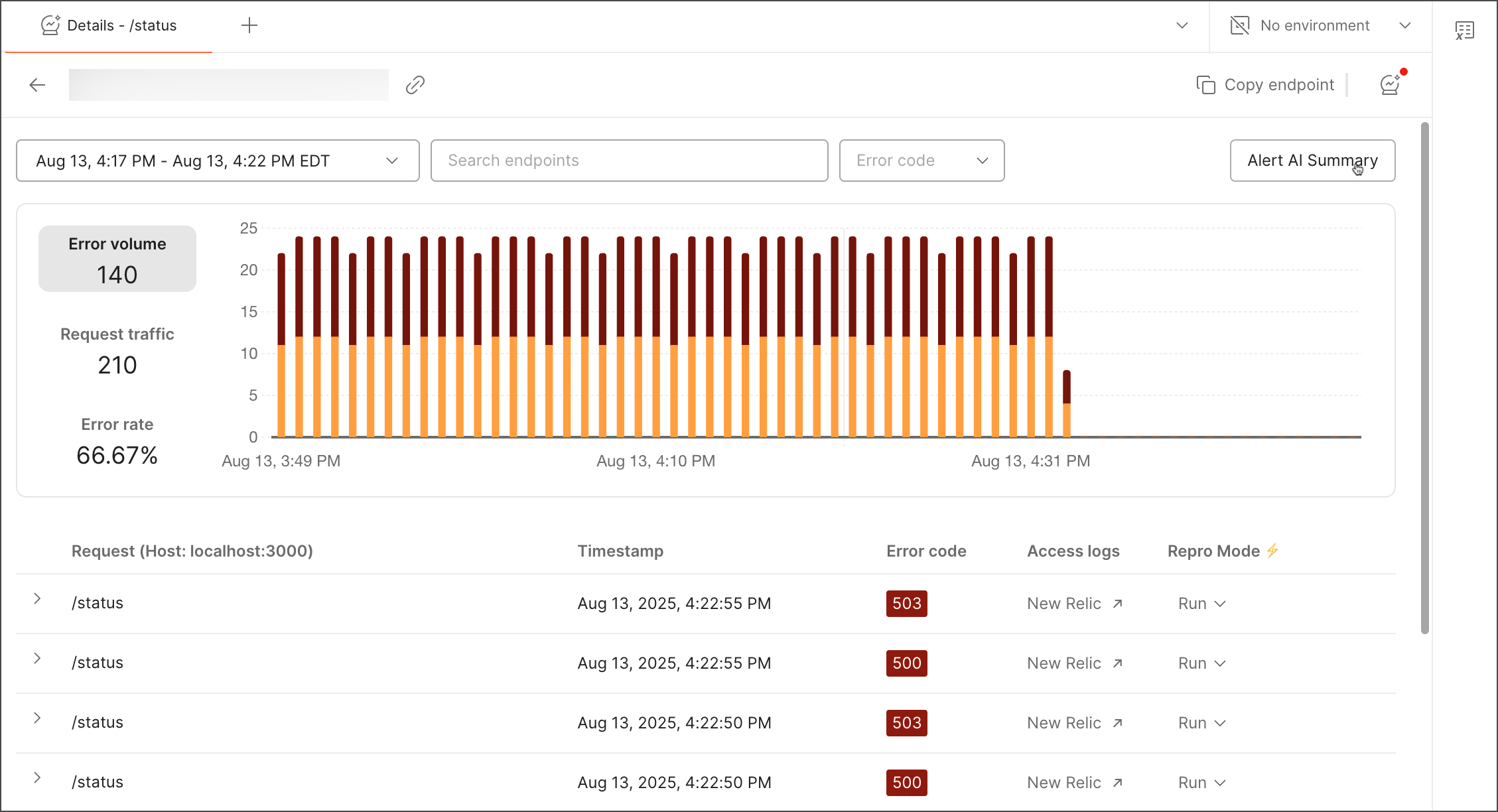 To get an AI alert summary, do the following:
1. Click **AI Alert Summary**.
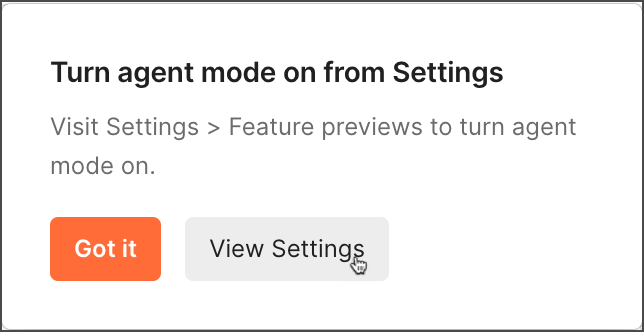
**Activate Agent Mode:** If you've not activated Agent Mode, you're prompted to open **Settings** and enable it. Then, you can proceed to the next step.
To get an AI alert summary, do the following:
1. Click **AI Alert Summary**.
**Activate Agent Mode:** If you've not activated Agent Mode, you're prompted to open **Settings** and enable it. Then, you can proceed to the next step.
 2. Press **Return** or **Enter** to send the alert summary prompt.
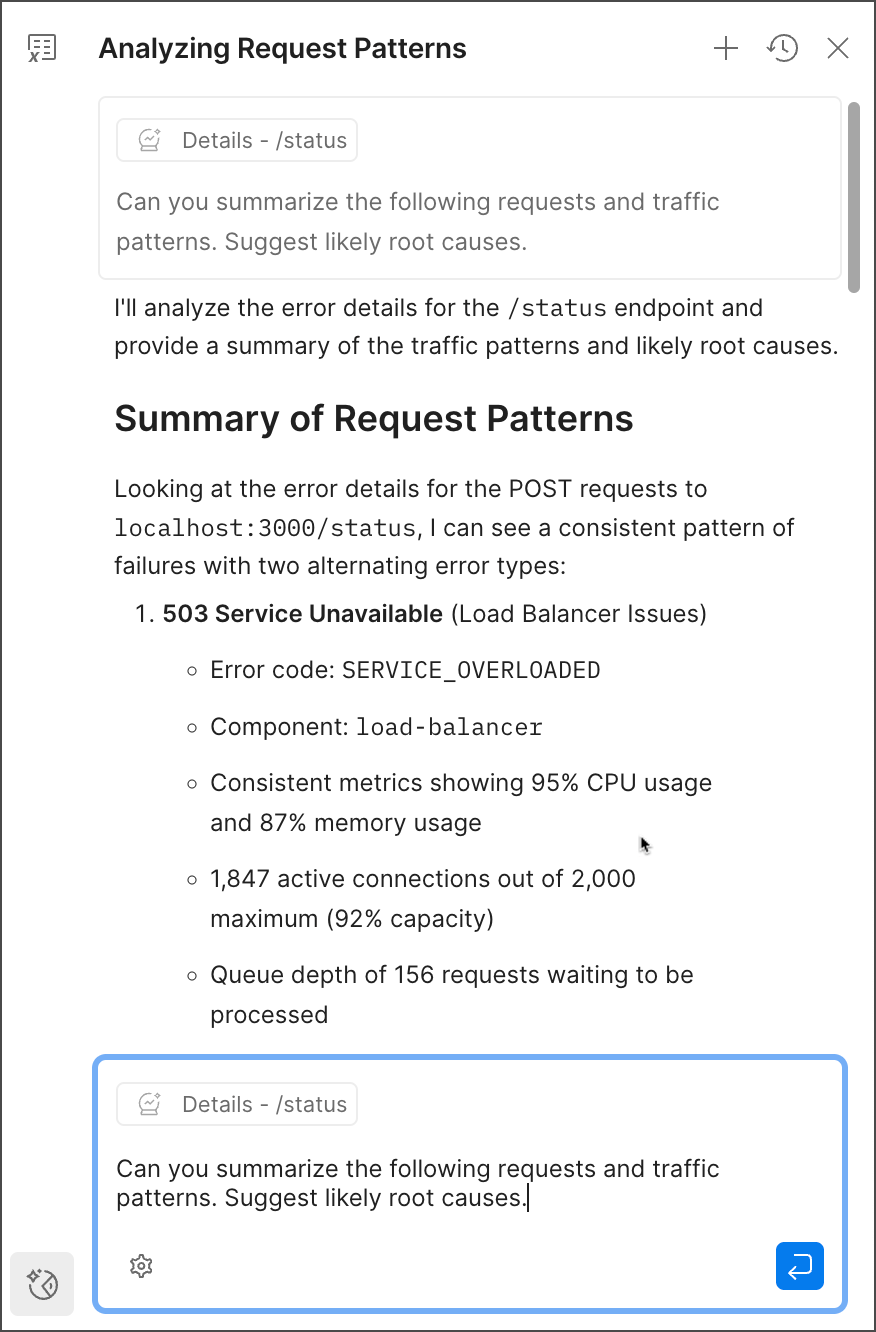
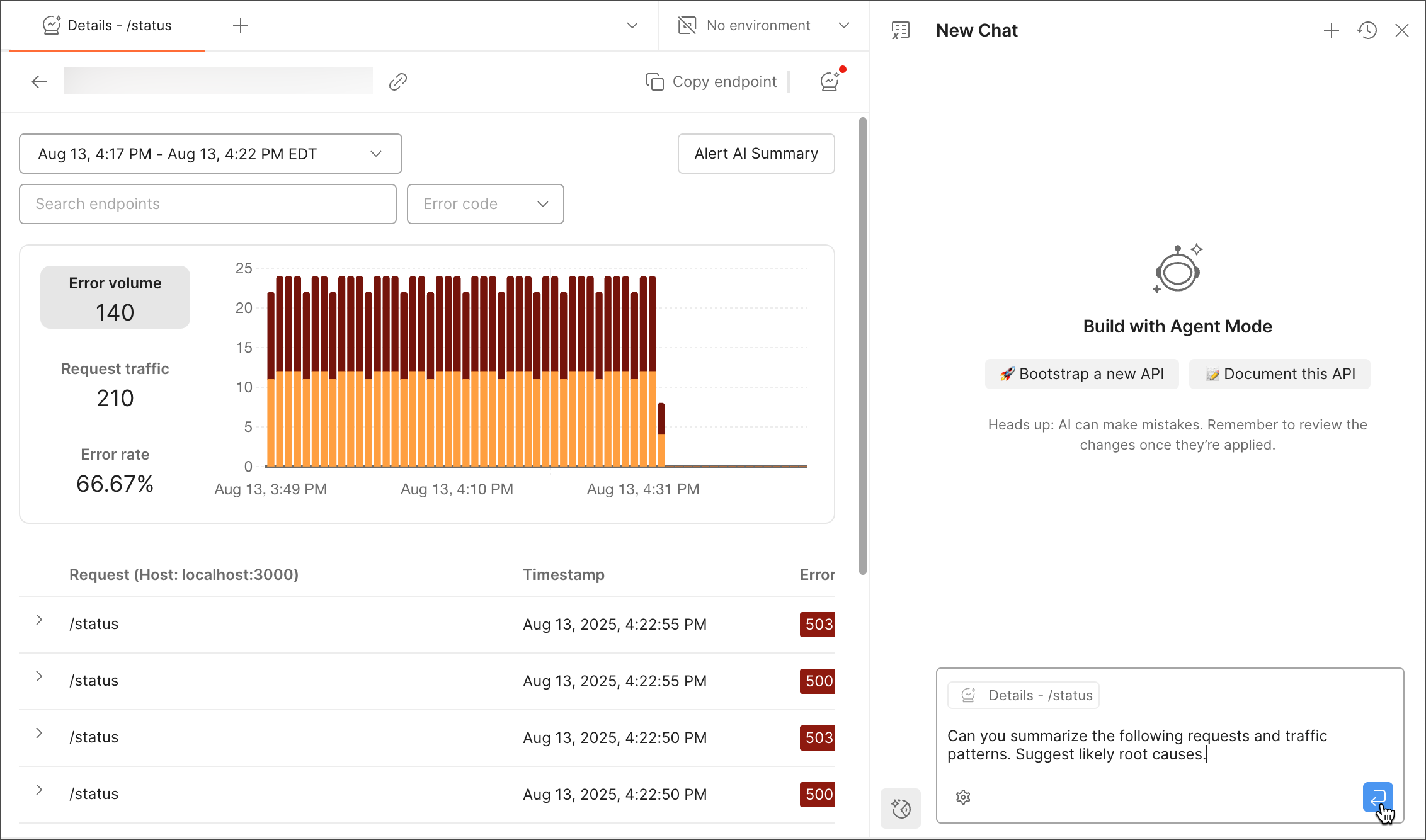 The AI alert summary returns traffic patterns, error details analysis, likely root causes, and a list of recommendations to fix the error.
 ## Use Repro Mode
Before you begin, check that the Repro Mode is enabled in the [**Settings**](/docs/insights/reference/app/settings-tab/) tab. This procedure assumes that you enabled the `--repro-mode` flag during your [Insights Agent configuration](/docs/insights/get-started/overview/).
You can access Repro Mode from an [Error details](/docs/insights/reference/app/errors-tab/#error-details) page, which you get to by selecting an endpoint from the **Overview**, **Errors**, and **Endpoints** tabs.
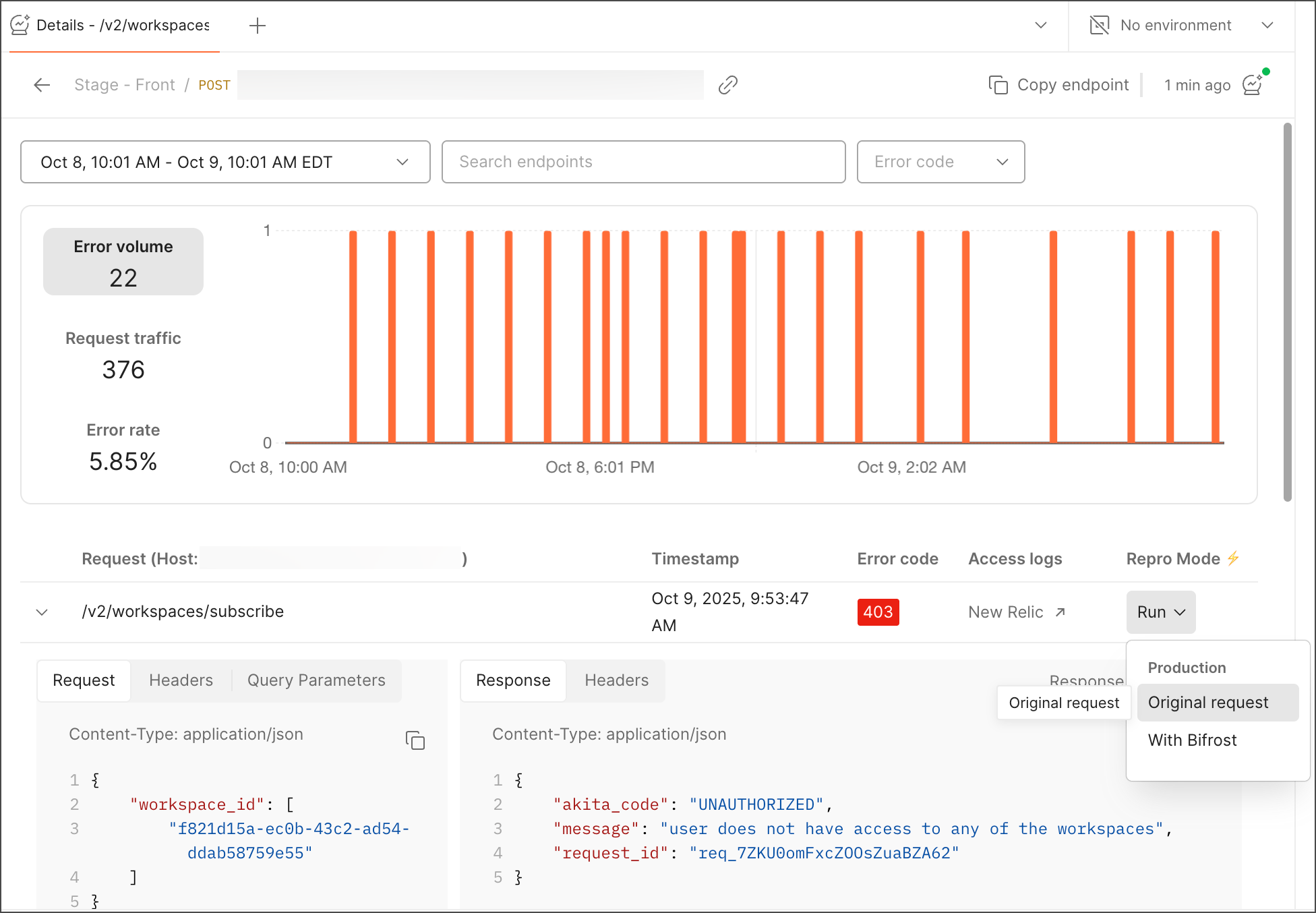
To use Repro Mode, select the **Run** dropdown.
## Use Repro Mode
Before you begin, check that the Repro Mode is enabled in the [**Settings**](/docs/insights/reference/app/settings-tab/) tab. This procedure assumes that you enabled the `--repro-mode` flag during your [Insights Agent configuration](/docs/insights/get-started/overview/).
You can access Repro Mode from an [Error details](/docs/insights/reference/app/errors-tab/#error-details) page, which you get to by selecting an endpoint from the **Overview**, **Errors**, and **Endpoints** tabs.
To use Repro Mode, select the **Run** dropdown.
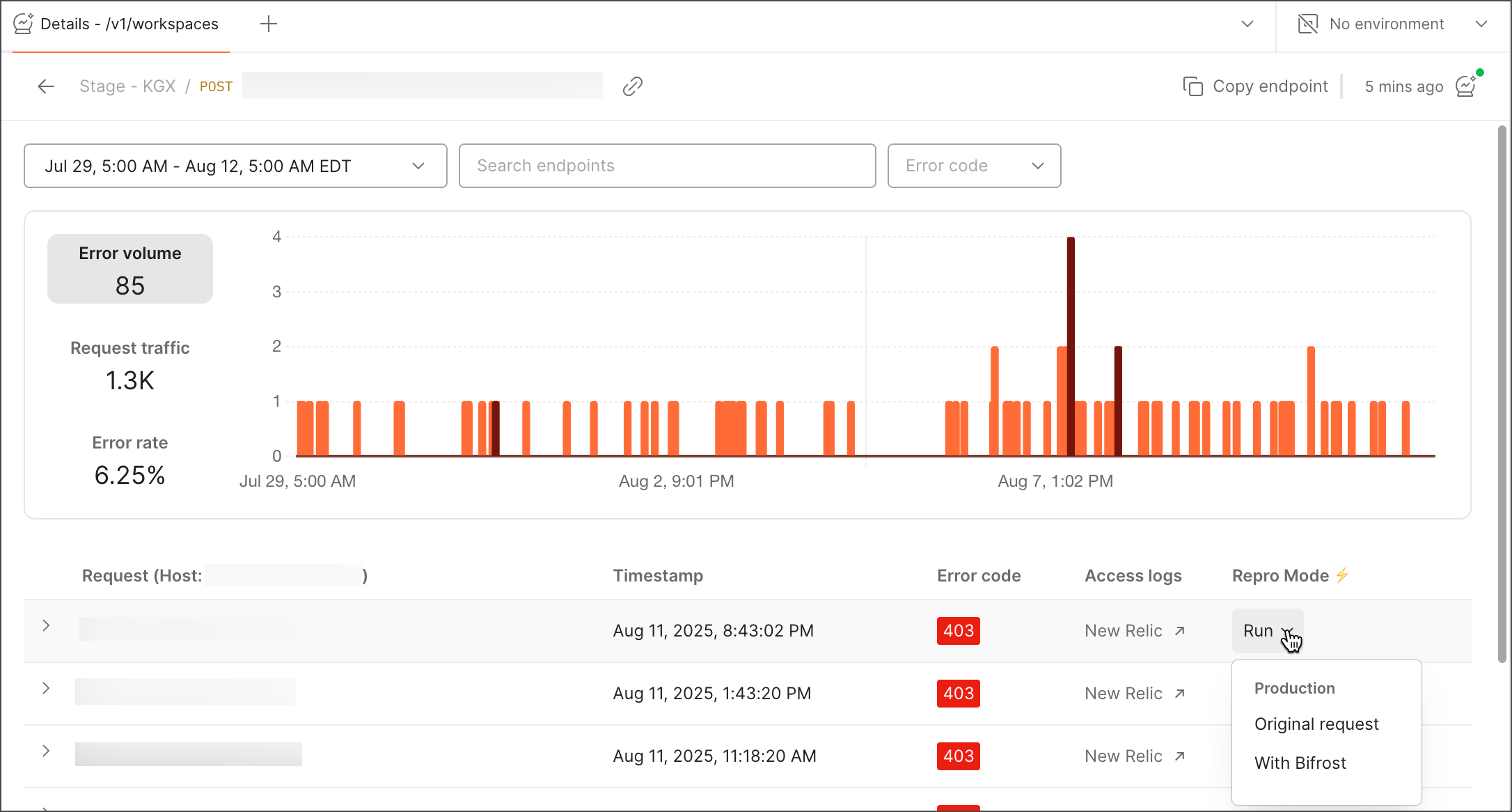 Clicking **Original request** takes you to Postman's [request builder](/docs/sending-requests/requests/), where you can reproduce your error.
**Coming soon:** You'll be able to use Bifrost and Access Logs in the future iterations of Postman Insights.
## Debug your endpoint with Repro Mode
To debug a failing endpoint, do the following:
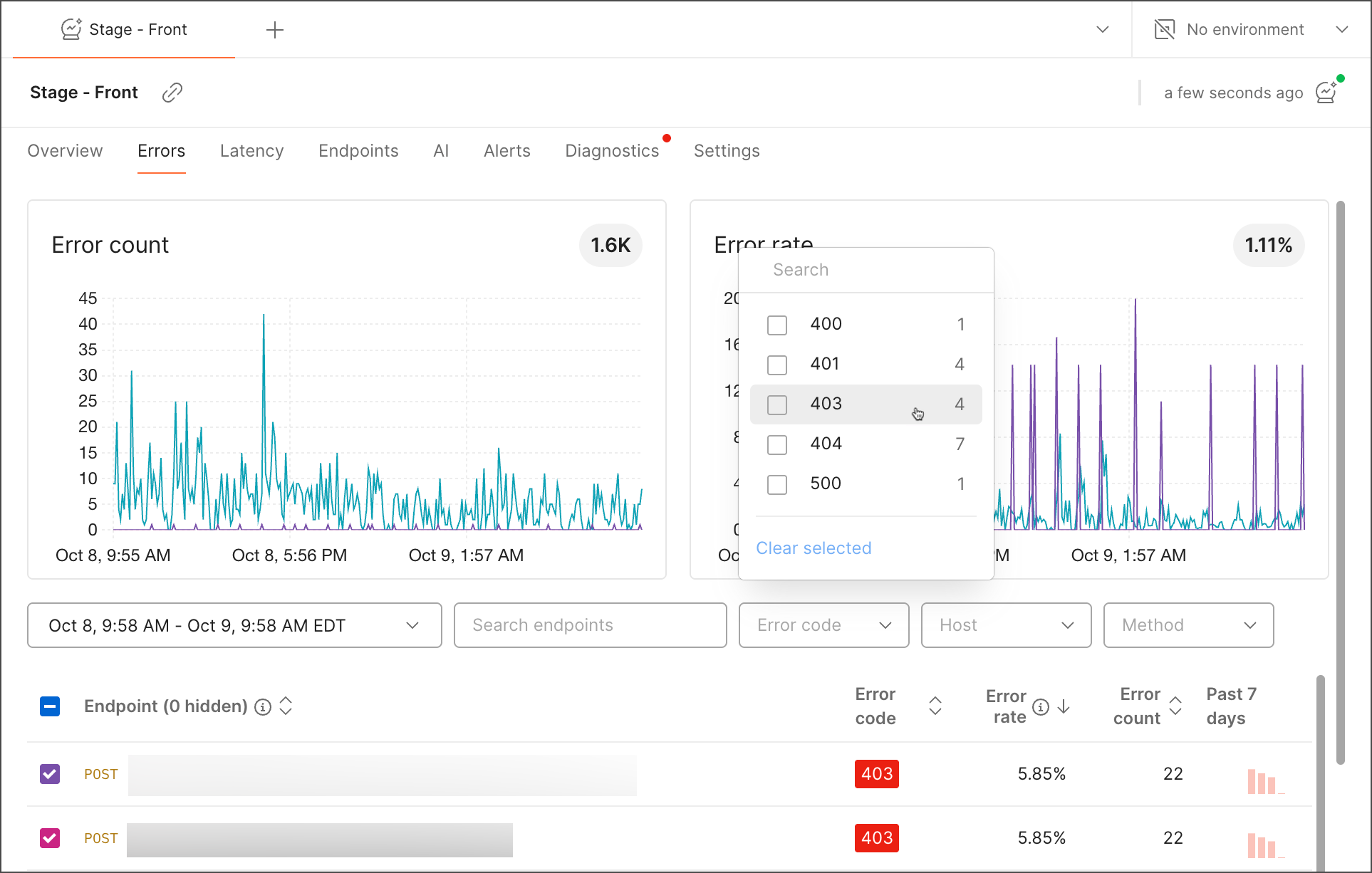
1. From the **Errors** tab, search and filter endpoints by time range, error code, host, or method. You can also use text search.
Clicking **Original request** takes you to Postman's [request builder](/docs/sending-requests/requests/), where you can reproduce your error.
**Coming soon:** You'll be able to use Bifrost and Access Logs in the future iterations of Postman Insights.
## Debug your endpoint with Repro Mode
To debug a failing endpoint, do the following:
1. From the **Errors** tab, search and filter endpoints by time range, error code, host, or method. You can also use text search.
 2. Select a failed request you want to inspect and reproduce. Then, expand it to observe the endpoint details such as request, headers, response, and query parameters, if any.
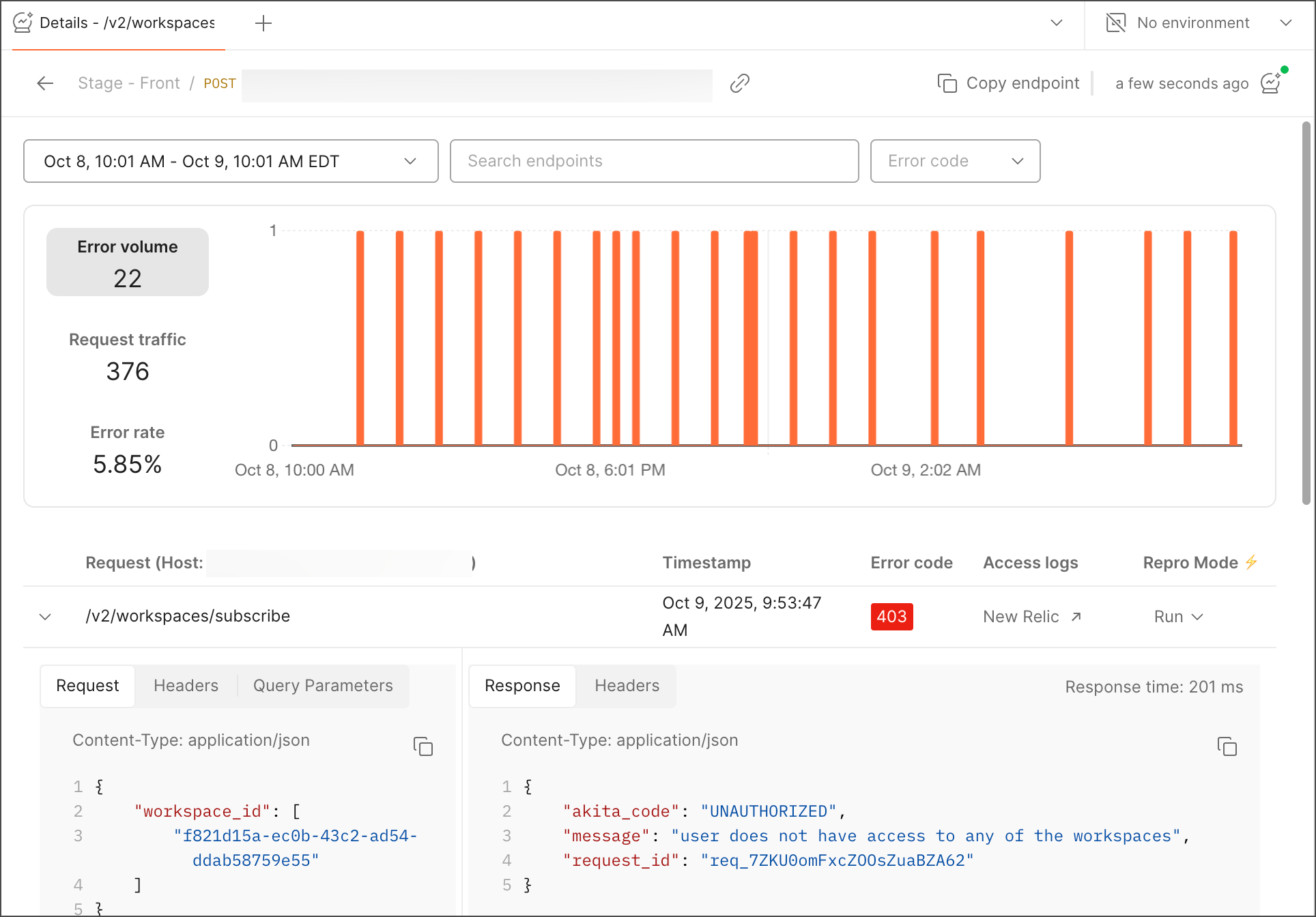 3. Click **Run** to open Postman's request builder.
 4. Click **Send** to reproduce the error.
5. In the response pane, select **Save as example** to capture the error response.
## Known limitations of Repro Mode
As the Postman Insights team continues to improve automation around Repro Mode, you may need to manually substitute values in the [Repro Mode settings](/docs/insights/reference/app/settings-tab/). Known instances of this requirement include:
* URLs and authorization.
* Redacted sensitive values, like keys.
* Resources that do not exist in pre-production environments, for instance, collection IDs and user IDs.
## Debugging in different environments
In-app support for this feature is coming soon.
If, for example, you choose to debug a specific error, you can try to run the request in different environments or using Bifrost. Suppose you choose to use a beta environment to replicate your `403` error. If you try to send it, you might get `User not found`, and the reason can be that the user token is missing. You can paste the access token of your beta environment and replicate the issue.
4. Click **Send** to reproduce the error.
5. In the response pane, select **Save as example** to capture the error response.
## Known limitations of Repro Mode
As the Postman Insights team continues to improve automation around Repro Mode, you may need to manually substitute values in the [Repro Mode settings](/docs/insights/reference/app/settings-tab/). Known instances of this requirement include:
* URLs and authorization.
* Redacted sensitive values, like keys.
* Resources that do not exist in pre-production environments, for instance, collection IDs and user IDs.
## Debugging in different environments
In-app support for this feature is coming soon.
If, for example, you choose to debug a specific error, you can try to run the request in different environments or using Bifrost. Suppose you choose to use a beta environment to replicate your `403` error. If you try to send it, you might get `User not found`, and the reason can be that the user token is missing. You can paste the access token of your beta environment and replicate the issue.