# Send Postman Monitor results to Slack
[Postman Monitors](/docs/monitoring-your-api/intro-monitors/) enable you to continuously check the health and performance of your APIs. You can integrate Postman with Slack to automatically send monitor results to a channel in Slack. Each time the monitor runs, you'll get a notification in Slack with the results. It's recommended that you set up Slack notifications when you configure a monitor. Alternatively, you can set up Slack notifications when you set up a Postman Monitor integration.
## Configure monitors to send results to Slack
You can connect a Slack channel when you create a new monitor or when you edit an existing monitor.
To send Postman Monitor results to Slack from **Monitors**, do the following:
1. Click **Monitors** in the sidebar, then click  **Create new monitor**.
2. When you [configure](/docs/monitoring-your-api/setting-up-monitor/#configure-a-monitor) your new monitor, under **Notifications**, select the **Notify a team channel** checkbox.
3. Click **Connect Slack channel**.
4. A browser tab opens asking you to sign in to Slack. Click **Continue**, then enter your workspace URL and sign in with your email or SSO.
5. Click **Allow** to give Postman permission to view content and perform actions in Slack. Close the tab to continue in Postman.
6. From the Postman **Monitors** page, under **Notifications**, select a Slack workspace and a Slack channel in which to receive notifications.
7. Choose whether to receive notifications for every completed run or after three consecutive failures and a successful run after the failures.
8. You'll receive a confirmation message in the selected Slack channel once the connection is established.
After connecting the Slack channel, Postman sends monitor results based on the selected settings.
## Configure an integration to send monitor results to Slack
This integration works with monitors. Before you begin, make sure you've [created at least one monitor](/docs/monitoring-your-api/setting-up-monitor/).
To send Postman Monitor results to Slack from the **Integrations** page, do the following:
1. From the **[Home](https://go.postman.co/home)** page, click **[Integrations](https://go.postman.co/integrations)** in the left sidebar.
2. Click **Browse All Integrations**.
3. Search for and select **[Slack](https://go.postman.co/integrations/service/slack)**.
4. Next to **Post monitoring results**, click **Add Integration**.

5. A browser tab opens asking you to sign in to Slack. Click **Continue**, then enter your workspace URL and sign in with your email or SSO.
If someone on your team created an [installed app](/docs/integrations/installed-apps/) for Slack, a message and green checkmark let you know you're already authenticated with your Slack workspace. You don't need to sign in or review permissions. If you want to connect to a different Slack workspace, click the link.
6. Click **Allow** to give Postman permission to view content and perform actions in Slack. Close the tab to continue in Postman.
7. Enter the following on the **Add integration** window:
* **Nickname** - A nickname for your integration.
* **Select a Workspace** - The workspace with your monitor.
* **Monitor** - The monitor that will send its results to Slack.
* **Channel name** - The Slack channel to send the monitor's results to.
* **Configure when monitor runs must be notified** - Select if you want notifications for all completed monitor runs, or for three failed monitor runs in a row and then the next successful monitor run.
* **Add Slack for your team** - Select this checkbox to add an [installed app](/docs/integrations/installed-apps/) for Slack. Other team members can use the installed app to add an integration without having to authorize with Slack.
8. Click **Add Integration**.
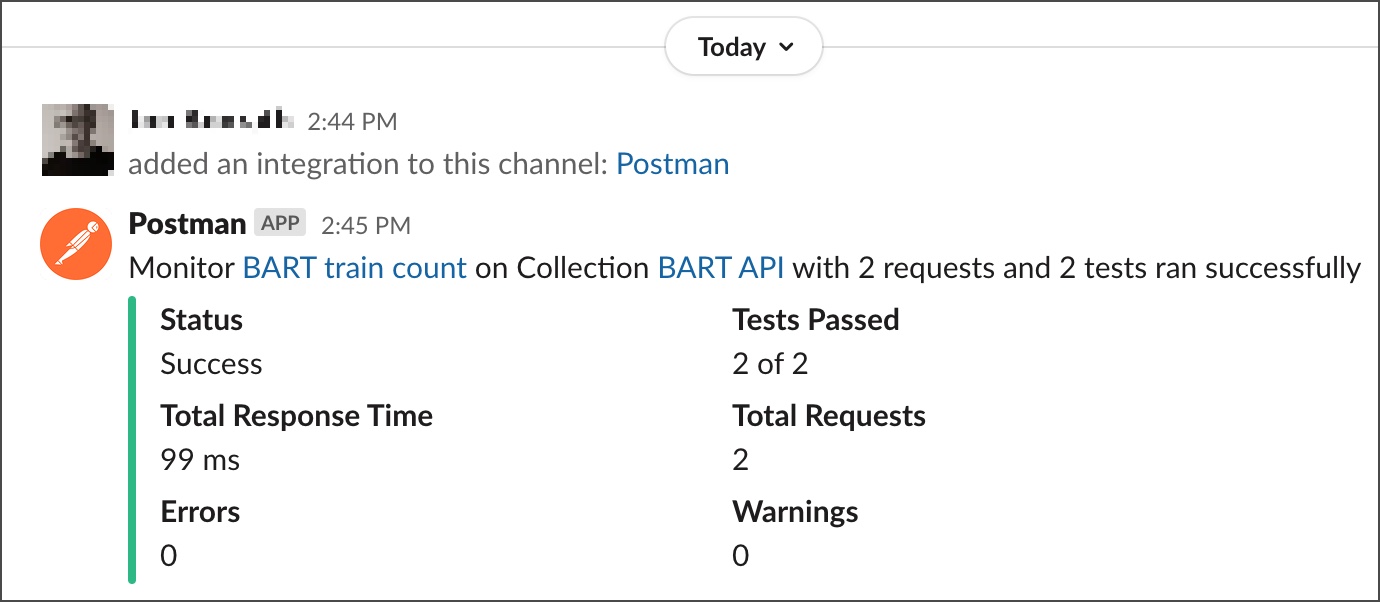
After configuring the integration, Postman sends the monitor results to the Slack channel you specified each time your monitor runs.
**You can view your configured integrations on the [Browse Integrations](https://go.postman.co/integrations/browse) page.** You can also view integrations that have been configured for a monitor by opening the monitor and clicking
**Create new monitor**.
2. When you [configure](/docs/monitoring-your-api/setting-up-monitor/#configure-a-monitor) your new monitor, under **Notifications**, select the **Notify a team channel** checkbox.
3. Click **Connect Slack channel**.
4. A browser tab opens asking you to sign in to Slack. Click **Continue**, then enter your workspace URL and sign in with your email or SSO.
5. Click **Allow** to give Postman permission to view content and perform actions in Slack. Close the tab to continue in Postman.
6. From the Postman **Monitors** page, under **Notifications**, select a Slack workspace and a Slack channel in which to receive notifications.
7. Choose whether to receive notifications for every completed run or after three consecutive failures and a successful run after the failures.
8. You'll receive a confirmation message in the selected Slack channel once the connection is established.
After connecting the Slack channel, Postman sends monitor results based on the selected settings.
## Configure an integration to send monitor results to Slack
This integration works with monitors. Before you begin, make sure you've [created at least one monitor](/docs/monitoring-your-api/setting-up-monitor/).
To send Postman Monitor results to Slack from the **Integrations** page, do the following:
1. From the **[Home](https://go.postman.co/home)** page, click **[Integrations](https://go.postman.co/integrations)** in the left sidebar.
2. Click **Browse All Integrations**.
3. Search for and select **[Slack](https://go.postman.co/integrations/service/slack)**.
4. Next to **Post monitoring results**, click **Add Integration**.

5. A browser tab opens asking you to sign in to Slack. Click **Continue**, then enter your workspace URL and sign in with your email or SSO.
If someone on your team created an [installed app](/docs/integrations/installed-apps/) for Slack, a message and green checkmark let you know you're already authenticated with your Slack workspace. You don't need to sign in or review permissions. If you want to connect to a different Slack workspace, click the link.
6. Click **Allow** to give Postman permission to view content and perform actions in Slack. Close the tab to continue in Postman.
7. Enter the following on the **Add integration** window:
* **Nickname** - A nickname for your integration.
* **Select a Workspace** - The workspace with your monitor.
* **Monitor** - The monitor that will send its results to Slack.
* **Channel name** - The Slack channel to send the monitor's results to.
* **Configure when monitor runs must be notified** - Select if you want notifications for all completed monitor runs, or for three failed monitor runs in a row and then the next successful monitor run.
* **Add Slack for your team** - Select this checkbox to add an [installed app](/docs/integrations/installed-apps/) for Slack. Other team members can use the installed app to add an integration without having to authorize with Slack.
8. Click **Add Integration**.
After configuring the integration, Postman sends the monitor results to the Slack channel you specified each time your monitor runs.

**You can view your configured integrations on the [Browse Integrations](https://go.postman.co/integrations/browse) page.** You can also view integrations that have been configured for a monitor by opening the monitor and clicking  **Monitor details** in the right sidebar. Learn more about [viewing or editing integrations](/docs/integrations/intro-integrations/#view-or-edit-integrations).