***
title: Send Postman Monitor notifications to your Microsoft Teams channels
updated: 2025-11-26T00:00:00.000Z
slug: docs/integrations/available-integrations/teams/team-notifications
max-toc-depth: 2
----------------
You can set up [Postman Monitors](/docs/monitoring-your-api/intro-monitors/) to automatically send monitor results to a Microsoft Teams channel or group chat. Each time the monitor runs, you'll get notified in Teams. Alternatively, you can create a Microsoft Teams workflow to connect your monitors to your Teams channels. When Postman runs your monitor, you'll get notified in the Teams channel of your choice.
## Configure monitors to send notifications to Microsoft Teams
You can connect a Microsoft Teams channel or group chat when you create a new monitor or when you edit an existing monitor.
To send Postman Monitor results to Microsoft Teams from **Monitors**, do the following:
1. Click **Monitors** in the sidebar, then click  **Create new monitor**.
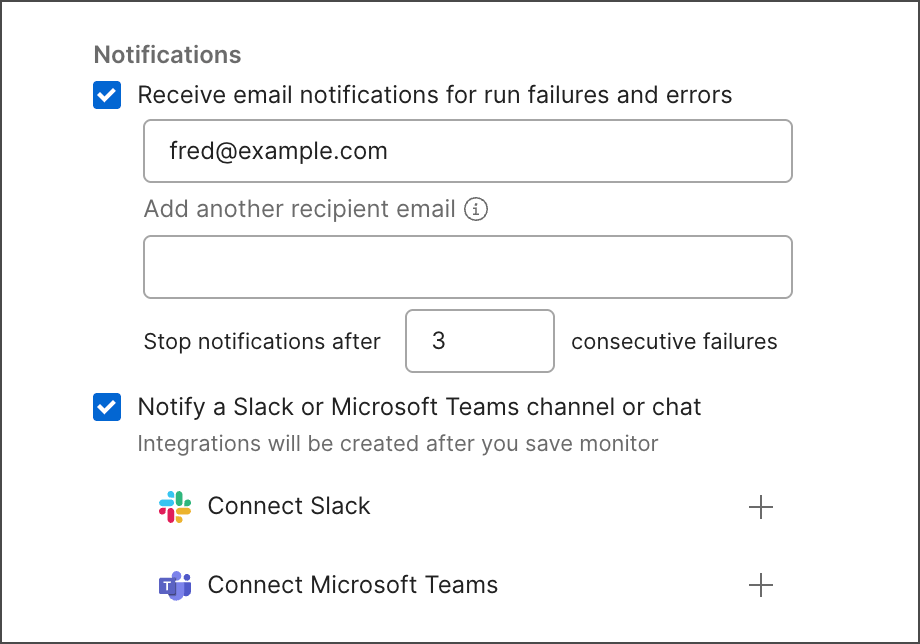
2. When you [configure](/docs/monitoring-your-api/setting-up-monitor/#configure-a-monitor) your new monitor, under **Notifications**, select **Notify a Slack or Microsoft Teams channel or chat**.
3. Click
**Create new monitor**.
2. When you [configure](/docs/monitoring-your-api/setting-up-monitor/#configure-a-monitor) your new monitor, under **Notifications**, select **Notify a Slack or Microsoft Teams channel or chat**.
3. Click  next to
  **Connect Microsoft Teams**. A browser tab opens with a warning that you are being redirected to complete the authorization on the Microsoft site.
4. Click **Continue**. If the app has been correctly configured in Teams, the authorization is successful and you are redirected back to Postman.
5. On the Postman **Monitors** page, select a Microsoft Teams channel or group chat in which to receive notifications in the **Connect Microsoft Teams** popup window.
6. Choose whether to receive notifications for every completed run or after three consecutive failures and a successful run after the failures. You'll receive a confirmation message in the selected Microsoft Teams channel or group chat once the connection is established.
After connecting the Microsoft Teams channel or group chat, Postman sends monitor results based on the selected settings.
## Create a Microsoft Teams workflow
You can use a Microsoft Teams webhook URL to connect Teams and Postman. For example, you can [send Postman Monitor results to your Teams channel](#send-postman-monitor-results-to-your-microsoft-teams-channel).
**Important:**
Microsoft Teams plans to replace connectors with workflows. If you've set up connectors, follow these steps to switch to workflows. To learn more, see [Retirement of Office 365 connectors within Microsoft Teams](https://devblogs.microsoft.com/microsoft365dev/retirement-of-office-365-connectors-within-microsoft-teams/).
To create a Microsoft Teams workflow, do the following:
1. [Sign in to your Microsoft Teams account](https://www.microsoft.com/en-us/microsoft-teams/log-in).
2. Open an existing Teams channel or create a new one.
3. Next to your channel, click **More options > Workflows**.
4. Search for "Post to a channel when a webhook request is received" and select the workflow.
5. (Optional) Rename your workflow or edit your connection.
6. Click **Next**.
7. (Optional) Choose a different team or channel.
8. Click **Add workflow**.
9. Copy the webhook URL and save it somewhere for later use. You'll need it to connect Teams and Postman.
To learn more, see [Use flows in Microsoft Teams](https://learn.microsoft.com/power-automate/teams/overview).
## Send Postman Monitor results to your Microsoft Teams channel
Before you can send your [Postman Monitor](/docs/monitoring-your-api/intro-monitors/) results to one of your Microsoft Teams channels, [create a Microsoft Teams workflow](#create-a-microsoft-teams-workflow).
To send Postman Monitor results to a Microsoft Teams channel, do the following:
1. From the [Postman Home](https://go.postman.co/home) page, click [**Integrations**](https://go.postman.co/integrations). Then, click [**Browse All Integrations**](https://go.postman.co/integrations/browse?category=all).
2. Search for [Microsoft Teams](https://go.postman.co/integrations/service/microsoft_teams) and open the page.
3. Next to **Post monitoring results via workflows**, click **Add Integration**.
4. Add your integration:
* **Nickname** - Enter a nickname.
* **Choose workspace** - Choose the workspace with your monitor.
* **Choose monitor** - Choose your monitor.
* **Workflow URL** - Paste your webhook URL from the [previous section](#create-a-microsoft-teams-workflow).
* **Configure when monitor runs must be notified** - Choose when you want to notify your Teams channel.
5. Click **Add Integration**.
Postman sends your monitor results to your Microsoft Teams channel.
{/*
## Send Postman team activity to your Microsoft Teams channel
Send your team's [activity feed](/docs/collaborating-in-postman/using-workspaces/internal-workspaces/use-workspaces/#view-workspace-activity) to a specified Microsoft Teams channel. Team Activity messages display updates, who made a change, and what it was.
To send Postman team activity to Microsoft Teams, do the following:
1. From the **[Postman Home](https://go.postman.co/home)** page, select **[Integrations](https://go.postman.co/integrations)**.
1. Select **[Browse All Integrations](https://go.postman.co/integrations/browse?category=all)**.
1. Search and select **Microsoft Teams**.
1. Next to **Post team activity**, select **Add Integration**.
1. Enter the following in the **Add Integration** window:
* **Nickname** - A nickname for the integration.
* **Notification URL** - Your [incoming webhook URL](#create-a-microsoft-teams-webhook-url) where your team's updates are sent.
1. Select **Add Integration**.
**You can view your configured integrations on the [Browse Integrations](https://go.postman.co/integrations/browse) page.** You can also view integrations that have been configured for a monitor by opening the monitor and selecting
**Connect Microsoft Teams**. A browser tab opens with a warning that you are being redirected to complete the authorization on the Microsoft site.

4. Click **Continue**. If the app has been correctly configured in Teams, the authorization is successful and you are redirected back to Postman.
5. On the Postman **Monitors** page, select a Microsoft Teams channel or group chat in which to receive notifications in the **Connect Microsoft Teams** popup window.
6. Choose whether to receive notifications for every completed run or after three consecutive failures and a successful run after the failures. You'll receive a confirmation message in the selected Microsoft Teams channel or group chat once the connection is established.
After connecting the Microsoft Teams channel or group chat, Postman sends monitor results based on the selected settings.
## Create a Microsoft Teams workflow
You can use a Microsoft Teams webhook URL to connect Teams and Postman. For example, you can [send Postman Monitor results to your Teams channel](#send-postman-monitor-results-to-your-microsoft-teams-channel).
**Important:**
Microsoft Teams plans to replace connectors with workflows. If you've set up connectors, follow these steps to switch to workflows. To learn more, see [Retirement of Office 365 connectors within Microsoft Teams](https://devblogs.microsoft.com/microsoft365dev/retirement-of-office-365-connectors-within-microsoft-teams/).
To create a Microsoft Teams workflow, do the following:
1. [Sign in to your Microsoft Teams account](https://www.microsoft.com/en-us/microsoft-teams/log-in).
2. Open an existing Teams channel or create a new one.
3. Next to your channel, click **More options > Workflows**.
4. Search for "Post to a channel when a webhook request is received" and select the workflow.
5. (Optional) Rename your workflow or edit your connection.
6. Click **Next**.
7. (Optional) Choose a different team or channel.
8. Click **Add workflow**.
9. Copy the webhook URL and save it somewhere for later use. You'll need it to connect Teams and Postman.
To learn more, see [Use flows in Microsoft Teams](https://learn.microsoft.com/power-automate/teams/overview).
## Send Postman Monitor results to your Microsoft Teams channel
Before you can send your [Postman Monitor](/docs/monitoring-your-api/intro-monitors/) results to one of your Microsoft Teams channels, [create a Microsoft Teams workflow](#create-a-microsoft-teams-workflow).
To send Postman Monitor results to a Microsoft Teams channel, do the following:
1. From the [Postman Home](https://go.postman.co/home) page, click [**Integrations**](https://go.postman.co/integrations). Then, click [**Browse All Integrations**](https://go.postman.co/integrations/browse?category=all).
2. Search for [Microsoft Teams](https://go.postman.co/integrations/service/microsoft_teams) and open the page.
3. Next to **Post monitoring results via workflows**, click **Add Integration**.
4. Add your integration:
* **Nickname** - Enter a nickname.
* **Choose workspace** - Choose the workspace with your monitor.
* **Choose monitor** - Choose your monitor.
* **Workflow URL** - Paste your webhook URL from the [previous section](#create-a-microsoft-teams-workflow).
* **Configure when monitor runs must be notified** - Choose when you want to notify your Teams channel.
5. Click **Add Integration**.
Postman sends your monitor results to your Microsoft Teams channel.
{/*
## Send Postman team activity to your Microsoft Teams channel
Send your team's [activity feed](/docs/collaborating-in-postman/using-workspaces/internal-workspaces/use-workspaces/#view-workspace-activity) to a specified Microsoft Teams channel. Team Activity messages display updates, who made a change, and what it was.
To send Postman team activity to Microsoft Teams, do the following:
1. From the **[Postman Home](https://go.postman.co/home)** page, select **[Integrations](https://go.postman.co/integrations)**.
1. Select **[Browse All Integrations](https://go.postman.co/integrations/browse?category=all)**.
1. Search and select **Microsoft Teams**.
1. Next to **Post team activity**, select **Add Integration**.
1. Enter the following in the **Add Integration** window:
* **Nickname** - A nickname for the integration.
* **Notification URL** - Your [incoming webhook URL](#create-a-microsoft-teams-webhook-url) where your team's updates are sent.
1. Select **Add Integration**.
**You can view your configured integrations on the [Browse Integrations](https://go.postman.co/integrations/browse) page.** You can also view integrations that have been configured for a monitor by opening the monitor and selecting  **Info** in the right sidebar. Learn more about [viewing or editing integrations](/docs/integrations/intro-integrations/#view-or-edit-integrations).
*/}
**Info** in the right sidebar. Learn more about [viewing or editing integrations](/docs/integrations/intro-integrations/#view-or-edit-integrations).
*/}