> For clean Markdown content of this page, append .md to this URL. For the complete documentation index, see https://learning.postman.com/llms.txt. For full content including API reference and SDK examples, see https://learning.postman.com/llms-full.txt.
# Publish monitor reports in Postman
Published monitor reports are available on Postman Solo, Team, and Enterprise plans. For more information, see the [pricing page](https://www.postman.com/pricing/).
With published monitor reports, you can generate a read-only link to share API uptime, performance, and recent run results outside of Postman. Anyone with the link can view the report without needing a Postman account or workspace access. This is useful for communicating API reliability to stakeholders who aren't part of your workspace. For example, you can provide customers with visibility into the health of a production API without granting them direct access to your monitors.
## Publish a monitor report
As a [Monitor Editor](/docs/administration/roles-and-permissions#monitor-roles), you can publish monitor reports for the monitors you have access to. Published monitor reports show the last 30 monitor runs and request-level details for each run. A monitor can only have one published report at a time. If you're on an Enterprise plan, a [Team Admin](/docs/administration/roles-and-permissions#team-roles) must [approve requests to publish](#review-requests-to-publish-monitor-reports) monitor reports.
You can publish a monitor report in internal team workspaces and public workspaces. Published monitor reports aren't supported for internal private workspaces and Partner Workspaces.
To publish a monitor report, do the following:
1. Click  **Services** in the sidebar.
2. Click **Monitor** and select a monitor you want to publish a report for.
3. In the upper right of the workbench, select
**Services** in the sidebar.
2. Click **Monitor** and select a monitor you want to publish a report for.
3. In the upper right of the workbench, select  **View more actions > Publish**.
4. (Optional) Enter a **Title** and **Description** for the monitor report to improve context and search visibility. If a title isn't provided, the monitor name is used.
5. (Optional) Select the **Hide request endpoints** checkbox to remove request endpoint details from the published report, while still sharing performance data.
6. (Enterprise plans only) Enter a message requesting approval from your Team Admin to publish the report.
7. Click **Publish** or **Request to publish**.
Once a monitor report is published, you can share it with others using the link. To get the link to the monitor report, click
**View more actions > Publish**.
4. (Optional) Enter a **Title** and **Description** for the monitor report to improve context and search visibility. If a title isn't provided, the monitor name is used.
5. (Optional) Select the **Hide request endpoints** checkbox to remove request endpoint details from the published report, while still sharing performance data.
6. (Enterprise plans only) Enter a message requesting approval from your Team Admin to publish the report.
7. Click **Publish** or **Request to publish**.
Once a monitor report is published, you can share it with others using the link. To get the link to the monitor report, click  **Published monitor** in the upper right of the workbench, then click
  **Copy link**. You can also select **View more actions > Monitor report > Copy link** in the workbench.
If you're on an Enterprise plan, you'll receive a notification in Postman when a Team Admin approves or denies your request to publish a monitor report. If the request is denied, you can review the reason provided and submit an updated request to publish. You can also learn more about [updating requests to publish](#update-request-to-publish-a-monitor-report).
## Update request to publish a monitor report
If you're on an Enterprise plan, you can update or withdraw your request to [publish](#publish-a-monitor-report) or [update](/docs/monitoring-your-api/monitor-reports/update-monitor-reports#update-a-monitor-report) a monitor report before it's approved or denied.
1. Click **Services** in the sidebar.
2. Click **Monitor** and select a monitor with a pending request to publish.
3. Click **Pending publish approval** or **Published -- a change request is in review** in the upper right of the workbench.
4. You can take the following actions:
* Update the title, description, request endpoint visibility, or message, then click **Update request**.
* Click **Withdraw request** to cancel the pending publish request.
In the upper right of the workbench, you can also select **View more actions > Monitor report** to update or withdraw your request to publish.
## Review requests to publish monitor reports
As a Team Admin on an Enterprise plan, you can approve or deny requests to [publish](#publish-a-monitor-report) or [update](/docs/monitoring-your-api/monitor-reports/update-monitor-reports#update-a-monitor-report) monitor reports. Team Admins receive a notification in Postman when a request to publish or update a monitor report is submitted.
1. Click **Services** in the sidebar.
2. Click **Monitor** and select a monitor with a pending request to publish or update.
3. Click **Pending publish approval** in the upper right of the workbench.
4. Review the request details, including the message from the requester, to inform your decision.
5. Take one of the following actions:
* Click **Approve** to publish or update the monitor report and make it available using a shared link.
* Click **Deny** to reject the request and prevent the monitor report from being published or updated. Denying a request to update a published report keeps the existing report published without any changes.
6. If you deny the request, you can provide a reason for denying the request to publish or update. Click **Deny** to reject the request.
In the upper right of the workbench, you can also select **View more actions > Monitor report** to review the request to publish or update.
## View a published monitor report
Open the published monitor report using the shared link in a web browser. The public URL for the monitor report is `statuspage.getpostman.com/`. The report displays the last 30 monitor runs, shows the health status of the monitor, and includes an overall success rate.
Click a monitor run to view request-level details for that run. By default, you can view detailed information for each request, including response times, status codes, and the number of test assertion failures.
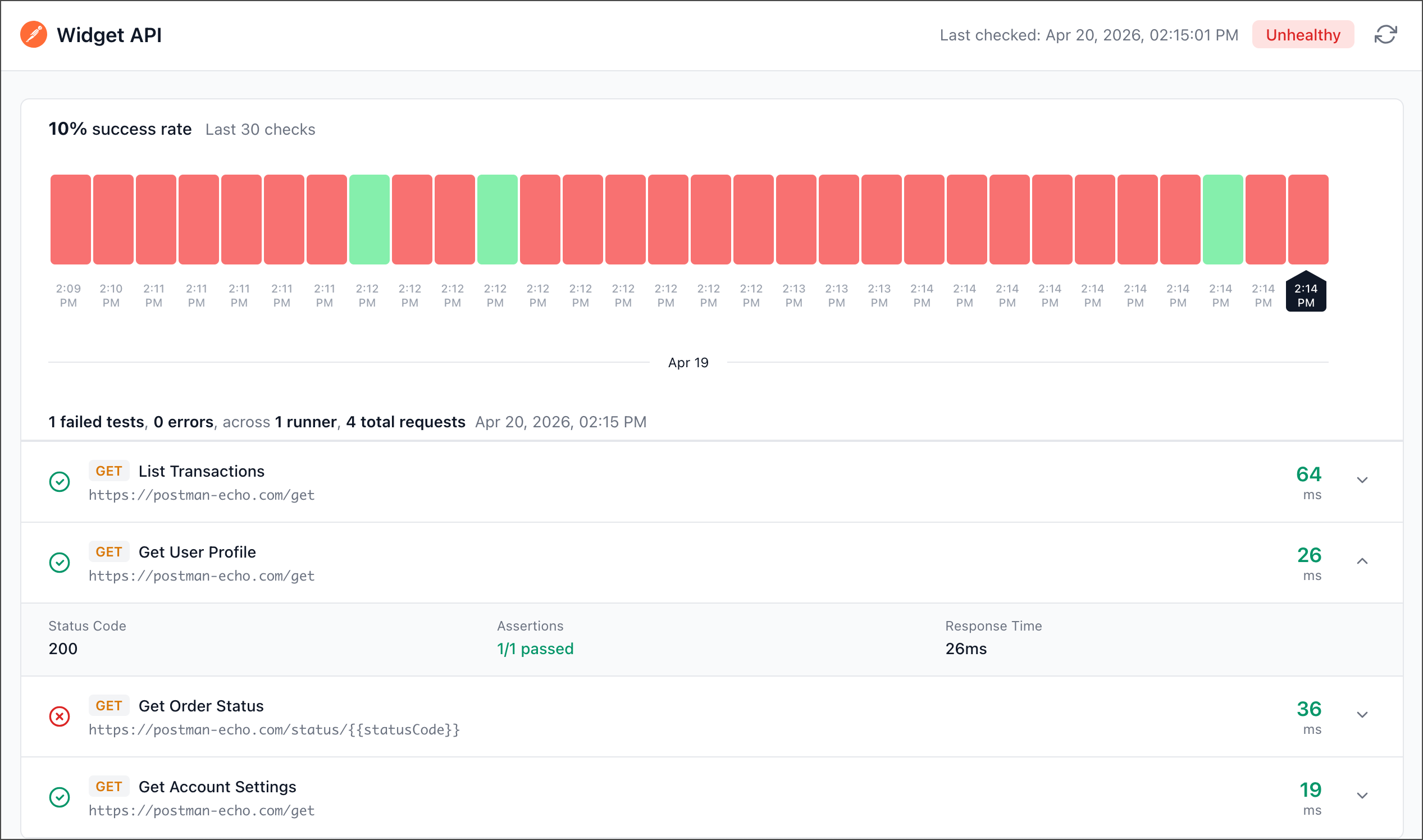
In the upper right of the workbench, you can also select **View more actions > Monitor report** to view a published monitor report.
**Copy link**. You can also select **View more actions > Monitor report > Copy link** in the workbench.
If you're on an Enterprise plan, you'll receive a notification in Postman when a Team Admin approves or denies your request to publish a monitor report. If the request is denied, you can review the reason provided and submit an updated request to publish. You can also learn more about [updating requests to publish](#update-request-to-publish-a-monitor-report).
## Update request to publish a monitor report
If you're on an Enterprise plan, you can update or withdraw your request to [publish](#publish-a-monitor-report) or [update](/docs/monitoring-your-api/monitor-reports/update-monitor-reports#update-a-monitor-report) a monitor report before it's approved or denied.
1. Click **Services** in the sidebar.
2. Click **Monitor** and select a monitor with a pending request to publish.
3. Click **Pending publish approval** or **Published -- a change request is in review** in the upper right of the workbench.
4. You can take the following actions:
* Update the title, description, request endpoint visibility, or message, then click **Update request**.
* Click **Withdraw request** to cancel the pending publish request.
In the upper right of the workbench, you can also select **View more actions > Monitor report** to update or withdraw your request to publish.
## Review requests to publish monitor reports
As a Team Admin on an Enterprise plan, you can approve or deny requests to [publish](#publish-a-monitor-report) or [update](/docs/monitoring-your-api/monitor-reports/update-monitor-reports#update-a-monitor-report) monitor reports. Team Admins receive a notification in Postman when a request to publish or update a monitor report is submitted.
1. Click **Services** in the sidebar.
2. Click **Monitor** and select a monitor with a pending request to publish or update.
3. Click **Pending publish approval** in the upper right of the workbench.
4. Review the request details, including the message from the requester, to inform your decision.
5. Take one of the following actions:
* Click **Approve** to publish or update the monitor report and make it available using a shared link.
* Click **Deny** to reject the request and prevent the monitor report from being published or updated. Denying a request to update a published report keeps the existing report published without any changes.
6. If you deny the request, you can provide a reason for denying the request to publish or update. Click **Deny** to reject the request.
In the upper right of the workbench, you can also select **View more actions > Monitor report** to review the request to publish or update.
## View a published monitor report
Open the published monitor report using the shared link in a web browser. The public URL for the monitor report is `statuspage.getpostman.com/`. The report displays the last 30 monitor runs, shows the health status of the monitor, and includes an overall success rate.
Click a monitor run to view request-level details for that run. By default, you can view detailed information for each request, including response times, status codes, and the number of test assertion failures.

In the upper right of the workbench, you can also select **View more actions > Monitor report** to view a published monitor report.