# Configure Postman Monitors to run from static IPs
**[Static IP address monitoring is available with Postman Professional and Enterprise plans.](https://www.postman.com/pricing/)**
Postman's static IP feature enables you to use [monitors](/docs/monitoring-your-api/setting-up-monitor/) to monitor APIs that are behind a restricted firewall. This feature requires your IT team to allowlist certain static IP addresses. The IPs to allowlist will depend on whether you have a [US Professional or Enterprise plan](#static-ip-address-monitoring-for-us-professional-and-enterprise-plans) or an [EU Data Residency plan](#static-ip-address-monitoring-for-eu-data-residency-plans). Each IP address will be fixed to its specified region and shared by all customers who use this feature.
With [Private API Monitoring](/docs/monitoring-your-api/runners/overview/), you can use runners and the Postman CLI to monitor and test your organization's APIs from your internal network, without publicly exposing your endpoints. Once set up, monitors run in your internal network and the runner sends the results to the Postman cloud.
## Static IP address monitoring for US Professional and Enterprise plans
You can set up static IP address monitoring if you have a US-based Postman Professional or Enterprise plan. You can choose either or both of two IPs, one from the US (East) region and the other from the US (West) region.
### Allowlisting static IP addresses
Static IP addresses are available for US (East) and US (West) regions. Contact your IT team to allowlist the following IP addresses:
* US (East): `34.201.186.27`
* US (West): `52.89.173.88`
### Creating a new monitor to run from a static IP address
When [creating a new monitor](/docs/monitoring-your-api/setting-up-monitor/#create-a-monitor), choose the **Manually select region** option. Select your desired static IP regions, and then click **Create**.
 ### Changing an existing monitor to run from a static IP address
Click **Monitors** in the sidebar, select a monitor, then select
### Changing an existing monitor to run from a static IP address
Click **Monitors** in the sidebar, select a monitor, then select  **View more actions > Edit**.
Under **Regions**, choose the **Manually select region** option. Select your desired static IP regions, then click **Update Monitor**.
## Static IP address monitoring for EU Data Residency plans
You can set up static IP address monitoring if you have a [Postman EU Data Residency](/docs/administration/enterprise/about-eu-data-residency/) plan, with static IPs located in the EU (Central) region.
### Allowlisting static IP addresses
Contact your IT team to allowlist the following IP addresses:
* EU (Central): `63.179.82.81`, `3.71.240.166`, `3.124.150.113`
To correctly configure static IP address monitoring, you must allowlist all three IP addresses listed here.
### Creating a new monitor to run from a static IP address
When [creating a new monitor](/docs/monitoring-your-api/setting-up-monitor/#create-a-monitor), choose the **Manually select region** option. Select your desired static IP regions, and then click **Create**.
**View more actions > Edit**.
Under **Regions**, choose the **Manually select region** option. Select your desired static IP regions, then click **Update Monitor**.
## Static IP address monitoring for EU Data Residency plans
You can set up static IP address monitoring if you have a [Postman EU Data Residency](/docs/administration/enterprise/about-eu-data-residency/) plan, with static IPs located in the EU (Central) region.
### Allowlisting static IP addresses
Contact your IT team to allowlist the following IP addresses:
* EU (Central): `63.179.82.81`, `3.71.240.166`, `3.124.150.113`
To correctly configure static IP address monitoring, you must allowlist all three IP addresses listed here.
### Creating a new monitor to run from a static IP address
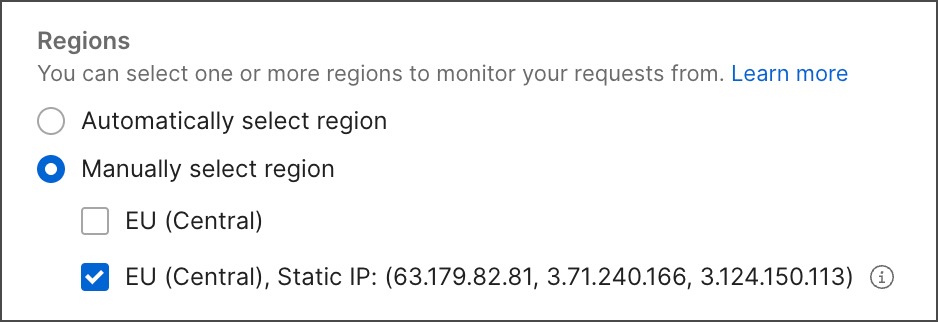
When [creating a new monitor](/docs/monitoring-your-api/setting-up-monitor/#create-a-monitor), choose the **Manually select region** option. Select your desired static IP regions, and then click **Create**.
 ### Changing an existing monitor to run from a static IP address
Click **Monitors** in the sidebar, select a monitor, then select **View more actions > Edit**.
Under **Regions**, choose the **Manually select region** option. Select your desired static IP regions, then click **Update Monitor**.
## Next steps
After setting up a monitor for APIs that are behind a restricted firewall, you can set up an integration with other tools in your development workflow.
To learn how to set up integrations for your monitor results, see [Integrating with Postman](/docs/integrations/intro-integrations/).
### Changing an existing monitor to run from a static IP address
Click **Monitors** in the sidebar, select a monitor, then select **View more actions > Edit**.
Under **Regions**, choose the **Manually select region** option. Select your desired static IP regions, then click **Update Monitor**.
## Next steps
After setting up a monitor for APIs that are behind a restricted firewall, you can set up an integration with other tools in your development workflow.
To learn how to set up integrations for your monitor results, see [Integrating with Postman](/docs/integrations/intro-integrations/).