***
title: Create an MCP server with Postman Flows
updated: 2025-08-21T00:00:00.000Z
topictype: procedure
max-toc-depth: 2
----------------
{/* vale Vale.Spelling = NO */}
In [Postman Flows](/docs/postman-flows/overview/), you can define a special [*scenario*](/docs/postman-flows/build-flows/configure/scenarios/) to create an [*Action*](/docs/postman-flows/build-flows/structure/actions/) that functions as a [Model Context Protocol](https://modelcontextprotocol.io/introduction) (MCP) server with MCP [tools](https://modelcontextprotocol.io/docs/concepts/tools), [prompts](https://modelcontextprotocol.io/specification/2025-06-18/server/prompts), and [resources](https://modelcontextprotocol.io/specification/2025-06-18/server/resources). Once deployed, the [action](/docs/postman-flows/build-flows/structure/actions/)’s URL can receive requests, process incoming data using [blocks](/docs/postman-flows/reference/blocks/overview/), and send responses.
## Create a deployable flow and a toolDefinition scenario
To begin building an MCP server in Postman Flows, do the following:
1. [Create a deployable flow](/docs/postman-flows/build-flows/structure/actions/#create-a-deployable-flow) in Postman Flows.
2. In the flow, [create a scenario](/docs/postman-flows/build-flows/configure/scenarios/#create-a-scenario) and name it "toolDefinition".
## Add tools to the toolDefinition scenario
In the **toolDefinition** scenario, you define the MCP tools that you want to make available to the MCP server you're building. Meanwhile, in the flow canvas, you add blocks to work with the data that the MCP server will obtain through each tool. {/* Then, you'll deploy the action. */}
1. In the **Body** section of your **toolDefinition** scenario, enter one or more tools using the MCP [tool definition structure](https://modelcontextprotocol.io/docs/concepts/tools/#tool-definition-structure). For example, adding the following to the scenario defines a tool that greets a user by name:
```json
{
"tools": [
{
"name": "greeter",
"description": "Says hello to a person by their first name",
"inputSchema": {
"type": "object",
"properties": {
"first_name": {
"type": "string",
"description": "The person's first name"
}
},
"required": [
"first_name"
]
}
}
]
}
```
Each item in the `properties` element of the tool definition will become an *argument* in calls to the tool.
2. Add blocks to the flow to perform the tool's task. For the greeter tool, you can use a **Template** block to concatenate the user's name to the message "Hello":
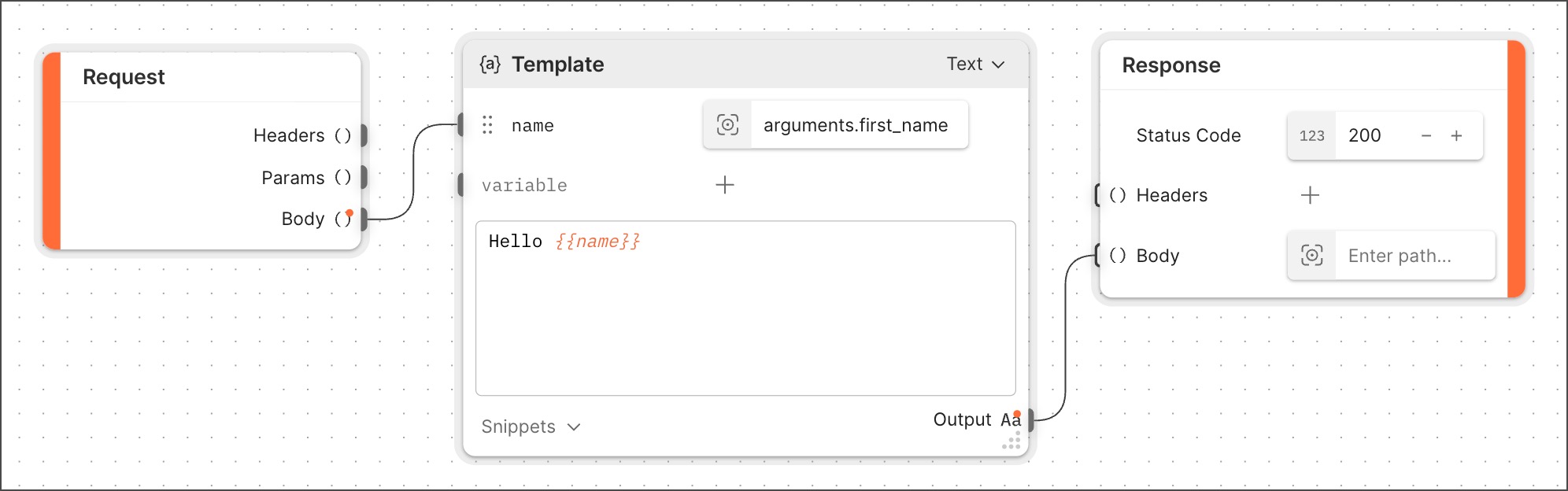 Recall that in your tool definition, the `properties` element defines a `first_name` property. Since tool definition properties become tool call arguments, the path to that property in the example **Select** block is `arguments.first_name`.
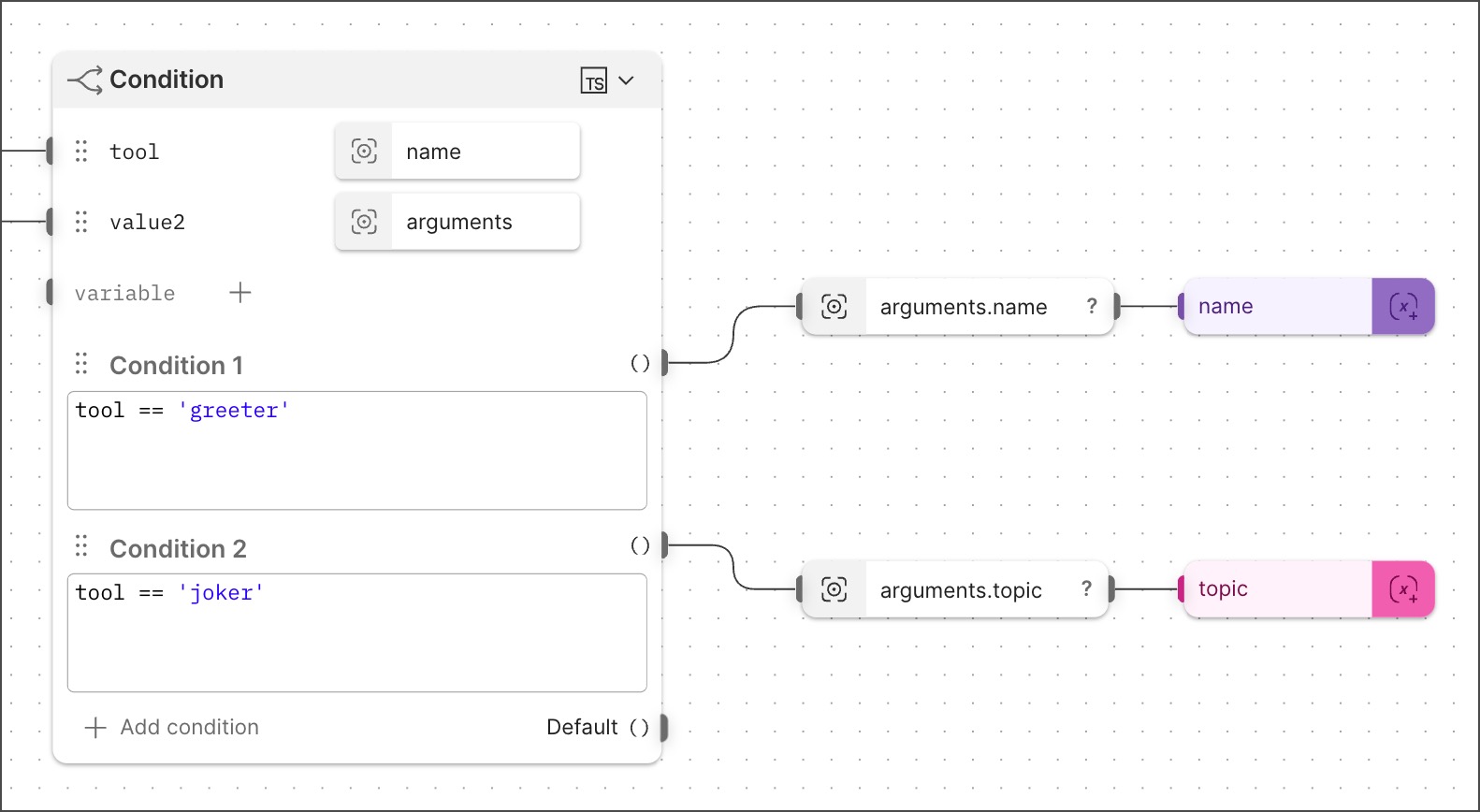
3. (Optional) For MCP servers that have multiple tools, you can use a **Condition** block to check which tool is being called in the request. Then a **Select** block can parse the tool's arguments.
Recall that in your tool definition, the `properties` element defines a `first_name` property. Since tool definition properties become tool call arguments, the path to that property in the example **Select** block is `arguments.first_name`.
3. (Optional) For MCP servers that have multiple tools, you can use a **Condition** block to check which tool is being called in the request. Then a **Select** block can parse the tool's arguments.
 If you don't want to add prompts or resources to your MCP server, go ahead and [deploy the flow](/docs/postman-flows/build-flows/structure/actions/#deploy-a-flow), then [test](#test-the-mcp-server) your MCP server.
## (Optional) Add prompts to the MCP server
You can add prompts to your MCP server in Flows. Servers with prompts can provide structured messages and instructions for interacting with language models. Clients can discover available prompts, retrieve their contents, and provide arguments to customize them.
The unique identifier for a prompt is in the `name` field. MCP requests will include this `name` field in the `params` section of the request body. Once it receives the request, the action strips away outer elements of the request body. What's left for the action to process is a JSON object with two key-value pairs: one whose key is `name` and the other whose key is `arguments`. The value of `arguments` is one or more key-value pairs.
You can add one or more prompts to the **Body** section of a **toolDefinition** scenario with the structure shown in the following example prompt:
```json
"prompts": [
{
"name": "example-prompt",
"title": "Request Code Review",
"description": "Asks the LLM to analyze data file to find anomalies",
"arguments": [
{
"name": "file",
"description": "The data file to review",
"required": true
}
]
}
]
```
A real-life **toolDefinition** will include any prompts and resources along with tools. If you add the tool, prompt, and resource examples provided in this topic to a single **toolDefinition**, the resulting **toolDefinition** will be structurally valid. However, since those examples are all from different use cases, the resulting won't be a practical example of a **toolDefinition** that makes sense for a real-life purpose.
## (Optional) Add resources to the MCP server
Resources enable servers to share data that provides context to language models. Each resource is uniquely identified by a URI (not a name as in a tool or a prompt). MCP requests will include this `uri` field in the `params` section of the request body. The action receives the internal content of the request body: the outer elements are stripped away.
For example, consider the following prompt that specifies a tool:
```json
"params": {
"name": "code_review",
"arguments": {
"code": "def hello():\n print('world')"
}
}
```
The "unboxed" version of this prompt that an action will process looks like this:
```json
{
"name": "code_review",
"arguments": {
"code": "def hello():\n print('world')"
}
}
```
Similarly, a prompt that specifies a resource might look like this:
```json
{
"params": {
"uri": "file:///project/src/main.rs"
}
}
```
An action will process the "unboxed" version of the prompt, namely `{ uri }`.
You can add one or more resources to the **Body** section of your **toolDefinition** scenario with the structure shown in the following example resource:
```json
"resources": [
{
"uri": "http://example.com/data.json",
"name": "data.js",
"title": "Data file",
"description": "File containing important data",
"mimeType": "application/json"
}
]
```
If you want to parameterize the resources your MCP server exposes, you can add one or more *resource templates* to the **Body** section of your **toolDefinition** scenario. MCP resource templates are [URI templates](https://datatracker.ietf.org/doc/html/rfc6570), structured as shown in the following example:
```json
"resourceTemplates": [
{
"uriTemplate": "file:///{path}",
"name": "Project Files",
"title": "Project Files",
"description": "Access files in the project directory",
"mimeType": "application/octet-stream"
}
]
```
Once it receives the request, the action strips some outer elements of the request body away. What's left for the action to process is a JSON object with two key-value pairs: one whose key is `name` and the other whose key is `arguments`. The value of `arguments` is one or more key-value pairs.
A real-life **toolDefinition** will include any prompts and resources along with tools. If you add the tool, prompt, and resource examples provided in this topic to a single **toolDefinition**, the resulting **toolDefinition** will be structurally valid. However, since those examples are all from different use cases, the resulting won't be a practical example of a **toolDefinition** that makes sense for a real-life purpose.
## Deploy the MCP server
Given an action with a **toolDefinition** scenario that defines tools and (optionally) prompts and resources, you can [deploy the action](/docs/postman-flows/build-flows/structure/actions/#deploy-an-action). Once deployed, your action will be an MCP server, meaning that the deployed action's URL will respond to MCP requests.
## Test the MCP server
This topic assumes that your goal is to configure an AI application such as Claude, Cursor, or ChatGPT to use your new MCP server. Before you do that, you can use Postman to create and send an MCP request to the server.
This procedure tests whether the MCP tool definition and the flow itself work as designed. It won't test the functionality of any prompts or resources that you add to the tool definition, because those would require interacting with an LLM, which an MCP request won't do.
To test your MCP server, do the following:
1. Click **Deploy** (even if you have already deployed the action) to open the **Deploy** dialog.
2. Hover over the **MCP URL** and click
If you don't want to add prompts or resources to your MCP server, go ahead and [deploy the flow](/docs/postman-flows/build-flows/structure/actions/#deploy-a-flow), then [test](#test-the-mcp-server) your MCP server.
## (Optional) Add prompts to the MCP server
You can add prompts to your MCP server in Flows. Servers with prompts can provide structured messages and instructions for interacting with language models. Clients can discover available prompts, retrieve their contents, and provide arguments to customize them.
The unique identifier for a prompt is in the `name` field. MCP requests will include this `name` field in the `params` section of the request body. Once it receives the request, the action strips away outer elements of the request body. What's left for the action to process is a JSON object with two key-value pairs: one whose key is `name` and the other whose key is `arguments`. The value of `arguments` is one or more key-value pairs.
You can add one or more prompts to the **Body** section of a **toolDefinition** scenario with the structure shown in the following example prompt:
```json
"prompts": [
{
"name": "example-prompt",
"title": "Request Code Review",
"description": "Asks the LLM to analyze data file to find anomalies",
"arguments": [
{
"name": "file",
"description": "The data file to review",
"required": true
}
]
}
]
```
A real-life **toolDefinition** will include any prompts and resources along with tools. If you add the tool, prompt, and resource examples provided in this topic to a single **toolDefinition**, the resulting **toolDefinition** will be structurally valid. However, since those examples are all from different use cases, the resulting won't be a practical example of a **toolDefinition** that makes sense for a real-life purpose.
## (Optional) Add resources to the MCP server
Resources enable servers to share data that provides context to language models. Each resource is uniquely identified by a URI (not a name as in a tool or a prompt). MCP requests will include this `uri` field in the `params` section of the request body. The action receives the internal content of the request body: the outer elements are stripped away.
For example, consider the following prompt that specifies a tool:
```json
"params": {
"name": "code_review",
"arguments": {
"code": "def hello():\n print('world')"
}
}
```
The "unboxed" version of this prompt that an action will process looks like this:
```json
{
"name": "code_review",
"arguments": {
"code": "def hello():\n print('world')"
}
}
```
Similarly, a prompt that specifies a resource might look like this:
```json
{
"params": {
"uri": "file:///project/src/main.rs"
}
}
```
An action will process the "unboxed" version of the prompt, namely `{ uri }`.
You can add one or more resources to the **Body** section of your **toolDefinition** scenario with the structure shown in the following example resource:
```json
"resources": [
{
"uri": "http://example.com/data.json",
"name": "data.js",
"title": "Data file",
"description": "File containing important data",
"mimeType": "application/json"
}
]
```
If you want to parameterize the resources your MCP server exposes, you can add one or more *resource templates* to the **Body** section of your **toolDefinition** scenario. MCP resource templates are [URI templates](https://datatracker.ietf.org/doc/html/rfc6570), structured as shown in the following example:
```json
"resourceTemplates": [
{
"uriTemplate": "file:///{path}",
"name": "Project Files",
"title": "Project Files",
"description": "Access files in the project directory",
"mimeType": "application/octet-stream"
}
]
```
Once it receives the request, the action strips some outer elements of the request body away. What's left for the action to process is a JSON object with two key-value pairs: one whose key is `name` and the other whose key is `arguments`. The value of `arguments` is one or more key-value pairs.
A real-life **toolDefinition** will include any prompts and resources along with tools. If you add the tool, prompt, and resource examples provided in this topic to a single **toolDefinition**, the resulting **toolDefinition** will be structurally valid. However, since those examples are all from different use cases, the resulting won't be a practical example of a **toolDefinition** that makes sense for a real-life purpose.
## Deploy the MCP server
Given an action with a **toolDefinition** scenario that defines tools and (optionally) prompts and resources, you can [deploy the action](/docs/postman-flows/build-flows/structure/actions/#deploy-an-action). Once deployed, your action will be an MCP server, meaning that the deployed action's URL will respond to MCP requests.
## Test the MCP server
This topic assumes that your goal is to configure an AI application such as Claude, Cursor, or ChatGPT to use your new MCP server. Before you do that, you can use Postman to create and send an MCP request to the server.
This procedure tests whether the MCP tool definition and the flow itself work as designed. It won't test the functionality of any prompts or resources that you add to the tool definition, because those would require interacting with an LLM, which an MCP request won't do.
To test your MCP server, do the following:
1. Click **Deploy** (even if you have already deployed the action) to open the **Deploy** dialog.
2. Hover over the **MCP URL** and click  **Open in MCP request**. A new MCP request opens.
3. In the MCP request, make sure **HTTP** is selected from the protocol dropdown list.
4. Click **Connect**. The MCP server's tools appear in the **Message** section. Click a tool to view and enter any required arguments.
5. Click **Run** to send the request to the MCP server. The `params` element of the request body will include the tool name and the arguments. Below that you'll find the response body in the **Response** section.
**Open in MCP request**. A new MCP request opens.
3. In the MCP request, make sure **HTTP** is selected from the protocol dropdown list.
4. Click **Connect**. The MCP server's tools appear in the **Message** section. Click a tool to view and enter any required arguments.
5. Click **Run** to send the request to the MCP server. The `params` element of the request body will include the tool name and the arguments. Below that you'll find the response body in the **Response** section.
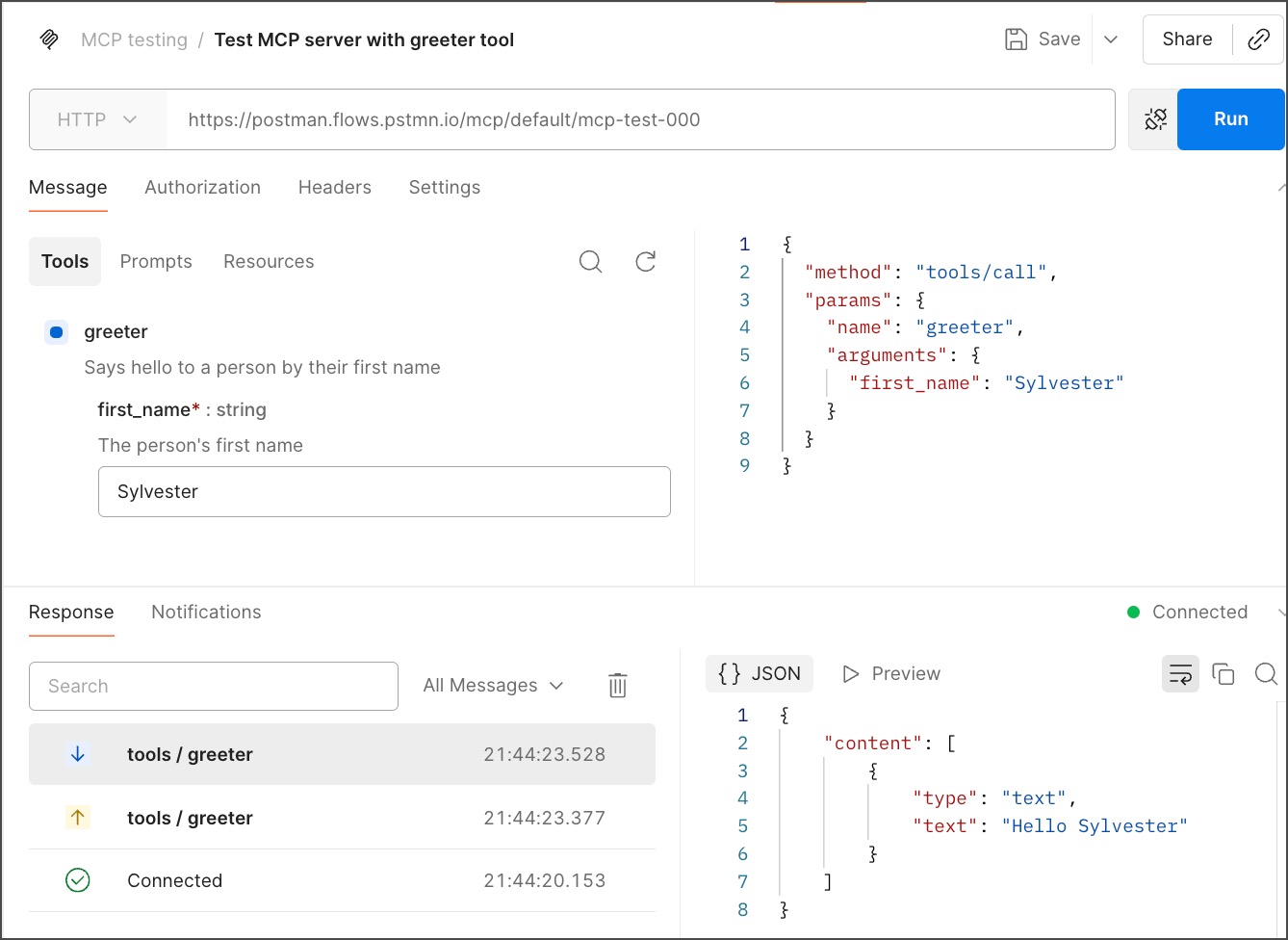 When you are satisfied with the results of this test, you can move on to configuring your AI application of choice to use your new MCP server.