***
title: Become a verified publisher on the Postman API Network
approved: 2026-04-01T00:00:00.000Z
slug: docs/postman-api-network/showcase/prepare/verify-publisher-team
max-toc-depth: 2
----------------
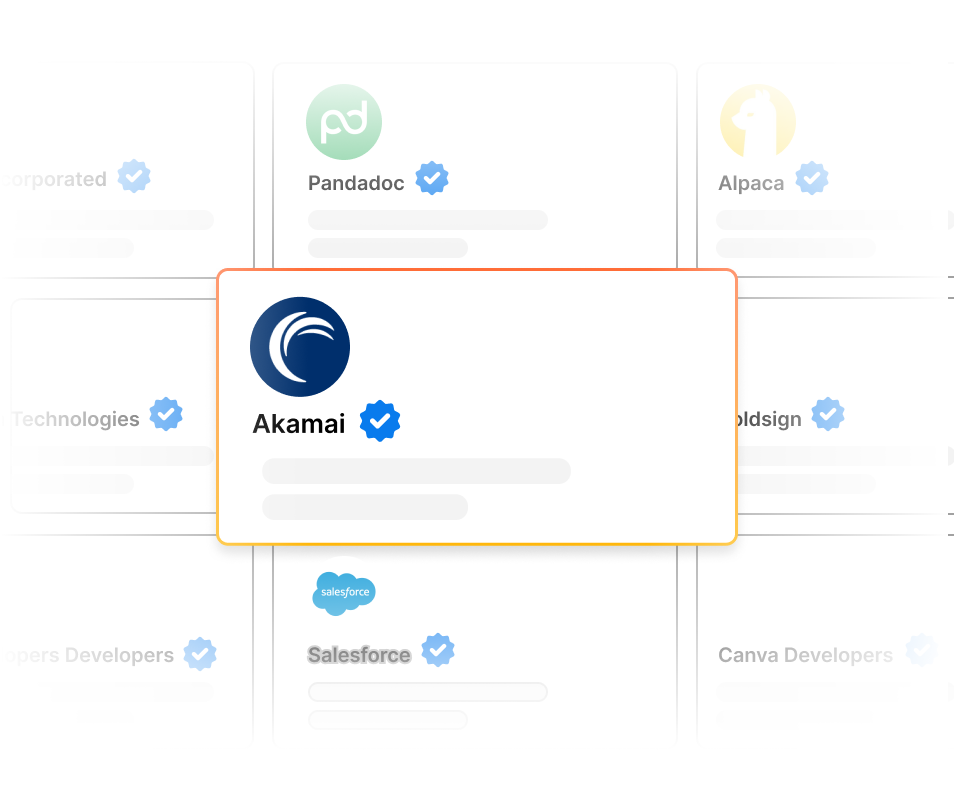
Get verified to stand out and grow your public API's reach. When you're a verified publisher, you earn Postman's  verification badge. You also get exclusive access to [Publisher Analytics](/docs/postman-api-network/showcase/analyze-developer-engagement/), where you can analyze developer engagement.
To learn more, see [Launch, distribute, and grow your API on the Postman API Network](https://www.postman.com/publish/verification/). Then, complete the following steps to [get verified](https://www.postman.com/publisher/settings/verification).
## Get started with your application
To get started with your application, do the following:
1. In the Postman header, open the navigation menu. Then, click
verification badge. You also get exclusive access to [Publisher Analytics](/docs/postman-api-network/showcase/analyze-developer-engagement/), where you can analyze developer engagement.

To learn more, see [Launch, distribute, and grow your API on the Postman API Network](https://www.postman.com/publish/verification/). Then, complete the following steps to [get verified](https://www.postman.com/publisher/settings/verification).
## Get started with your application
To get started with your application, do the following:
1. In the Postman header, open the navigation menu. Then, click  **Public API Network**.
2. In the left sidebar, click
**Public API Network**.
2. In the left sidebar, click  **Settings**.
3. Click **Postman verification**.
4. Click **Continue**.
Complete tasks at your own pace. You can track your overall progress and, for each section, you can see the number of remaining tasks. When you complete a task, it's marked as complete.
## Verify your team's identity
Verify your team's identity by verifying you own your domain.
To verify your team's identity, do the following:
1. Open your team's [verification checklist](https://www.postman.com/publisher/settings/verification).
2. Click **Identity**.
3. For each item, click **Review** or **Complete**. Then, follow the onscreen instructions.
## Submit your application for review
Before you submit your application, review it for completeness and accuracy. When you're ready to submit it, click **Submit for review**. Postman will review your application. You can see its status while you wait.
Once Postman approves your application, you'll earn a verification badge.
**Settings**.
3. Click **Postman verification**.
4. Click **Continue**.
Complete tasks at your own pace. You can track your overall progress and, for each section, you can see the number of remaining tasks. When you complete a task, it's marked as complete.
## Verify your team's identity
Verify your team's identity by verifying you own your domain.
To verify your team's identity, do the following:
1. Open your team's [verification checklist](https://www.postman.com/publisher/settings/verification).
2. Click **Identity**.
3. For each item, click **Review** or **Complete**. Then, follow the onscreen instructions.
## Submit your application for review
Before you submit your application, review it for completeness and accuracy. When you're ready to submit it, click **Submit for review**. Postman will review your application. You can see its status while you wait.
Once Postman approves your application, you'll earn a verification badge.