` | Specifies the path to the file with one or more trusted CA certificates in PEM format. Used for custom SSL certificate validation. |
#### Examples
```plaintext
postman runner start --id 12345678-12345ab-1234-1ab2-1ab2-ab1234112a12 --key 12345678-12345ab-1234-1ab2-1ab2-ab1234112a12
postman runner start --id 12345678-12345ab-1234-1ab2-1ab2-ab1234112a12 --key 12345678-12345ab-1234-1ab2-1ab2-ab1234112a12 --proxy http://example.com:8080
postman runner start --id 12345678-12345ab-1234-1ab2-1ab2-ab1234112a12 --key 12345678-12345ab-1234-1ab2-1ab2-ab1234112a12 --egress-proxy --egress-proxy-authz-url http://authz.example.com
postman runner start --id 12345678-12345ab-1234-1ab2-1ab2-ab1234112a12 --key 12345678-12345ab-1234-1ab2-1ab2-ab1234112a12 --metrics --metrics-port 12044 --ssl-extra-ca-certs /path/to/certs.pem
```
## Run performance tests
You can use the `postman performance run` command to configure and run performance tests for collections within your CI/CD pipeline.
The `postman performance run` command is a beta feature.
### `postman performance run`
This command runs a performance test for a specified collection in the Postman cloud. Add the command into your CI/CD script to run a performance test during your deployment process. Then your team can use your Postman tests to catch performance issues. Learn more at [Run a performance test using the Postman CLI](/docs/postman-cli/postman-cli-run-performance-test/).
The command runs the performance test against the specified collection, returning the performance test results in Postman. Specify the collection with its ID.
#### Options
| Option | Details |
| -------------------------------- | ------------------------------------------------------------------------------------------------------------------------------------------------------------------------------------------------------------------------------------------------------------------------------------------------------------------------------------------------------------------------------------------------------------------------------------------------------------------------------------------------------------------------------------------------------------------------------------------------------------------------------------------------------------------------------------------------------------------------------------------------------------------------------------------------------------------------------------------------------------------------------------------------------------------------------------------------------------------------------------------------------------------------------------------------------------------------------------------------------------------------------------------------------------------------------------------------------------------------------------------------------------------------------------------------------------------------------------------------------------------------------------------------------------------------------------------------------------------------------------------------------------------- |
| `--data-file [path]` | Specifies the path to a data file with custom values to use for each virtual user. The file must be in CSV or JSON format. Learn more about [using a data file to simulate virtual users](/docs/collections/performance-testing/performance-test-data-files/). |
| `--duration [minutes]`, `-d` | The duration of the performance test in minutes. Default is 10. |
| `--environment [ID]`, `-e` | Specifies an environment by its ID. Variables in the collection are resolved from the environment. |
| `--globals [ID]`, `-g` | Specifies globals by its ID. Variables in the collection are resolved from globals. |
| `--load-profile [profile]`, `-p` | The load profile type to use for the performance test. Accepts `fixed`, `ramp-up`, `spike`, or `peak`. The default is `ramp-up`.
- With `fixed`, the number of virtual users is constant during the performance test.
- With `ramp-up`, the number of virtual users gradually increases from 25% to 100%, and then maintains at 100%.
- With `spike`, the number of virtual users starts at 10%, spikes to 100%, then drops back down to 10%.
- With `peak`, the number of virtual users gradually increases from 20% to 100%, maintains at 100%, then gradually decreases back down to 20%.
|
| `--pass-if [condition]` | Specifies a condition that determines whether the performance test passes or fails. The condition must be in the `function(metric, value)` format.
**Functions:**
- `less_than(metric, value)` - The test passes if the metric is less than the value.
- `less_than_eq(metric, value)` - The test passes if the metric is less than or equal to the value.
- `greater_than(metric, value)` - The test passes if the metric is greater than the value.
- `greater_than_eq(metric, value)` - The test passes if the metric is greater than or equal to the value.
**Metrics:**
- `avg` - The response time of all requests averaged together, in milliseconds.
- `p90` - The 90th percentile of response times, in milliseconds.
- `p95` - The 95th percentile of response times, in milliseconds.
- `p99` - The 99th percentile of response times, in milliseconds.
- `error_rate` - The percentage of requests with an error. Errors indicate runtime issues such as timeouts, connection or TLS failures, or uncaught exceptions in user scripts.
- `rps` - The number of requests sent per second.
**Examples:**
- `--pass-if "less_than(p95, 500)"` - The test passes if the 95th percentile of response times is less than 500 milliseconds.
- `--pass-if "less_than_eq(error_rate, 5)"` - The test passes if the percentage of requests with an error is less than or equal to 5%.
|
| `--vu-count [number]` | The number of peak virtual users that simulate traffic to your API. The default is 20. |
#### Examples
```plaintext
postman performance run 12345678-12345ab-1234-1ab2-1ab2-ab1234112a12
postman performance run 12345678-12345ab-1234-1ab2-1ab2-ab1234112a12 \
--vu-count 100 \
--duration 30
postman performance run 12345678-12345ab-1234-1ab2-1ab2-ab1234112a12 \
--vu-count 100 \
--duration 20 \
--load-profile spike \
--pass-if "less_than(p95, 800)"
```
## Governance and security
API governance and security rules are available with [Postman Enterprise plans](https://www.postman.com/pricing/).
API governance is the practice of applying a defined set of standards consistently across the API design and testing phases of your development process. The Postman CLI includes commands that checks your API specifications in [Spec Hub](#postman-spec-lint) and the [Postman API Builder](#postman-api-lint) against your team's configured [Postman API governance and security rules](/docs/api-governance/api-governance-overview/).
### `postman spec lint`
This command runs syntax validation and governance rule checks against a single- or multi-file API specification in [Spec Hub](/docs/design-apis/specifications/overview/). Provide the local file path or ID for a specification that's in OpenAPI 2.0, 3.0, or 3.1 format. If you're providing the local file path for a multi-file specification, provide the path to the [root file](/docs/design-apis/specifications/add-files-to-a-specification/#about-multi-file-specifications).
By default, if you provide a local file path for a specification, the command runs syntax validation and governance checks using the **All workspaces** governance group. Use the `--workspace-id` option to run governance checks using the rules from a specific workspace.
Click  **Specification Info** in the [right sidebar](/docs/getting-started/basics/navigating-postman/#right-sidebar) of a specification and copy its ID.
#### Options
| Option | Details |
| ---------------------------------- | ------------------------------------------------------------------------------------------------------------------------------------------------------------------------------------------------------------------------------------------------------------------------------------------------------------------------------------------------ |
| `--fail-severity [severity]`, `-f` | Triggers an exit failure code for rule violations at or higher than the specified severity level. The options, in order of lowest to highest severity, are `HINT`, `INFO`, `WARNING`, and `ERROR` (default). |
| `--output [output format]`, `-o` | Controls the output format for issues found in the OpenAPI specification. Accepts `JSON` or `CSV`. Defaults to table view if no output format is specified. See [examples of JSON and CSV output](#example-output). |
| `--workspace-id [workspace-id]` | Run syntax validation and governance rule checks using the rules from a particular workspace by providing its ID. You can use this option if you provide the local file path for a specification. Learn how to [get a workspace's ID](/docs/collaborating-in-postman/using-workspaces/internal-workspaces/use-workspaces/#get-the-workspace-id). |
#### Example
```plaintext
postman spec lint openapi.yaml --workspace-id 987654321-54321ef-4321-1ab2-1ab2-ab1234112a12
postman spec lint 12345678-12345ab-1234-1ab2-1ab2-ab1234112a12
```
#### Example output
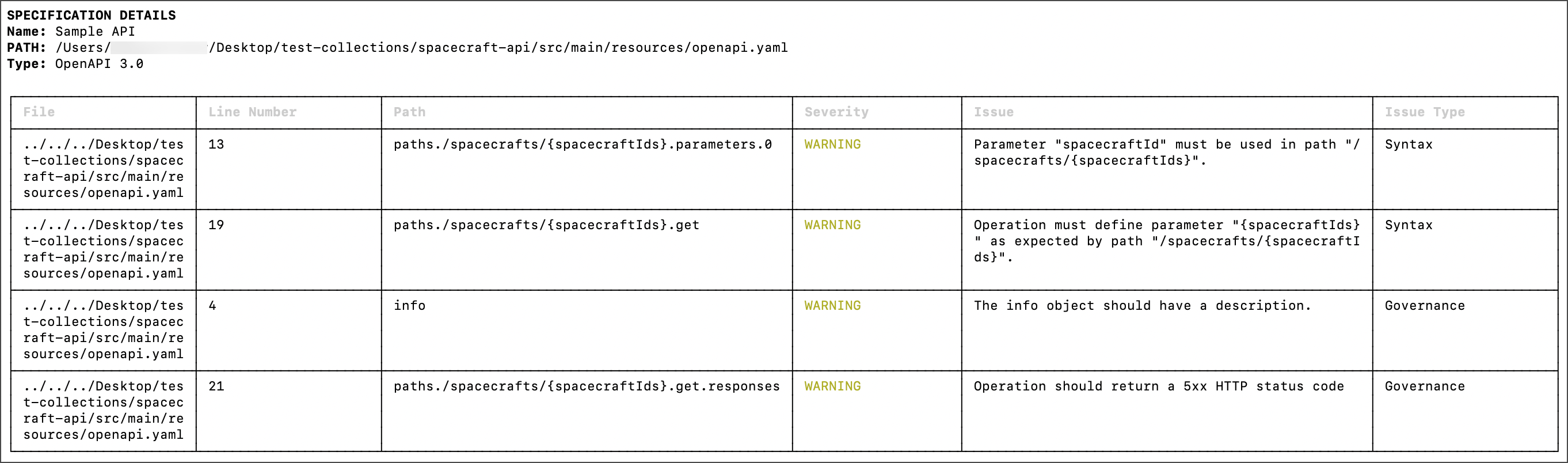
You can change the output of governance rule violations to JSON or CSV. If you don't specify an output, it defaults to table view.
The following is an example of the output in table format (default):
The following is an example of the output in JSON format:
```json
{
"violations": [
{
"file": "../../../Desktop/test-collections/spacecraft-api/src/main/resources/openapi.yaml",
"line number": "13",
"path": "paths./spacecrafts/{spacecraftIds}.parameters.0",
"severity": "WARNING",
"issue": "Parameter \"spacecraftId\" must be used in path \"/spacecrafts/{spacecraftIds}\".",
"issue type": "Syntax"
},
{
"file": "../../../Desktop/test-collections/spacecraft-api/src/main/resources/openapi.yaml",
"line number": "19",
"path": "paths./spacecrafts/{spacecraftIds}.get",
"severity": "WARNING",
"issue": "Operation must define parameter \"{spacecraftIds}\" as expected by path \"/spacecrafts/{spacecraftIds}\".",
"issue type": "Syntax"
},
{
"file": "../../../Desktop/test-collections/spacecraft-api/src/main/resources/openapi.yaml",
"line number": "4",
"path": "info",
"severity": "WARNING",
"issue": "The info object should have a description.",
"issue type": "Governance"
},
{
"file": "../../../Desktop/test-collections/spacecraft-api/src/main/resources/openapi.yaml",
"line number": "21",
"path": "paths./spacecrafts/{spacecraftIds}.get.responses",
"severity": "WARNING",
"issue": "Operation should return a 5xx HTTP status code",
"issue type": "Governance"
}
]
}
```
The following is an example of the output in CSV format:
```csv
file,line number,path,severity,issue,issue type
../../../Desktop/test-collections/spacecraft-api/src/main/resources/openapi.yaml,13,paths./spacecrafts/{spacecraftIds}.parameters.0,WARNING,"Parameter ""spacecraftId"" must be used in path ""/spacecrafts/{spacecraftIds}"".",Syntax
../../../Desktop/test-collections/spacecraft-api/src/main/resources/openapi.yaml,19,paths./spacecrafts/{spacecraftIds}.get,WARNING,"Operation must define parameter ""{spacecraftIds}"" as expected by path ""/spacecrafts/{spacecraftIds}"".",Syntax
../../../Desktop/test-collections/spacecraft-api/src/main/resources/openapi.yaml,4,info,WARNING,The info object should have a description.,Governance
../../../Desktop/test-collections/spacecraft-api/src/main/resources/openapi.yaml,21,paths./spacecrafts/{spacecraftIds}.get.responses,WARNING,Operation should return a 5xx HTTP status code,Governance
```
### `postman api lint`
This command runs validation checks for governance and security rules against the API specification provided in the Postman config file, a local file, or a UUID. The `api lint` command shows a warning if it's unable to find the API ID to send data back to Postman.
This command supports APIs in the [Postman API Builder](/docs/design-apis/api-builder/overview/) that aren't linked to Git.
#### Options
| Option | Details |
| ---------------------------------- | --------------------------------------------------------------------------------------------------------------------------------------------------------------------------------------------------------- |
| `--fail-severity [severity]`, `-f` | Triggers an exit failure code for rule violations at or higher than the specified severity level. The options, in order of lowest to highest severity, are `HINT`, `INFO`, `WARN`, and `ERROR` (default). |
| `--suppress-exit-code`, `-x` | Specifies whether to override the default exit code for the current run. |
#### Example
```plaintext
postman api lint my-definition-file.json
postman api lint 12345678-12345ab-1234-1ab2-1ab2-ab1234112a12
```
## Publish an API version
You can [publish API versions in the Postman API Builder](/docs/design-apis/api-builder/versioning-an-api/api-versions/) from the command line with the Postman CLI. Use the Postman CLI to automate the API version publishing process.
### `postman publish api`
Publish a snapshot of an API for the given `apiId`. All elements linked to the API are published by default. You can choose which elements to publish by using other command options.
When publishing an API that's linked with Git, you must enter the command from inside the local Git repo. Also, you must provide paths to the schema directory and collection paths instead of IDs.
#### Options
| Option | Details |
| :-------------------------------------------------- | :------------------------------------------------------------------------------------------------------------------------------------------------------ |
| `--name ` | Specifies the name of the version to publish. |
| `--release-notes ` | Enter release notes as a string in quotes for the version to publish. This option supports Markdown. |
| `--collections ` | Specifies the collections to publish. If the API is linked with Git, provide the `filePath` instead of the ID. |
| `--api-definition ` | Specifies the API specification to publish. If the API is linked with Git, provide the `schemaDirectoryPath` or `schemaRootFilePath` instead of the ID. |
| `--do-not-poll` | Specifies not to poll for completion status of the publish action. |
| `--suppress-exit-code, -x` | Specifies whether to override the default exit code for the current run. |
#### Example for repos not linked with Git
```plaintext
postman api publish --name v1\
--release-notes "# Some release notes information"\
--collections \
--api-definition
```
#### Examples for repos linked with Git
The options for the `api publish` command differ depending on if you specified a schema folder or schema root file when setting up the Git integration. Git integrations added in Postman v10.18 or later use a schema root file. Git integrations added in other Postman versions use a schema folder. Learn more about [connecting an API in the Postman API Builder to a Git repository](/docs/design-apis/api-builder/versioning-an-api/overview/).
* If the API uses a schema folder, publish the API using the `--api-definition ` option:
```plaintext
postman api publish --name v1\
--release-notes "# Some release notes information"\
--collections \
--api-definition
```
* If the API uses a schema root file, publish the API using the `--api-definition ` option:
```plaintext
postman api publish --name v1\
--release-notes "# Some release notes information"\
--collections \
--api-definition
```
If you specify a file when a folder is required, or a folder when a file is required, the `api publish` command returns the following error: `API Definition isn't part of API `. Try the command again using the other option.
**Specification Info** in the [right sidebar](/docs/getting-started/basics/navigating-postman/#right-sidebar) of a specification and copy its ID.
#### Options
| Option | Details |
| ---------------------------------- | ------------------------------------------------------------------------------------------------------------------------------------------------------------------------------------------------------------------------------------------------------------------------------------------------------------------------------------------------ |
| `--fail-severity [severity]`, `-f` | Triggers an exit failure code for rule violations at or higher than the specified severity level. The options, in order of lowest to highest severity, are `HINT`, `INFO`, `WARNING`, and `ERROR` (default). |
| `--output [output format]`, `-o` | Controls the output format for issues found in the OpenAPI specification. Accepts `JSON` or `CSV`. Defaults to table view if no output format is specified. See [examples of JSON and CSV output](#example-output). |
| `--workspace-id [workspace-id]` | Run syntax validation and governance rule checks using the rules from a particular workspace by providing its ID. You can use this option if you provide the local file path for a specification. Learn how to [get a workspace's ID](/docs/collaborating-in-postman/using-workspaces/internal-workspaces/use-workspaces/#get-the-workspace-id). |
#### Example
```plaintext
postman spec lint openapi.yaml --workspace-id 987654321-54321ef-4321-1ab2-1ab2-ab1234112a12
postman spec lint 12345678-12345ab-1234-1ab2-1ab2-ab1234112a12
```
#### Example output
You can change the output of governance rule violations to JSON or CSV. If you don't specify an output, it defaults to table view.
The following is an example of the output in table format (default):

The following is an example of the output in JSON format:
```json
{
"violations": [
{
"file": "../../../Desktop/test-collections/spacecraft-api/src/main/resources/openapi.yaml",
"line number": "13",
"path": "paths./spacecrafts/{spacecraftIds}.parameters.0",
"severity": "WARNING",
"issue": "Parameter \"spacecraftId\" must be used in path \"/spacecrafts/{spacecraftIds}\".",
"issue type": "Syntax"
},
{
"file": "../../../Desktop/test-collections/spacecraft-api/src/main/resources/openapi.yaml",
"line number": "19",
"path": "paths./spacecrafts/{spacecraftIds}.get",
"severity": "WARNING",
"issue": "Operation must define parameter \"{spacecraftIds}\" as expected by path \"/spacecrafts/{spacecraftIds}\".",
"issue type": "Syntax"
},
{
"file": "../../../Desktop/test-collections/spacecraft-api/src/main/resources/openapi.yaml",
"line number": "4",
"path": "info",
"severity": "WARNING",
"issue": "The info object should have a description.",
"issue type": "Governance"
},
{
"file": "../../../Desktop/test-collections/spacecraft-api/src/main/resources/openapi.yaml",
"line number": "21",
"path": "paths./spacecrafts/{spacecraftIds}.get.responses",
"severity": "WARNING",
"issue": "Operation should return a 5xx HTTP status code",
"issue type": "Governance"
}
]
}
```
The following is an example of the output in CSV format:
```csv
file,line number,path,severity,issue,issue type
../../../Desktop/test-collections/spacecraft-api/src/main/resources/openapi.yaml,13,paths./spacecrafts/{spacecraftIds}.parameters.0,WARNING,"Parameter ""spacecraftId"" must be used in path ""/spacecrafts/{spacecraftIds}"".",Syntax
../../../Desktop/test-collections/spacecraft-api/src/main/resources/openapi.yaml,19,paths./spacecrafts/{spacecraftIds}.get,WARNING,"Operation must define parameter ""{spacecraftIds}"" as expected by path ""/spacecrafts/{spacecraftIds}"".",Syntax
../../../Desktop/test-collections/spacecraft-api/src/main/resources/openapi.yaml,4,info,WARNING,The info object should have a description.,Governance
../../../Desktop/test-collections/spacecraft-api/src/main/resources/openapi.yaml,21,paths./spacecrafts/{spacecraftIds}.get.responses,WARNING,Operation should return a 5xx HTTP status code,Governance
```
### `postman api lint`
This command runs validation checks for governance and security rules against the API specification provided in the Postman config file, a local file, or a UUID. The `api lint` command shows a warning if it's unable to find the API ID to send data back to Postman.
This command supports APIs in the [Postman API Builder](/docs/design-apis/api-builder/overview/) that aren't linked to Git.
#### Options
| Option | Details |
| ---------------------------------- | --------------------------------------------------------------------------------------------------------------------------------------------------------------------------------------------------------- |
| `--fail-severity [severity]`, `-f` | Triggers an exit failure code for rule violations at or higher than the specified severity level. The options, in order of lowest to highest severity, are `HINT`, `INFO`, `WARN`, and `ERROR` (default). |
| `--suppress-exit-code`, `-x` | Specifies whether to override the default exit code for the current run. |
#### Example
```plaintext
postman api lint my-definition-file.json
postman api lint 12345678-12345ab-1234-1ab2-1ab2-ab1234112a12
```
## Publish an API version
You can [publish API versions in the Postman API Builder](/docs/design-apis/api-builder/versioning-an-api/api-versions/) from the command line with the Postman CLI. Use the Postman CLI to automate the API version publishing process.
### `postman publish api`
Publish a snapshot of an API for the given `apiId`. All elements linked to the API are published by default. You can choose which elements to publish by using other command options.
When publishing an API that's linked with Git, you must enter the command from inside the local Git repo. Also, you must provide paths to the schema directory and collection paths instead of IDs.
#### Options
| Option | Details |
| :-------------------------------------------------- | :------------------------------------------------------------------------------------------------------------------------------------------------------ |
| `--name ` | Specifies the name of the version to publish. |
| `--release-notes ` | Enter release notes as a string in quotes for the version to publish. This option supports Markdown. |
| `--collections ` | Specifies the collections to publish. If the API is linked with Git, provide the `filePath` instead of the ID. |
| `--api-definition ` | Specifies the API specification to publish. If the API is linked with Git, provide the `schemaDirectoryPath` or `schemaRootFilePath` instead of the ID. |
| `--do-not-poll` | Specifies not to poll for completion status of the publish action. |
| `--suppress-exit-code, -x` | Specifies whether to override the default exit code for the current run. |
#### Example for repos not linked with Git
```plaintext
postman api publish --name v1\
--release-notes "# Some release notes information"\
--collections \
--api-definition
```
#### Examples for repos linked with Git
The options for the `api publish` command differ depending on if you specified a schema folder or schema root file when setting up the Git integration. Git integrations added in Postman v10.18 or later use a schema root file. Git integrations added in other Postman versions use a schema folder. Learn more about [connecting an API in the Postman API Builder to a Git repository](/docs/design-apis/api-builder/versioning-an-api/overview/).
* If the API uses a schema folder, publish the API using the `--api-definition ` option:
```plaintext
postman api publish --name v1\
--release-notes "# Some release notes information"\
--collections \
--api-definition
```
* If the API uses a schema root file, publish the API using the `--api-definition ` option:
```plaintext
postman api publish --name v1\
--release-notes "# Some release notes information"\
--collections \
--api-definition
```
If you specify a file when a folder is required, or a folder when a file is required, the `api publish` command returns the following error: `API Definition isn't part of API `. Try the command again using the other option.