# Deploy flows to the Postman cloud
You can deploy any flow to the Postman cloud, where it can receive and respond to requests from collaborators and other users. Flows running in the cloud can be scheduled, or triggered by external systems like third-party services, other APIs, or webhooks. Flows in the cloud are useful for running automations and exposing functionality as an API or as an AI tool for MCP servers.
Flows running in the Postman cloud don't support private APIs.
Deployable flows are available in Postman version 11.42.3 and later.
For more information about running flows in the cloud, see [Deployed flows overview](/docs/postman-flows/reference/flows-actions-overview/).
## Create a deployable flow
To create a flow you can run in the cloud, do the following:
1. [Create a new flow](/docs/postman-flows/get-started/build-your-first-flow/).
2. On the **Start** block, click **Change trigger** and select  **Request**.The **Start** block becomes a [**Request** block](/docs/postman-flows/reference/blocks/request/).
3. Add and connect blocks to [create a flow](/docs/postman-flows/get-started/build-your-first-flow/) that processes data from one or more of the **Request** block's output ports.
4. Add a [**Response** block](/docs/postman-flows/reference/blocks/response/). Connect other blocks' outputs to the **Response** block's **Headers** and **Body** inputs as necessary. This will return status codes and include routed data in the response's headers and body according to your requirements.
5. Click **Run** to test your flow locally with [scenario](/docs/postman-flows/build-flows/configure/scenarios/) data.
You can design your flows to be *synchronous* (sync) or *asynchronous* (async). In a sync flow, all the blocks complete their functions before the flow sends a response. An async flow running in the cloud sends a response before its blocks finish running. For more information, see [Synchronous and Asynchronous deployed flows](/docs/postman-flows/reference/flows-actions-overview/#synchronous-and-asynchronous-flows).
## Deploy a flow
After you create a flow with a **Request** block and a **Response** block, you can *deploy* it to make it publicly available. For more information about deploying flows, see [Deploy flows with snapshots](/docs/postman-flows/reference/flows-actions-overview/#deploy-flows-with-snapshots).
To deploy a new flow to the cloud, do the following:
1. In your flow, click **Deploy** and enter the following:
* **URL** - This path will be added to the domain where the flow is deployed. You can use the resulting URL to call the flow.
* **Authentication** - (Optional) Turn this on to require a token to access the URL.
* **Timeout** - Sets the amount of time that the flow will wait before sending a 408 Request Timeout error if it hasn't finished running. Enter a value between 5 and 30 seconds (inclusive). For more information, see [Manage long-running deployed flows](/docs/postman-flows/reference/flows-actions-overview/#manage-long-running-deployed-flows).
* **Description** - (Optional) Describe the flow's purpose and any important details.
2. Click **Deploy**. The flow runs in the Postman cloud at the specified URL. In the **Deploy** window, click **Current** to see a summary of the flow. The summary includes the flow's status (online or offline), last deployed date and snapshot version, and authentication setting.
## Deploy a new snapshot of a flow
If you make changes to your flow, you can deploy the new version and create a new [snapshot](/docs/postman-flows/build-flows/configure/snapshots/) of it.
To deploy a new version of an existing flow, do the following:
1. In your flow, click **Deploy**.
2. (Optional) Enter a description of the changes.
3. Click **Deploy**. The new version of the flow is deployed to the original URL and a new snapshot is created.
## Deploy a previous snapshot of a flow
To revert a flow to a previous [snapshot](/docs/postman-flows/build-flows/configure/snapshots/), do the following:
1. In your flow, click **Deploy > New**.
2. Click the
**Request**.The **Start** block becomes a [**Request** block](/docs/postman-flows/reference/blocks/request/).
3. Add and connect blocks to [create a flow](/docs/postman-flows/get-started/build-your-first-flow/) that processes data from one or more of the **Request** block's output ports.
4. Add a [**Response** block](/docs/postman-flows/reference/blocks/response/). Connect other blocks' outputs to the **Response** block's **Headers** and **Body** inputs as necessary. This will return status codes and include routed data in the response's headers and body according to your requirements.
5. Click **Run** to test your flow locally with [scenario](/docs/postman-flows/build-flows/configure/scenarios/) data.
You can design your flows to be *synchronous* (sync) or *asynchronous* (async). In a sync flow, all the blocks complete their functions before the flow sends a response. An async flow running in the cloud sends a response before its blocks finish running. For more information, see [Synchronous and Asynchronous deployed flows](/docs/postman-flows/reference/flows-actions-overview/#synchronous-and-asynchronous-flows).
## Deploy a flow
After you create a flow with a **Request** block and a **Response** block, you can *deploy* it to make it publicly available. For more information about deploying flows, see [Deploy flows with snapshots](/docs/postman-flows/reference/flows-actions-overview/#deploy-flows-with-snapshots).
To deploy a new flow to the cloud, do the following:
1. In your flow, click **Deploy** and enter the following:
* **URL** - This path will be added to the domain where the flow is deployed. You can use the resulting URL to call the flow.
* **Authentication** - (Optional) Turn this on to require a token to access the URL.
* **Timeout** - Sets the amount of time that the flow will wait before sending a 408 Request Timeout error if it hasn't finished running. Enter a value between 5 and 30 seconds (inclusive). For more information, see [Manage long-running deployed flows](/docs/postman-flows/reference/flows-actions-overview/#manage-long-running-deployed-flows).
* **Description** - (Optional) Describe the flow's purpose and any important details.
2. Click **Deploy**. The flow runs in the Postman cloud at the specified URL. In the **Deploy** window, click **Current** to see a summary of the flow. The summary includes the flow's status (online or offline), last deployed date and snapshot version, and authentication setting.
## Deploy a new snapshot of a flow
If you make changes to your flow, you can deploy the new version and create a new [snapshot](/docs/postman-flows/build-flows/configure/snapshots/) of it.
To deploy a new version of an existing flow, do the following:
1. In your flow, click **Deploy**.
2. (Optional) Enter a description of the changes.
3. Click **Deploy**. The new version of the flow is deployed to the original URL and a new snapshot is created.
## Deploy a previous snapshot of a flow
To revert a flow to a previous [snapshot](/docs/postman-flows/build-flows/configure/snapshots/), do the following:
1. In your flow, click **Deploy > New**.
2. Click the  **New Snapshot** dropdown list.
3. Select the snapshot you want to deploy.
4. Click **Deploy**.
The local version of your flow doesn't automatically restore the snapshot when you deploy it. To learn about restoring snapshots and more, see [Version flows with snapshots](/docs/postman-flows/build-flows/configure/snapshots/).
## Schedule a flow to run automatically
You can trigger flows in the cloud to run at regular intervals or at specific times.
To trigger a flow with a schedule, do the following:
1. In the **Request** block in your flow, click **Change trigger** and select
**New Snapshot** dropdown list.
3. Select the snapshot you want to deploy.
4. Click **Deploy**.
The local version of your flow doesn't automatically restore the snapshot when you deploy it. To learn about restoring snapshots and more, see [Version flows with snapshots](/docs/postman-flows/build-flows/configure/snapshots/).
## Schedule a flow to run automatically
You can trigger flows in the cloud to run at regular intervals or at specific times.
To trigger a flow with a schedule, do the following:
1. In the **Request** block in your flow, click **Change trigger** and select  **Schedule**. The **Request** block changes to a **Schedule** block.
2. In the text box, enter when you want the flow to run in plain language. For example, you could enter "Run once per minute for five minutes." The shortest time increment you can schedule is one minute. The longest is one year.
3. Click **Apply**.
4. Click **Deploy > New > Deploy**. You can see the flow's results on the [**Analytics**](/docs/postman-flows/build-flows/analyze/analytics/) page after it runs.
## Enforce bearer token authorization
You can configure new and existing flows to authorize requests with a [*bearer token*](/docs/sending-requests/authorization/authorization-types/#bearer-token). To require a bearer token for a new flow, do the following:
1. [Create a deployable flow](#create-a-deployable-flow).
2. Click **Deploy**.
3. Enter a URL.
4. Turn on **Authentication**.
**Schedule**. The **Request** block changes to a **Schedule** block.
2. In the text box, enter when you want the flow to run in plain language. For example, you could enter "Run once per minute for five minutes." The shortest time increment you can schedule is one minute. The longest is one year.
3. Click **Apply**.
4. Click **Deploy > New > Deploy**. You can see the flow's results on the [**Analytics**](/docs/postman-flows/build-flows/analyze/analytics/) page after it runs.
## Enforce bearer token authorization
You can configure new and existing flows to authorize requests with a [*bearer token*](/docs/sending-requests/authorization/authorization-types/#bearer-token). To require a bearer token for a new flow, do the following:
1. [Create a deployable flow](#create-a-deployable-flow).
2. Click **Deploy**.
3. Enter a URL.
4. Turn on **Authentication**.
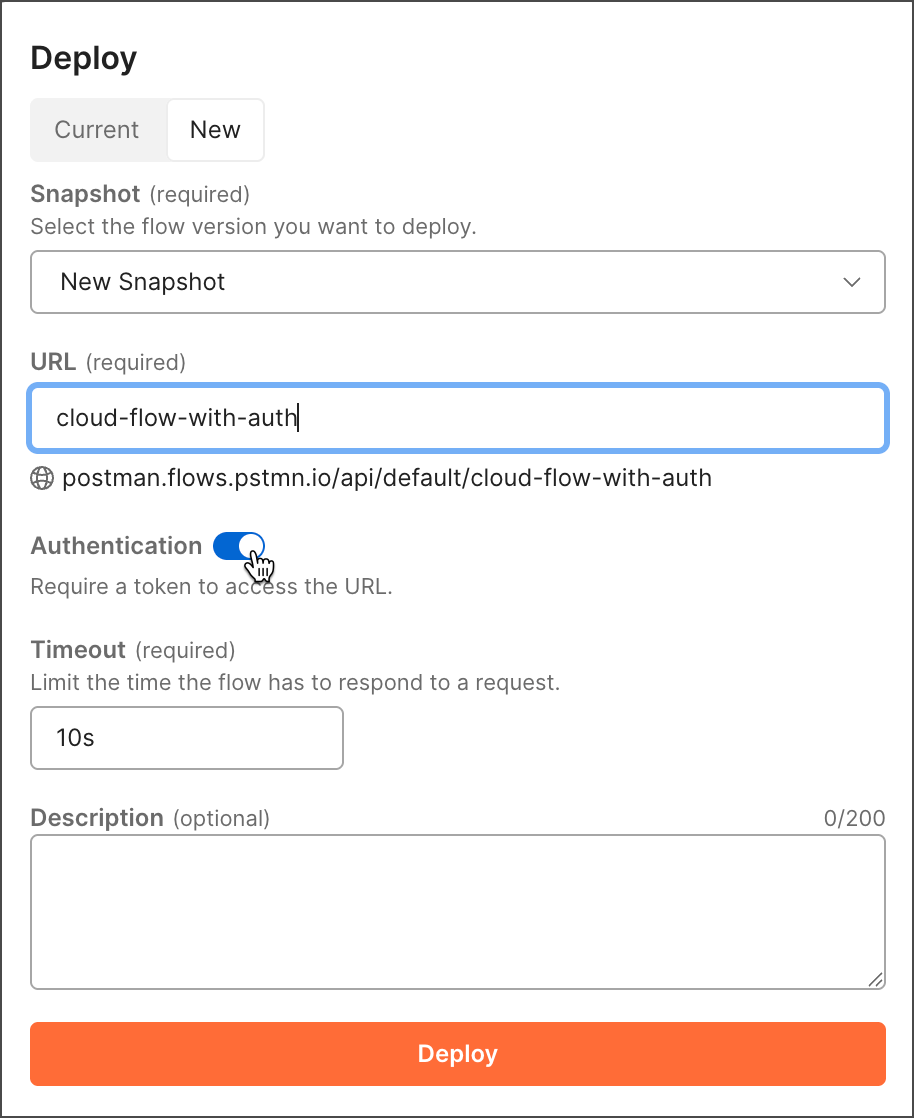 5. Click **Deploy**.
6. In the **Deploy** window, click **Current**. The obfuscated token appears at the bottom of the **Deploy** window.
7. Hover over the token and click
5. Click **Deploy**.
6. In the **Deploy** window, click **Current**. The obfuscated token appears at the bottom of the **Deploy** window.
7. Hover over the token and click  **Copy** to copy the token. You can then share the token with authorized users so they can include it in requests to the flow's URL.
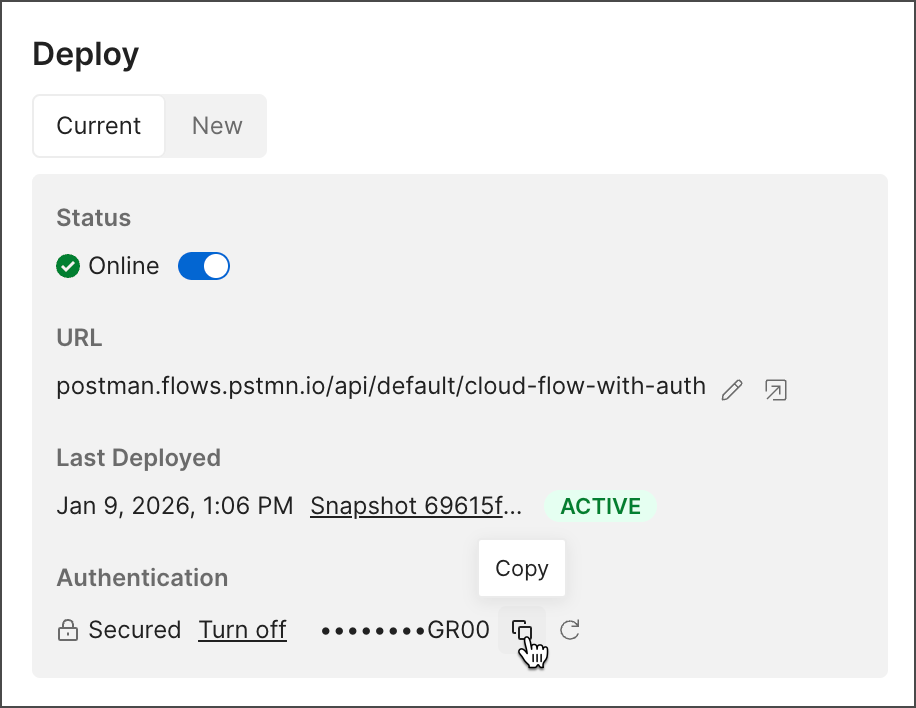 8. (Optional) Hover over the token and click
  **Regenerate token** to create a new token.