***
title: Troubleshoot Postman Flows
updated: 2025-06-02T00:00:00.000Z
topictype: troubleshooting
slug: docs/postman-flows/build-flows/troubleshoot/troubleshoot
max-toc-depth: 2
----------------
Whether you're developing an application with code or building a flow with Postman Flows, sometimes things don't work as expected. *Troubleshooting* is the process of identifying the cause of the difference between what your flow is doing and what you expect it to do. Postman Flows includes several built-in tools to help with troubleshooting.
## Preview inputs, outputs, and details
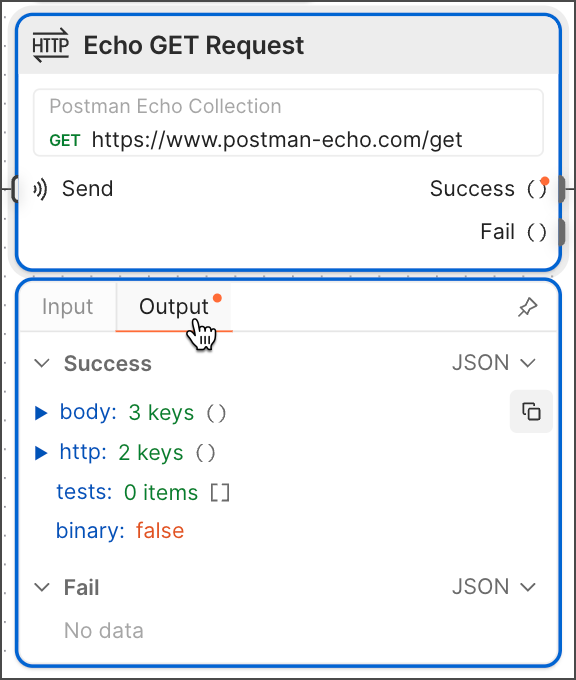
Most blocks give you a preview of their input and output data when you click them in your flow. The **Create with AI** block also has a **Details** preview that shows its prompt. The preview feature is useful for confirming the incoming and outgoing data are what's expected. To preview the data, click the block, then click **Input**, **Output**, or **Details**.
 ## The Display block
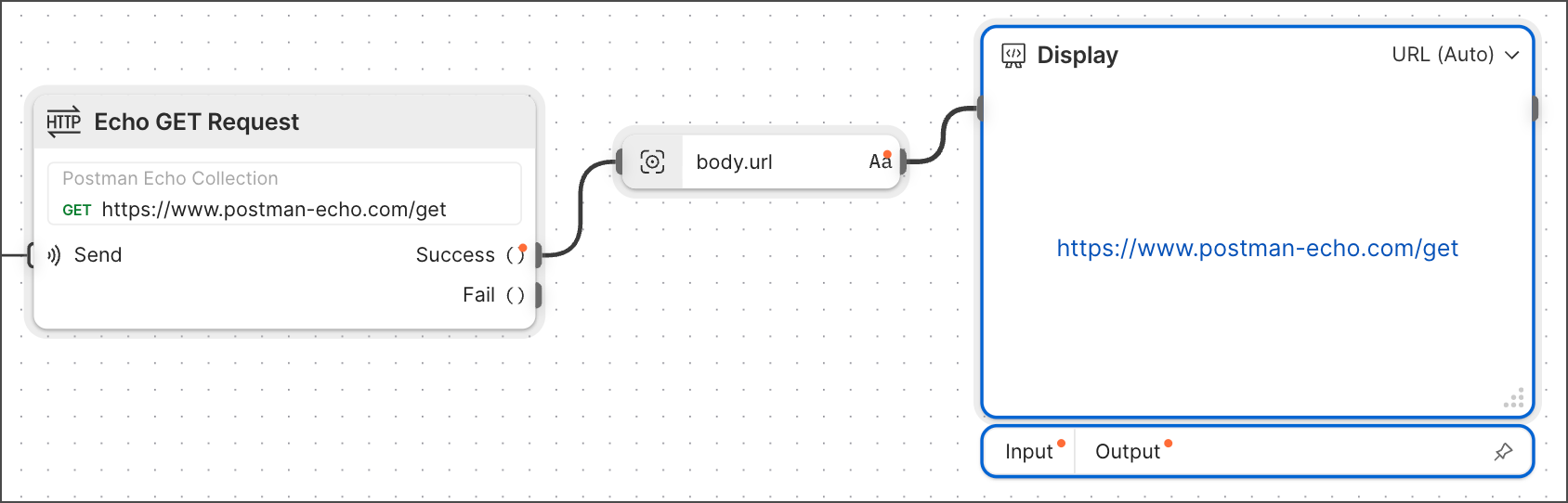
The **Display** block doesn't change the information that passes through it, which makes it ideal for monitoring the data flowing between two blocks. Sometimes, **HTTP Request** blocks can return large amounts of information and most of it isn't relevant to the issue you're troubleshooting. Selecting only the relevant information and displaying it in a **Display** block can simplify the process.
## The Display block
The **Display** block doesn't change the information that passes through it, which makes it ideal for monitoring the data flowing between two blocks. Sometimes, **HTTP Request** blocks can return large amounts of information and most of it isn't relevant to the issue you're troubleshooting. Selecting only the relevant information and displaying it in a **Display** block can simplify the process.
 ## Run logs
*Run logs* can help you troubleshoot by providing insight into block activity for specific runs. Click
## Run logs
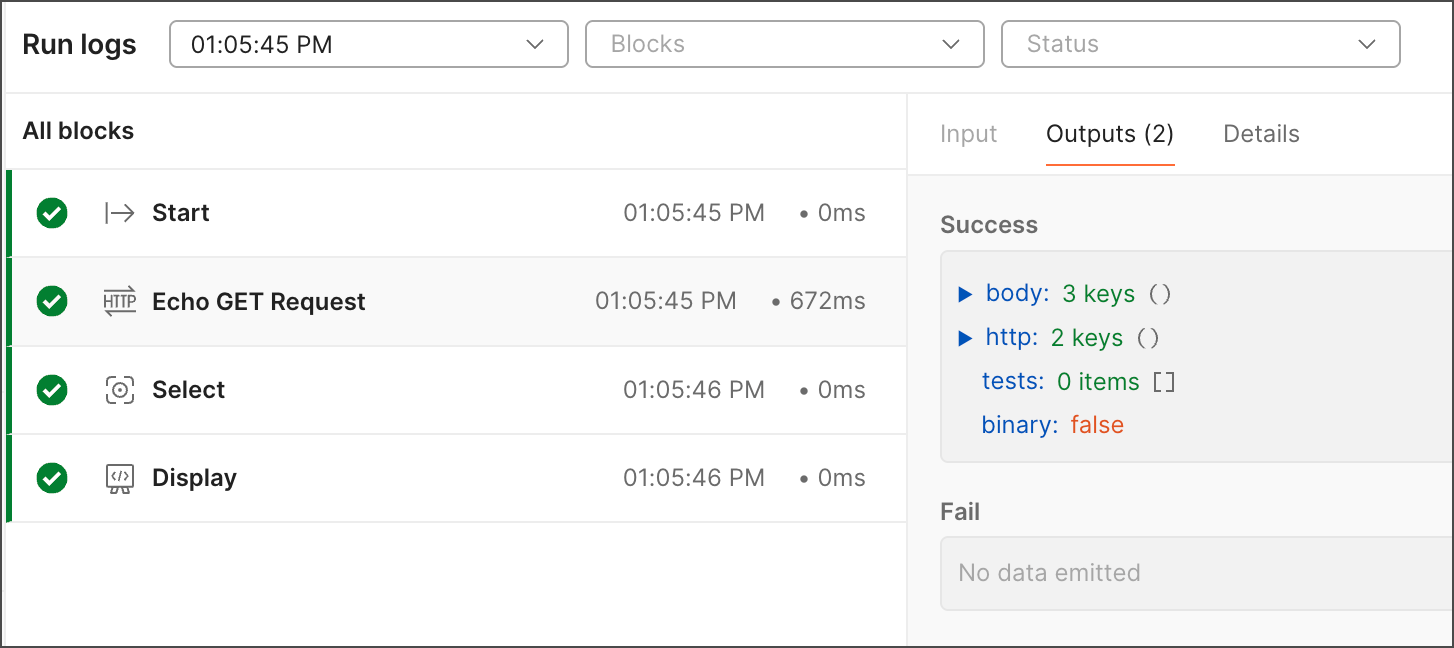
*Run logs* can help you troubleshoot by providing insight into block activity for specific runs. Click  **Open run logs panel** from the tool bar to open the **Run Log** pane. From the **Run Log** pane, you can click individual runs based on their start time, then click blocks to see their input data, output data, and details. You can also filter results by block type and run status.
 ## The Postman Console
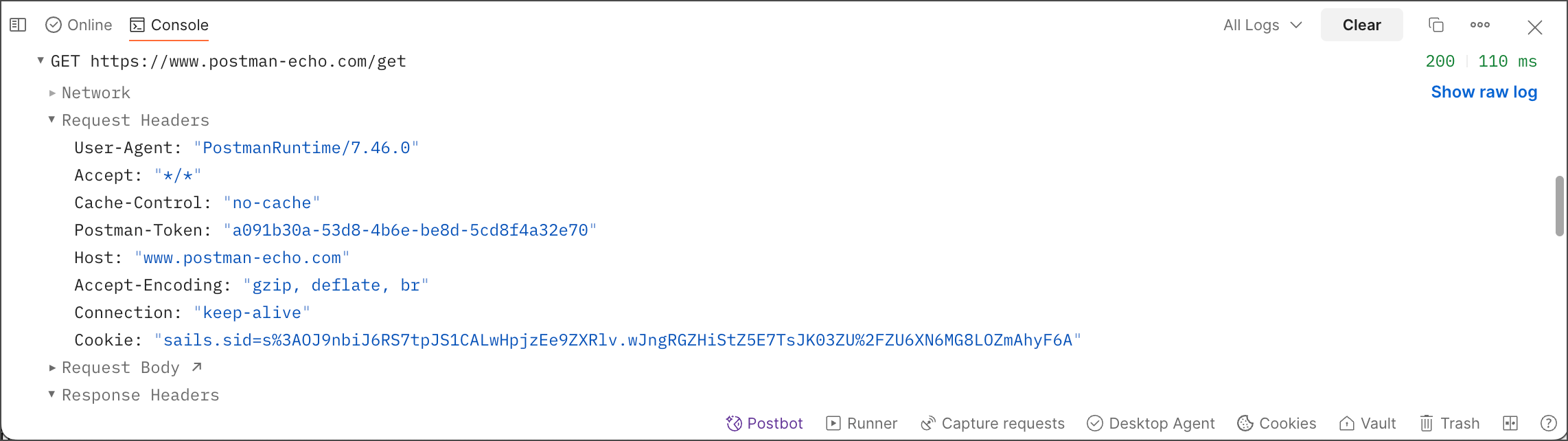
Every request and response is sent to the Postman Console, which keeps a history of events that happened in a flow. If something specific needs to be displayed in the Console, use the **Log** block to send the information there. This can be useful when using loops because a **Display** block shows only the last item passed through it once the flow finished running.
## The Postman Console
Every request and response is sent to the Postman Console, which keeps a history of events that happened in a flow. If something specific needs to be displayed in the Console, use the **Log** block to send the information there. This can be useful when using loops because a **Display** block shows only the last item passed through it once the flow finished running.
 ### General tips
* If a request is failing, check the run logs and Console to inspect the request, and make sure all of the variables are set as expected.
* If a request uses environment variables, make sure the correct environment is selected in the **HTTP Request** block.
* Put either **Display** blocks or **Log** blocks at every place the information flows when things aren't working as expected.
* Test only one possible cause at a time to isolate the issue to a single block.
### General tips
* If a request is failing, check the run logs and Console to inspect the request, and make sure all of the variables are set as expected.
* If a request uses environment variables, make sure the correct environment is selected in the **HTTP Request** block.
* Put either **Display** blocks or **Log** blocks at every place the information flows when things aren't working as expected.
* Test only one possible cause at a time to isolate the issue to a single block.