# The AI Request block
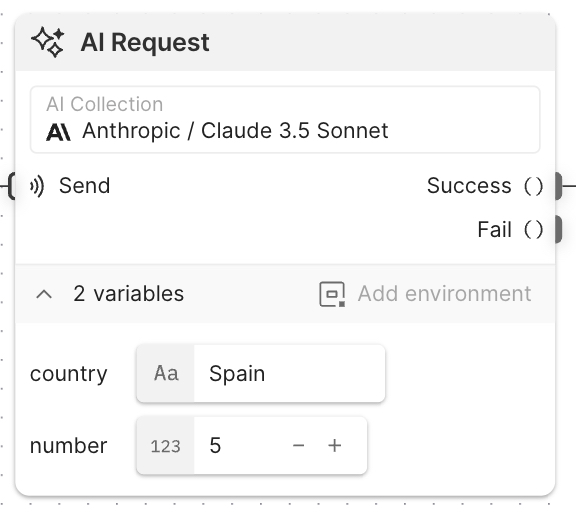 The **AI Request** block runs an [AI request](/docs/postman-ai/ai-requests/create/) from your collection and sends the result from one of its output ports. The **AI Request** block is similar to the [**HTTP Request**](/docs/postman-flows/reference/blocks/http-request/) block, but instead of sending an HTTP request to an API, it sends a prompt to an AI model. If the prompt in your AI request includes variables in curly braces (`{}`), the variables appear at the bottom of the block.
To learn more about Postman's AI capabilities, see [Evaluate AI models and MCP servers with Postman](/docs/postman-ai/overview/).
## Input
**Send** - If you connect another block to this input port, that block triggers the **AI Request** block to run. This connection is optional. If no blocks are connected to the **Send** input, the **AI Request** block will run when the flow runs.
## Outputs
**Success** - Sends the response of a successful AI request. A successful request has a 2xx status code.
**Fail** - Sends the response of an unsuccessful AI request. An unsuccessful request has a status code other than 2xx.
## Setup
**Select a request** - Click this dropdown list to view all the collections in your workspace that contain AI requests. Select a collection, then select a request. To create a new request, select a collection then click
The **AI Request** block runs an [AI request](/docs/postman-ai/ai-requests/create/) from your collection and sends the result from one of its output ports. The **AI Request** block is similar to the [**HTTP Request**](/docs/postman-flows/reference/blocks/http-request/) block, but instead of sending an HTTP request to an API, it sends a prompt to an AI model. If the prompt in your AI request includes variables in curly braces (`{}`), the variables appear at the bottom of the block.
To learn more about Postman's AI capabilities, see [Evaluate AI models and MCP servers with Postman](/docs/postman-ai/overview/).
## Input
**Send** - If you connect another block to this input port, that block triggers the **AI Request** block to run. This connection is optional. If no blocks are connected to the **Send** input, the **AI Request** block will run when the flow runs.
## Outputs
**Success** - Sends the response of a successful AI request. A successful request has a 2xx status code.
**Fail** - Sends the response of an unsuccessful AI request. An unsuccessful request has a status code other than 2xx.
## Setup
**Select a request** - Click this dropdown list to view all the collections in your workspace that contain AI requests. Select a collection, then select a request. To create a new request, select a collection then click  **Create a new request**. To edit the request in the right sidebar, hover over the request and click
  **Edit request**.
**Variables** - If the selected request has [variables](/docs/sending-requests/variables/variables-intro/) in its prompt, they'll be listed here. You can assign a value to a variable by connecting another block's output port to the variable's input port, or by [inserting a data block](/docs/postman-flows/reference/blocks/overview/#insert-data-blocks-into-other-blocks) with **Add data blocks**. If your request uses environment variables, you can select the environment from the **Add environment** dropdown list.
### Specify how to parse the response
The **AI Request** block can parse its response as JSON, XML, HTML, or text.
To choose how to parse the response, do the following:
1. Click the **AI Request** block, then click
**Edit request**.
**Variables** - If the selected request has [variables](/docs/sending-requests/variables/variables-intro/) in its prompt, they'll be listed here. You can assign a value to a variable by connecting another block's output port to the variable's input port, or by [inserting a data block](/docs/postman-flows/reference/blocks/overview/#insert-data-blocks-into-other-blocks) with **Add data blocks**. If your request uses environment variables, you can select the environment from the **Add environment** dropdown list.
### Specify how to parse the response
The **AI Request** block can parse its response as JSON, XML, HTML, or text.
To choose how to parse the response, do the following:
1. Click the **AI Request** block, then click  **Additional Settings**.
2. Click
**Additional Settings**.
2. Click  **Parse Response**.
3. Select a format from the dropdown list. You can also select **Auto** to let the **AI Request** block decide how to parse the response. The default setting is **Auto**.
## Example
To see the **AI Request** block in an example flow, check out [Flow Snippets: AI Request](https://www.postman.com/postman/flows-snippets/flow/6849e3778fff02003235757d).
## Related blocks
The **Select** and **Evaluate** blocks are often connected to the **AI Request** block's **Success** output port. The **Select** block is useful for extracting specific information from a response. The **Evaluate** block is useful for transforming response data and creating conditions to route data in your flow based on a response. You can also insert or connect data blocks to provide values for any variables in the AI request's prompt.
* [**AI Agent**](/docs/postman-flows/reference/blocks/ai-agent/)
* [**Bool**](/docs/postman-flows/reference/blocks/bool/)
* [**Create with AI**](/docs/postman-flows/reference/blocks/create-with-ai/)
* [**Evaluate**](/docs/postman-flows/reference/blocks/evaluate/)
* [**Get Configuration**](/docs/postman-flows/reference/blocks/get-configuration/)
* [**Get Variable**](/docs/postman-flows/reference/blocks/get-variable/)
* [**Number**](/docs/postman-flows/reference/blocks/number/)
* [**Select**](/docs/postman-flows/reference/blocks/select/)
* [**String**](/docs/postman-flows/reference/blocks/string/)
**Parse Response**.
3. Select a format from the dropdown list. You can also select **Auto** to let the **AI Request** block decide how to parse the response. The default setting is **Auto**.
## Example
To see the **AI Request** block in an example flow, check out [Flow Snippets: AI Request](https://www.postman.com/postman/flows-snippets/flow/6849e3778fff02003235757d).
## Related blocks
The **Select** and **Evaluate** blocks are often connected to the **AI Request** block's **Success** output port. The **Select** block is useful for extracting specific information from a response. The **Evaluate** block is useful for transforming response data and creating conditions to route data in your flow based on a response. You can also insert or connect data blocks to provide values for any variables in the AI request's prompt.
* [**AI Agent**](/docs/postman-flows/reference/blocks/ai-agent/)
* [**Bool**](/docs/postman-flows/reference/blocks/bool/)
* [**Create with AI**](/docs/postman-flows/reference/blocks/create-with-ai/)
* [**Evaluate**](/docs/postman-flows/reference/blocks/evaluate/)
* [**Get Configuration**](/docs/postman-flows/reference/blocks/get-configuration/)
* [**Get Variable**](/docs/postman-flows/reference/blocks/get-variable/)
* [**Number**](/docs/postman-flows/reference/blocks/number/)
* [**Select**](/docs/postman-flows/reference/blocks/select/)
* [**String**](/docs/postman-flows/reference/blocks/string/)