# Calculate the years since a milestone
You can build a flow to calculate the years since an important date, such as an anniversary, when one of your customers opened an account, or another important milestone.
In this tutorial, you'll create a new flow that calculates the years since Postman's founders founded the company. However, feel free to use your own milestone instead.
## Create a new flow
You build flows in a workspace. Workspaces let you organize your API projects and collaborate with your team.
To create a new flow, do the following:
1. Choose an existing workspace or [create a new one](/docs/collaborating-in-postman/using-workspaces/create-workspaces/).
2. In the upper left corner, click **New** >  **Flow**.
## Create a variable for the current date and time
When you run a flow, the **Now** block gives you the current date and time, which you'll need to calculate the years since the milestone.
**Flow**.
## Create a variable for the current date and time
When you run a flow, the **Now** block gives you the current date and time, which you'll need to calculate the years since the milestone.
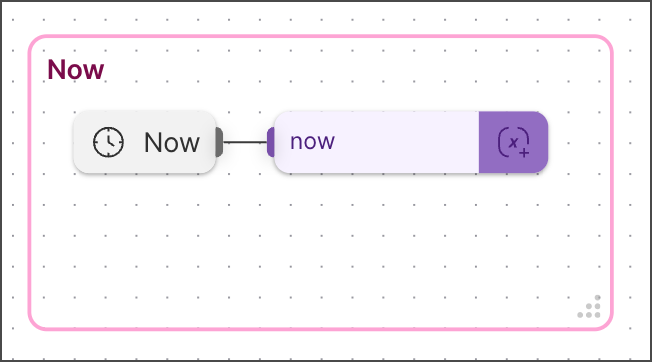 ### Add a Now block
1. From the canvas toolbar, select
### Add a Now block
1. From the canvas toolbar, select  **Block**.
2. Click
**Block**.
2. Click  **Now**. If you want to search for the block, enter **Now** in search.
3. Decide where on the canvas you want to place the **Now** block and select that location.
### Connect a Create Variable block
When you connect two blocks, you connect one block's input to another block's output. Inputs are on the block's left side and outputs are on its right side.
It's optional to connect a **Create Variable** block. However, if you plan to use a value in multiple places, the best practice is to create a variable. These steps will also let you separate your logic.
To connect a **Create Variable** block, do the following:
1. Hover over the **Now** block's output port. The pointer changes to a crosshair.
2. Decide where on the canvas you want to place the **Create Variable** block and drag the port to that location.
3. Click **Create Variable**. If you want to search for the block, enter **Create Variable** in search.
4. Enter the variable's name. For example, enter **now**.
### Group your blocks
In this tutorial, you'll separate the logic to get the current date and time from the logic to calculate the years since the milestone and other logic. You can group blocks to better separate this logic.
To group your blocks, do the following:
1. Press and hold the **Command** or **Ctrl** key.
2. Click the blocks you want to group. The canvas's flyout menu appears and displays the number of blocks you clicked.
3. Hover over the canvas's flyout menu and click
**Now**. If you want to search for the block, enter **Now** in search.
3. Decide where on the canvas you want to place the **Now** block and select that location.
### Connect a Create Variable block
When you connect two blocks, you connect one block's input to another block's output. Inputs are on the block's left side and outputs are on its right side.
It's optional to connect a **Create Variable** block. However, if you plan to use a value in multiple places, the best practice is to create a variable. These steps will also let you separate your logic.
To connect a **Create Variable** block, do the following:
1. Hover over the **Now** block's output port. The pointer changes to a crosshair.
2. Decide where on the canvas you want to place the **Create Variable** block and drag the port to that location.
3. Click **Create Variable**. If you want to search for the block, enter **Create Variable** in search.
4. Enter the variable's name. For example, enter **now**.
### Group your blocks
In this tutorial, you'll separate the logic to get the current date and time from the logic to calculate the years since the milestone and other logic. You can group blocks to better separate this logic.
To group your blocks, do the following:
1. Press and hold the **Command** or **Ctrl** key.
2. Click the blocks you want to group. The canvas's flyout menu appears and displays the number of blocks you clicked.
3. Hover over the canvas's flyout menu and click  **Group selection**.
4. Hover over the group's title and click
**Group selection**.
4. Hover over the group's title and click  **Edit title**.
5. Enter a name. For example, enter **Now**.
6. Press the **Return** or **Enter** key.
## Create a variable for the milestone
In the following set of procedures, you'll add a **Record** block to store the milestone date and other milestone-related information.
You could add a **Date** block instead. However, the **Record** block resembles the kind of information an API returns to you. In other words, these steps will prepare you to build more complex flows in the future.

### Add a Record block
1. Decide where on the canvas you want to place the **Record** block and right-click that location.
2. Click
**Edit title**.
5. Enter a name. For example, enter **Now**.
6. Press the **Return** or **Enter** key.
## Create a variable for the milestone
In the following set of procedures, you'll add a **Record** block to store the milestone date and other milestone-related information.
You could add a **Date** block instead. However, the **Record** block resembles the kind of information an API returns to you. In other words, these steps will prepare you to build more complex flows in the future.

### Add a Record block
1. Decide where on the canvas you want to place the **Record** block and right-click that location.
2. Click  **Record**. If you want to search for the block, enter **Record** in search.
3. Click **Add data blocks** and select
**Record**. If you want to search for the block, enter **Record** in search.
3. Click **Add data blocks** and select  **String**. If you want to search for the block, enter **String** in search.
4. Enter the string's key and value. For example, if the milestone is for a company, enter **company** and **Postman**, respectively.
5. Click **Add data blocks** and select
**String**. If you want to search for the block, enter **String** in search.
4. Enter the string's key and value. For example, if the milestone is for a company, enter **company** and **Postman**, respectively.
5. Click **Add data blocks** and select  **Date**. If you want to search for the block, enter **Date** in search.
6. Enter the date's key and value. For example, if the milestone is a company's founded date, enter **founded** and **October 14, 2014**, respectively.
Optionally, add more data blocks. For example, to build on the previous steps, you can create a more complex data structure to represent the company's founders. In this case, you could add a list of records, where each item in the list represents a founder, and each record stores the founder's details.
### Connect a Select block
1. Hover over the **Record** block's output port. The pointer changes to a crosshair.
2. Decide where on the canvas you want to place the **Select** block and drag the port to that location.
3. Select
**Date**. If you want to search for the block, enter **Date** in search.
6. Enter the date's key and value. For example, if the milestone is a company's founded date, enter **founded** and **October 14, 2014**, respectively.
Optionally, add more data blocks. For example, to build on the previous steps, you can create a more complex data structure to represent the company's founders. In this case, you could add a list of records, where each item in the list represents a founder, and each record stores the founder's details.
### Connect a Select block
1. Hover over the **Record** block's output port. The pointer changes to a crosshair.
2. Decide where on the canvas you want to place the **Select** block and drag the port to that location.
3. Select  **Select**. If you want to search for the block, enter **Select** in search.
4. Click **Enter path** and select the **Record** block's date key. For example, if the milestone is a company's founded date, choose that date.
### Connect a Create Variable block
1. Hover over the **Select** block's output port. The pointer changes to a crosshair.
2. Decide where on the canvas you want to place the **Create Variable** block and drag the port to that location.
3. Select **Create Variable**. If you want to search for the block, enter **Create Variable** in search.
4. Enter the variable's name. For example, if the milestone is a company's founded date, enter **date**.
### Group your blocks
1. Press and hold the **Command** or **Ctrl** key.
2. Click the blocks you want to group and select **Group selection**.
3. Hover over the group's title, click **Edit title**, and enter a name. For example, enter **Postman**.
4. Press the **Return** or **Enter** key.
## Create a variable for milliseconds per year
When you finish this tutorial, you'll calculate the difference between now and the milestone date. However, this calculation will return an answer in milliseconds. For this reason, you must calculate millisecond per year and divide by this value to calculate the difference in years.
In this set of procedures, you'll calculate the average milliseconds per year, which takes leap year into account. However, note that while this is a great approximation, there are more exact methods to calculate the exact value.
**Select**. If you want to search for the block, enter **Select** in search.
4. Click **Enter path** and select the **Record** block's date key. For example, if the milestone is a company's founded date, choose that date.
### Connect a Create Variable block
1. Hover over the **Select** block's output port. The pointer changes to a crosshair.
2. Decide where on the canvas you want to place the **Create Variable** block and drag the port to that location.
3. Select **Create Variable**. If you want to search for the block, enter **Create Variable** in search.
4. Enter the variable's name. For example, if the milestone is a company's founded date, enter **date**.
### Group your blocks
1. Press and hold the **Command** or **Ctrl** key.
2. Click the blocks you want to group and select **Group selection**.
3. Hover over the group's title, click **Edit title**, and enter a name. For example, enter **Postman**.
4. Press the **Return** or **Enter** key.
## Create a variable for milliseconds per year
When you finish this tutorial, you'll calculate the difference between now and the milestone date. However, this calculation will return an answer in milliseconds. For this reason, you must calculate millisecond per year and divide by this value to calculate the difference in years.
In this set of procedures, you'll calculate the average milliseconds per year, which takes leap year into account. However, note that while this is a great approximation, there are more exact methods to calculate the exact value.
 ### Add an Evaluate block
1. Decide where on the canvas you want to place the **Evaluate** block and right-click that location.
2. Select
### Add an Evaluate block
1. Decide where on the canvas you want to place the **Evaluate** block and right-click that location.
2. Select  **Evaluate**.
3. Add the following to the code editor:
```javascript
1000 * 60 * 60 * 24 * 365.25
```
### Connect a Create Variable block
1. Hover over the **Evaluate** block's output port. The pointer changes to a crosshair.
2. Decide where on the canvas you want to place the **Create Variable** block and drag the port to that location.
3. Select **Create Variable**.
4. Enter the variable's name. For example, enter **millisecondsPerYear**.
### Group your blocks
1. Press and hold the **Command** or **Ctrl** key.
2. Click the blocks you want to group and click **Group selection**.
3. Hover over the group's title, click **Edit title**, and enter a name. For example, enter **Milliseconds per year**.
4. Press the **Return** or **Enter** key.
## Calculate the years since the milestone
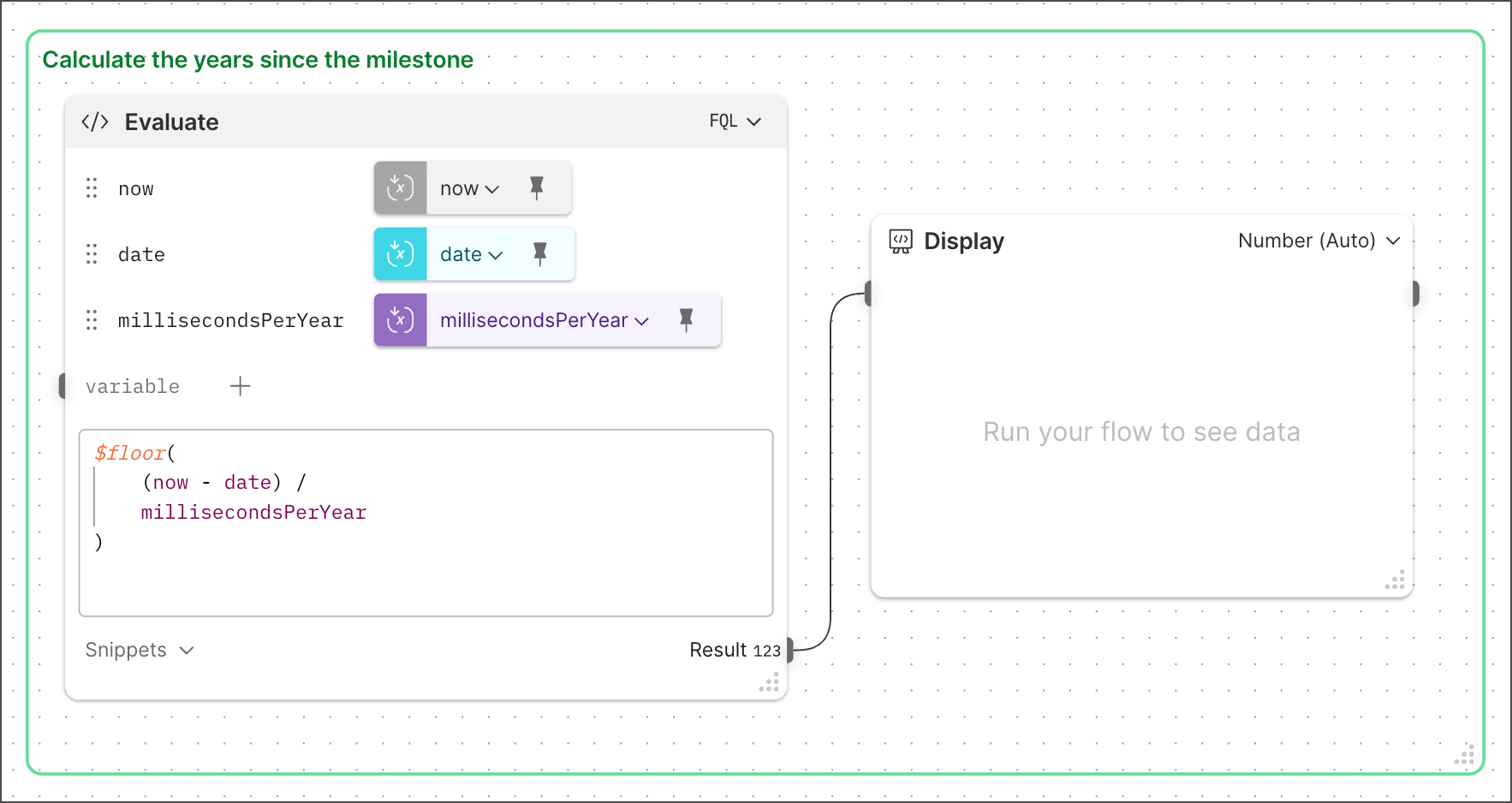
Once you've created the variables you need to calculate the years since the milestone (`now`, `date`, and `millisecondsPerYear`), you can use them to get an answer.
### Add an Evaluate block
Decide where on the canvas you want to place the **Evaluate** block and right-click that location. Then, select **Evaluate**.
### Get the variables
1. Click **Add data blocks** and choose **Get Variable**.
2. Enter the variable's key and choose the variable. For example, if you want to add the **now** variable, enter **now** and select **now**.
3. Repeat these steps for each variable.
Your **Evaluate** block will reference all the variables you created: `now`, `date`, and `millisecondsPerYear`.
### Calculate
All **Evaluate** blocks default to [Flows Query Language](/docs/postman-flows/flows-query-language/introduction-to-fql/) (FQL). You'll use FQL to calculate the years since the milestone.
To calculate the value, add the following to the code editor:
```javascript
$floor(
(now - date) /
millisecondsPerYear
)
```
This calculation takes the difference between now and the milestone date (which is in milliseconds) and divides it by milliseconds per year to get the years since the milestone. The FQL `$floor()` function removes any decimal values.
Optionally, use TypeScript to calculate this value. If you'd like to try this option, add another **Evaluate** block, switch to TypeScript (upper-right corner), and use the TypeScript `Math.floor()` method instead.
### Connect an Output block
1. Hover over the **Evaluate** block's output port. The pointer changes to a crosshair.
2. Decide where on the canvas you want to place the **Display** block and drag the port to that location.
3. Select
**Evaluate**.
3. Add the following to the code editor:
```javascript
1000 * 60 * 60 * 24 * 365.25
```
### Connect a Create Variable block
1. Hover over the **Evaluate** block's output port. The pointer changes to a crosshair.
2. Decide where on the canvas you want to place the **Create Variable** block and drag the port to that location.
3. Select **Create Variable**.
4. Enter the variable's name. For example, enter **millisecondsPerYear**.
### Group your blocks
1. Press and hold the **Command** or **Ctrl** key.
2. Click the blocks you want to group and click **Group selection**.
3. Hover over the group's title, click **Edit title**, and enter a name. For example, enter **Milliseconds per year**.
4. Press the **Return** or **Enter** key.
## Calculate the years since the milestone
Once you've created the variables you need to calculate the years since the milestone (`now`, `date`, and `millisecondsPerYear`), you can use them to get an answer.

### Add an Evaluate block
Decide where on the canvas you want to place the **Evaluate** block and right-click that location. Then, select **Evaluate**.
### Get the variables
1. Click **Add data blocks** and choose **Get Variable**.
2. Enter the variable's key and choose the variable. For example, if you want to add the **now** variable, enter **now** and select **now**.
3. Repeat these steps for each variable.
Your **Evaluate** block will reference all the variables you created: `now`, `date`, and `millisecondsPerYear`.
### Calculate
All **Evaluate** blocks default to [Flows Query Language](/docs/postman-flows/flows-query-language/introduction-to-fql/) (FQL). You'll use FQL to calculate the years since the milestone.
To calculate the value, add the following to the code editor:
```javascript
$floor(
(now - date) /
millisecondsPerYear
)
```
This calculation takes the difference between now and the milestone date (which is in milliseconds) and divides it by milliseconds per year to get the years since the milestone. The FQL `$floor()` function removes any decimal values.
Optionally, use TypeScript to calculate this value. If you'd like to try this option, add another **Evaluate** block, switch to TypeScript (upper-right corner), and use the TypeScript `Math.floor()` method instead.
### Connect an Output block
1. Hover over the **Evaluate** block's output port. The pointer changes to a crosshair.
2. Decide where on the canvas you want to place the **Display** block and drag the port to that location.
3. Select  **Display**.
### Group your blocks
1. Press and hold the **Command** or **Ctrl** key.
2. Click the blocks you want to group and click **Group selection**.
3. Hover over the group's title, click **Edit title**, and enter a name. For example, enter **Calculate years since milestone**.
4. Press the **Return** or **Enter** key.
## Run the flow
From the canvas toolbar, click
**Display**.
### Group your blocks
1. Press and hold the **Command** or **Ctrl** key.
2. Click the blocks you want to group and click **Group selection**.
3. Hover over the group's title, click **Edit title**, and enter a name. For example, enter **Calculate years since milestone**.
4. Press the **Return** or **Enter** key.
## Run the flow
From the canvas toolbar, click  **Run**.

Congratulations! You calculated the years since a milestone and displayed the result in a **Display** block.
**Run**.

Congratulations! You calculated the years since a milestone and displayed the result in a **Display** block.