# Send a request with the HTTP Request block
You can build a flow that uses a request from your workspace or the [Postman API Network](/docs/collaborating-in-postman/public-api-network/public-api-network-overview/). You can also create a new request when building your flow.
In this tutorial, you'll create a new flow, collection, and request. Then, you'll use the **HTTP Request** block to send a request to the [Postman Echo API](/docs/developer/echo-api/).
## Create a new flow
You build flows in a workspace. Workspaces let you organize your API projects and collaborate with your team.
To create a new flow, do the following:
1. Choose an existing workspace or [create a new one](/docs/collaborating-in-postman/using-workspaces/create-workspaces/).
2. In the upper left corner, click **New** >  **Flow**.
## Add an HTTP Request block and create a request
With an **HTTP Request** block, you can select a request from your collection or create a new request. In this tutorial, you'll create a new request with the **HTTP Request** block.
To add an **HTTP Request** block and create a new request, do the following:
1. From the Postman sidebar, click **Flows**.
2. Select your new flow.
3. Click
**Flow**.
## Add an HTTP Request block and create a request
With an **HTTP Request** block, you can select a request from your collection or create a new request. In this tutorial, you'll create a new request with the **HTTP Request** block.
To add an **HTTP Request** block and create a new request, do the following:
1. From the Postman sidebar, click **Flows**.
2. Select your new flow.
3. Click  **Send a request**.
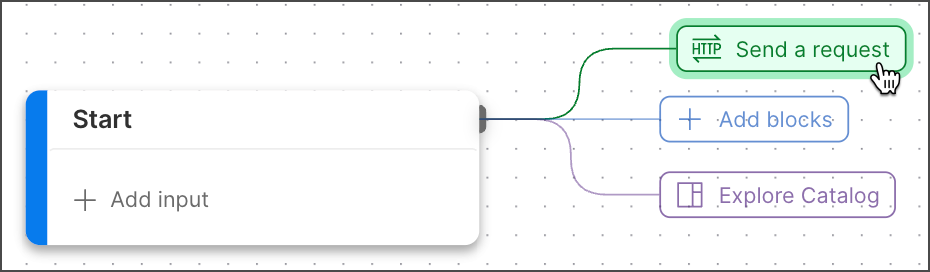 4. Click **Find or create new request**. The collections in your workspace appear in a dropdown list.
5. Select a collection and click **Create a new request**. If you don't have any collections, click **Create a new request**. The Postman Flows request editor opens.
4. Click **Find or create new request**. The collections in your workspace appear in a dropdown list.
5. Select a collection and click **Create a new request**. If you don't have any collections, click **Create a new request**. The Postman Flows request editor opens.
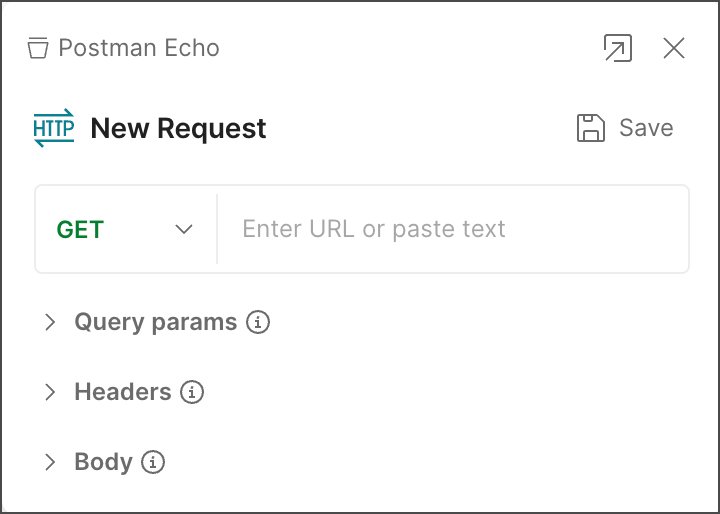 6. In the request editor, select a method from the dropdown list and enter a URL.
7. (Optional) Edit the request's name.
8. (Optional) Edit the request's parameters, headers, and body.
9. Click **Save**.
To edit a request in an existing **HTTP Request** block, click
6. In the request editor, select a method from the dropdown list and enter a URL.
7. (Optional) Edit the request's name.
8. (Optional) Edit the request's parameters, headers, and body.
9. Click **Save**.
To edit a request in an existing **HTTP Request** block, click  **Requests** in the right sidebar, then select the **HTTP Request** block whose request you want to edit.
## Connect a Display block
When you connect two blocks, you connect one block's input to another block's output. Inputs are on the block's left side and outputs are on its right side.
The **Display** block shows incoming data, such as the **HTTP Request** block's outgoing API response.
To connect a **Display** block, do the following:
1. Hover over the **HTTP Request** block's **Success** output port. The pointer changes to a crosshair.
2. Decide where on the canvas you want to place the **Display** block and drag the port to that location.
3. Click
**Requests** in the right sidebar, then select the **HTTP Request** block whose request you want to edit.
## Connect a Display block
When you connect two blocks, you connect one block's input to another block's output. Inputs are on the block's left side and outputs are on its right side.
The **Display** block shows incoming data, such as the **HTTP Request** block's outgoing API response.
To connect a **Display** block, do the following:
1. Hover over the **HTTP Request** block's **Success** output port. The pointer changes to a crosshair.
2. Decide where on the canvas you want to place the **Display** block and drag the port to that location.
3. Click  **Display**. If you want to search for the block, enter **Display** in search.
## Run the flow
From the canvas toolbar, click
**Display**. If you want to search for the block, enter **Display** in search.
## Run the flow
From the canvas toolbar, click  **Run**.
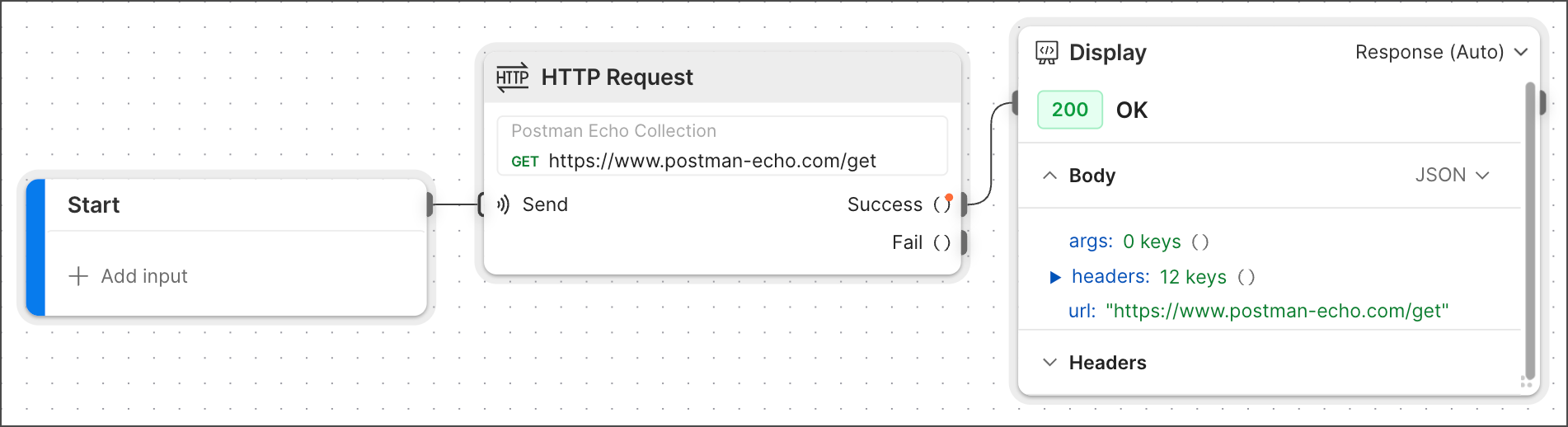
Congratulations! You sent a request and displayed the response in a **Display** block.
**Run**.

Congratulations! You sent a request and displayed the response in a **Display** block.