# Capture HTTPS traffic using the Postman built-in proxy
In addition to capturing HTTP traffic, you can use the Postman's built-in proxy to inspect HTTPS communication from your Android, iOS, Linux, macOS, and Windows devices.
You must install the `postman-proxy-ca.crt` certificate on your device to be able to capture secure HTTP traffic. First, [set up the proxy in Postman](/docs/sending-requests/capturing-request-data/capturing-http-requests/). Then follow the instructions below to install the required security certificate on the target devices.
You can deactivate or remove the certificate from your device if you no longer need to capture HTTPS requests.
## Windows
If you're on Windows and using Postman v10.18 or later, the Postman security certificate is automatically installed on your computer the first time you start the proxy. Also, you don't need to install OpenSSL. To learn more, go to [Capturing requests with the Postman proxy](/docs/sending-requests/capturing-request-data/capture-with-proxy/).
Before you install the `postman-proxy-ca.crt` certificate, you must install the OpenSSL module.
### Installing OpenSSL on Windows
Postman uses **OpenSSL** to generate certificate-key pairs. For Postman to be able to generate the `postman-proxy-ca.crt` certificate, the OpenSSL module must be installed on your computer and accessible through the command line.
OpenSSL is already installed for macOS and is typically installed for Linux. For Windows systems, you must install OpenSSL manually.
To install OpenSSL for Windows systems, do the following:
1. Download and install the [OpenSSL v1.1.1 installer](https://slproweb.com/products/Win32OpenSSL.html) for your operating system version. OpenSSL v1.x is required to generate certificates. Later versions of OpenSSL aren't supported at this time.
During installation, make sure to select the option to copy the OpenSSL DLLs to the **OpenSSL binaries (/bin) directory**.
2. Open the Windows **Start** menu, search for **Environment Variables**, and select **Open**.
3. On the **System Properties** window, select **Environment Variables**.
4. Select **Path** under **User variables**, and then select **Edit**.

5. Select **Browse**.
6. Find and select **This PC > Local Disk (C:) > Program Files > OpenSSL-Win64 > bin**.

7. Select **OK** to add the folder directory. Then select **OK** to confirm changes and close the remaining windows.
8. Open the Windows command line. To do this, open the **Start** menu, search for **cmd**, and select **Open**. On the command line, enter the command `openssl version` to confirm that installation was successful. The output will be similar to the following:
`OpenSSL 1.1.1l 24 Aug 2021`
### Installing the security certificate on Windows
Before you begin, make sure to [install the OpenSSL module](#installing-openssl-on-windows) so Postman can generate the certificate.
1. In Windows File Explorer, open the `%APPDATA%\Postman\proxy` folder. Typically, the folder will be located at `C:\Users\\AppData\Roaming\Postman\proxy`.
2. Right-click on the **postman-proxy-ca.crt** file and select **Install Certificate**.
[](https://assets.postman.com/postman-docs/windows-install-crt-aa.jpeg)
3. Select **Local Machine** and select **Next**. This action requires Administrator permissions. Select **Yes** to proceed.
4. Select **Place all certificates in the following store**.
5. Select **Browse** and then select **Trusted Root Certification Authorities**.
[](https://assets.postman.com/postman-docs/windows-crt-install-store-aa.jpeg)
6. Select **OK** and then select **Next**.
7. Select **Finish** to import the certificate.
8. Restart Postman.
## macOS
If you're on macOS and using Postman v10.17 or later, the Postman security certificate is automatically installed on your computer the first time you start the proxy. To learn more, go to [Capturing requests with the Postman proxy](/docs/sending-requests/capturing-request-data/capture-with-proxy/).
To install the security certificate on macOS, do the following:
1. In the macOS Finder, open the `~/Library/Application Support/Postman/proxy` folder.
2. Double-click the `postman-proxy-ca.crt` file.
3. Select **System** in the **Keychain** list, and then select **Add**. Enter your system password to confirm the action.
4. In Keychain Access, double-click the imported Postman certificate to open it.
[](https://assets.postman.com/postman-docs/mac-install-new-crt-v9-1.jpg)
5. Expand the **Trust** section. Select the option to **Always Trust** when using this certificate, and make sure **Always Trust** is selected for **Secure Sockets Layer(SSL)**.

6. Close the certificate window. Enter your system password to update the settings.
## CentOS and Red Hat Enterprise Linux
To install the security certificate on CentOS and Red Hat Enterprise Linux, do the following:
1. Copy the `postman-proxy-ca.crt` certificate file from `~/.config/Postman/proxy` to the `/etc/pki/ca-trust/source/anchors/` directory.
`sudo cp ~/.config/Postman/proxy/postman-proxy-ca.crt /etc/pki/ca-trust/source/anchors/`
2. Run the command below in terminal to complete the installation:
`sudo update-ca-trust extract`
## Ubuntu
To install the security certificate on Ubuntu, do the following:
1. Create the directory for the CA certificate with this command:
`sudo mkdir -p /usr/share/ca-certificates/extra`
2. Copy `postman-proxy-ca.crt` to the new folder with this command:
`sudo cp ~/.config/Postman/proxy/postman-proxy-ca.crt /usr/share/ca-certificates/extra/postman-proxy-ca.crt`
3. Add the certificate to the system with these two commands:
`sudo dpkg-reconfigure ca-certificates`
`sudo update-ca-certificates`
### Installing the certificate for use with Chrome
1. Open Google Chrome and go to the URL `chrome://settings/security`.
2. Select **Manage device certificates** from the list.
3. Select the **Authorities** tab and then **Import**.
4. Select **Browse** and select the `~/.config/Postman/proxy/postman-proxy-ca.crt` file.
5. Under **Trust Settings**, select **Trust this certificate for identifying websites**.
6. Select **OK**.
### Installing the certificate for use with Mozilla Firefox
1. Open Firefox, select the application menu, and then select **Preferences**.
2. Select **Privacy & Security**. Scroll down to **Certificates** and select **View Certificates**.
3. In the Certificate Manager, select the **Authorities** tab, and then select **Import**.
4. Select **postman-proxy-ca.crt** and select **Open**.
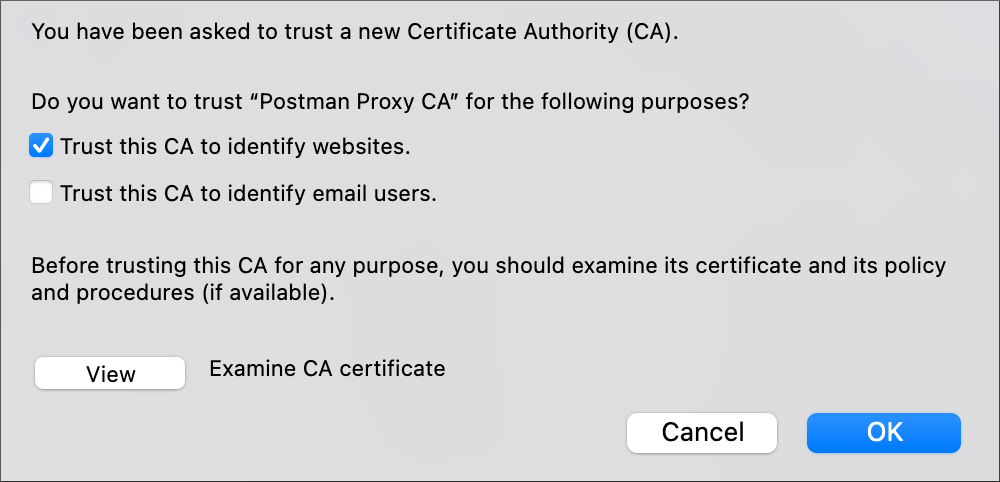
5. Select **Trust this CA to identify websites** and select **OK**.
[](https://assets.postman.com/postman-docs/firefox-trust-crt-aa.jpeg)
## iOS
To install the security certificate on iOS, do the following:
1. Download the `postman-proxy-ca.crt` certificate to the iOS device (for example, using AirDrop). You can find the certificate file on your computer in the following location:
* **macOS** - `~/Library/Application Support/Postman/proxy`
* **Windows** - `C:\Users\\AppData\Roaming\Postman\proxy`
* **Linux** - `~/.config/Postman/proxy`
2. Go to **Settings > Profile Downloaded**, and then select **Install**. Enter your passcode to proceed.
3. A security warning displays. Select **Install**.
4. After the certificate is installed, select **Done**.
5. Go to **Settings > General > About > Certificate Trust Settings**.
6. Enable full trust for Postman's root certificate, and select **Continue** to complete the installation.
## Android
The certificate installation process may differ depending on your device and Android version.
To install the security certificate on Android, do the following:
1. Download the `postman-proxy-ca.crt` certificate to the Android device. You can find the certificate file on your computer in the following location:
* **macOS** - `~/Library/Application Support/Postman/proxy`
* **Windows** - `C:\Users\\AppData\Roaming\Postman\proxy`
* **Linux** - `~/.config/Postman/proxy`
2. Open the **Settings** app and go to **Security > Encryption & credentials**.
3. Select **Install a certificate** and select the **CA Certificate** option.
4. A security warning displays. Select **Install anyway** to proceed.
5. Browse for and select the `postman-proxy-ca.crt` certificate file. You will get a message that the certificate is installed. You can capture traffic through a web browser on Android.
**Need to capture requests from an Android app?** To capture requests from an Android app, you need to add a network security configuration file to your app to trust the `postman-proxy-ca.crt` certificate. For more information, see [Trust additional CAs](https://developer.android.com/privacy-and-security/security-config#TrustingAdditionalCas) on the Android Developers portal.
 ## Troubleshooting certificate issues
If you are unable to correctly install the `postman-proxy-ca.crt` certificate, or if the certificate isn't allowing you to capture traffic, regenerate and reinstall the certificate.
To regenerate and reinstall the certificate, do the following:
1. Make sure you are running Postman version 9.1 or later. See [Update Postman](/docs/getting-started/installation/installation-and-updates/#update-postman).
2. On the computer where Postman is installed, delete the `/Postman/Proxy` folder. You can find the folder in the following location:
* **macOS** - `~/Library/Application Support/Postman/proxy`
* **Windows** - `C:\Users\\AppData\Roaming\Postman\proxy`
* **Linux** - `~/.config/Postman/proxy`
3. Close and restart Postman. Postman regenerates the certificate.
4. If prompted, follow the steps for your device to reinstall the certificate.
## Troubleshooting certificate issues
If you are unable to correctly install the `postman-proxy-ca.crt` certificate, or if the certificate isn't allowing you to capture traffic, regenerate and reinstall the certificate.
To regenerate and reinstall the certificate, do the following:
1. Make sure you are running Postman version 9.1 or later. See [Update Postman](/docs/getting-started/installation/installation-and-updates/#update-postman).
2. On the computer where Postman is installed, delete the `/Postman/Proxy` folder. You can find the folder in the following location:
* **macOS** - `~/Library/Application Support/Postman/proxy`
* **Windows** - `C:\Users\\AppData\Roaming\Postman\proxy`
* **Linux** - `~/.config/Postman/proxy`
3. Close and restart Postman. Postman regenerates the certificate.
4. If prompted, follow the steps for your device to reinstall the certificate.