***
title: Send a request with the Postman API client
updated: 2025-07-09T00:00:00.000Z
max-toc-depth: 2
----------------
Postman supports sending requests using HTTP, [GraphQL](/docs/sending-requests/graphql/graphql-overview/), [gRPC](/docs/sending-requests/grpc/grpc-client-overview/), [WebSocket](/docs/sending-requests/websocket/websocket-overview/), [MQTT](/docs/sending-requests/mqtt-client/mqtt-client-overview/), and [SOAP](/docs/sending-requests/soap/making-soap-requests/) protocols. Postman also supports AI-driven development with [AI requests in collections](/docs/postman-ai/ai-requests/overview/) and [AI Request blocks in Postman Flows](/docs/postman-ai/ai-request-blocks/overview/). You can also use Postman as your Model Context Protocol (MCP) client and [send requests to MCP servers](/docs/postman-ai/mcp-requests/overview/).
Start a new request by specifying the request type, then fill the details and test the request by clicking **Send**. After you save the request, you can share it with your team. You can also refer to [requests from publicly maintained workspaces](#leverage-public-api-examples) for the APIs you're testing and integrating with.
This topic primarily covers creating and sharing HTTP requests. For more detail about sending requests using other protocols, follow the respective links above.
{/*NM: The entire topic is HTTP centric, as are most other topics in the Create requests section. The basics could be pulled out and all HTTP-centric content placed in an HTTP folder. For now, I made some light edits to emphasize the distinction. */}
## Create a new request
Your requests can include multiple details determining the data Postman sends to the API you're working with. Depending on the type of request, enter a URL and select a method (HTTP, GraphQL, gRPC, WebSocket, Socket.IO, or MQTT request) or select a model (AI request) or enter a command (MCP request), then specify other details.
You can create a new request from a workspace by clicking **New** and selecting the request type.
 Alternatively, click
  **Add** next to an open tab.
You can switch your request type by clicking the request icon next to the request name.
**Add** next to an open tab.
You can switch your request type by clicking the request icon next to the request name.
 You can't change the request protocol after you click
**Save**
.
To open an HTTP request quickly, click **Add request** from a collection in the sidebar.
You can't change the request protocol after you click
**Save**
.
To open an HTTP request quickly, click **Add request** from a collection in the sidebar.
 Click **Save** to save your request. You can give your request a name and description, and choose or create a [collection](/docs/sending-requests/create-requests/intro-to-collections/) to save it in.
You can also specify values such as authorization, parameters and body data, and headers.
To test sending a request in Postman, set the URL to the [Postman Echo](/docs/developer/echo-api/) `https://postman-echo.com/get` endpoint, select the GET method, then click **Send**.
Click **Save** to save your request. You can give your request a name and description, and choose or create a [collection](/docs/sending-requests/create-requests/intro-to-collections/) to save it in.
You can also specify values such as authorization, parameters and body data, and headers.
To test sending a request in Postman, set the URL to the [Postman Echo](/docs/developer/echo-api/) `https://postman-echo.com/get` endpoint, select the GET method, then click **Send**.
 You can turn on autosave to automatically save your changes to requests. Learn more about
[autosave](/docs/getting-started/installation/settings/#application)
.
### Specify request URLs
Most requests you send in Postman require a URL that represents the API endpoint you're working with. Each operation you can perform using an API is typically associated with an endpoint. Each endpoint in an API is available at a specific URL. This is what you enter into Postman to access the API.
* If you're building an API, the URL is typically the base location plus path. For example, in the `https://postman-echo.com/get` request, `https://postman-echo.com` is the base URL, and `/get` is the endpoint path.
* If you’re using a public API, your API provider supplies the URLs you need, often located in their developer documentation.
As you start typing in the URL box, Postman displays a dropdown list of requests you've used before in your current workspace. The dropdown list also includes requests used in collections in your current workspace. Choose a request from the list of suggestions to autofill your request with details, such as parameters and authorizations.
If you're using a public API from a [verified team](/docs/postman-api-network/explore/consume/#choose-public-elements), suggestions display in the URL box after you enter the base URL, such as `https://api.getpostman.com`. You can click a suggested endpoint to autofill your request with a template of what you need to get started, such as parameters and authorization. Your request may autofill with an empty variable if the API publisher didn't define a value for the variable. Learn how to [set a value for an empty variable](/docs/sending-requests/variables/variables/#setting-values-for-variables-without-a-scope).

Postman automatically adds
`http://`
to the start of your URL if you don't specify a protocol.
You can optionally enter *query* parameters in the URL box or enter them in the **Params** tab. If your request uses *path* parameters, you can enter them in the URL box. Learn more about [sending parameters and body data with API requests in Postman](/docs/sending-requests/create-requests/parameters/).
You can use
[next generation URL encoding](/docs/sending-requests/create-requests/request-settings/#encode-your-request-urls)
in your requests.
### Select request methods
By default, Postman selects the GET method for new request. GET methods typically retrieve data from an API. You can use a variety of other methods to send data to your APIs, including:
* **POST** - Add new data.
* **PUT** - Replace existing data.
* **PATCH** - Update existing data fields.
* **DELETE** - Delete existing data.
For example, if you're working with an API for a to-do list application, you might use a GET method to get the current list of tasks. You can then use a POST method to create a new task or use a PUT or PATCH method to edit an existing task.
Postman supports a number of extra request methods by default, and you can use custom methods. Click the method dropdown list, edit the method name text, and save your new method. To delete a method, hover over it in the list and click the delete icon
You can turn on autosave to automatically save your changes to requests. Learn more about
[autosave](/docs/getting-started/installation/settings/#application)
.
### Specify request URLs
Most requests you send in Postman require a URL that represents the API endpoint you're working with. Each operation you can perform using an API is typically associated with an endpoint. Each endpoint in an API is available at a specific URL. This is what you enter into Postman to access the API.
* If you're building an API, the URL is typically the base location plus path. For example, in the `https://postman-echo.com/get` request, `https://postman-echo.com` is the base URL, and `/get` is the endpoint path.
* If you’re using a public API, your API provider supplies the URLs you need, often located in their developer documentation.
As you start typing in the URL box, Postman displays a dropdown list of requests you've used before in your current workspace. The dropdown list also includes requests used in collections in your current workspace. Choose a request from the list of suggestions to autofill your request with details, such as parameters and authorizations.
If you're using a public API from a [verified team](/docs/postman-api-network/explore/consume/#choose-public-elements), suggestions display in the URL box after you enter the base URL, such as `https://api.getpostman.com`. You can click a suggested endpoint to autofill your request with a template of what you need to get started, such as parameters and authorization. Your request may autofill with an empty variable if the API publisher didn't define a value for the variable. Learn how to [set a value for an empty variable](/docs/sending-requests/variables/variables/#setting-values-for-variables-without-a-scope).

Postman automatically adds
`http://`
to the start of your URL if you don't specify a protocol.
You can optionally enter *query* parameters in the URL box or enter them in the **Params** tab. If your request uses *path* parameters, you can enter them in the URL box. Learn more about [sending parameters and body data with API requests in Postman](/docs/sending-requests/create-requests/parameters/).
You can use
[next generation URL encoding](/docs/sending-requests/create-requests/request-settings/#encode-your-request-urls)
in your requests.
### Select request methods
By default, Postman selects the GET method for new request. GET methods typically retrieve data from an API. You can use a variety of other methods to send data to your APIs, including:
* **POST** - Add new data.
* **PUT** - Replace existing data.
* **PATCH** - Update existing data fields.
* **DELETE** - Delete existing data.
For example, if you're working with an API for a to-do list application, you might use a GET method to get the current list of tasks. You can then use a POST method to create a new task or use a PUT or PATCH method to edit an existing task.
Postman supports a number of extra request methods by default, and you can use custom methods. Click the method dropdown list, edit the method name text, and save your new method. To delete a method, hover over it in the list and click the delete icon  .
The same location (sometimes called *route*) can provide more than one endpoint by accepting different methods. For example, an API might have a POST `/customer` endpoint for adding a new customer, and a GET `/customer` endpoint for retrieving an existing customer.
## Send a request
After you specify the request protocol, method, and URL, add any other details required by the API you're sending the request to:
* Specify any [parameters and body data](/docs/sending-requests/create-requests/parameters/) or request [headers](/docs/sending-requests/create-requests/headers/) you need to send with the request.
* Set up any required [authentication and authorization](/docs/sending-requests/authorization/authorization/).
* You can also [use cookies with your requests](/docs/sending-requests/response-data/cookies/) by clicking **Cookies** (under **Send**).
After you enter all the request details, click **Send** to send the request to the API server. You can view the response from the server in the response pane. There you can use several tools to help you understand the response, like [search specific phrases](/docs/sending-requests/response-data/responses/#search) or [filter relevant information](/docs/sending-requests/response-data/responses/#filter) with JSONPath and XPath. Learn more about [API response structure in Postman](/docs/sending-requests/response-data/responses/).
You can view requests you've sent in **History** in the sidebar and send them again. You can also save and organize requests in a [collection](/docs/sending-requests/create-requests/intro-to-collections/).
.
The same location (sometimes called *route*) can provide more than one endpoint by accepting different methods. For example, an API might have a POST `/customer` endpoint for adding a new customer, and a GET `/customer` endpoint for retrieving an existing customer.
## Send a request
After you specify the request protocol, method, and URL, add any other details required by the API you're sending the request to:
* Specify any [parameters and body data](/docs/sending-requests/create-requests/parameters/) or request [headers](/docs/sending-requests/create-requests/headers/) you need to send with the request.
* Set up any required [authentication and authorization](/docs/sending-requests/authorization/authorization/).
* You can also [use cookies with your requests](/docs/sending-requests/response-data/cookies/) by clicking **Cookies** (under **Send**).
After you enter all the request details, click **Send** to send the request to the API server. You can view the response from the server in the response pane. There you can use several tools to help you understand the response, like [search specific phrases](/docs/sending-requests/response-data/responses/#search) or [filter relevant information](/docs/sending-requests/response-data/responses/#filter) with JSONPath and XPath. Learn more about [API response structure in Postman](/docs/sending-requests/response-data/responses/).
You can view requests you've sent in **History** in the sidebar and send them again. You can also save and organize requests in a [collection](/docs/sending-requests/create-requests/intro-to-collections/).
 ## Reuse your requests
To avoid duplication of work, you can construct collections with reusable requests from other collections in the workspace. Reuse requests across collections within the same workspace. A workbench card next to the request name shows the source request and any linked requests.
Linked requests run seamlessly in Collection Runner and Monitors. You can fork collections that contain linked requests without breaking links.
To reuse a request, do the following:
1. From the request, click
## Reuse your requests
To avoid duplication of work, you can construct collections with reusable requests from other collections in the workspace. Reuse requests across collections within the same workspace. A workbench card next to the request name shows the source request and any linked requests.
Linked requests run seamlessly in Collection Runner and Monitors. You can fork collections that contain linked requests without breaking links.
To reuse a request, do the following:
1. From the request, click  **View more actions** next to the request, then select **Copy**.
2. In the new collection, click **View more actions** next to the request, then select **Paste > Paste** or **Paste > Paste linked copy**.
You can also use
**⌘+Drag**
or
**Ctrl+Drag**
to reuse a request as a copy.
To maintain the API blueprint and permissions from the source, a linked copy isn't fully editable, but you can change the name, query parameters, body, and scripts for your custom use cases on Enterprise plans.
## Share your requests
To share requests with collaborators, do the following:
1. From the request, click **View more actions** next to the request, then select **Share**.
2. Add users and configure their access.
3. (Optional) Select an environment to include with the request.
4. Click **Invite**.
**View more actions** next to the request, then select **Copy**.
2. In the new collection, click **View more actions** next to the request, then select **Paste > Paste** or **Paste > Paste linked copy**.
You can also use
**⌘+Drag**
or
**Ctrl+Drag**
to reuse a request as a copy.
To maintain the API blueprint and permissions from the source, a linked copy isn't fully editable, but you can change the name, query parameters, body, and scripts for your custom use cases on Enterprise plans.
## Share your requests
To share requests with collaborators, do the following:
1. From the request, click **View more actions** next to the request, then select **Share**.
2. Add users and configure their access.
3. (Optional) Select an environment to include with the request.
4. Click **Invite**.
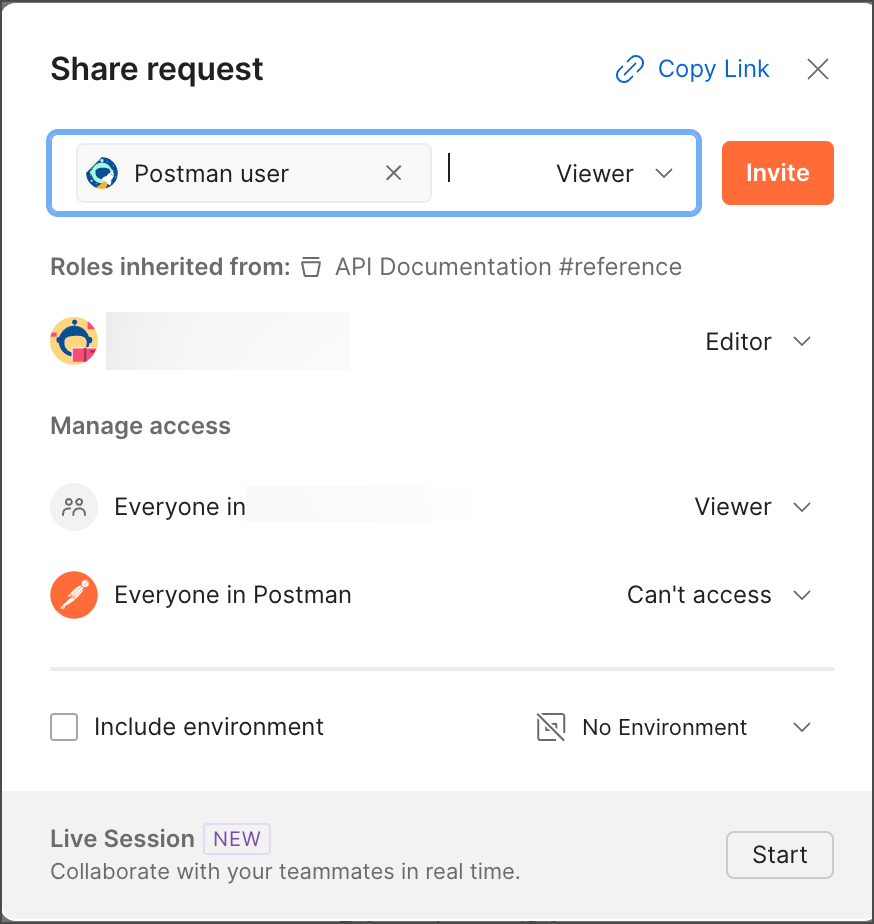 You can also copy a link to the request and share it. Learn more about [sharing your work in Postman](/docs/collaborating-in-postman/sharing/).
## Leverage public API examples
To help you get started faster, as you create requests, Postman searches the [Postman API Network](http://postman.com/explore) in the background for related content from popular collections and from collections owned by verified teams. If you're testing and integrating with public APIs and their relevant content is found, it shows up in the **Related requests** tab in the right sidebar.
For example, suppose you're testing an integration with Notion. Notion is a verified team, so you know you can trust their content.
1. Enter `api.notion.com/search` in the URL box. A dot appears next to
You can also copy a link to the request and share it. Learn more about [sharing your work in Postman](/docs/collaborating-in-postman/sharing/).
## Leverage public API examples
To help you get started faster, as you create requests, Postman searches the [Postman API Network](http://postman.com/explore) in the background for related content from popular collections and from collections owned by verified teams. If you're testing and integrating with public APIs and their relevant content is found, it shows up in the **Related requests** tab in the right sidebar.
For example, suppose you're testing an integration with Notion. Notion is a verified team, so you know you can trust their content.
1. Enter `api.notion.com/search` in the URL box. A dot appears next to  **Related requests**.
 2. Click
  **Related requests**. A pane opens displaying Notion's example search-related requests with links to the API collections.
 You can view related documentation and example responses in place without navigating to a different page or window. You can also fork a collection and use it in your own workspace to test and reuse requests.