# Save, edit, and share gRPC request-response examples
You can save, edit, and share gRPC request-response pairs as [examples](/docs/sending-requests/response-data/examples/). You can even create gRPC examples from scratch.
APIs can be complex, and so can the guidelines for using them. Examples help you understand APIs by capturing the request sent from the client and the response received from the server in a single visual snapshot. You can combine these snapshots in a request and store the request in a collection to illustrate how the API functions under different scenarios. Examples help API producers tell the world beautifully what their API is about.
## Saving a gRPC example
This walkthrough creates and runs a unary request, then saves the response as a gRPC example.
If you are using the Postman web app, you must use the Postman Desktop Agent. See [About the Postman Agent](/docs/getting-started/basics/about-postman-agent/) for more information.
1. In Postman, select **New > gRPC** to open a request in a new tab.
2. In the **Enter Server URL** field, enter `grpc.postman-echo.com`.
3. Click **Select a method** and select **SayHello** from the dropdown list.
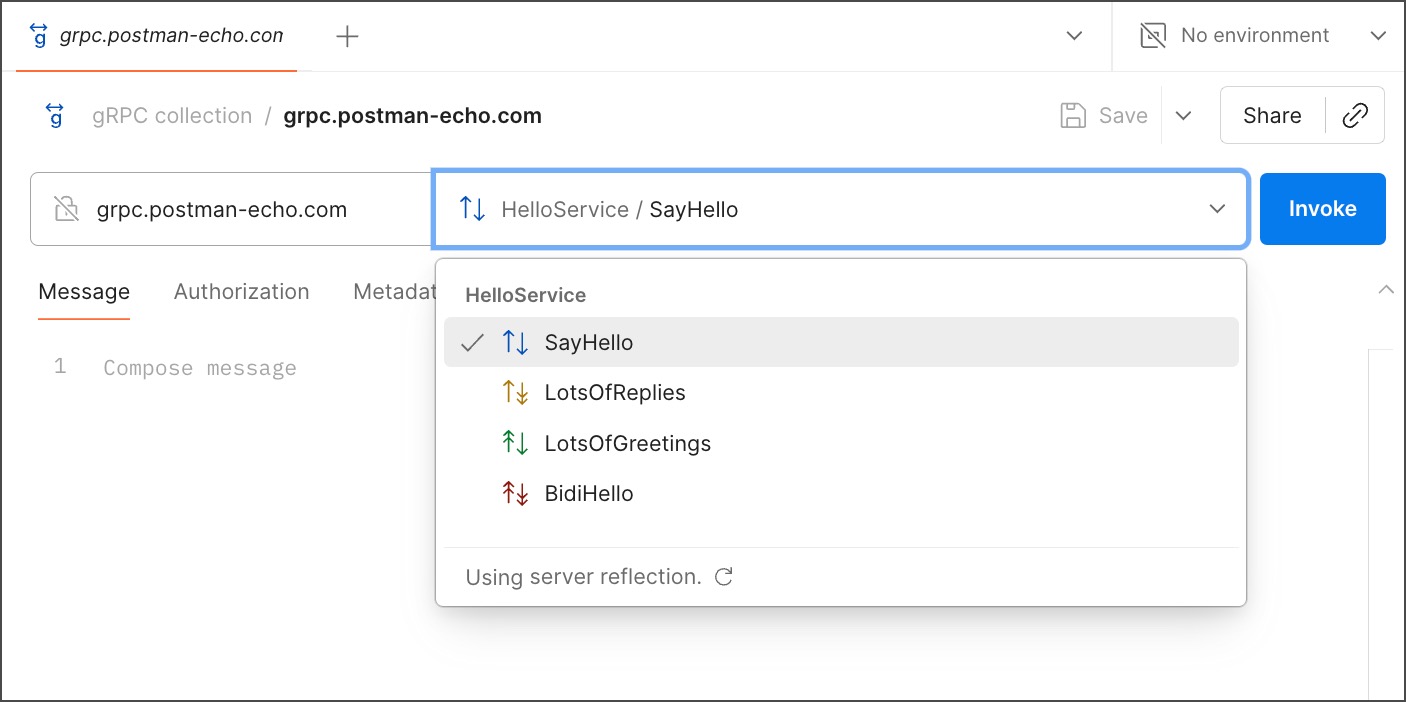
4. Save the gRPC request to a collection.
gRPC examples can't be saved unless the request is in a collection.
5. Click **Invoke**. A `reply` message appears in the response section.
6. Click  **Save Response**. The saved example opens in a new tab and you can see the saved example under the request in the sidebar.
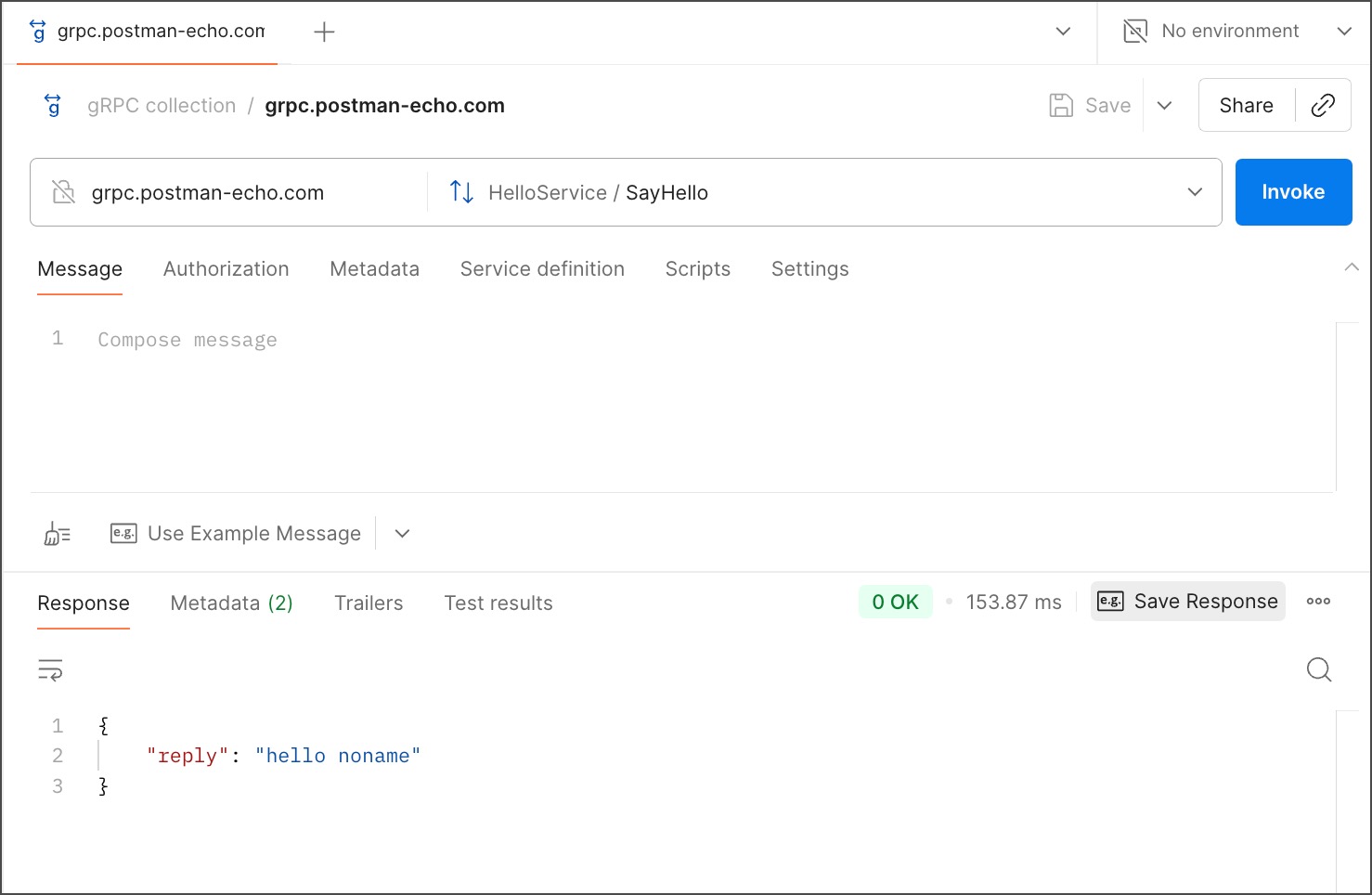
## Editing a gRPC example
This walkthrough edits a gRPC example.
1. [Create a unary gRPC request, save it in a collection, and save a gRPC example.](#saving-a-grpc-example)
2. Select the gRPC example in the sidebar.
3. In the **Response** section, from the **Status code** dropdown list, select **2 UNKNOWN**. The response updates automatically.
The status codes are automatically populated based on the protobuf (protocol buffers) schema.
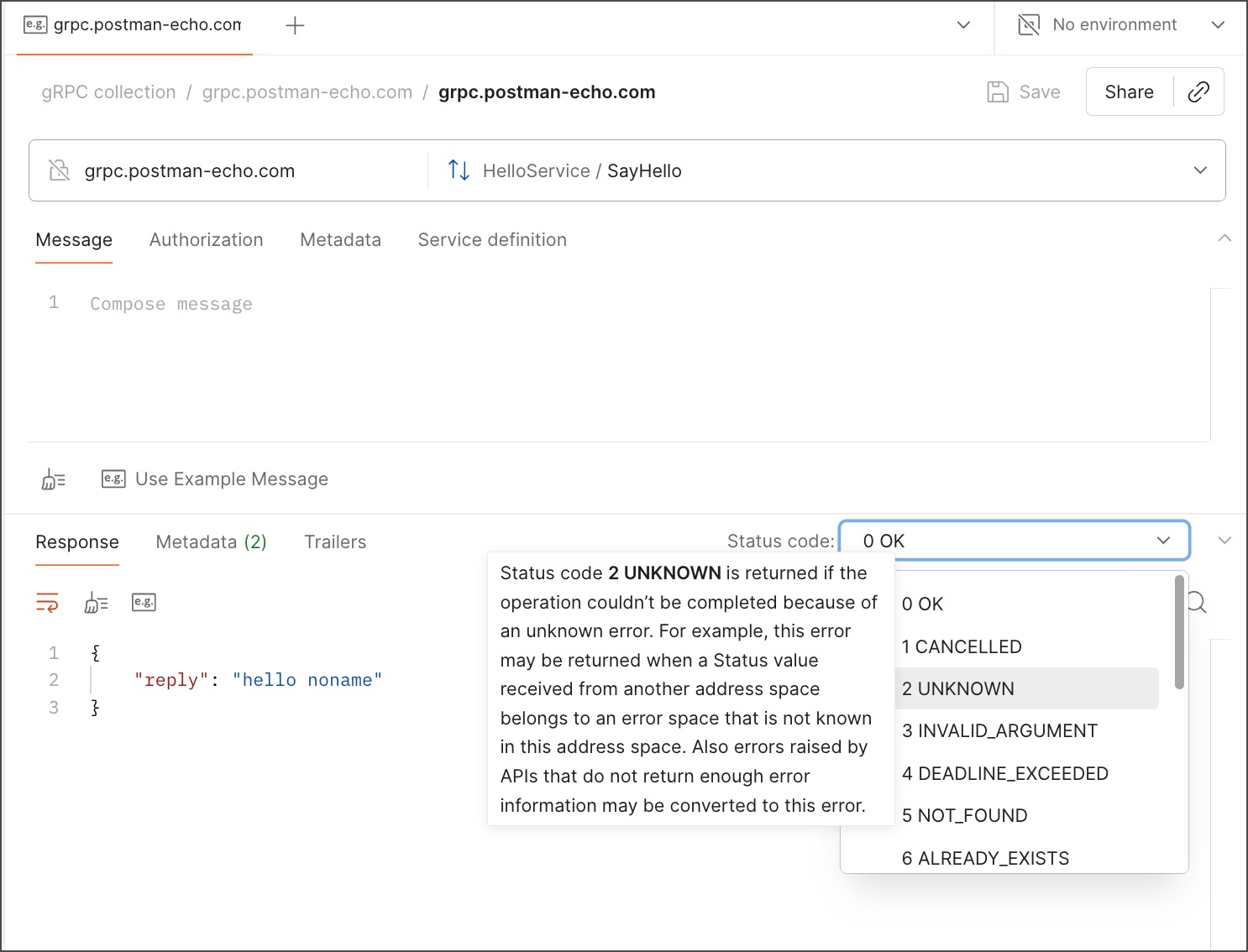
4. Click **Save**.
## Creating a gRPC example from scratch
This walkthrough uses a streaming method to create a gRPC example. Note how streaming method messages differ from unary method messages.
1. Create a gRPC request with the `LotsOfReplies` method (or any streaming method) and save it in a collection.
2. In the sidebar, hover over the gRPC request you created and select
**Save Response**. The saved example opens in a new tab and you can see the saved example under the request in the sidebar.

## Editing a gRPC example
This walkthrough edits a gRPC example.
1. [Create a unary gRPC request, save it in a collection, and save a gRPC example.](#saving-a-grpc-example)
2. Select the gRPC example in the sidebar.
3. In the **Response** section, from the **Status code** dropdown list, select **2 UNKNOWN**. The response updates automatically.
The status codes are automatically populated based on the protobuf (protocol buffers) schema.

4. Click **Save**.
## Creating a gRPC example from scratch
This walkthrough uses a streaming method to create a gRPC example. Note how streaming method messages differ from unary method messages.
1. Create a gRPC request with the `LotsOfReplies` method (or any streaming method) and save it in a collection.
2. In the sidebar, hover over the gRPC request you created and select  **View more actions** > **Add example**. An empty example opens in the workbench and appears below the request in the sidebar.
3. From the **Add a Message** dropdown list, select **Message stream**. This creates a sample message stream automatically using the message structure defined in the protobuf schema.
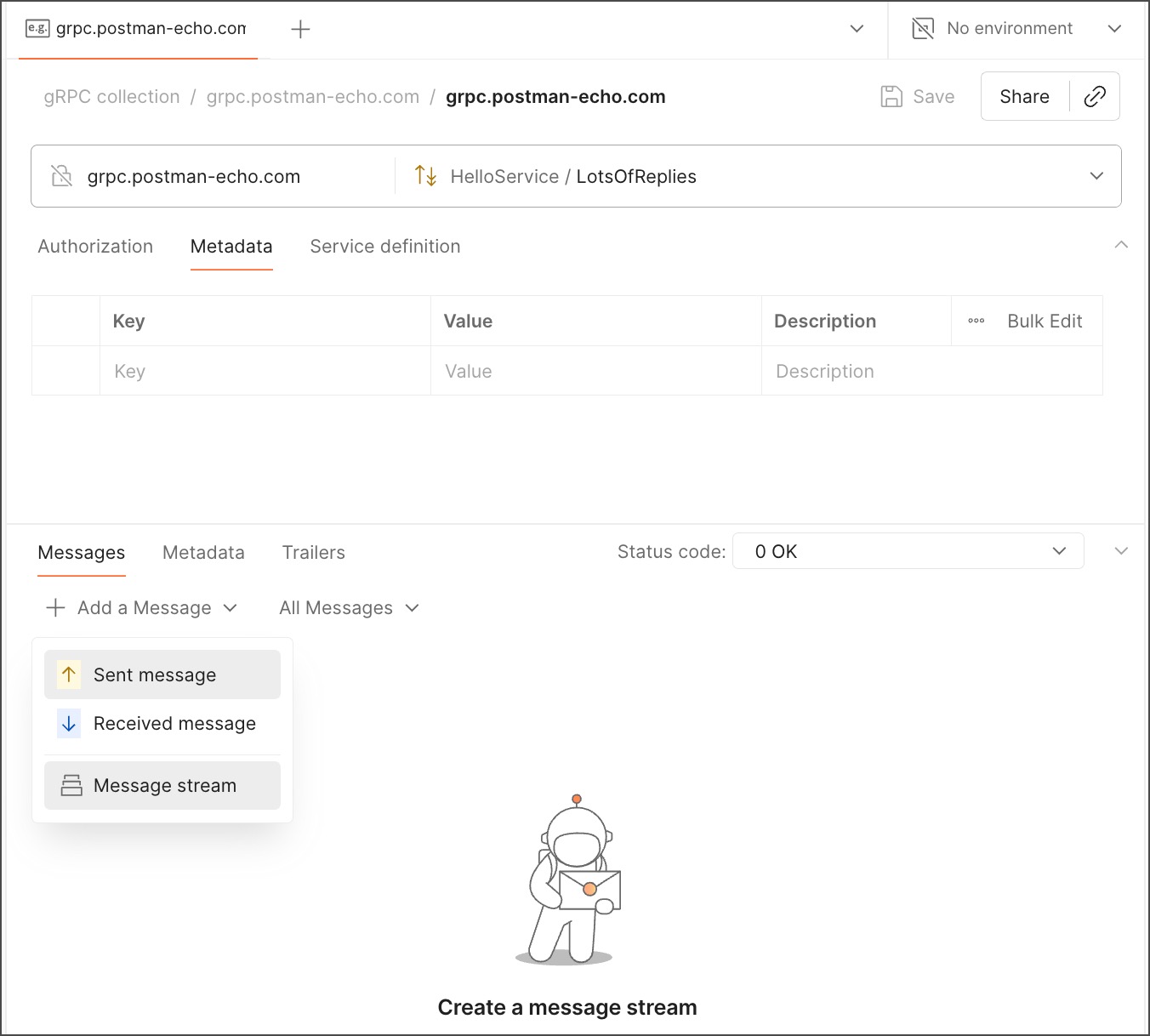
4. Click **Save**.
## Creating example-specific documentation
1. [Create a gRPC request, save it in a collection, and save a gRPC example.](#saving-a-grpc-example)
2. Select the gRPC example in the sidebar.
3. In the right sidebar, click
**View more actions** > **Add example**. An empty example opens in the workbench and appears below the request in the sidebar.
3. From the **Add a Message** dropdown list, select **Message stream**. This creates a sample message stream automatically using the message structure defined in the protobuf schema.

4. Click **Save**.
## Creating example-specific documentation
1. [Create a gRPC request, save it in a collection, and save a gRPC example.](#saving-a-grpc-example)
2. Select the gRPC example in the sidebar.
3. In the right sidebar, click  **Documentation**.
4. In the **Add example description** field, enter your documentation for the gRPC example. Your documentation automatically saves.
## Using messages from saved examples
While invoking a request, you can work with message payloads stored in the examples. This not only enables you to test the example scenarios by yourself, but also speeds up your debugging workflow.
This walkthrough shows how you can invoke a client streaming request with messages stored in the examples:
1. Create a gRPC request with the `LotsOfGreetings` method, and save it in a collection.
2. [Create an example for the request](#creating-a-grpc-example-from-scratch) with two different `"greeting"` messages and save it.
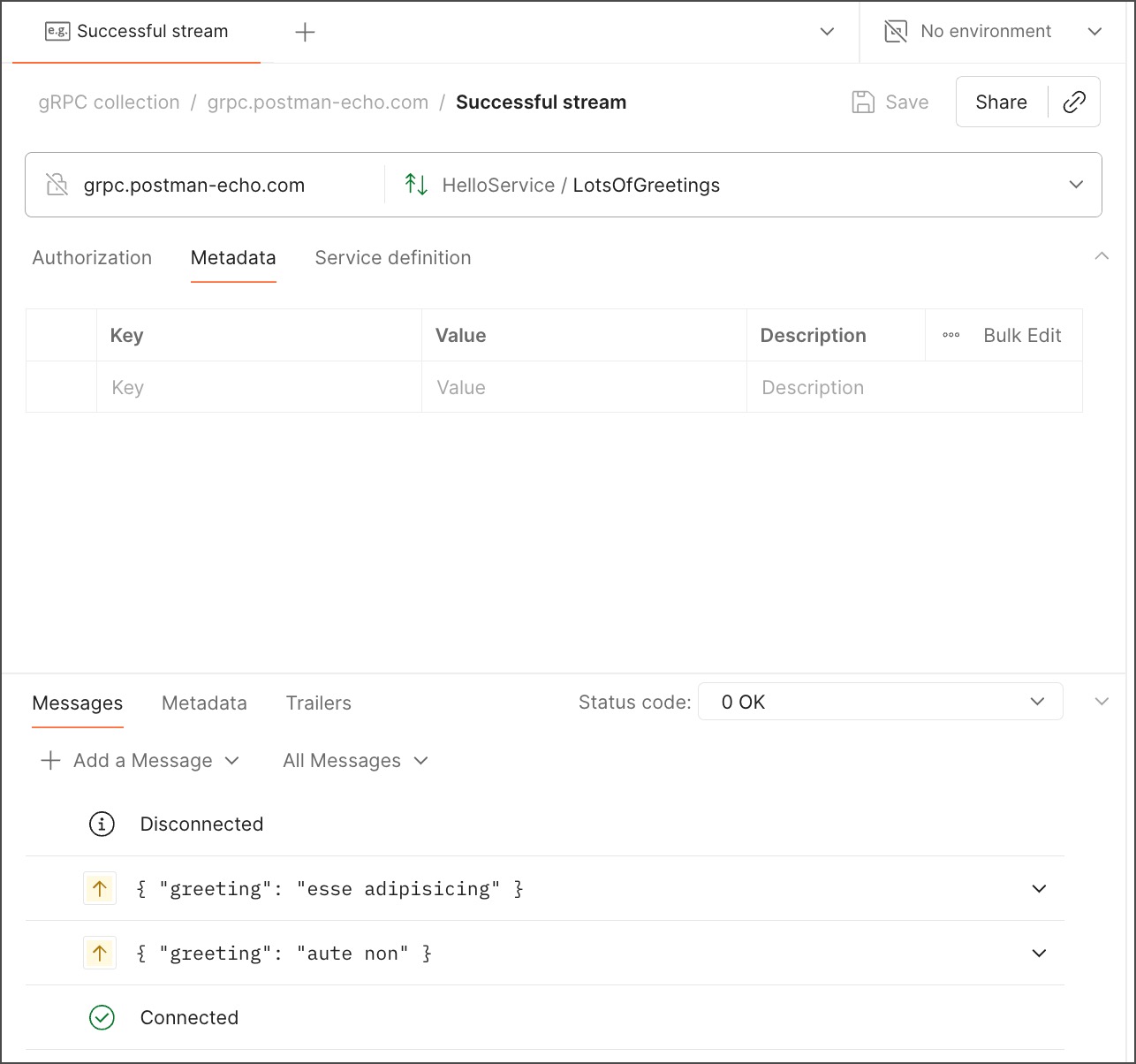
3. Select the request and click **Invoke**.
4. Click the dropdown next to **Use Example Message** to view the messages you had saved for the request.
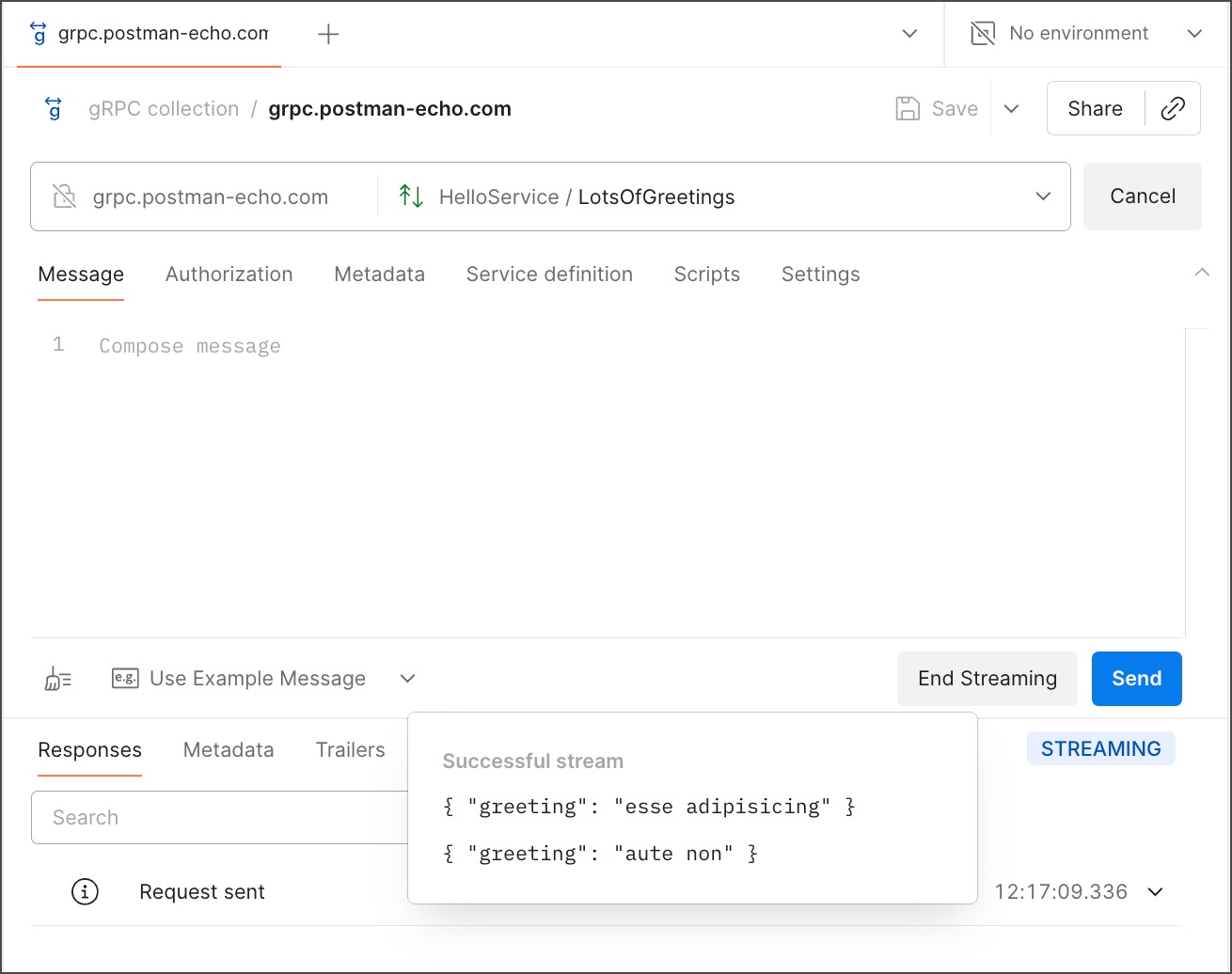
5. Select a message from the dropdown list. The selected message appears in the request's **Message** tab.
6. Click **Send**.
7. Open the dropdown list again and select a different message.
**Documentation**.
4. In the **Add example description** field, enter your documentation for the gRPC example. Your documentation automatically saves.
## Using messages from saved examples
While invoking a request, you can work with message payloads stored in the examples. This not only enables you to test the example scenarios by yourself, but also speeds up your debugging workflow.
This walkthrough shows how you can invoke a client streaming request with messages stored in the examples:
1. Create a gRPC request with the `LotsOfGreetings` method, and save it in a collection.
2. [Create an example for the request](#creating-a-grpc-example-from-scratch) with two different `"greeting"` messages and save it.

3. Select the request and click **Invoke**.
4. Click the dropdown next to **Use Example Message** to view the messages you had saved for the request.

5. Select a message from the dropdown list. The selected message appears in the request's **Message** tab.
6. Click **Send**.
7. Open the dropdown list again and select a different message.