# Debug API requests in Postman
If an API request isn't behaving as expected, there can be many possible reasons. You can ask Postbot to help you find out what the problem is, or use the Postman Console to troubleshoot the request. This guide also lists some common issues and their causes.
This guide discusses troubleshooting API requests. To troubleshoot issues with the Postman app, see [Troubleshoot app issues](/docs/introduction/troubleshooting-inapp/). To troubleshoot issues with Postman Monitors, see [Troubleshooting monitors](/docs/monitoring-your-api/troubleshooting-monitors/).
## Troubleshooting your requests
Postman indicates any whitespace or invalid characters in parts of your request that may not function as expected so that you can fix your values. Invalid characters are highlighted in the request method, URL (including the path), parameters, headers (including your key names), and body.
 If Postman isn't able to send your request or doesn't receive a response, you'll get a message with details about the error. Select **View in Console** to get an overview of your request and to help identify the source of the issue.
## Debugging requests with Postbot
If you get an unexpected error when you send a request, you can ask Postbot for help. Click
If Postman isn't able to send your request or doesn't receive a response, you'll get a message with details about the error. Select **View in Console** to get an overview of your request and to help identify the source of the issue.
## Debugging requests with Postbot
If you get an unexpected error when you send a request, you can ask Postbot for help. Click  **What's wrong?** in the error message. Postbot tells you about any problems it can identify, and offers possible solutions for fixing the issue.
For more information on Postbot, see [About Postbot](/docs/getting-started/basics/about-postbot/).

## Debugging in the Console
Console logs are stored locally in the Postman Console and aren't synced to the cloud.
Every request sent by Postman is logged in the Postman Console, so you can view the detail of what happened when you sent a request. This means you can use the Console to help debug your requests when an API isn't behaving as you expect. Keeping the Console open while you work increases the visibility of your network calls and log messages while debugging.
The Postman Console logs the following information:
* The primary request that was sent, including all underlying request headers, variable values, and redirects.
* The proxy configuration and certificates used for the request.
* Network information, such as IP addresses, ciphers, and protocols used.
* Log statements and asynchronous requests from pre-request or post-request scripts.
* The raw response sent by the server before it's processed by Postman.
Monitor results are logged to a separate console. For more information on how to view logs from a monitor run, see [View monitor results](/docs/monitoring-your-api/viewing-monitor-results/#console-log).
### Opening the Console
Click
**What's wrong?** in the error message. Postbot tells you about any problems it can identify, and offers possible solutions for fixing the issue.
For more information on Postbot, see [About Postbot](/docs/getting-started/basics/about-postbot/).

## Debugging in the Console
Console logs are stored locally in the Postman Console and aren't synced to the cloud.
Every request sent by Postman is logged in the Postman Console, so you can view the detail of what happened when you sent a request. This means you can use the Console to help debug your requests when an API isn't behaving as you expect. Keeping the Console open while you work increases the visibility of your network calls and log messages while debugging.
The Postman Console logs the following information:
* The primary request that was sent, including all underlying request headers, variable values, and redirects.
* The proxy configuration and certificates used for the request.
* Network information, such as IP addresses, ciphers, and protocols used.
* Log statements and asynchronous requests from pre-request or post-request scripts.
* The raw response sent by the server before it's processed by Postman.
Monitor results are logged to a separate console. For more information on how to view logs from a monitor run, see [View monitor results](/docs/monitoring-your-api/viewing-monitor-results/#console-log).
### Opening the Console
Click  **Console** in the Postman footer to open the Console. In the Postman desktop app, use **⌘+Option+C** or **Ctrl+Alt+C** to open the Postman Console in a new window.
### Viewing request errors from the Console
You'll get an error message if Postman isn't able to send your request or doesn't receive a response from the API you sent the request to. This message includes an overview of the issue and a link to the Console. There you can access detailed information about the request.
Select **View in Console** to inspect the request details in the Console and find out more about what went wrong.
**Console** in the Postman footer to open the Console. In the Postman desktop app, use **⌘+Option+C** or **Ctrl+Alt+C** to open the Postman Console in a new window.
### Viewing request errors from the Console
You'll get an error message if Postman isn't able to send your request or doesn't receive a response from the API you sent the request to. This message includes an overview of the issue and a link to the Console. There you can access detailed information about the request.
Select **View in Console** to inspect the request details in the Console and find out more about what went wrong.
 ### Navigating the Console
The Postman Console displays network information and the request and response headers and body for each request, together with any Console output messages coming from your scripts.
Filter by log message type under **All Logs**. Click
### Navigating the Console
The Postman Console displays network information and the request and response headers and body for each request, together with any Console output messages coming from your scripts.
Filter by log message type under **All Logs**. Click  **Options** to turn timestamps and network information on or off.
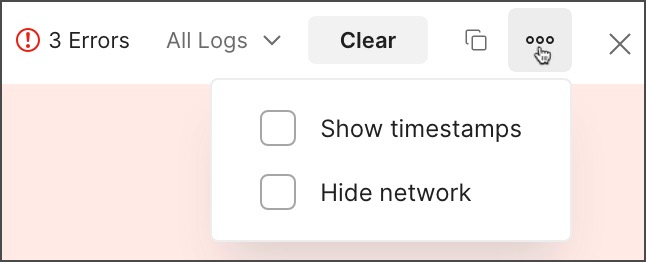 The Console logs the last 5,000 messages and 24 hours by default. Select **Clear** to empty the list.
### Using log statements
Using log statements at appropriate locations in your post-response scripts can help you debug your requests. Postman accepts the following log statements:
* `console.log()`
* `console.info()`
* `console.warn()`
* `console.error()`
* `console.clear()`
## Debugging by HTTP version
You can specify the HTTP version to use for requests. Postman supports HTTP versions 1.0, 1.1, and 2.0. The HTTP version you select is the default version you'll use globally to send HTTP requests. You can override the default version for an individual request.
It's useful to specify an HTTP version when debugging API requests so you can test requests by version. It's also useful for verifying if API requests support the expected HTTP version.
If the API supports HTTP version 2.0, make sure the request URL uses the `https` scheme. If you're using the Postman web app, also make sure you send requests with the [Postman Desktop Agent](/docs/getting-started/basics/about-postman-agent/#postman-desktop-agent). The supported 1.x HTTP version is used in the following scenarios:
* The request URL uses the `http` scheme.
* The request is sent with the [Postman Cloud Agent](/docs/getting-started/basics/about-postman-agent/#postman-cloud-agent).
* You've configured Postman to use a [proxy server](/docs/getting-started/installation/proxy/).
Postman recommends you [use the latest version](/docs/getting-started/basics/about-postman-agent/#update-the-postman-desktop-agent) of the Postman Desktop Agent to receive recent changes and improvements.
To specify an HTTP version for your requests, do the following:
1. Click
The Console logs the last 5,000 messages and 24 hours by default. Select **Clear** to empty the list.
### Using log statements
Using log statements at appropriate locations in your post-response scripts can help you debug your requests. Postman accepts the following log statements:
* `console.log()`
* `console.info()`
* `console.warn()`
* `console.error()`
* `console.clear()`
## Debugging by HTTP version
You can specify the HTTP version to use for requests. Postman supports HTTP versions 1.0, 1.1, and 2.0. The HTTP version you select is the default version you'll use globally to send HTTP requests. You can override the default version for an individual request.
It's useful to specify an HTTP version when debugging API requests so you can test requests by version. It's also useful for verifying if API requests support the expected HTTP version.
If the API supports HTTP version 2.0, make sure the request URL uses the `https` scheme. If you're using the Postman web app, also make sure you send requests with the [Postman Desktop Agent](/docs/getting-started/basics/about-postman-agent/#postman-desktop-agent). The supported 1.x HTTP version is used in the following scenarios:
* The request URL uses the `http` scheme.
* The request is sent with the [Postman Cloud Agent](/docs/getting-started/basics/about-postman-agent/#postman-cloud-agent).
* You've configured Postman to use a [proxy server](/docs/getting-started/installation/proxy/).
Postman recommends you [use the latest version](/docs/getting-started/basics/about-postman-agent/#update-the-postman-desktop-agent) of the Postman Desktop Agent to receive recent changes and improvements.
To specify an HTTP version for your requests, do the following:
1. Click  **Settings** in the header, then click **Settings** to specify an HTTP version globally. You can also specify the version for an individual HTTP request by opening it, then clicking the **Settings** tab.
2. Select the HTTP version dropdown list next to **HTTP Version**.
If you specify an HTTP version for an individual request, you can select **Restore Default**. This changes the HTTP version to the default version specified globally.
3. Select one of the following options:
* **Auto** - Postman automatically selects HTTP version 1.0, 1.1, or 2.0, depending on which version the API supports and prefers.
* **HTTP/1.x** - Send the request using HTTP version 1.0 or 1.1.
* **HTTP/2** - Send the request using HTTP version 2.0.
If the API doesn't support the HTTP version you selected, an error displays in the response area. For example, the error will display if you select **HTTP/2** and the API doesn't support HTTP version 2.0.
After you send a request, you can verify the HTTP version in the response pane. Hover over
**Settings** in the header, then click **Settings** to specify an HTTP version globally. You can also specify the version for an individual HTTP request by opening it, then clicking the **Settings** tab.
2. Select the HTTP version dropdown list next to **HTTP Version**.
If you specify an HTTP version for an individual request, you can select **Restore Default**. This changes the HTTP version to the default version specified globally.
3. Select one of the following options:
* **Auto** - Postman automatically selects HTTP version 1.0, 1.1, or 2.0, depending on which version the API supports and prefers.
* **HTTP/1.x** - Send the request using HTTP version 1.0 or 1.1.
* **HTTP/2** - Send the request using HTTP version 2.0.
If the API doesn't support the HTTP version you selected, an error displays in the response area. For example, the error will display if you select **HTTP/2** and the API doesn't support HTTP version 2.0.
After you send a request, you can verify the HTTP version in the response pane. Hover over  **Network** to view information about the HTTP version that was used to send the request.
 ## Comparing your request's history
If your HTTP request isn't behaving as expected, you can view a previous configuration from the request's history to help you troubleshoot. You can only view the response for a previous request configuration if [saving response history](/docs/getting-started/basics/navigating-postman/#saving-responses-in-history) was turned on when you sent the request. You can also delete a response from your request's history.
The HTTP request must be in an internal or Partner Workspace. Postman doesn't support viewing an earlier configuration of a request and its response from public workspaces. Also, partners in [Partner Workspaces with multi-partner mode enabled](/docs/collaborating-in-postman/using-workspaces/partner-workspaces/multipartner-workspaces/) can't view an earlier configuration of a request and its response.
To view a previous request configuration and its response, do the following:
1. Click **Collections** in the sidebar and open an HTTP request.
2. Click
## Comparing your request's history
If your HTTP request isn't behaving as expected, you can view a previous configuration from the request's history to help you troubleshoot. You can only view the response for a previous request configuration if [saving response history](/docs/getting-started/basics/navigating-postman/#saving-responses-in-history) was turned on when you sent the request. You can also delete a response from your request's history.
The HTTP request must be in an internal or Partner Workspace. Postman doesn't support viewing an earlier configuration of a request and its response from public workspaces. Also, partners in [Partner Workspaces with multi-partner mode enabled](/docs/collaborating-in-postman/using-workspaces/partner-workspaces/multipartner-workspaces/) can't view an earlier configuration of a request and its response.
To view a previous request configuration and its response, do the following:
1. Click **Collections** in the sidebar and open an HTTP request.
2. Click  **History** in the response area. This displays a list of the sent request's timestamps and the status code the system returned.
When you select a previous response from the **History** dropdown list, the date and time you sent the request displays in the response area. Select the date and time to display the dropdown list again, then choose a different response. You can select **Current** to return to the latest version of the request configuration.
**History** in the response area. This displays a list of the sent request's timestamps and the status code the system returned.
When you select a previous response from the **History** dropdown list, the date and time you sent the request displays in the response area. Select the date and time to display the dropdown list again, then choose a different response. You can select **Current** to return to the latest version of the request configuration.
 3. Select a response from the dropdown list to view it and the request configuration.
To delete a request and its response from your history, do the following:
1. Select **Collections** in the sidebar and open an HTTP request.
2. In the response area, click **History**.
3. Next to a response in the dropdown list, click **Options** > **Delete**.
You can also [share a link](/docs/collaborating-in-postman/sharing/#share-a-request-with-its-response) to an HTTP request and its response with your team members or external partners. Share a link to the current response or a previous response from the request's history, along with the request configuration.
## Common issues
If your issue with sending a request isn't listed here, see [Getting help](#getting-help) for information how to contact Postman support.
| Issue | Resolving the issue |
| ----------------------- | ----------------------------------------------------------------------------------------------------------------------------------------------------------------------------------------------------------------------------------------------------------------------------------------------------------------------------------------------------------------------------------------------------------------------------------------------------------------------------------------------------------------------------------------------------------------------------------------------------------------------------------------------------------------------------------------------------------------------------------------------------------------------------------------------------------------------------------------------------------------------------------------------------------------------------------- |
| **Connectivity** | If Postman fails to send your request, you may be experiencing connectivity issues. Check your connection by attempting to open a page in your web browser. |
| **Firewalls** | Some firewalls may be configured to block non-browser connections. If this happens you'll need to contact your network administrators for Postman to work. |
| **Proxy configuration** | If you are using a proxy server to make requests, check your configuration. By default, Postman uses the proxy settings configured in your operating system's network settings. The [Postman Console](#debugging-in-the-console) provides debugging information regarding proxy servers. |
| **SSL certificates** | You may experience issues using HTTPS connections. You can turn off **SSL certificate verification** in [Settings](/docs/getting-started/installation/settings/) by clicking **Settings** in the header, then **Settings > General**. If that doesn't help, your server might be using a client-side SSL connection, which you can configure by clicking **Settings** in the header, then **Settings > Certificates**. Use the [Postman Console](#debugging-in-the-console) to ensure that the correct SSL certificate is being sent to the server. Learn more about [working with certificates](/docs/sending-requests/authorization/certificates/). |
| **Client certificates** | Client certificates may be required for your API server. You can [add a client certificate](/docs/sending-requests/authorization/certificates/) in [Settings](/docs/getting-started/installation/settings/) by clicking **Settings** in the header, then **Settings > Certificates**. |
| **Wrong request URLs** | If you are using variables or path parameters with your request, make sure the final address is correct by opening the [Postman Console](#debugging-in-the-console), which displays the URL your request was sent to when it runs. Unresolved request variables can result in invalid server addresses. |
| **Wrong protocol** | Check if you're using "https\://" instead of "http\://" in your URL (or the opposite). |
| **Short timeouts** | If you configure a short timeout in Postman, the request could be timing out before completion, resulting in an error. To avoid this issue, increase the **Request timeout** in [Settings](/docs/getting-started/installation/settings/) by clicking **Settings** in the header, then **Settings > General**. |
| **Invalid responses** | If your server sends the wrong response encoding errors, or invalid headers, Postman may fail to interpret the response. |
| **TLS version** | Postman supports TLS version 1.2 and higher, which [may not be supported if you are using an older browser or operating system](https://support.postman.com/hc/en-us/articles/360041392573-Deprecating-TLS-1-0-and-TLS-1-1). |
| **Postman errors** | It's possible that Postman might be making invalid requests to your API server. You can confirm this by checking your server logs, if available. If you believe this is happening, contact the Postman team using the [GitHub issue tracker](https://github.com/postmanlabs/postman-app-support/issues). |
| **Empty variables** | An empty variable is a variable that doesn't have a value and is referenced in a request. For more information on why this happens and how to solve the problem, see [Fixing empty variables](/docs/sending-requests/variables/variables/#fixing-empty-variables). |
| **CORS** | If the [Postman web app](/docs/getting-started/installation/installation-and-updates/#use-the-postman-web-app) fails to send your request, you may be experiencing a cross-origin resource sharing (CORS) error. Make sure you're using the best [Postman Agent](/docs/getting-started/basics/about-postman-agent/) for your request. |
## Getting help
If you are still having problems with your request, there are options for you to get help:
* Ask for community help in the [Postman forum](https://community.postman.com/).
* If you think the problem is with Postman itself, search the [issue tracker](https://github.com/postmanlabs/postman-app-support/issues) on GitHub to check if someone has already reported the issue and whether there is a known solution.
* If you need to include confidential data, file a support ticket with [Postman support](https://support.postman.com/hc/en-us), including your Console logs.
3. Select a response from the dropdown list to view it and the request configuration.
To delete a request and its response from your history, do the following:
1. Select **Collections** in the sidebar and open an HTTP request.
2. In the response area, click **History**.
3. Next to a response in the dropdown list, click **Options** > **Delete**.
You can also [share a link](/docs/collaborating-in-postman/sharing/#share-a-request-with-its-response) to an HTTP request and its response with your team members or external partners. Share a link to the current response or a previous response from the request's history, along with the request configuration.
## Common issues
If your issue with sending a request isn't listed here, see [Getting help](#getting-help) for information how to contact Postman support.
| Issue | Resolving the issue |
| ----------------------- | ----------------------------------------------------------------------------------------------------------------------------------------------------------------------------------------------------------------------------------------------------------------------------------------------------------------------------------------------------------------------------------------------------------------------------------------------------------------------------------------------------------------------------------------------------------------------------------------------------------------------------------------------------------------------------------------------------------------------------------------------------------------------------------------------------------------------------------------------------------------------------------------------------------------------------------- |
| **Connectivity** | If Postman fails to send your request, you may be experiencing connectivity issues. Check your connection by attempting to open a page in your web browser. |
| **Firewalls** | Some firewalls may be configured to block non-browser connections. If this happens you'll need to contact your network administrators for Postman to work. |
| **Proxy configuration** | If you are using a proxy server to make requests, check your configuration. By default, Postman uses the proxy settings configured in your operating system's network settings. The [Postman Console](#debugging-in-the-console) provides debugging information regarding proxy servers. |
| **SSL certificates** | You may experience issues using HTTPS connections. You can turn off **SSL certificate verification** in [Settings](/docs/getting-started/installation/settings/) by clicking **Settings** in the header, then **Settings > General**. If that doesn't help, your server might be using a client-side SSL connection, which you can configure by clicking **Settings** in the header, then **Settings > Certificates**. Use the [Postman Console](#debugging-in-the-console) to ensure that the correct SSL certificate is being sent to the server. Learn more about [working with certificates](/docs/sending-requests/authorization/certificates/). |
| **Client certificates** | Client certificates may be required for your API server. You can [add a client certificate](/docs/sending-requests/authorization/certificates/) in [Settings](/docs/getting-started/installation/settings/) by clicking **Settings** in the header, then **Settings > Certificates**. |
| **Wrong request URLs** | If you are using variables or path parameters with your request, make sure the final address is correct by opening the [Postman Console](#debugging-in-the-console), which displays the URL your request was sent to when it runs. Unresolved request variables can result in invalid server addresses. |
| **Wrong protocol** | Check if you're using "https\://" instead of "http\://" in your URL (or the opposite). |
| **Short timeouts** | If you configure a short timeout in Postman, the request could be timing out before completion, resulting in an error. To avoid this issue, increase the **Request timeout** in [Settings](/docs/getting-started/installation/settings/) by clicking **Settings** in the header, then **Settings > General**. |
| **Invalid responses** | If your server sends the wrong response encoding errors, or invalid headers, Postman may fail to interpret the response. |
| **TLS version** | Postman supports TLS version 1.2 and higher, which [may not be supported if you are using an older browser or operating system](https://support.postman.com/hc/en-us/articles/360041392573-Deprecating-TLS-1-0-and-TLS-1-1). |
| **Postman errors** | It's possible that Postman might be making invalid requests to your API server. You can confirm this by checking your server logs, if available. If you believe this is happening, contact the Postman team using the [GitHub issue tracker](https://github.com/postmanlabs/postman-app-support/issues). |
| **Empty variables** | An empty variable is a variable that doesn't have a value and is referenced in a request. For more information on why this happens and how to solve the problem, see [Fixing empty variables](/docs/sending-requests/variables/variables/#fixing-empty-variables). |
| **CORS** | If the [Postman web app](/docs/getting-started/installation/installation-and-updates/#use-the-postman-web-app) fails to send your request, you may be experiencing a cross-origin resource sharing (CORS) error. Make sure you're using the best [Postman Agent](/docs/getting-started/basics/about-postman-agent/) for your request. |
## Getting help
If you are still having problems with your request, there are options for you to get help:
* Ask for community help in the [Postman forum](https://community.postman.com/).
* If you think the problem is with Postman itself, search the [issue tracker](https://github.com/postmanlabs/postman-app-support/issues) on GitHub to check if someone has already reported the issue and whether there is a known solution.
* If you need to include confidential data, file a support ticket with [Postman support](https://support.postman.com/hc/en-us), including your Console logs.