# Visualize request responses using Postman Visualizer
The *Postman Visualizer* provides a programmable way to visually represent your request [responses](/docs/sending-requests/response-data/responses/). You can also use Postman's AI assistant Postbot to automate your visualization. If you add a visualization script to the **Scripts** tab of your request, the result renders in the **Visualization** tab for the response body. If you don't create a Visualizer script, use Postbot to generate a visualization.
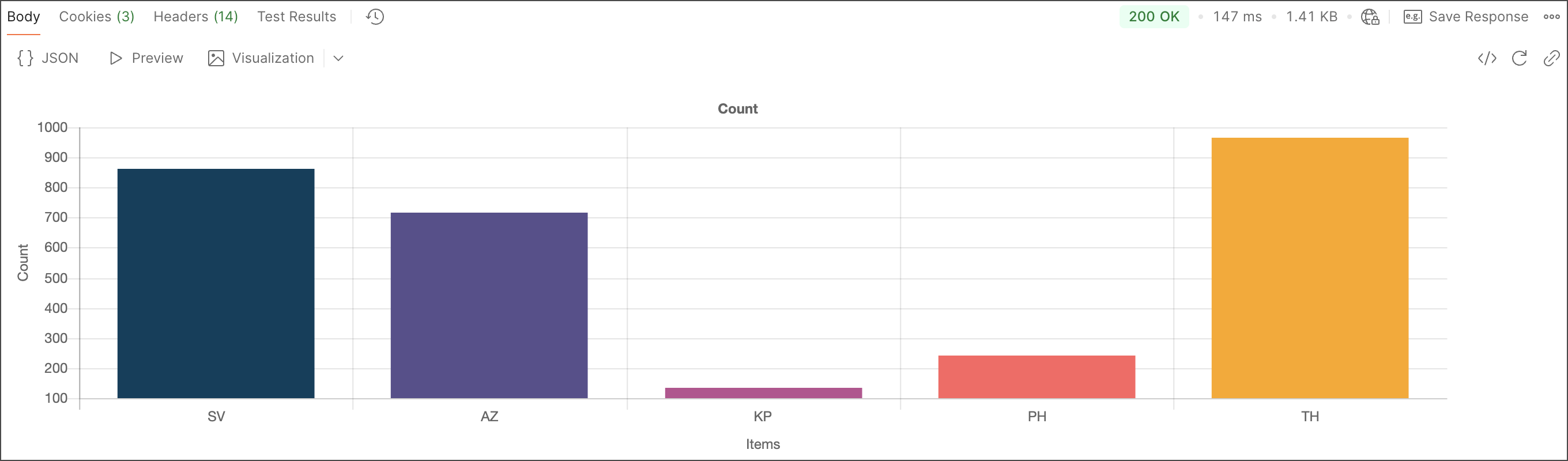
The Visualizer enables you to present your response data in ways that help to make sense of it. You can use this to model and highlight the information that's relevant to your project, instead of having to read through raw response data. When you [share a Postman Collection](/docs/collaborating-in-postman/sharing/), other people on your team can also understand your visualizations within the context of each request.
## Visualize response data
To visualize your response data, add code to the **Pre-request** or **Post-response** [script](/docs/tests-and-scripts/write-scripts/intro-to-scripts/) for the request. The `pm.visualizer.set()` method applies your Visualizer code to the data and presents it in the **Visualization** tab when the request runs.
### Add Visualizer code
The `pm.visualizer.set()` method accepts a [Handlebars](https://handlebarsjs.com/) template string as its first parameter. The second parameter is the data you want to use the template to display. Read on to learn how you can build a Handlebars template and pass data to it.
To see an example of the Visualizer in action, click **Run in Postman** and fork the collection in Postman:
In the first request, the example endpoint responds with a list of names and email addresses with the following JSON response body structure:
```js
[
{
"name": "Alice",
"email": "alice@example.com"
},
{
"name": "Jack",
"email": "jack@example.com"
},
// ... and so on
]
```
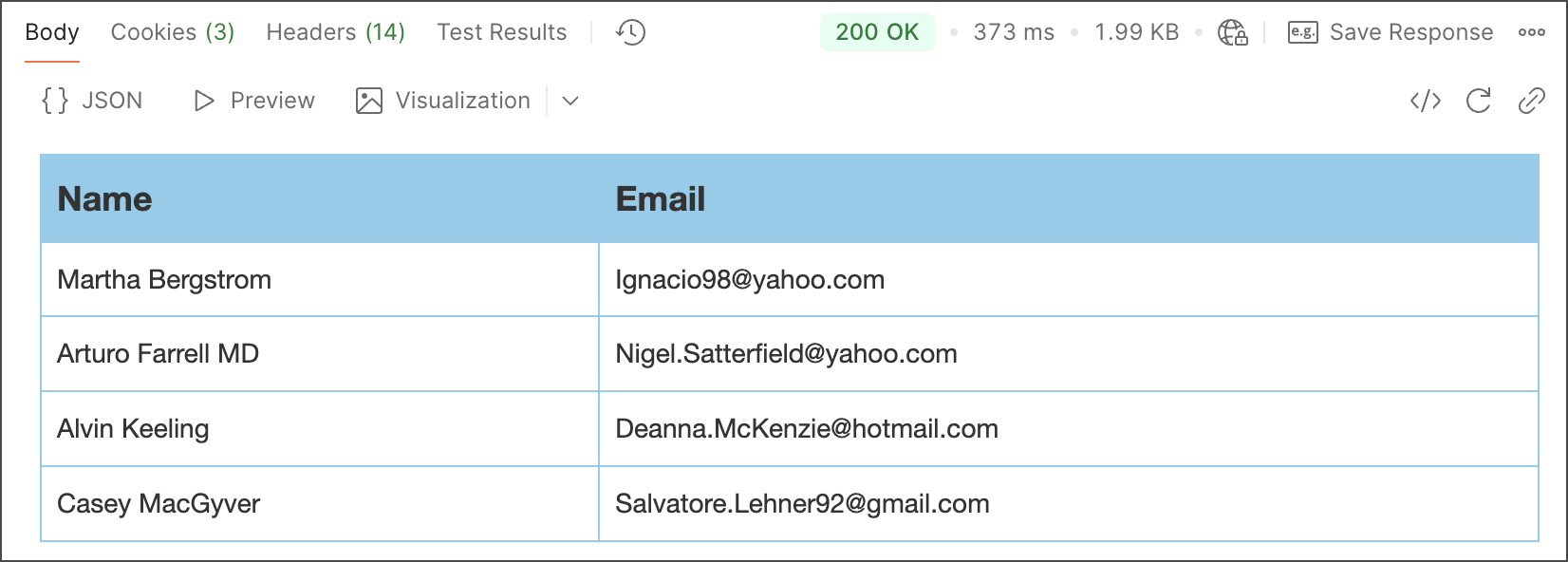
The Visualizer code creates a Handlebars template to render a table displaying the names and email addresses by looping over an array. Handlebars can do this with the `{{#each}}` tag. The following runs as a **Post-response** script in the request:
```js
var template = `
Name
Email
{{#each response}}
{{name}}
{{email}}
{{/each}}
`;
```
The variable names inside the double curly braces in the template are substituted with the data passed to the `pm.visualizer.set()` method. To apply the template, the following code completes the **Post-response** script:
```js
// Set visualizer
pm.visualizer.set(template, {
// Pass the response body parsed as JSON as `data`
response: pm.response.json()
});
```
The `template` variable is the template string created earlier. The second argument passed is an object defined as the `response` property. This is the variable that the template expects in the `{{#each response}}` loop. The value assigned to the `response` property is the response JSON data from the request parsed as an object.
### View visualizations
Click **Send** to run the request in Postman, then click the **Visualization** tab. Postman renders the table as HTML, as it would be in a web browser.
### Add styling and interaction to visualizations
You can load an external stylesheet using `` tags in your HTML template code, using the same technique as adding a stylesheet to a web page. You can also add stylesheets as `
 **Visualization** tab for the response body. If you don't create a Visualizer script, use Postbot to generate a visualization.

The Visualizer enables you to present your response data in ways that help to make sense of it. You can use this to model and highlight the information that's relevant to your project, instead of having to read through raw response data. When you [share a Postman Collection](/docs/collaborating-in-postman/sharing/), other people on your team can also understand your visualizations within the context of each request.
## Visualize response data
To visualize your response data, add code to the **Pre-request** or **Post-response** [script](/docs/tests-and-scripts/write-scripts/intro-to-scripts/) for the request. The `pm.visualizer.set()` method applies your Visualizer code to the data and presents it in the
**Visualization** tab for the response body. If you don't create a Visualizer script, use Postbot to generate a visualization.

The Visualizer enables you to present your response data in ways that help to make sense of it. You can use this to model and highlight the information that's relevant to your project, instead of having to read through raw response data. When you [share a Postman Collection](/docs/collaborating-in-postman/sharing/), other people on your team can also understand your visualizations within the context of each request.
## Visualize response data
To visualize your response data, add code to the **Pre-request** or **Post-response** [script](/docs/tests-and-scripts/write-scripts/intro-to-scripts/) for the request. The `pm.visualizer.set()` method applies your Visualizer code to the data and presents it in the  ](https://app.getpostman.com/run-collection/7865888-07101503-1e33-4f29-b845-d94e726751c8?action=collection%2Ffork\&source=rip_markdown\&collection-url=entityId%3D7865888-07101503-1e33-4f29-b845-d94e726751c8%26entityType%3Dcollection%26workspaceId%3D34f3a42c-18a7-4ad6-83fb-2c05767d63a7)