# Make HTTP calls using the SOAP protocol
Postman can make HTTP calls using Simple Object Access Protocol (SOAP), a platform-independent messaging protocol specification. In this example, the SOAP endpoint validates an ISBN book number.
For more SOAP request examples, see Postman's [Public SOAP APIs](https://www.postman.com/cs-demo/public-soap-apis/overview) collection.
## Enter your SOAP endpoint
1. In Postman, select **New > HTTP** to create a new HTTP request.
 2. Enter your SOAP endpoint URL in the address field. For this example, use the `http://webservices.daehosting.com/services/isbnservice.wso` endpoint URL.
3. Select **POST** from the request method dropdown list.
## Add body data
1. In the **Body** tab, select **raw** and choose **XML** from the dropdown list.
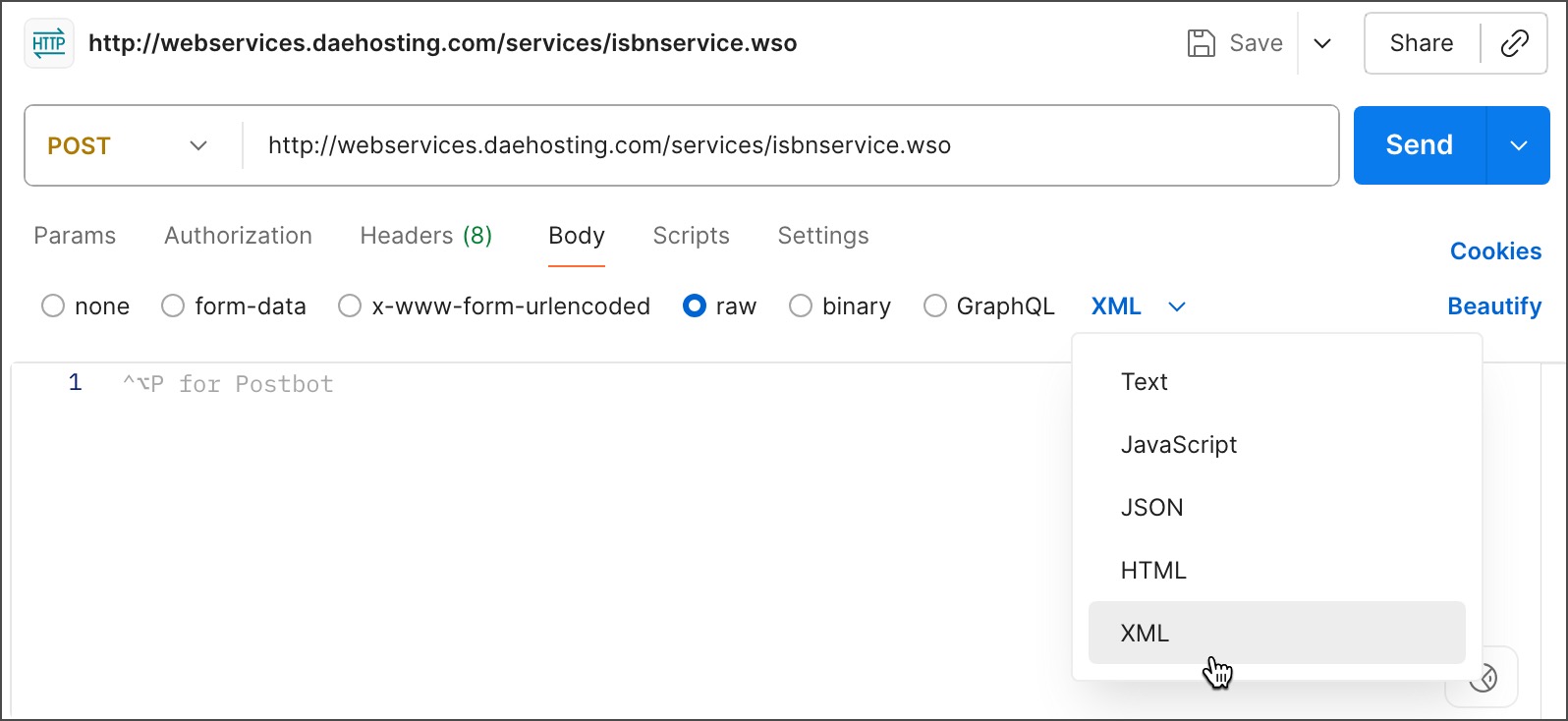
2. Enter your XML in the text entry area. To validate the book number, enter the following XML:
```xml
0-19-852663-6
```
Your request body must include the SOAP `Envelope`, `Header`, and `Body` tags as required by the endpoint, and any namespaces. The data must include the name of the operation and any values you need to post to the service.
## Set your request headers
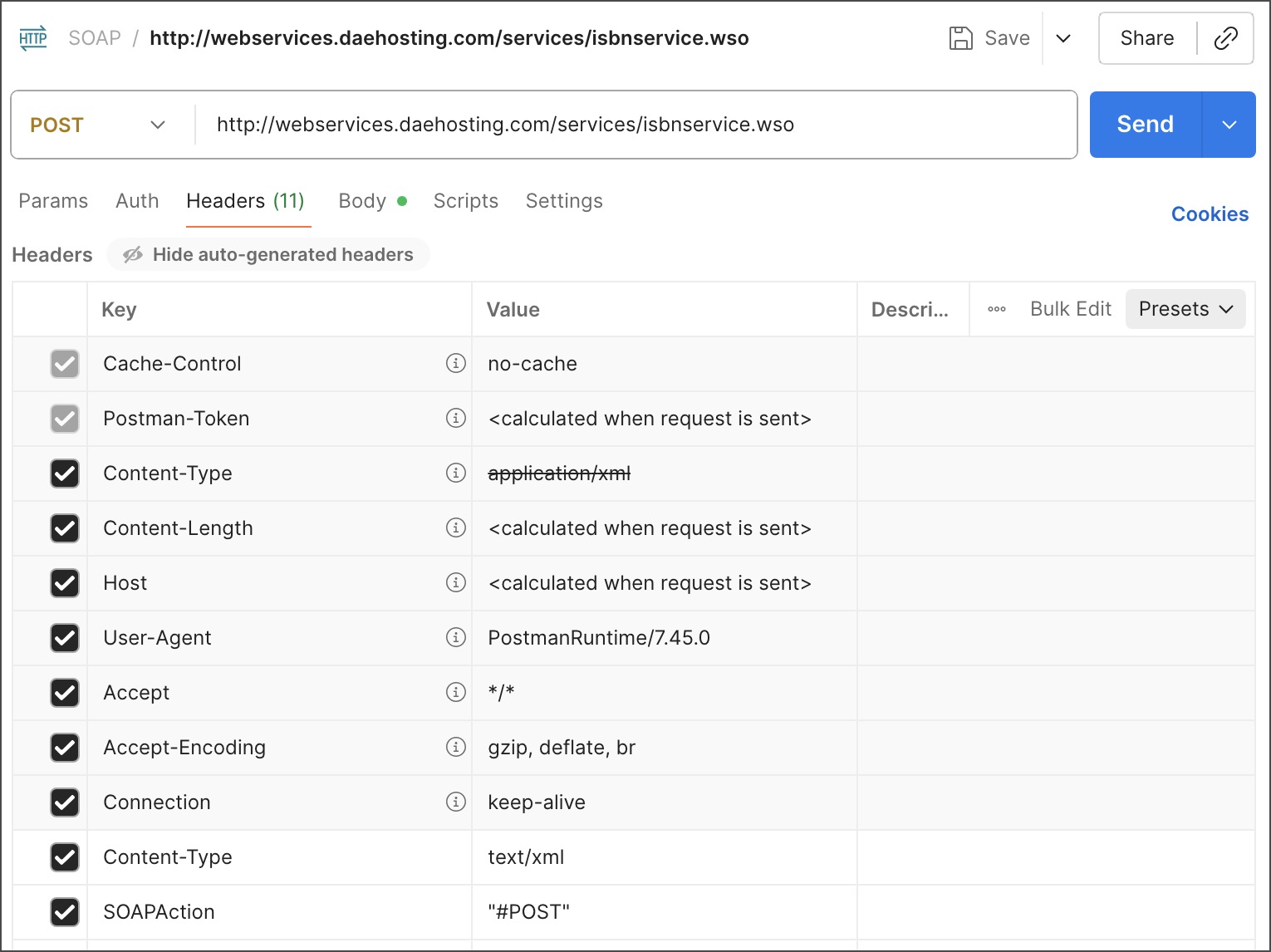
When you select an XML body type, Postman automatically adds a content type header of `application/xml`. But depending on your service provider, you may need `text/xml` for some SOAP requests. Check with your SOAP service to decide which header is appropriate. If you need the `text/xml` header, override the default Postman setting.
To set request headers, do the following:
1. Click **Headers** in the request. If the auto-generated headers are hidden, click **hidden** to display them.
2. Clear the `Content-Type` header checkbox.
3. Add a new `Content-Type` and `text/xml` key-value pair.
4. Add the `SOAPAction` and `"#MethodName"` key-value pair (for example, `"#POST"`).
## Send your request
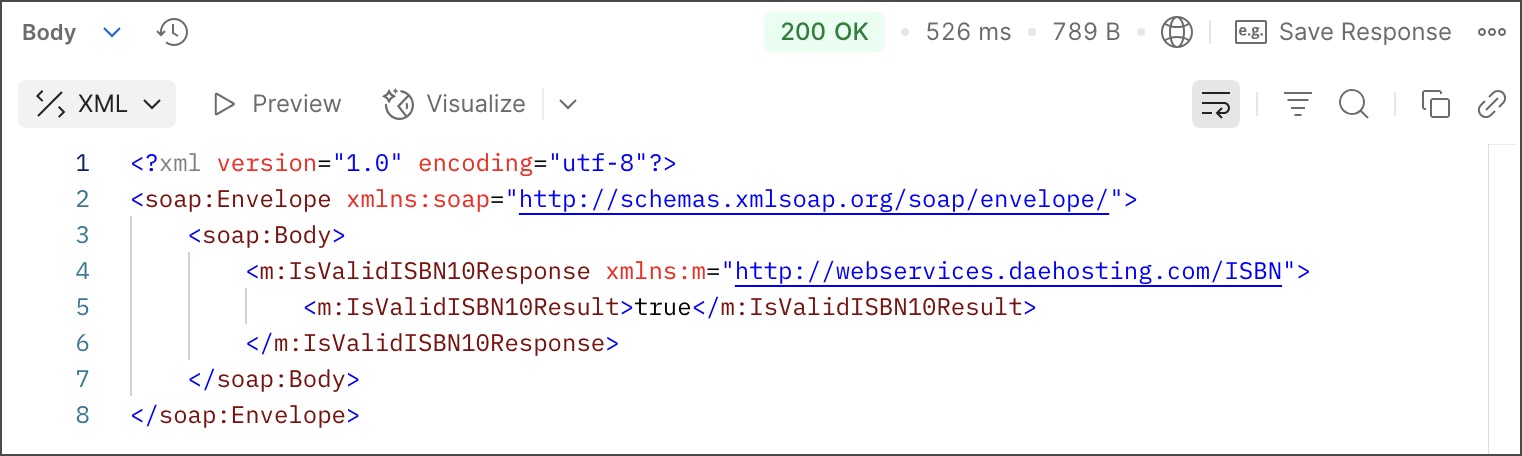
Click **Send** to make your call to the SOAP service. On success, Postman displays the response in the lower tab.
2. Enter your SOAP endpoint URL in the address field. For this example, use the `http://webservices.daehosting.com/services/isbnservice.wso` endpoint URL.
3. Select **POST** from the request method dropdown list.
## Add body data
1. In the **Body** tab, select **raw** and choose **XML** from the dropdown list.

2. Enter your XML in the text entry area. To validate the book number, enter the following XML:
```xml
0-19-852663-6
```
Your request body must include the SOAP `Envelope`, `Header`, and `Body` tags as required by the endpoint, and any namespaces. The data must include the name of the operation and any values you need to post to the service.
## Set your request headers
When you select an XML body type, Postman automatically adds a content type header of `application/xml`. But depending on your service provider, you may need `text/xml` for some SOAP requests. Check with your SOAP service to decide which header is appropriate. If you need the `text/xml` header, override the default Postman setting.
To set request headers, do the following:
1. Click **Headers** in the request. If the auto-generated headers are hidden, click **hidden** to display them.
2. Clear the `Content-Type` header checkbox.
3. Add a new `Content-Type` and `text/xml` key-value pair.
4. Add the `SOAPAction` and `"#MethodName"` key-value pair (for example, `"#POST"`).

## Send your request
Click **Send** to make your call to the SOAP service. On success, Postman displays the response in the lower tab.
