> For clean Markdown content of this page, append .md to this URL. For the complete documentation index, see https://learning.postman.com/llms.txt.
# Set up Native Git
You can start using local mode right away by connecting to a local project folder. When you're ready to sync your changes with Postman Cloud, you can link the folder to Git and enable push and pull.
Follow these recommendations to set up your workspace to ensure access to both the collection and the underlying implementation code. The Postman Agent's capabilities, such as AI-assisted debugging and test generation, are more efficient with this setup.
## Repos with a single service
For repos with a single service, connect your Postman workspace to a root folder that contains both your API collections and your application code.
### Example: Workspace setup for a single-service repo
...
## Monorepos with multiple services
For monorepos containing multiple services, connect each individual service folder to a separate Postman workspace rather than connecting the entire repo to a single workspace.
### Example: Workspace setup for a mono-repo with multiple services
...
## Integrate your service with Postman's Native Git
To integrate your service with Postman's Native Git, ensure you have write access to the collection and its associated environments. Then you can do the following:
1. Select the service you want to integrate.
2. Identify the blueprint collection for this service and verify write access.
3. Ensure the corresponding environments are pinned.
4. Verify the secrets aren't shared with the cloud.
5. Create a new workspace for this service and add a workspace tag.
6. Move the blueprint collection and its pinned environments to the new workspace.
7. Check out a new branch from `develop`.
8. [Connect](#connect-your-git-project-to-your-workspace) the new project workspace to the repo. Validate this step by ensuring `.postman/resources.yaml` appears in your root directory. This file maps your local files to specific Postman Cloud entities.
9. Pull the collection and environments into your file system. This step brings your collection's available cloud elements to your local Git repo.
## Connect your Git project to your workspace
To connect your Git project to your workspace, do the following:
1. Open your project workspace.
2. From the Postman sidebar, click  **Files**.
3. Click **Open folder**.
4. Open the folder you want to connect to your workspace.
5. Click **Open**. Postman connects your local folder to your workspace. Now you have the option to see the folder in **Local View** or access **Cloud View** in the bottom left.
6. To connect Git to your local folder, switch to **Local View** and click **Set up Git**. You'll get the commands to run in the terminal to initialize Git in the folder and add a remote origin for cloud sync.
You can only connect one folder in your filesystem to a workspace at a time. To open your files in a different workspace, you must disconnect from the workspace your files are connected to. Select **File viewer options > Disconnect**.
**Files**.
3. Click **Open folder**.
4. Open the folder you want to connect to your workspace.
5. Click **Open**. Postman connects your local folder to your workspace. Now you have the option to see the folder in **Local View** or access **Cloud View** in the bottom left.
6. To connect Git to your local folder, switch to **Local View** and click **Set up Git**. You'll get the commands to run in the terminal to initialize Git in the folder and add a remote origin for cloud sync.
You can only connect one folder in your filesystem to a workspace at a time. To open your files in a different workspace, you must disconnect from the workspace your files are connected to. Select **File viewer options > Disconnect**.
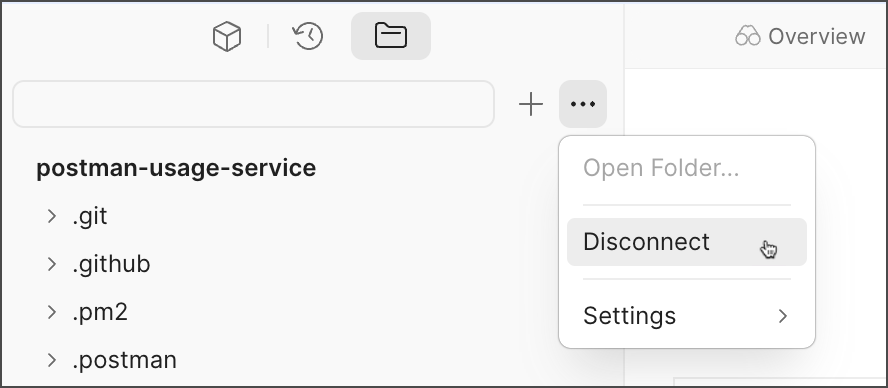 When you connect to a workspace, Postman automatically adds two directories: `.postman` (hidden) and `postman`. The visible `postman` directory includes subfolders for your collections and environments.
You can sync and push local elements to workspaces in the cloud with [the Postman CLI](/docs/postman-cli/postman-cli-overview/). To learn more, see [Sync local elements with workspaces](/docs/postman-cli/postman-cli-workspace/).
## View your project workspaces in Postman
Your Git-connected project workspaces appear in the workspaces dashboard.
To view all project workspaces in the workspaces dashboard, do the following:
1. Click **Workspaces** in the Postman header, and then click **View all workspaces**.
2. Select the **Project Workspaces** tab.
When you connect to a workspace, Postman automatically adds two directories: `.postman` (hidden) and `postman`. The visible `postman` directory includes subfolders for your collections and environments.
You can sync and push local elements to workspaces in the cloud with [the Postman CLI](/docs/postman-cli/postman-cli-overview/). To learn more, see [Sync local elements with workspaces](/docs/postman-cli/postman-cli-workspace/).
## View your project workspaces in Postman
Your Git-connected project workspaces appear in the workspaces dashboard.
To view all project workspaces in the workspaces dashboard, do the following:
1. Click **Workspaces** in the Postman header, and then click **View all workspaces**.
2. Select the **Project Workspaces** tab.