> For clean Markdown content of this page, append .md to this URL. For the complete documentation index, see https://learning.postman.com/llms.txt.
# Quickstart: Expose an LLM via Fabric Gateway Integrations
Fabric Gateway lets your application call a single URL, while Fabric Gateway takes care of the provider connection, the model allowlist, and the provider credential behind the scenes.
The following diagram shows how a request flows through the setup you'll build in this guide.
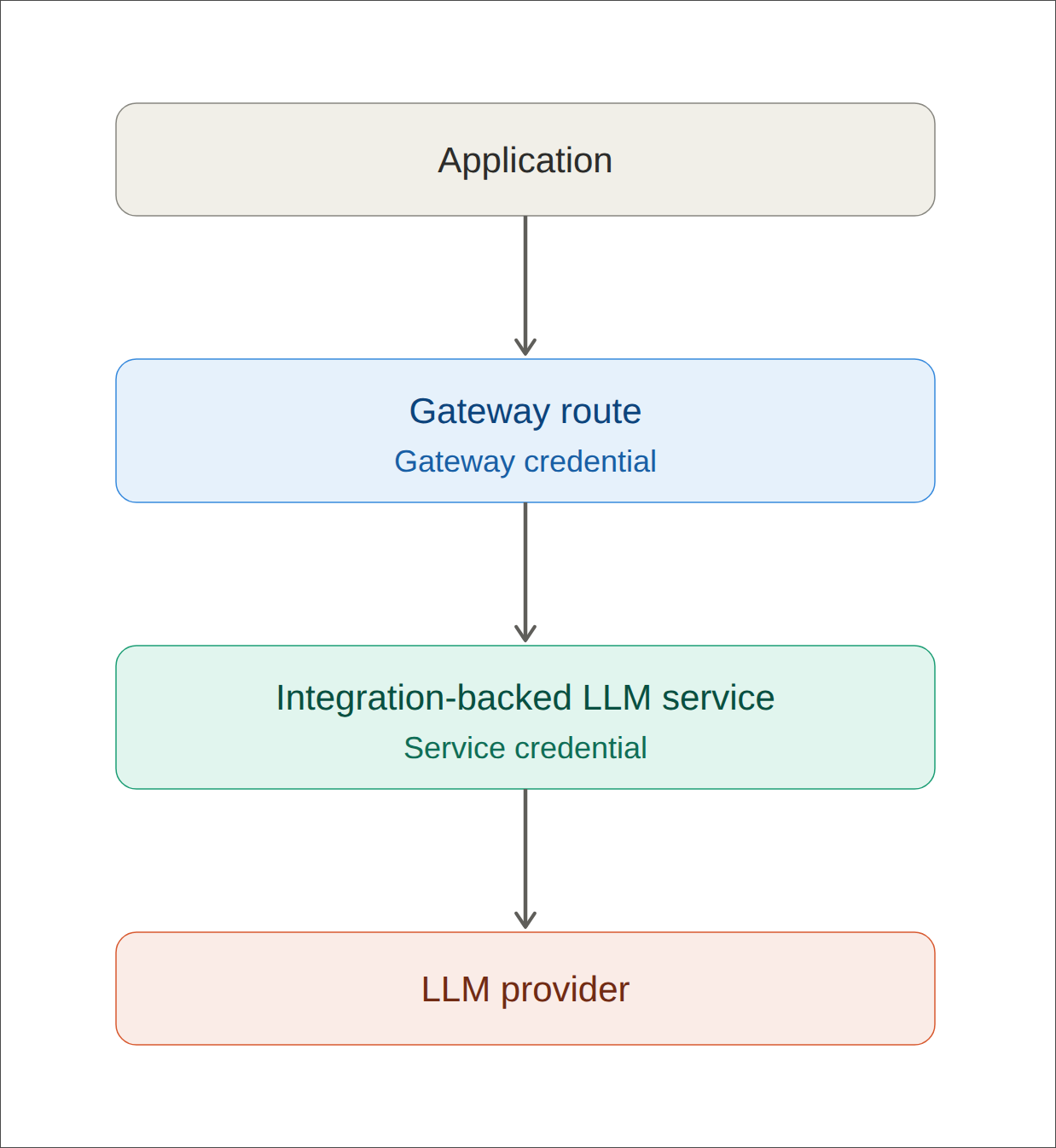 Along the way, you'll create two separate credentials. Set them up correctly, since mixing them up is the most common setup mistake:
| Credential | Who sends it | Where it goes |
| ---------------------- | ---------------- | ---------------------------------------------------------------------------------- |
| **Gateway credential** | Your application | To Fabric Gateway |
| **Service credential** | Fabric Gateway | To the LLM provider (stored as a vault reference that your application never sees) |
Always start LLM setup from **Integrations**, not from **Catalog**. The integration is what supplies the provider's API compatibility, endpoint metadata, credential requirements, and available models. Creating an LLM service manually in Catalog skips all of that.
## Prerequisites
Before you begin, make sure you have the following:
* Access to a non-production tenant and an approved provider integration.
* A vault with the provider credential already stored in it. You'll only need the reference to it, not the secret value itself.
* A route base in mind, for example `/team-ai`, and a descriptive service name, such as `team-openai`.
* An approved secret store ready to receive the gateway key. The gateway shows this key once, so have somewhere to put it before you start.
## Set up the LLM
The setup wizard walks you through the following steps: **Create service**, **Set up credentials**, **Model filter**, and **Route & gateway**.
### Choose the provider integration
1. Go to [**Integrations**](/fabric-gateway/product/gateway/integrations/).
2. Find your approved LLM provider and click **Use integration**.
3. Check the tile for the provider's API compatibility and the endpoints it offers. These determine what your application can call through the gateway later on.
### Create the LLM service
1. On the **Create service** step, enter a clear, descriptive name, such as `team-openai`.
2. Review the target URL the integration proposes, and confirm it's the endpoint approved for your environment.
3. Click **Continue**.
This creates an integration-backed service. Because it's tied to the integration, the gateway automatically applies the correct request and response handling for that provider.
### Configure the provider credential
On the **Set up credentials** step, do the following:
1. Choose the **Owner** and **Vault** for this credential.
2. Enter a **Credential ID**. Don't leave this field blank. An empty Credential ID causes the following error:
```text
Upstream 400: invalid configuration: id, tenant_id, credential_type, owner, and auth_scheme are required
```
3. Enter your vault reference in the **API key (vault path)** field.
* If your secret is plaintext, clear the **Property** field. The default value, `api_key`, only applies to JSON-valued secrets.
* If your provider uses role-based auth, select the documented auth mode instead of entering a static key.
4. Click **Continue**.
This service credential stays between Fabric Gateway and the provider. Your application never receives it.
### Select the models to expose
1. On the **Model filter** step, select only the models this route should serve.
2. Click **Continue** to save the allowlist.
Start with the smallest set of models your application actually needs. Any request for a model outside this list is treated as unavailable.
### Create the route and gateway credential
On the **Route & gateway credential** step, do the following:
1. Click **Create new route** (this is the option to use for a first setup).
2. Name the route, choose a base path such as `/team-ai`, and select which provider endpoints to expose. For example, selecting `/v1/chat/completions` produces the route `/team-ai/v1/chat/completions`.
3. Leave **Create a gateway credential** turned on.
4. Copy the one-time gateway key to your approved secret store as soon as it displays. You won't be able to view it again.
5. Click **Finish setup**.
The **Access** field on the route form isn't runtime protection by itself. The route's gateway-key authentication is what actually protects it. Route creation, key creation, and key-auth attachment happen as separate operations, so if the wizard reports partial success, resolve that before sharing the route URL with anyone.
The gateway credential you just copied is the only key your application should send. The current wizard sends it in an `Authorization: Bearer ` header. Use the exact header shown in the UI if yours differs.
For your first rollout, keep it simple: one integration-backed service on one new route. Hold off attaching a second service or reusing an existing route for fallback until you've reviewed API compatibility and routing design for that case.
## Call the route
For an OpenAI-compatible integration exposing chat completions, send a request like this:
```bash
curl --fail-with-body \
"https:///team-ai/v1/chat/completions" \
-H "Authorization: Bearer ${FABRIC_GATEWAY_KEY}" \
-H "Content-Type: application/json" \
--data '{
"model": "",
"messages": [{"role": "user", "content": "Reply with the word hello."}]
}'
```
If your integration uses a different API compatibility type, use the path and request shape that integration supplies instead of this example.
## Call the route from your own service
The Agent Mode Service pattern shows how to route Anthropic and Bedrock requests through Fabric Gateway: keep the gateway URL and gateway credential in your service configuration, build the provider client from that configuration, then make ordinary Vercel AI SDK calls. Your service never receives the upstream provider credential.
For an OpenAI-compatible integration, do the following:
```javascript
import { createOpenAI } from '@ai-sdk/openai';
import { streamText } from 'ai';
const fabric = createOpenAI({
apiKey: process.env.FABRIC_GATEWAY_KEY,
baseURL: `${process.env.FABRIC_GATEWAY_URL}/team-ai/v1`
});
const result = streamText({
model: fabric(''),
messages
});
```
Use `generateText` instead of `streamText` for a non-streaming call. Keep your provider selection and Fabric base URL in one configuration builder, so the rest of your service only ever interacts with an AI SDK provider and model — nothing gateway-specific leaks further in.
For a native Bedrock/Anthropic path, use the provider-specific `createBedrockAnthropic` client instead, and only pair it with a matching Bedrock/Anthropic integration. Don't point an OpenAI-compatible client at a native Bedrock endpoint.
## Verify your setup
Before you consider the route ready, send the same request twice:
1. Without the gateway credential — This attempt should return `401`.
2. With the intended gateway credential — This attempt should succeed.
A route can technically be reachable before its authentication is fully configured, so don't skip either check.
## Troubleshooting
| If you see this... | Try this |
| -------------------------------------------------------------------------- | ---------------------------------------------------------------------------------------------------------------------------------- |
| The service can't be used on the route. | Create the service through **Integrations**, not by adding it manually in Catalog. |
| `400: id, tenant_id, credential_type, owner, and auth_scheme are required` | Set an explicit Credential ID, and confirm Owner, Vault, and auth scheme are all selected. |
| The model is rejected. | Add the model in **Model filter**, then wait for the configuration to sync. |
| The provider returns `401` or `403`. | Check the service credential's vault reference and auth mode. If the secret is plaintext, make sure the Property field is cleared. |
| The gateway doesn't return `401` without a key. | Repair the route's gateway-key authentication and wait for sync before retrying. |
| You need more than one provider or service. | Keep this route single-service, and design fallback or routing behavior as a separate setup. |
Along the way, you'll create two separate credentials. Set them up correctly, since mixing them up is the most common setup mistake:
| Credential | Who sends it | Where it goes |
| ---------------------- | ---------------- | ---------------------------------------------------------------------------------- |
| **Gateway credential** | Your application | To Fabric Gateway |
| **Service credential** | Fabric Gateway | To the LLM provider (stored as a vault reference that your application never sees) |
Always start LLM setup from **Integrations**, not from **Catalog**. The integration is what supplies the provider's API compatibility, endpoint metadata, credential requirements, and available models. Creating an LLM service manually in Catalog skips all of that.
## Prerequisites
Before you begin, make sure you have the following:
* Access to a non-production tenant and an approved provider integration.
* A vault with the provider credential already stored in it. You'll only need the reference to it, not the secret value itself.
* A route base in mind, for example `/team-ai`, and a descriptive service name, such as `team-openai`.
* An approved secret store ready to receive the gateway key. The gateway shows this key once, so have somewhere to put it before you start.
## Set up the LLM
The setup wizard walks you through the following steps: **Create service**, **Set up credentials**, **Model filter**, and **Route & gateway**.
### Choose the provider integration
1. Go to [**Integrations**](/fabric-gateway/product/gateway/integrations/).
2. Find your approved LLM provider and click **Use integration**.
3. Check the tile for the provider's API compatibility and the endpoints it offers. These determine what your application can call through the gateway later on.
### Create the LLM service
1. On the **Create service** step, enter a clear, descriptive name, such as `team-openai`.
2. Review the target URL the integration proposes, and confirm it's the endpoint approved for your environment.
3. Click **Continue**.
This creates an integration-backed service. Because it's tied to the integration, the gateway automatically applies the correct request and response handling for that provider.
### Configure the provider credential
On the **Set up credentials** step, do the following:
1. Choose the **Owner** and **Vault** for this credential.
2. Enter a **Credential ID**. Don't leave this field blank. An empty Credential ID causes the following error:
```text
Upstream 400: invalid configuration: id, tenant_id, credential_type, owner, and auth_scheme are required
```
3. Enter your vault reference in the **API key (vault path)** field.
* If your secret is plaintext, clear the **Property** field. The default value, `api_key`, only applies to JSON-valued secrets.
* If your provider uses role-based auth, select the documented auth mode instead of entering a static key.
4. Click **Continue**.
This service credential stays between Fabric Gateway and the provider. Your application never receives it.
### Select the models to expose
1. On the **Model filter** step, select only the models this route should serve.
2. Click **Continue** to save the allowlist.
Start with the smallest set of models your application actually needs. Any request for a model outside this list is treated as unavailable.
### Create the route and gateway credential
On the **Route & gateway credential** step, do the following:
1. Click **Create new route** (this is the option to use for a first setup).
2. Name the route, choose a base path such as `/team-ai`, and select which provider endpoints to expose. For example, selecting `/v1/chat/completions` produces the route `/team-ai/v1/chat/completions`.
3. Leave **Create a gateway credential** turned on.
4. Copy the one-time gateway key to your approved secret store as soon as it displays. You won't be able to view it again.
5. Click **Finish setup**.
The **Access** field on the route form isn't runtime protection by itself. The route's gateway-key authentication is what actually protects it. Route creation, key creation, and key-auth attachment happen as separate operations, so if the wizard reports partial success, resolve that before sharing the route URL with anyone.
The gateway credential you just copied is the only key your application should send. The current wizard sends it in an `Authorization: Bearer ` header. Use the exact header shown in the UI if yours differs.
For your first rollout, keep it simple: one integration-backed service on one new route. Hold off attaching a second service or reusing an existing route for fallback until you've reviewed API compatibility and routing design for that case.
## Call the route
For an OpenAI-compatible integration exposing chat completions, send a request like this:
```bash
curl --fail-with-body \
"https:///team-ai/v1/chat/completions" \
-H "Authorization: Bearer ${FABRIC_GATEWAY_KEY}" \
-H "Content-Type: application/json" \
--data '{
"model": "",
"messages": [{"role": "user", "content": "Reply with the word hello."}]
}'
```
If your integration uses a different API compatibility type, use the path and request shape that integration supplies instead of this example.
## Call the route from your own service
The Agent Mode Service pattern shows how to route Anthropic and Bedrock requests through Fabric Gateway: keep the gateway URL and gateway credential in your service configuration, build the provider client from that configuration, then make ordinary Vercel AI SDK calls. Your service never receives the upstream provider credential.
For an OpenAI-compatible integration, do the following:
```javascript
import { createOpenAI } from '@ai-sdk/openai';
import { streamText } from 'ai';
const fabric = createOpenAI({
apiKey: process.env.FABRIC_GATEWAY_KEY,
baseURL: `${process.env.FABRIC_GATEWAY_URL}/team-ai/v1`
});
const result = streamText({
model: fabric(''),
messages
});
```
Use `generateText` instead of `streamText` for a non-streaming call. Keep your provider selection and Fabric base URL in one configuration builder, so the rest of your service only ever interacts with an AI SDK provider and model — nothing gateway-specific leaks further in.
For a native Bedrock/Anthropic path, use the provider-specific `createBedrockAnthropic` client instead, and only pair it with a matching Bedrock/Anthropic integration. Don't point an OpenAI-compatible client at a native Bedrock endpoint.
## Verify your setup
Before you consider the route ready, send the same request twice:
1. Without the gateway credential — This attempt should return `401`.
2. With the intended gateway credential — This attempt should succeed.
A route can technically be reachable before its authentication is fully configured, so don't skip either check.
## Troubleshooting
| If you see this... | Try this |
| -------------------------------------------------------------------------- | ---------------------------------------------------------------------------------------------------------------------------------- |
| The service can't be used on the route. | Create the service through **Integrations**, not by adding it manually in Catalog. |
| `400: id, tenant_id, credential_type, owner, and auth_scheme are required` | Set an explicit Credential ID, and confirm Owner, Vault, and auth scheme are all selected. |
| The model is rejected. | Add the model in **Model filter**, then wait for the configuration to sync. |
| The provider returns `401` or `403`. | Check the service credential's vault reference and auth mode. If the secret is plaintext, make sure the Property field is cleared. |
| The gateway doesn't return `401` without a key. | Repair the route's gateway-key authentication and wait for sync before retrying. |
| You need more than one provider or service. | Keep this route single-service, and design fallback or routing behavior as a separate setup. |