> For clean Markdown content of this page, append .md to this URL. For the complete documentation index, see https://learning.postman.com/llms.txt.
# Set up gateway services
Use **Integrations** as the starting point to connect your AI gateway to external providers. **Integrations** surfaces pre-built templates for LLM providers and MCP servers, each with connection details already scaffolded, so you can stand up a new gateway service in a few clicks rather than configuring routes and auth from scratch.
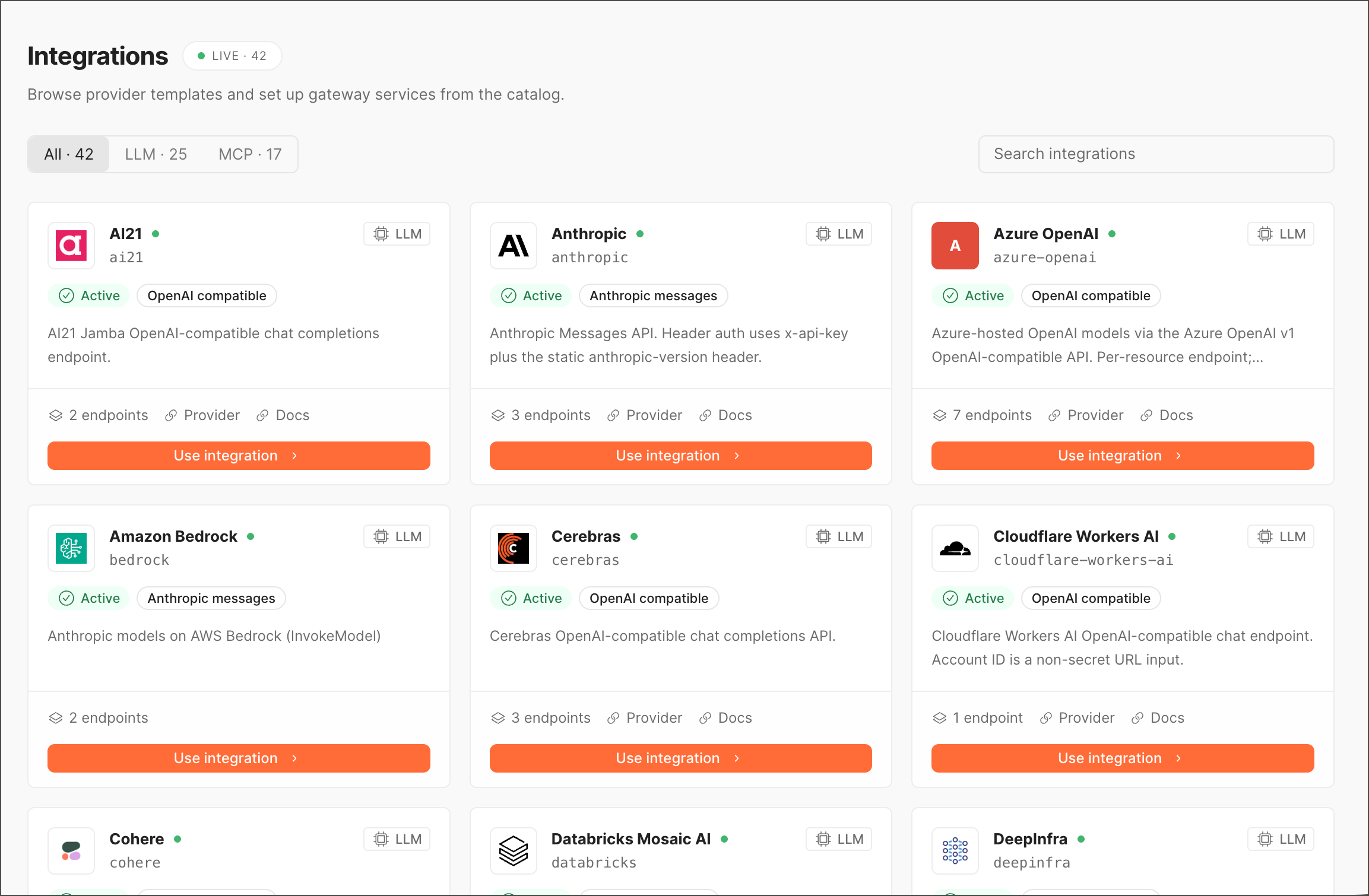
To access **Integrations**, go to **Gateway > Integrations** in the left sidebar. The header badge shows the total number of integration templates currently available.
 ## Filter the catalog
You can filter the catalog by the following categories:
| Tab | Contains |
| ------- | ---------------------------------------------------------------------- |
| **All** | Every integration template, regardless of category |
| **LLM** | Model provider integrations (chat completion APIs) |
| **MCP** | Model Context Protocol server integrations (tools, docs, product data) |
Each tab label includes a live count. Use the **Search integrations** field in the top-right to jump directly to a provider by name.
## Use integration templates
Every template in the catalog contains the following elements:
* **Name and identifier** — The provider's display name (for example, *Anthropic*) and its machine-readable slug (`anthropic`), with a green status dot indicating the template is available for use.
* **Type badge** — `LLM` or `MCP`, shown in the top-right of the card.
* **Status** — `Active` indicates the integration template is currently usable.
* **Capability tags** — Short labels describing the interface or auth style the integration supports, such as `OpenAI compatible`, `Anthropic messages`, `OAuth`, `API key`, `Bearer`, or `Public`.
* **Description** — A one- or two-line summary of what the integration provides and any notable configuration details (for example, header auth requirements, per-resource endpoints).
* **Metadata row** — Number of endpoints or auth methods, plus links to **Provider** (the vendor's own site) and **Docs** (integration-specific documentation).
Click **Use integration** to create a gateway service from the template you select. For more information, see [Set up an integration](#set-up-an-integration).
## LLM integrations
The **LLM** tab lists model provider templates. Each card indicates whether the provider exposes an **OpenAI compatible** interface or an **Anthropic messages**-style interface, which determines how your existing client code can talk to it through the gateway.
## MCP integrations
The **MCP** tab lists Model Context Protocol servers you can connect as tool providers for agent traffic. Each card lists supported auth methods instead of API-compatibility tags, since MCP servers are tool/resource providers rather than model endpoints.
## Set up an integration
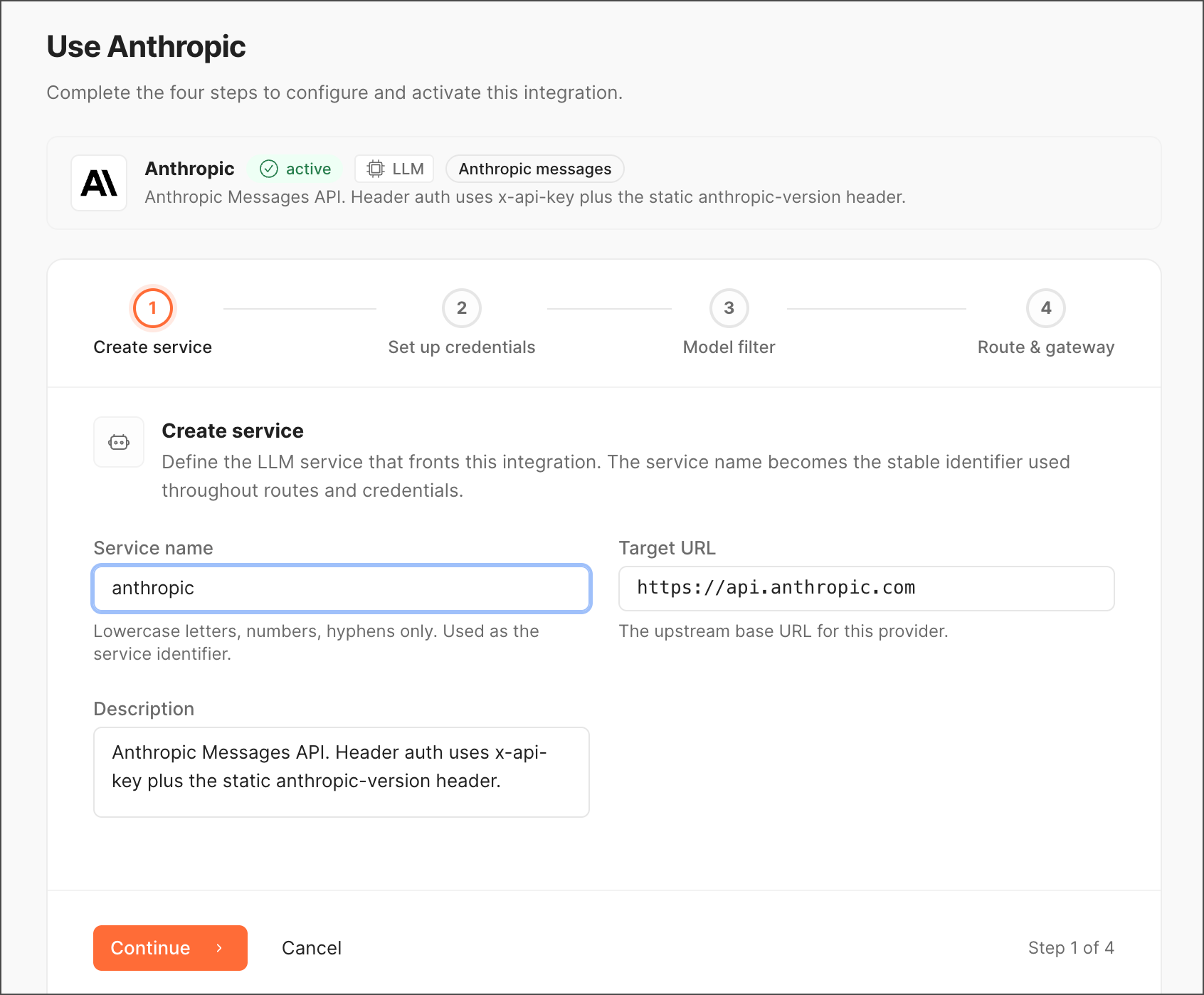
Click **Use integration** on any card to begin creating a gateway service from that template. This typically pre-fills endpoint and auth configuration based on the provider's known schema, so you mainly need to supply credentials and any account-specific values (like an Azure resource name or Cloudflare account ID).
## Filter the catalog
You can filter the catalog by the following categories:
| Tab | Contains |
| ------- | ---------------------------------------------------------------------- |
| **All** | Every integration template, regardless of category |
| **LLM** | Model provider integrations (chat completion APIs) |
| **MCP** | Model Context Protocol server integrations (tools, docs, product data) |
Each tab label includes a live count. Use the **Search integrations** field in the top-right to jump directly to a provider by name.
## Use integration templates
Every template in the catalog contains the following elements:
* **Name and identifier** — The provider's display name (for example, *Anthropic*) and its machine-readable slug (`anthropic`), with a green status dot indicating the template is available for use.
* **Type badge** — `LLM` or `MCP`, shown in the top-right of the card.
* **Status** — `Active` indicates the integration template is currently usable.
* **Capability tags** — Short labels describing the interface or auth style the integration supports, such as `OpenAI compatible`, `Anthropic messages`, `OAuth`, `API key`, `Bearer`, or `Public`.
* **Description** — A one- or two-line summary of what the integration provides and any notable configuration details (for example, header auth requirements, per-resource endpoints).
* **Metadata row** — Number of endpoints or auth methods, plus links to **Provider** (the vendor's own site) and **Docs** (integration-specific documentation).
Click **Use integration** to create a gateway service from the template you select. For more information, see [Set up an integration](#set-up-an-integration).
## LLM integrations
The **LLM** tab lists model provider templates. Each card indicates whether the provider exposes an **OpenAI compatible** interface or an **Anthropic messages**-style interface, which determines how your existing client code can talk to it through the gateway.
## MCP integrations
The **MCP** tab lists Model Context Protocol servers you can connect as tool providers for agent traffic. Each card lists supported auth methods instead of API-compatibility tags, since MCP servers are tool/resource providers rather than model endpoints.
## Set up an integration
Click **Use integration** on any card to begin creating a gateway service from that template. This typically pre-fills endpoint and auth configuration based on the provider's known schema, so you mainly need to supply credentials and any account-specific values (like an Azure resource name or Cloudflare account ID).
 ## Tips
* Check the **auth methods** or **capability tags** before connecting — A provider offering multiple auth options (like Context7's OAuth, API key, and Public modes) lets you pick the one matching your existing credential setup.
* **OpenAI compatible** LLM integrations are usually the fastest to adopt if your application code already targets the OpenAI SDK, since no client-side changes are needed beyond the base URL.
* Use **Docs** on any card to jump straight to provider-specific setup instructions before committing to **Use integration**.
* Once connected, manage credentials for an integration under [**Credentials**](/fabric-gateway/product/gateway/credentials), and monitor its traffic under [**Analytics**](/fabric-gateway/product/observability/analytics) or [**Audit logs**](/fabric-gateway/product/observability/audit-logs).
## Tips
* Check the **auth methods** or **capability tags** before connecting — A provider offering multiple auth options (like Context7's OAuth, API key, and Public modes) lets you pick the one matching your existing credential setup.
* **OpenAI compatible** LLM integrations are usually the fastest to adopt if your application code already targets the OpenAI SDK, since no client-side changes are needed beyond the base URL.
* Use **Docs** on any card to jump straight to provider-specific setup instructions before committing to **Use integration**.
* Once connected, manage credentials for an integration under [**Credentials**](/fabric-gateway/product/gateway/credentials), and monitor its traffic under [**Analytics**](/fabric-gateway/product/observability/analytics) or [**Audit logs**](/fabric-gateway/product/observability/audit-logs).