> For clean Markdown content of this page, append .md to this URL. For the complete documentation index, see https://learning.postman.com/llms.txt.
# Send a request with the HTTP Request block
You can build a flow that uses a request from your workspace or the [Postman API Network](/docs/postman-api-network/overview/). In this tutorial, you'll create a new flow and use the **HTTP Request** block to send a request.
## Create a new flow
You build flows in a workspace. Workspaces let you organize your API projects and collaborate with your team.
To create a new flow, do the following:
1. Choose an existing workspace or [create a new one](/docs/collaborating-in-postman/using-workspaces/create-workspaces/).
2. Click **Flows >  More actions > New flow**.
## Add an HTTP Request block
With an **HTTP Request** block, you can select a request from your collection or create a new request. In this section, you'll select an existing request with the **HTTP Request** block.
To add an **HTTP Request** block and select a request, do the following:
1. In the sidebar, select your new flow.
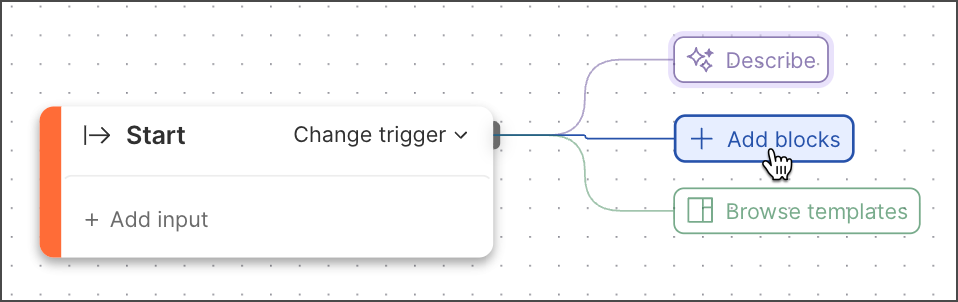
2. Click **Add blocks > HTTP Request**.
More actions > New flow**.
## Add an HTTP Request block
With an **HTTP Request** block, you can select a request from your collection or create a new request. In this section, you'll select an existing request with the **HTTP Request** block.
To add an **HTTP Request** block and select a request, do the following:
1. In the sidebar, select your new flow.
2. Click **Add blocks > HTTP Request**.
 3. Click **Find or create new request**. The collections in your workspace appear in a dropdown list.
4. Select a collection, then select a request.
## Connect a Display block
When you connect two blocks, you connect one block's input to another block's output. Inputs are on the block's left side and outputs are on its right side.
The **Display** block shows incoming data, such as the **HTTP Request** block's outgoing API response.
To connect a **Display** block, do the following:
1. Hover over the **HTTP Request** block's **Success** output port. The pointer changes to a crosshair.
2. Decide where on the canvas you want to place the **Display** block and drag the port to that location.
3. Click
3. Click **Find or create new request**. The collections in your workspace appear in a dropdown list.
4. Select a collection, then select a request.
## Connect a Display block
When you connect two blocks, you connect one block's input to another block's output. Inputs are on the block's left side and outputs are on its right side.
The **Display** block shows incoming data, such as the **HTTP Request** block's outgoing API response.
To connect a **Display** block, do the following:
1. Hover over the **HTTP Request** block's **Success** output port. The pointer changes to a crosshair.
2. Decide where on the canvas you want to place the **Display** block and drag the port to that location.
3. Click  **Display**. If you want to search for the block, enter **Display** in search.
## Run the flow
From the canvas toolbar, click
**Display**. If you want to search for the block, enter **Display** in search.
## Run the flow
From the canvas toolbar, click  **Run**.
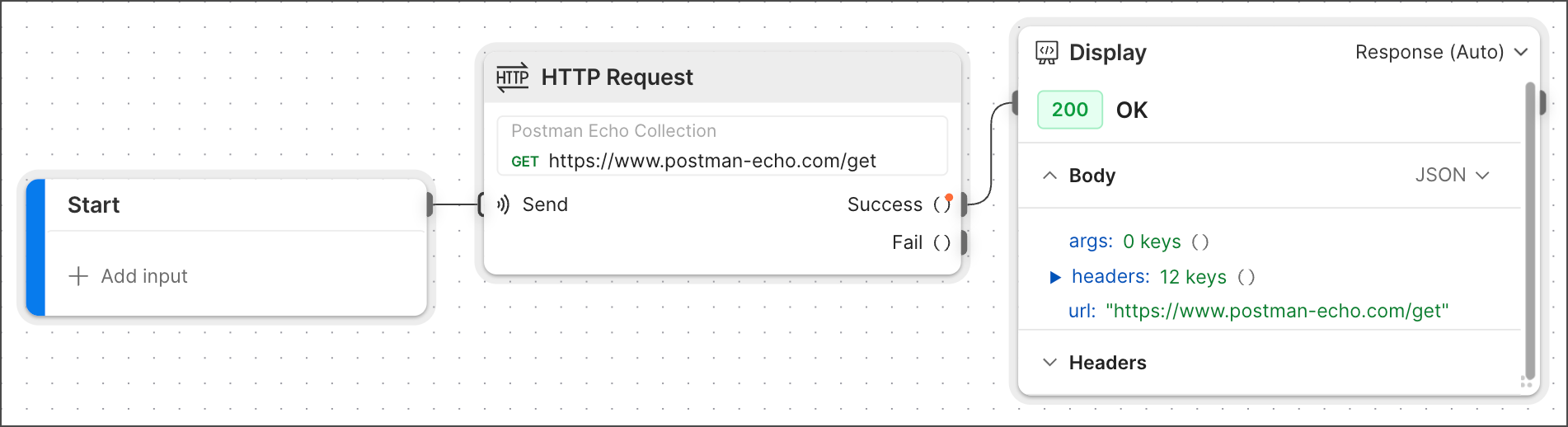
Congratulations! You sent a request and displayed the response in a **Display** block.
**Run**.

Congratulations! You sent a request and displayed the response in a **Display** block.