> For clean Markdown content of this page, append .md to this URL. For the complete documentation index, see https://learning.postman.com/llms.txt.
# Organize flows with color, annotations, and groups
As you build more flows and their designs become more complex, the ability to organize your flows becomes more important. Flows have several features that enable organization on the canvas and folders to assist with organizing flows in the sidebar.
## Colors
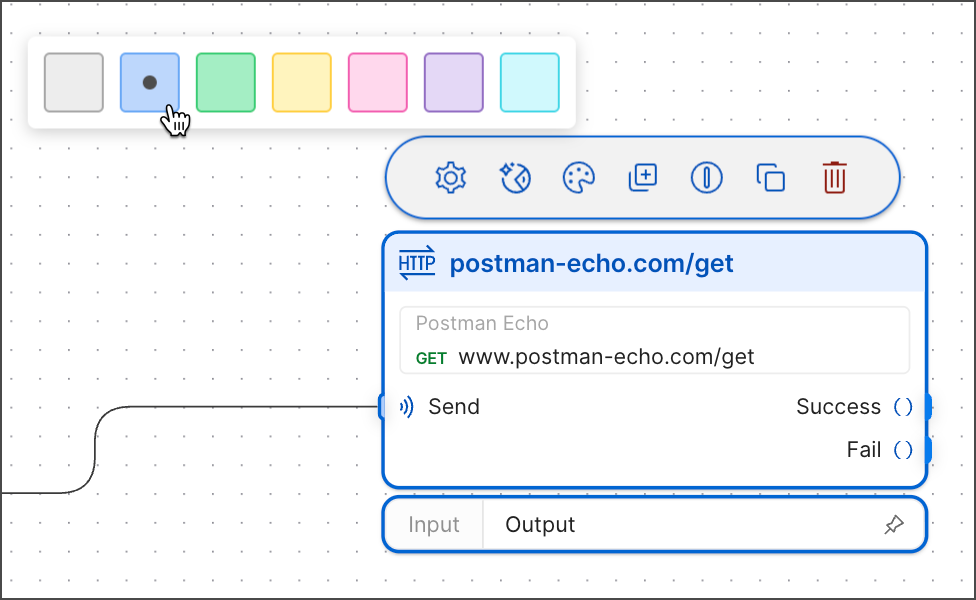
You can configure color highlighting for blocks. This makes individual blocks more distinguishable from other blocks around them. You can add a color by selecting a block, then click  **Change Color** in the menu that appears. This also changes the color of connection lines extended from the block's output ports.
 ## Annotations
When collaborating with other people or putting a flow in a public workspace, it's helpful to add directions directly on the canvas. This helps explain how to use the flow and what certain blocks are doing. Click
## Annotations
When collaborating with other people or putting a flow in a public workspace, it's helpful to add directions directly on the canvas. This helps explain how to use the flow and what certain blocks are doing. Click  **Add Text** in the toolbar to add an annotation. Selecting text in an annotation opens the text formatting menu which has bold, italics, and heading options. If you copy a link, then highlight some text and paste the link, the highlighted text becomes a hyperlink.
 ## Groups
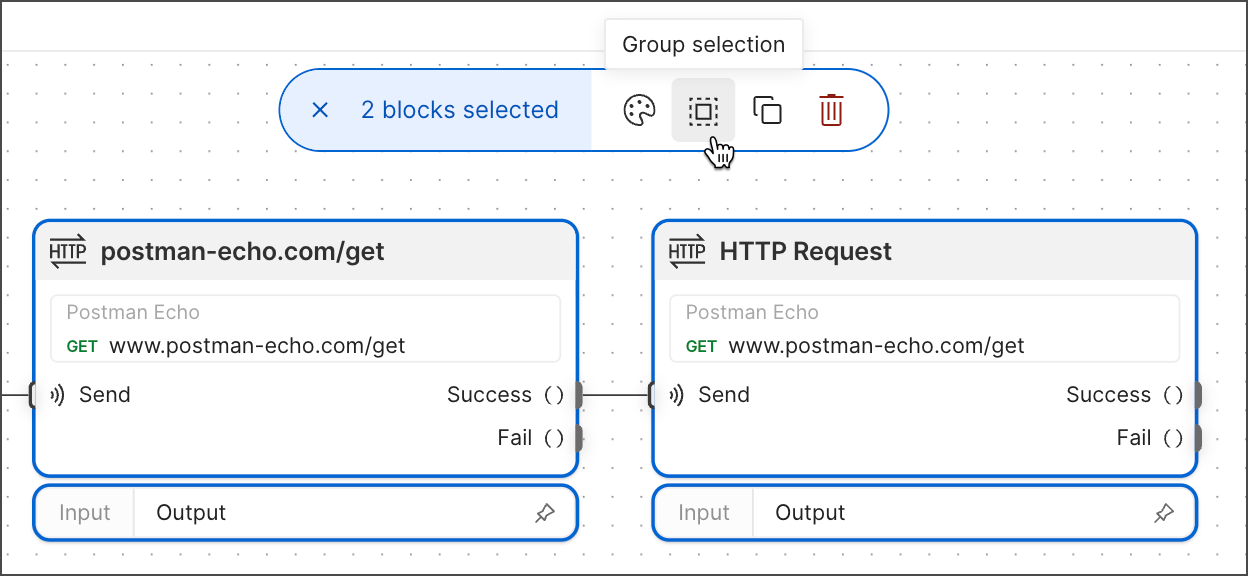
You can group blocks and annotations together. The group can then be named, given a color, resized, and have blocks added or removed from it. This can be useful when several blocks may be involved in performing a task such as sending an email.
To access the grouping menu, hold the **Shift** key and drag the cursor around a set of blocks. You can also select and hold **⌘** or **Ctrl** while selecting the blocks you want to add. Selecting the file icon will create a group.
## Groups
You can group blocks and annotations together. The group can then be named, given a color, resized, and have blocks added or removed from it. This can be useful when several blocks may be involved in performing a task such as sending an email.
To access the grouping menu, hold the **Shift** key and drag the cursor around a set of blocks. You can also select and hold **⌘** or **Ctrl** while selecting the blocks you want to add. Selecting the file icon will create a group.
 ## Folders
In [Cloud View](/flows/get-started/flows-native-git#cloud-view), you can organize flows into folders in the sidebar. Using folders helps streamline navigation and maintain a cleaner workspace. In [Local View](/flows/get-started/flows-native-git#local-view), the folder structure mirrors the local repo's structure.
The following procedures guide you through setting up and managing folders in Cloud View to keep your flows organized.
### Create a folder
In the Flows sidebar, click
## Folders
In [Cloud View](/flows/get-started/flows-native-git#cloud-view), you can organize flows into folders in the sidebar. Using folders helps streamline navigation and maintain a cleaner workspace. In [Local View](/flows/get-started/flows-native-git#local-view), the folder structure mirrors the local repo's structure.
The following procedures guide you through setting up and managing folders in Cloud View to keep your flows organized.
### Create a folder
In the Flows sidebar, click  and select **New folder**. An empty folder named **New Folder** appears in the sidebar.
### Add a flow to a folder
In the Flows sidebar, you can drag and drop an existing flow into a folder.
To create a new flow in an existing folder, hover over the folder and click
and select **New folder**. An empty folder named **New Folder** appears in the sidebar.
### Add a flow to a folder
In the Flows sidebar, you can drag and drop an existing flow into a folder.
To create a new flow in an existing folder, hover over the folder and click  **View more**, then select **Create flow**.
### Rename a folder
In the Flows sidebar, hover over a folder and click **View more**, then select **Rename**. Enter a new name for the folder.
### Add a folder to an existing folder
In the Flows sidebar, hover over a folder and select **View more > Create folder**. You can also drag and drop a folder into another folder.
### Delete a folder
In the Flows sidebar, hover over a folder and select **View more > Delete**. You'll be prompted to confirm the deletion. The deleted folder's contents will move up one level to the containing folder or the sidebar.
**View more**, then select **Create flow**.
### Rename a folder
In the Flows sidebar, hover over a folder and click **View more**, then select **Rename**. Enter a new name for the folder.
### Add a folder to an existing folder
In the Flows sidebar, hover over a folder and select **View more > Create folder**. You can also drag and drop a folder into another folder.
### Delete a folder
In the Flows sidebar, hover over a folder and select **View more > Delete**. You'll be prompted to confirm the deletion. The deleted folder's contents will move up one level to the containing folder or the sidebar.