***
title: OneLogin
approved: 2026-01-15T00:00:00.000Z
topictype: procedure
max-toc-depth: 2
----------------
This feature is available on Postman Enterprise plans and Team plans with the Simple Security add-on. For more information, see the [pricing page](https://www.postman.com/pricing/).
To configure SSO with [OneLogin](https://www.onelogin.com/), you can use the Postman app. You must be an administrator in both OneLogin and Postman to configure SSO for your team.
## Configure SSO in Postman
Before configuring the Postman app in OneLogin, you must [configure SSO in Postman](/docs/administration/sso/admin-sso/). When choosing the **Authentication type**, select **OneLogin**. Enter a name in the **Authentication name** text box, then click **Continue**.
 ## Configure SSO with OneLogin
To configure your Postman app, do the following:
1. Open your OneLogin admin console in a new tab.
2. Go to **Applications** and click **Add App**.
3. Search for "Postman" and select the Postman app from the results.
4. Click **Configuration** on the left.
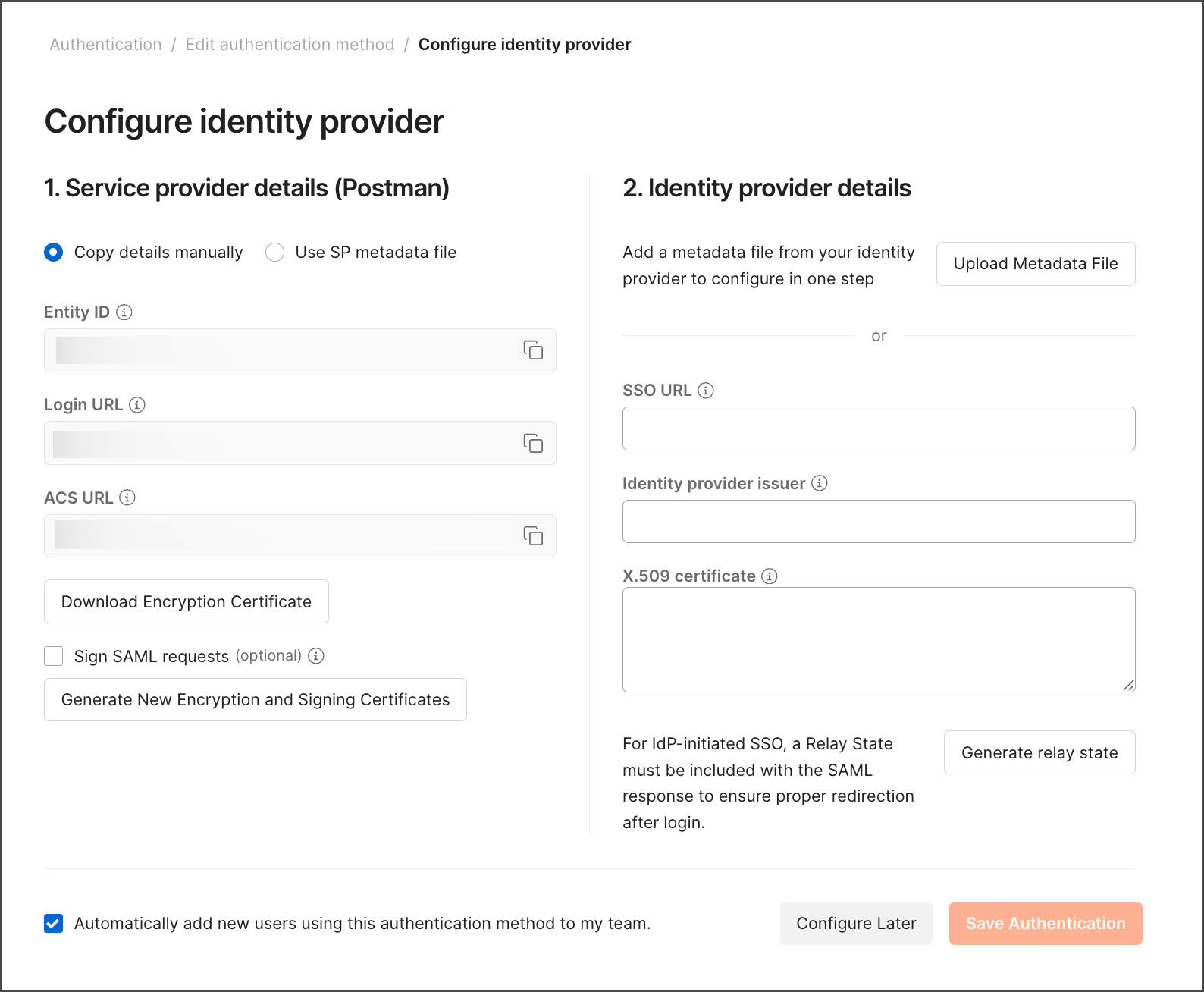
5. Take the **ACS URL** from Postman and add it as your **SAML Consumer URL** in OneLogin.
## Configure SSO with OneLogin
To configure your Postman app, do the following:
1. Open your OneLogin admin console in a new tab.
2. Go to **Applications** and click **Add App**.
3. Search for "Postman" and select the Postman app from the results.
4. Click **Configuration** on the left.
5. Take the **ACS URL** from Postman and add it as your **SAML Consumer URL** in OneLogin.
 6. In Postman, click **Generate relay state** and add the generated value as the SAML RelayState in OneLogin.
 7. Click **SSO** on the left in OneLogin.
8. Copy the **Issuer URL** and add it as the **Identity Provider Issuer** in Postman.
7. Click **SSO** on the left in OneLogin.
8. Copy the **Issuer URL** and add it as the **Identity Provider Issuer** in Postman.
 9. Copy the **SAML 2.0 Endpoint (HTTP)** and add it as **Identity Provider SSO URL** in Postman.
10. Click **View Details** under **X.509 Certificate**. Copy the **X.509 Certificate** and add it under **X.509 Certificate** in Postman.
11. Click **Save Authentication** in Postman to complete the configuration.
If you encounter any issues, confirm you've added and saved the correct configuration values on both Postman and OneLogin. [Contact Postman support](https://www.postman.com/support/) for further help.
## Next steps
After setting up SSO with OneLogin, learn more about [Configuring SCIM (System for Cross-domain Identity Management) with OneLogin](/docs/administration/scim-provisioning/configuring-scim-with-onelogin/) ([Enterprise teams](https://www.postman.com/pricing/) only).
9. Copy the **SAML 2.0 Endpoint (HTTP)** and add it as **Identity Provider SSO URL** in Postman.
10. Click **View Details** under **X.509 Certificate**. Copy the **X.509 Certificate** and add it under **X.509 Certificate** in Postman.
11. Click **Save Authentication** in Postman to complete the configuration.
If you encounter any issues, confirm you've added and saved the correct configuration values on both Postman and OneLogin. [Contact Postman support](https://www.postman.com/support/) for further help.
## Next steps
After setting up SSO with OneLogin, learn more about [Configuring SCIM (System for Cross-domain Identity Management) with OneLogin](/docs/administration/scim-provisioning/configuring-scim-with-onelogin/) ([Enterprise teams](https://www.postman.com/pricing/) only).