***
title: Add API requests to Postman Collections
approved: 2025-08-13T00:00:00.000Z
max-toc-depth: 2
----------------
After you [create a Postman Collection](/docs/collections/use-collections/create-collections/), you can use it to save and organize API requests. Use any of the methods below to add requests to a collection. You can add HTTP requests to a collection, or you can add requests that use other protocols to a [multi-protocol collection](#about-multi-protocol-collections).
Learn more about [creating and sending requests](/docs/sending-requests/requests/).
## Add a request to an empty collection
1. Select the collection in the sidebar.
2. Click  or **Add a request**.
 ## Save a new request to a collection
1. Open a [new request](/docs/sending-requests/create-requests/request-basics/) and click
## Save a new request to a collection
1. Open a [new request](/docs/sending-requests/create-requests/request-basics/) and click  **Save**.
2. Enter a name for the request.
3. Select the collection you want to save the request to.
To create a new collection to save the request to, click **New Collection**.
4. Click **Save**.
## Create a new request inside a collection
1. In the sidebar, click
**Save**.
2. Enter a name for the request.
3. Select the collection you want to save the request to.
To create a new collection to save the request to, click **New Collection**.
4. Click **Save**.
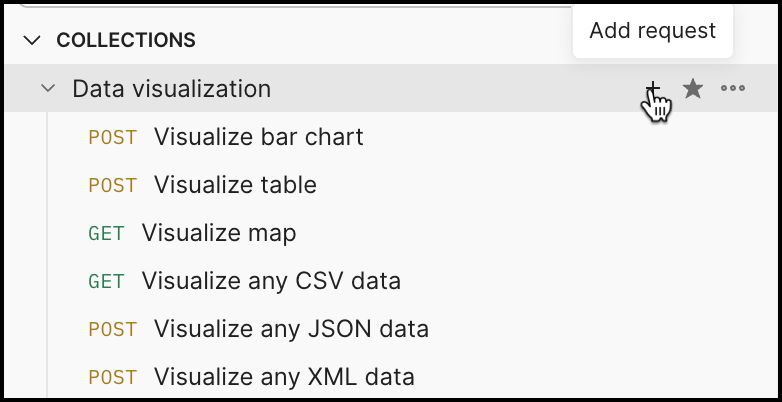
## Create a new request inside a collection
1. In the sidebar, click  **View more actions** next to a collection.
2. Click **Add request**.
## Save a request from your history to a collection
1. Click
**View more actions** next to a collection.
2. Click **Add request**.
## Save a request from your history to a collection
1. Click  **History** in the sidebar.
2. Right-click the request and click **Save Request**.
3. Select the collection you want to save the request to. To create a new collection to save the request to, click **New Collection**.
4. Click **Save**.
## Move an existing request to a different collection
1. In the sidebar, select the request you want to move. You can hold **⌘** or **Ctrl** to select multiple requests.
2. Drag the request into another collection.
You can also open the request and select **Save > Save as**, then select the collection you want to move it to.
## About multi-protocol collections
You can add non-HTTP requests to a collection, which then becomes a *multi-protocol collection*.
To create a multi-protocol collection, do the following:
1. Click **Add** next to the filter bar.
2. Choose the protocol you want to start a multi-protocol collection with.
3. Click **Save**, then add it to a new folder or save it to an existing multi-protocol folder.
To add a non-HTTP request to a multi-protocol collection folder, always use the **Add** button next to the filter bar and follow the same steps as above.
**History** in the sidebar.
2. Right-click the request and click **Save Request**.
3. Select the collection you want to save the request to. To create a new collection to save the request to, click **New Collection**.
4. Click **Save**.
## Move an existing request to a different collection
1. In the sidebar, select the request you want to move. You can hold **⌘** or **Ctrl** to select multiple requests.
2. Drag the request into another collection.
You can also open the request and select **Save > Save as**, then select the collection you want to move it to.
## About multi-protocol collections
You can add non-HTTP requests to a collection, which then becomes a *multi-protocol collection*.
To create a multi-protocol collection, do the following:
1. Click **Add** next to the filter bar.
2. Choose the protocol you want to start a multi-protocol collection with.
3. Click **Save**, then add it to a new folder or save it to an existing multi-protocol folder.
To add a non-HTTP request to a multi-protocol collection folder, always use the **Add** button next to the filter bar and follow the same steps as above.