***
title: Import cURL commands
approved: 2025-05-16T00:00:00.000Z
topictype: procedure
max-toc-depth: 2
ux: v12
-------
[cURL](https://curl.se/) is a popular command-line tool for making HTTP requests. When testing a web application or API, cURL enables you to interact directly from the command line, using a well-established syntax that's common in the API developer community. If you have several cURL commands in different places, you can import them into Postman.
## Import a cURL command into Postman
1. Click the  icon on the sidebar and choose **Import**.
2. Enter your cURL command into the text box at the top.

3. Do one of the following:
* To save your curl as a request in a collection, enter a new collection name or select an existing collection, then click **Import Into Collection**.
* To open your curl as a new request without saving it, click **Import Without Saving**.
You can also paste cURL commands into a request's URL text box.
## Convert a Postman request to a cURL command
1. Open the request you want to use for a code snippet, then click
icon on the sidebar and choose **Import**.
2. Enter your cURL command into the text box at the top.

3. Do one of the following:
* To save your curl as a request in a collection, enter a new collection name or select an existing collection, then click **Import Into Collection**.
* To open your curl as a new request without saving it, click **Import Without Saving**.
You can also paste cURL commands into a request's URL text box.
## Convert a Postman request to a cURL command
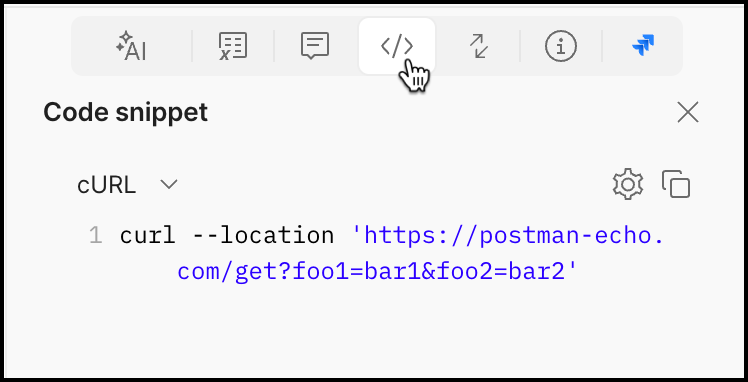
1. Open the request you want to use for a code snippet, then click  **Code** in the right sidebar.
2. Click **cURL** from the dropdown list.
3. Click
**Code** in the right sidebar.
2. Click **cURL** from the dropdown list.
3. Click  **Copy** to copy the code snippet to your clipboard.
 If you prefer working inside the command line with cURL making basic requests, the [VS code extension](/docs/developer/vs-code-extension/overview/) is for you.