***
title: Import data into Postman
approved: 2025-03-03T00:00:00.000Z
topictype: procedure
max-toc-depth: 2
ux: v12
-------
You can import collections, API specifications, and other data files so you can work with them in Postman.
To import your data into Postman, click **Import** in the sidebar. You can import your data from files, folders, cURL commands, raw text, or URLs. You can also import data from other sources such as code repositories, API clients, and application performance management tools.
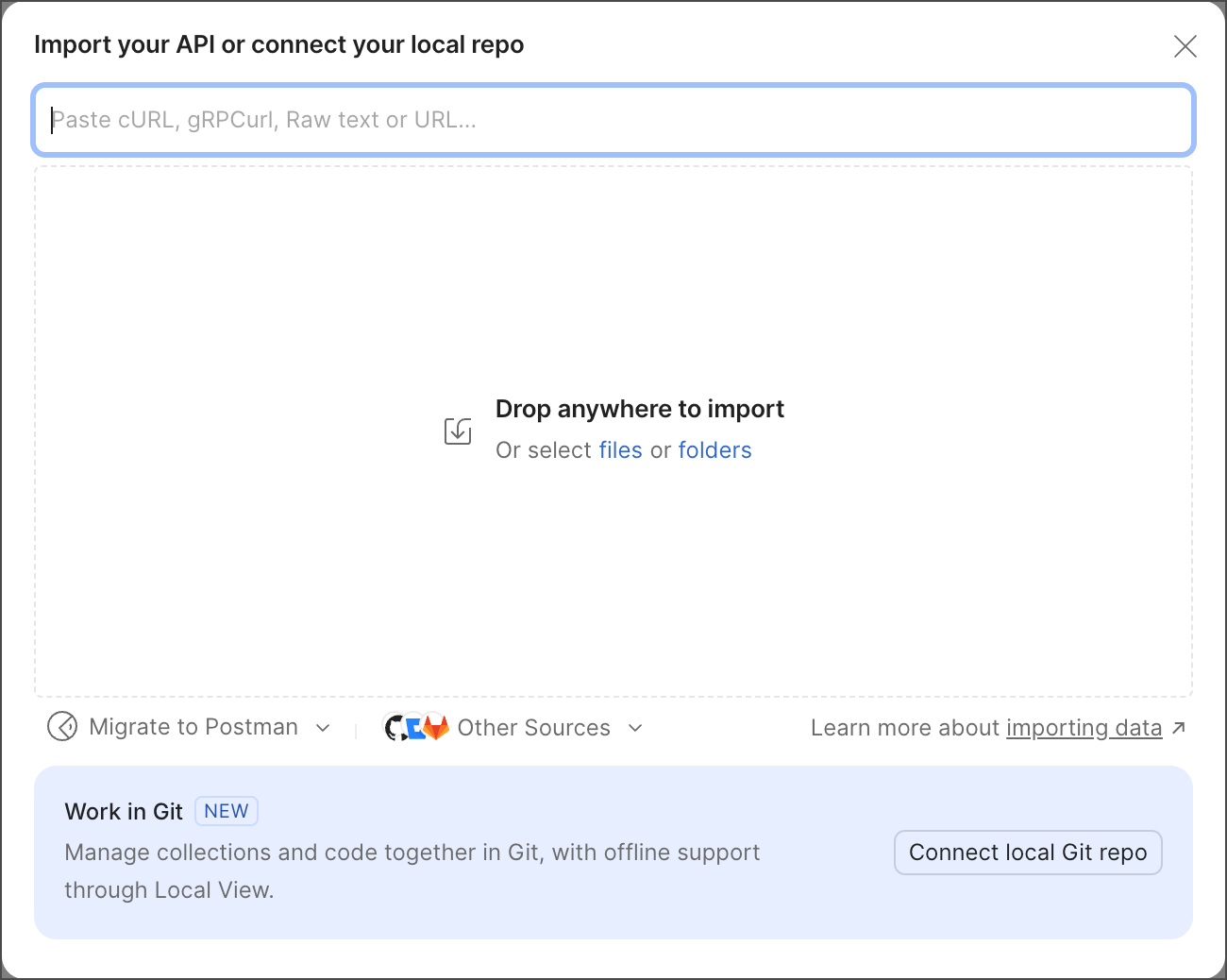 You can also import items by dragging and dropping files or folders into Postman.
## Import Postman data
You can import data that was [exported from Postman](/docs/getting-started/importing-and-exporting/exporting-data/), including collections, environments, globals, and data dumps. Postman will automatically recognize Postman data on import.
For Postman Free plans, you can only import a maximum of five collections per minute if each collection is greater than 500 KB in size. If you encounter this limit, you can continue to import collections that are each less than 500 KB in size.
1. Click **Import** in the sidebar.
2. Do one of the following and follow the prompts:
* Select your file or folder, or drag the file or folder into the import window.
If you are importing a Postman data dump or other zipped file, you must unzip it first. Then drag the unzipped folder into the import window. Learn more about [exporting and importing data dumps](/docs/getting-started/importing-and-exporting/exporting-data/#export-data-dumps).
* Paste your raw text or URL into the box.
* Click **Other Sources** and select the type of data you want to import.
You can import data from a [GitHub, Bitbucket, GitLab, or Azure](/docs/getting-started/importing-and-exporting/importing-from-git/#import-from-a-remote-git-repository) code repository.
* Click **Connect Local Git Repo** to import and sync with your local repository. For more information, see [Connect your Git project to your workspace](/docs/agent-mode/native-git/#connect-your-git-project-to-your-workspace).
If you are importing a single file, Postman imports it after you select it. If you're importing multiple files, select the files you want to import, then click **Import**.
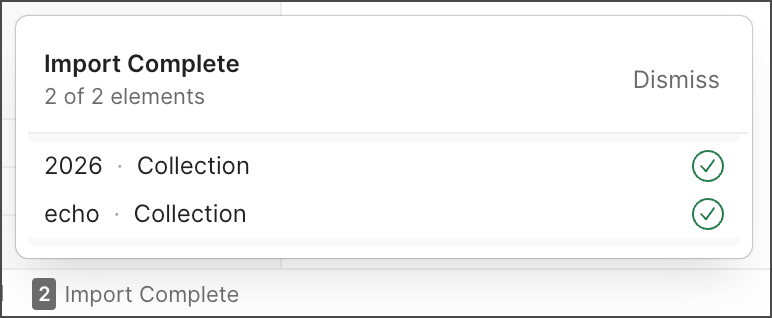
3. An **Import Complete** message displays in the footer. In the message, click
You can also import items by dragging and dropping files or folders into Postman.
## Import Postman data
You can import data that was [exported from Postman](/docs/getting-started/importing-and-exporting/exporting-data/), including collections, environments, globals, and data dumps. Postman will automatically recognize Postman data on import.
For Postman Free plans, you can only import a maximum of five collections per minute if each collection is greater than 500 KB in size. If you encounter this limit, you can continue to import collections that are each less than 500 KB in size.
1. Click **Import** in the sidebar.
2. Do one of the following and follow the prompts:
* Select your file or folder, or drag the file or folder into the import window.
If you are importing a Postman data dump or other zipped file, you must unzip it first. Then drag the unzipped folder into the import window. Learn more about [exporting and importing data dumps](/docs/getting-started/importing-and-exporting/exporting-data/#export-data-dumps).
* Paste your raw text or URL into the box.
* Click **Other Sources** and select the type of data you want to import.
You can import data from a [GitHub, Bitbucket, GitLab, or Azure](/docs/getting-started/importing-and-exporting/importing-from-git/#import-from-a-remote-git-repository) code repository.
* Click **Connect Local Git Repo** to import and sync with your local repository. For more information, see [Connect your Git project to your workspace](/docs/agent-mode/native-git/#connect-your-git-project-to-your-workspace).
If you are importing a single file, Postman imports it after you select it. If you're importing multiple files, select the files you want to import, then click **Import**.
3. An **Import Complete** message displays in the footer. In the message, click  **Go to Collection** next to a collection or environment to open the imported element.
 ### Convert Postman collections from v1 to v2
Postman no longer supports the collection v1 format and will return an error if you import a collection in this format. You can convert your collection's format from v1 to v2 to import it into Postman.
To convert your collection's format from v1 to v2, do the following:
1. In your terminal, enter the following command to install the Postman Collection Transformer.
```bash
sudo npm install -g postman-collection-transformer
```
2. Convert an individual Postman Collection from v1 to v2 by entering this command:
```bash
postman-collection-transformer convert -i -o -j 1.0.0 -p 2.0.0 -P
```
The resulting collection is written to your target file path in v2 format.
You can retrieve a list of `convert` options by running the command with the `-h` option:
```bash
postman-collection-transformer convert -h
```
Go to the [Postman Collection Transformer](https://github.com/postmanlabs/postman-collection-transformer) for more information about collection conversion.
## Migrate from other API Clients
Postman can import requests, environments, and other data from the following API clients:
* [SoapUI](/docs/getting-started/importing-and-exporting/importing-from-soapui/)
* [Hoppscotch](/docs/getting-started/importing-and-exporting/importing-from-hoppscotch/)
* [Insomnia](/docs/getting-started/importing-and-exporting/importing-from-insomnia/)
* [Thunder Client](/docs/getting-started/importing-and-exporting/importing-from-thunder-client/)
## Import from cURL commands
To learn more about using cURL commands to import data, go to [Import cURL commands](/docs/getting-started/importing-and-exporting/importing-curl-commands/).
## Import API definitions
Learn about [importing your API specifications](/docs/design-apis/specifications/import-a-specification/) in OpenAPI 3.0 or AsyncAPI 2.0 format into Spec Hub.
### Convert Postman collections from v1 to v2
Postman no longer supports the collection v1 format and will return an error if you import a collection in this format. You can convert your collection's format from v1 to v2 to import it into Postman.
To convert your collection's format from v1 to v2, do the following:
1. In your terminal, enter the following command to install the Postman Collection Transformer.
```bash
sudo npm install -g postman-collection-transformer
```
2. Convert an individual Postman Collection from v1 to v2 by entering this command:
```bash
postman-collection-transformer convert -i -o -j 1.0.0 -p 2.0.0 -P
```
The resulting collection is written to your target file path in v2 format.
You can retrieve a list of `convert` options by running the command with the `-h` option:
```bash
postman-collection-transformer convert -h
```
Go to the [Postman Collection Transformer](https://github.com/postmanlabs/postman-collection-transformer) for more information about collection conversion.
## Migrate from other API Clients
Postman can import requests, environments, and other data from the following API clients:
* [SoapUI](/docs/getting-started/importing-and-exporting/importing-from-soapui/)
* [Hoppscotch](/docs/getting-started/importing-and-exporting/importing-from-hoppscotch/)
* [Insomnia](/docs/getting-started/importing-and-exporting/importing-from-insomnia/)
* [Thunder Client](/docs/getting-started/importing-and-exporting/importing-from-thunder-client/)
## Import from cURL commands
To learn more about using cURL commands to import data, go to [Import cURL commands](/docs/getting-started/importing-and-exporting/importing-curl-commands/).
## Import API definitions
Learn about [importing your API specifications](/docs/design-apis/specifications/import-a-specification/) in OpenAPI 3.0 or AsyncAPI 2.0 format into Spec Hub.