> For clean Markdown content of this page, append .md to this URL. For the complete documentation index, see https://learning.postman.com/llms.txt. For full content including API reference and SDK examples, see https://learning.postman.com/llms-full.txt.
# Make HTTP calls using the SOAP protocol
Postman can make HTTP calls using Simple Object Access Protocol (SOAP), a platform-independent messaging protocol specification. In this example, the SOAP endpoint validates an ISBN book number.
For more SOAP request examples, see Postman's [Public SOAP APIs](https://www.postman.com/cs-demo/public-soap-apis/overview) collection.
## Enter your SOAP endpoint
1. In Postman, click the  **Development tab**, then click
  and create a new HTTP request.
2. Enter your SOAP endpoint URL in the address field. For this example, use the `http://webservices.daehosting.com/services/isbnservice.wso` endpoint URL.
3. Select **POST** from the request method dropdown list.
## Add body data
1. In the **Body** tab, select **raw** and choose **XML** from the dropdown list.
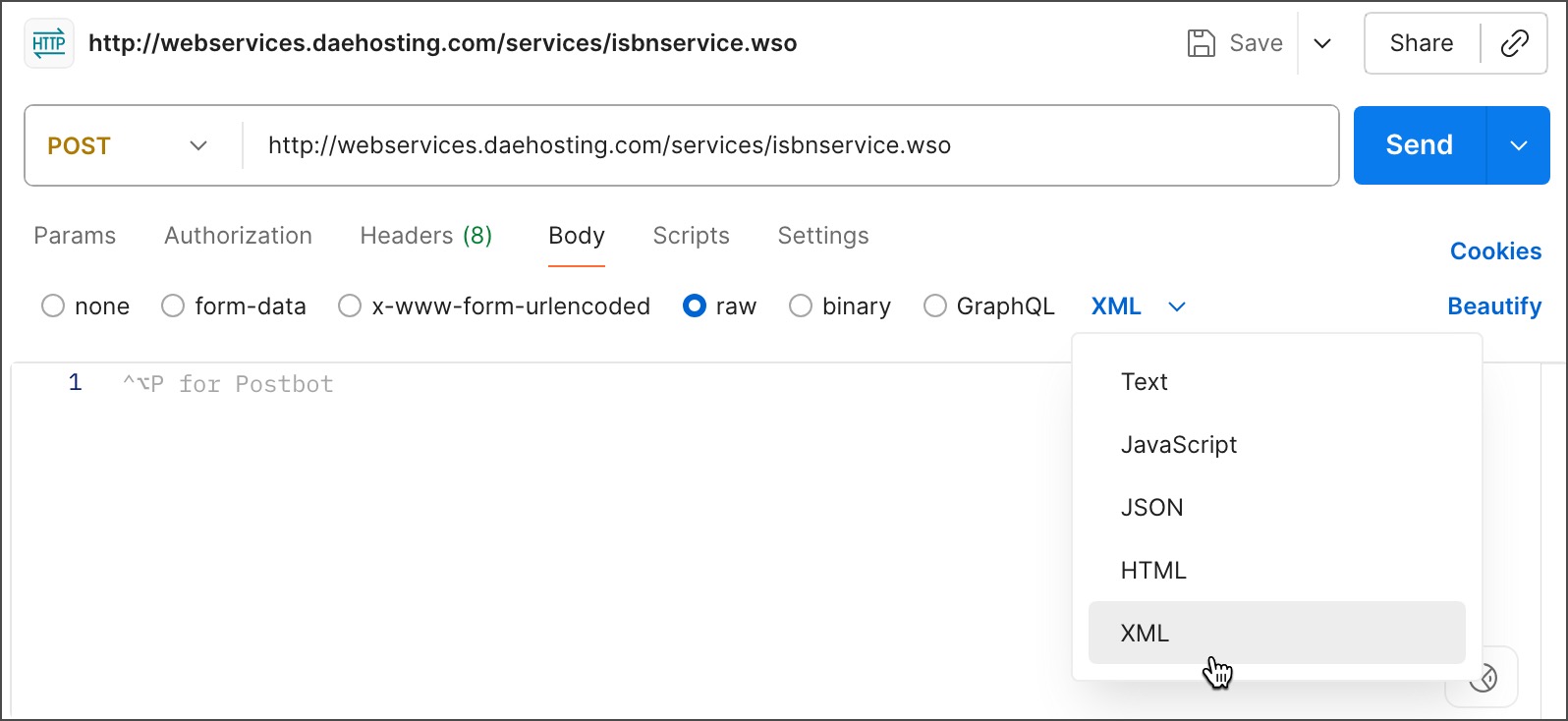
2. Enter your XML in the text entry area. To validate the book number, enter the following XML:
```xml
0-19-852663-6
```
Your request body must include the SOAP `Envelope`, `Header`, and `Body` tags as required by the endpoint, and any namespaces. The data must include the name of the operation and any values you need to post to the service.
## Set your request headers
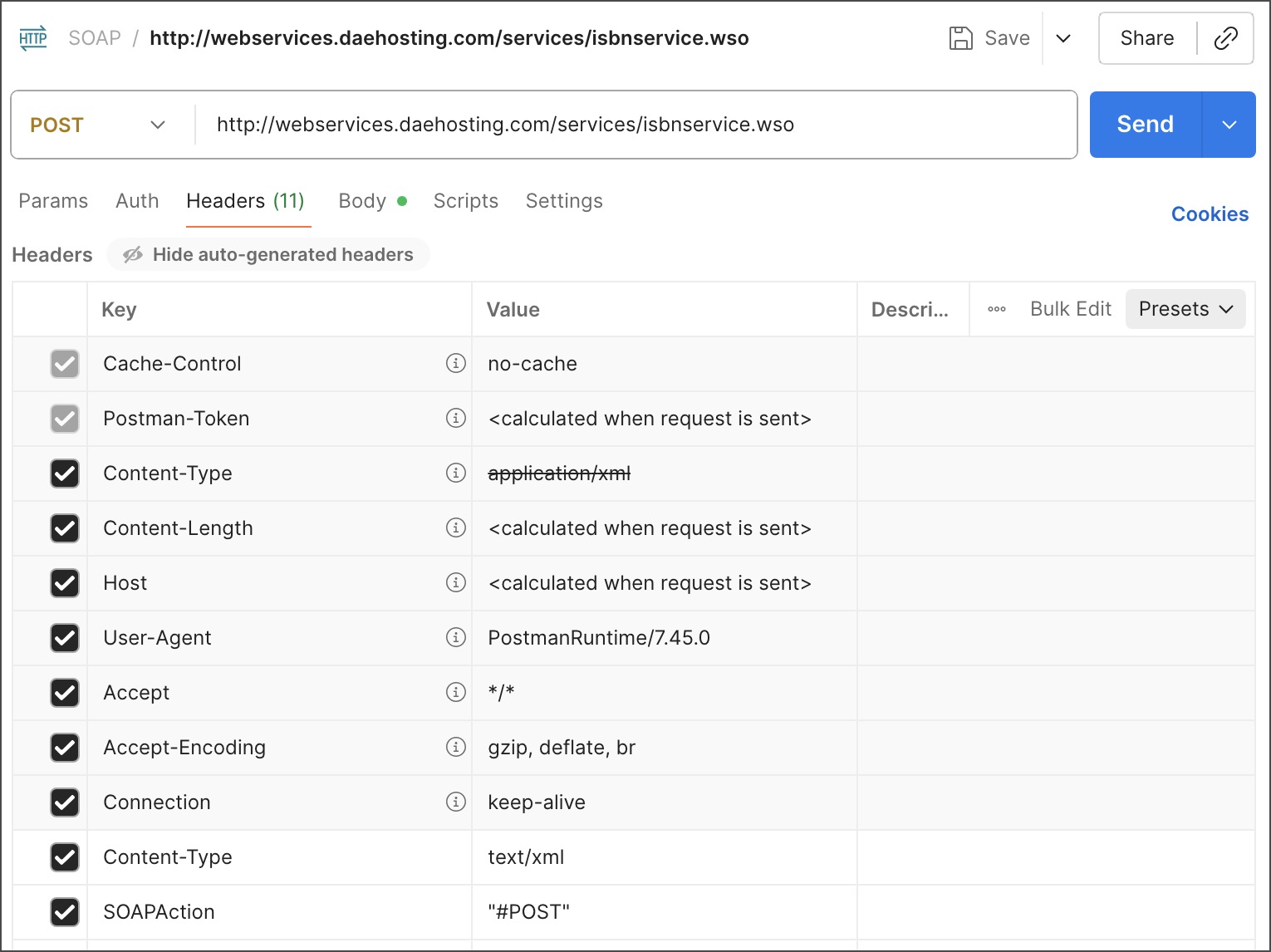
When you select an XML body type, Postman automatically adds a content type header of `application/xml`. But depending on your service provider, you may need `text/xml` for some SOAP requests. Check with your SOAP service to decide which header is appropriate. If you need the `text/xml` header, override the default Postman setting.
To set request headers, do the following:
1. Click **Headers** in the request. If the auto-generated headers are hidden, click **hidden** to display them.
2. Clear the `Content-Type` header checkbox.
3. Add a new `Content-Type` and `text/xml` key-value pair.
4. Add the `SOAPAction` and `"#MethodName"` key-value pair (for example, `"#POST"`).
## Send your request
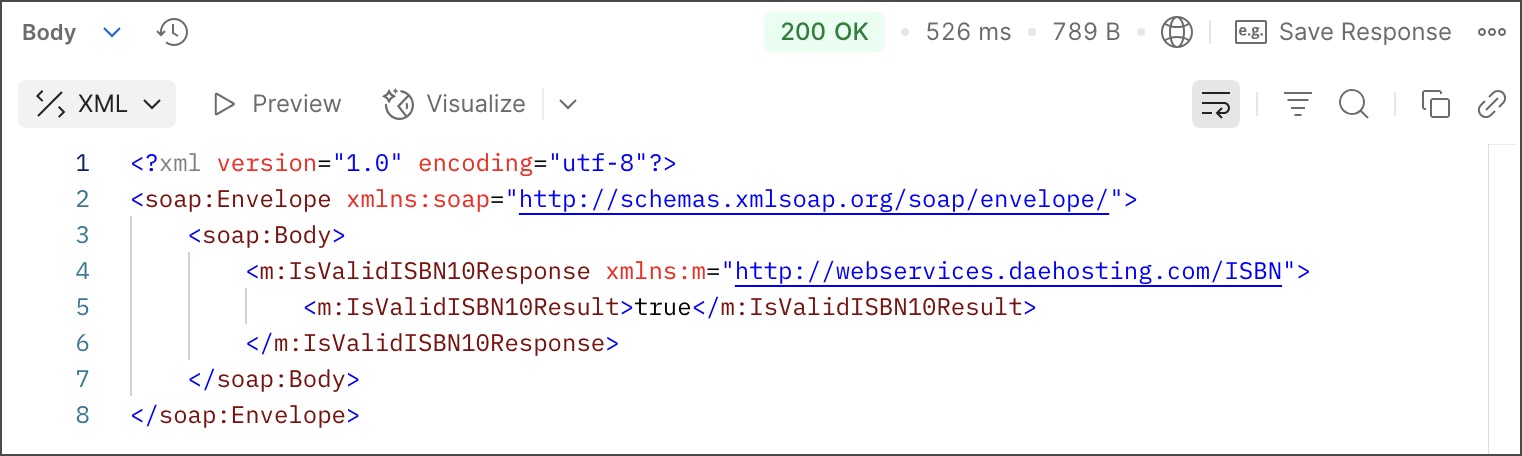
Click **Send** to make your call to the SOAP service. On success, Postman displays the response in the lower tab.
and create a new HTTP request.
2. Enter your SOAP endpoint URL in the address field. For this example, use the `http://webservices.daehosting.com/services/isbnservice.wso` endpoint URL.
3. Select **POST** from the request method dropdown list.
## Add body data
1. In the **Body** tab, select **raw** and choose **XML** from the dropdown list.

2. Enter your XML in the text entry area. To validate the book number, enter the following XML:
```xml
0-19-852663-6
```
Your request body must include the SOAP `Envelope`, `Header`, and `Body` tags as required by the endpoint, and any namespaces. The data must include the name of the operation and any values you need to post to the service.
## Set your request headers
When you select an XML body type, Postman automatically adds a content type header of `application/xml`. But depending on your service provider, you may need `text/xml` for some SOAP requests. Check with your SOAP service to decide which header is appropriate. If you need the `text/xml` header, override the default Postman setting.
To set request headers, do the following:
1. Click **Headers** in the request. If the auto-generated headers are hidden, click **hidden** to display them.
2. Clear the `Content-Type` header checkbox.
3. Add a new `Content-Type` and `text/xml` key-value pair.
4. Add the `SOAPAction` and `"#MethodName"` key-value pair (for example, `"#POST"`).

## Send your request
Click **Send** to make your call to the SOAP service. On success, Postman displays the response in the lower tab.
