***
title: Manage organization and team resources in Postman
updated: 2026-01-31T00:00:00.000Z
max-toc-depth: 2
----------------
As a [Super Admin or Admin](/docs/administration/roles-and-permissions/#team-roles), you can manage resources in your team workspaces in alignment with your organizational goals. Manage which team members can create organization- or team-wide workspaces and share collections with guest users, export collections, manage mock server privacy settings, export vault secrets, and decide which external packages are allowed in scripts.
## Manage organization and team workspaces
This feature is available on [Postman Team and Enterprise plans](https://www.postman.com/pricing/).
As a [Super Admin or Admin](/docs/administration/roles-and-permissions/#team-roles), you can limit or prohibit creation of new organization- or team-wide [internal workspaces](/docs/collaborating-in-postman/using-workspaces/internal-workspaces/overview/).
Postman recommends that you set up your users and groups through SSO and SCIM. For more information, see [SCIM provisioning overview](/docs/administration/scim-provisioning/scim-provisioning-overview/).
You can specify which users and [groups](/docs/administration/managing-your-team/user-groups/) have permission to create [organization- or team-wide workspaces](#give-permission-to-create-organization-or-team-wide-workspaces).
Partners and Guests can't create any workspaces.
Keep in mind the following when managing workspace creation:
* If you don't specify any users or groups, all team members can create organization- or team-wide workspaces.
* If you specify users and groups, unassigned team members will have to request approval to create organization- or team-wide workspaces. A Super Admin, Admin, or user with permission to create organization or team workspaces can approve a request. The workspace type will be set to [**Internal**](/docs/collaborating-in-postman/using-workspaces/internal-workspaces/manage-workspaces/#change-workspace-visibility) and workspace access will be **Only you and invited people** until the request is approved.
Unassigned team members can always create workspaces that are visible to them and the people they invite. This is not an organization- or team-wide workspace, but an individual or shared internal workspace.
* If you give all organization or team members permission to create organization- or team-wide workspaces, members won't need approval to create them.
### Give permission to create organization- or team-wide workspaces
To specify users or groups who can create internal workspaces, do the following:
1. Select **Organization or Team > Organization or Team settings** in the Postman header.
2. Click **Organization or Team resources** in the sidebar, then click **Create organization- or team-wide workspaces**.
3. Select **Specific people or groups**.
4. Specify users or groups who can create workspaces.
5. Click **Save Changes**.
If you have Postman Organizations, you can choose to have only selected members and user groups create internal workspaces. That means that no one else can create internal workspaces.
### Remove permission to create organization- or team-wide workspaces
To remove permission to create organization- or team-wide workspaces from users or groups, do the following:
1. Select **Organization or Team > Organization or Team settings** in the Postman header.
2. Click **Organization or Team resources** in the sidebar, then click **Create organization- or team-wide workspaces**.
3. Select the **Specific people or groups** section to edit it.
4. Click  next to a user or group.
5. Click **Save Changes**.
### Give all organization or team members permission to create internal workspaces
To give all organization or team members permission to create team workspaces, do the following:
1. Select **Organization or Team > Organization or Team settings** in the Postman header.
2. Click **Organization or Team resources** in the sidebar, then click **Create organization- or team-wide workspaces**.
3. Click **All organization or team members**.
4. Click **Save Changes**.
### Approve workspace creation requests
To see all workspaces, on the **Home** page, click **Workspaces**. You can also select **Workspaces > View all workspaces** in the Postman header. A list of workspaces appears.
next to a user or group.
5. Click **Save Changes**.
### Give all organization or team members permission to create internal workspaces
To give all organization or team members permission to create team workspaces, do the following:
1. Select **Organization or Team > Organization or Team settings** in the Postman header.
2. Click **Organization or Team resources** in the sidebar, then click **Create organization- or team-wide workspaces**.
3. Click **All organization or team members**.
4. Click **Save Changes**.
### Approve workspace creation requests
To see all workspaces, on the **Home** page, click **Workspaces**. You can also select **Workspaces > View all workspaces** in the Postman header. A list of workspaces appears.
 To approve a request to create a workspace, click the **Pending requests** tab. This is where you can approve requests to change the visibility of a workspace, for example, when a user wants to make an existing workspace public.
Requests to create a public workspace are approved by Community Managers. Requests to create a Partner Workspace are approved by Partner Managers. If no Partner Manager role is assigned, the Admin is auto-assigned the Partner Manager role when they create their first Partner Workspace.
Community Managers can also approve requests to change a workspace's visibility to public from its workspace settings. Learn more about [converting a workspace to a public workspace](/docs/collaborating-in-postman/using-workspaces/public-workspaces/#convert-an-existing-workspace-to-a-public-workspace).

## Manage collections
Managing sharing and exporting collections is supported on [Postman Team and Enterprise plans](https://www.postman.com/pricing/).
As a [Super Admin or Admin](/docs/administration/roles-and-permissions/#team-roles), you can allow or prohibit Editors from sharing collections with Guests in team workspaces. Super Admins and Admins can also block Editors and Viewers from exporting collections.
### Allow Editors to share collections with Guests
Select **Organization or Team > Organization or Team settings** in the Postman header, click **Organization or Team resources** in the sidebar, then click **Share with guests**. To manage whether Collection Editors can share collections with Guests, select the toggle next to **Editors can share collections with guests**. By default, Collection Editors are allowed to share collections with Guests.
Learn more about [sharing collections with Guests](/docs/collaborating-in-postman/sharing/#share-collections-with-guests).
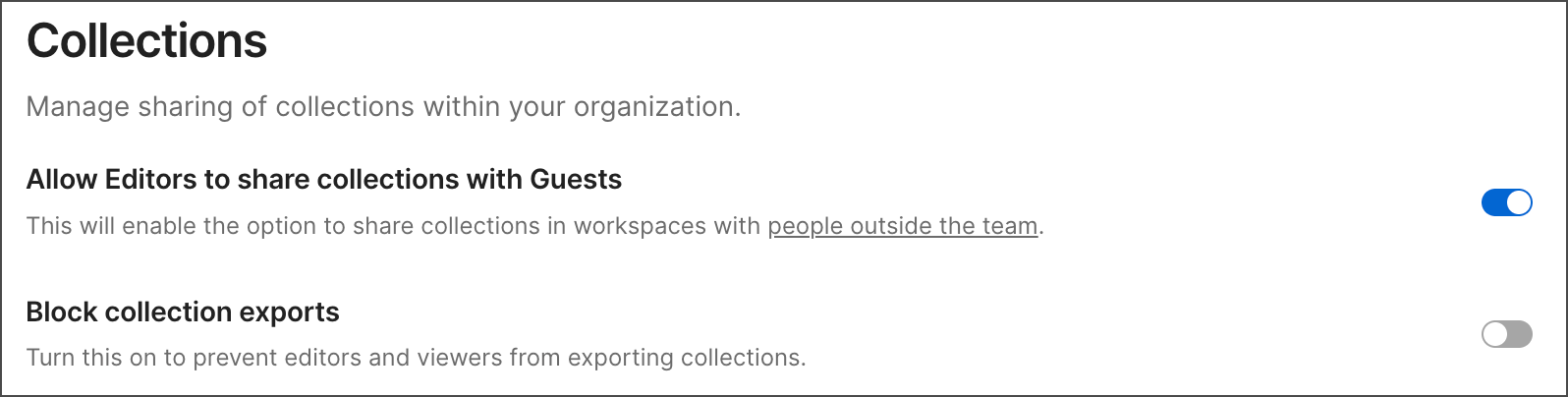
When you allow this, Collection Editors can choose whether Guests can view a specific collection and send requests in that collection. Guest users are assigned the [Guest role](/docs/administration/roles-and-permissions/#team-roles) at the team level and a limited [Viewer role](/docs/administration/roles-and-permissions/#collection-roles) at the collection level.
When you prohibit this, Collection Editors don't have the option to choose whether Guests can view a specific collection. Guest users already assigned the Guest role will continue to have access to collections previously shared with them. New Guests can no longer be assigned the Guest role.
### Block collection exports
Turn on this toggle to prevent Editors and Viewers from exporting collections. When a user with the Editor or Viewer role tries to export a collection, the **Export collection** dialog displays a message that says exporting has been turned off by their organization. Users can then use the **Export collection** dialog to invite other users to the workspace.
## Manage mock server privacy
Managing mock server privacy is supported on [Postman Team and Enterprise plans](https://www.postman.com/pricing/).
As a [Super Admin or Admin](/docs/administration/roles-and-permissions/#team-roles), you can enable or prohibit users from creating public mock servers.
To prohibit users from creating public mock servers, do the following:
1. Select **Organization or Team > Organization or Team settings** in the Postman header.
2. Click **Organization or Team resources** in the sidebar, then click **Create public mock servers**.
3. Click the toggle to block creating public mock servers.
By default, users are able to create both public and private mock servers. However, new mock servers are set to public by default. Learn more about [private and public mock servers](/docs/design-apis/mock-apis/set-up-mock-servers/#configure-mock-server-details).
## Manage live sessions
By default, users are allowed to start live sessions. As a [Super Admin or Admin](/docs/administration/roles-and-permissions/#team-roles) on an Enterprise team, you can prohibit users from starting live sessions, or turn the feature back on if it's been turned off.
To enable or prohibit users from starting live sessions, do the following:
1. Select **Organization > Organization settings** in the Postman header.
2. Click **Organization resources** in the sidebar, then click **Start live sessions**.
3. Change the toggle next to allow users to start live sessions.
## Manage exporting vault secrets
Managing whether members can export vault secrets is supported on [Postman Team and Enterprise plans](https://www.postman.com/pricing/).
As a [Super Admin or Admin](/docs/administration/roles-and-permissions/#team-roles), you can manage whether your members can export vault secrets from their Postman Vault.
1. Select **Organization or Team > Organization or Team settings** in the Postman header.
2. Click **Organization or Team resources** in the sidebar, then click **Export vault data**.
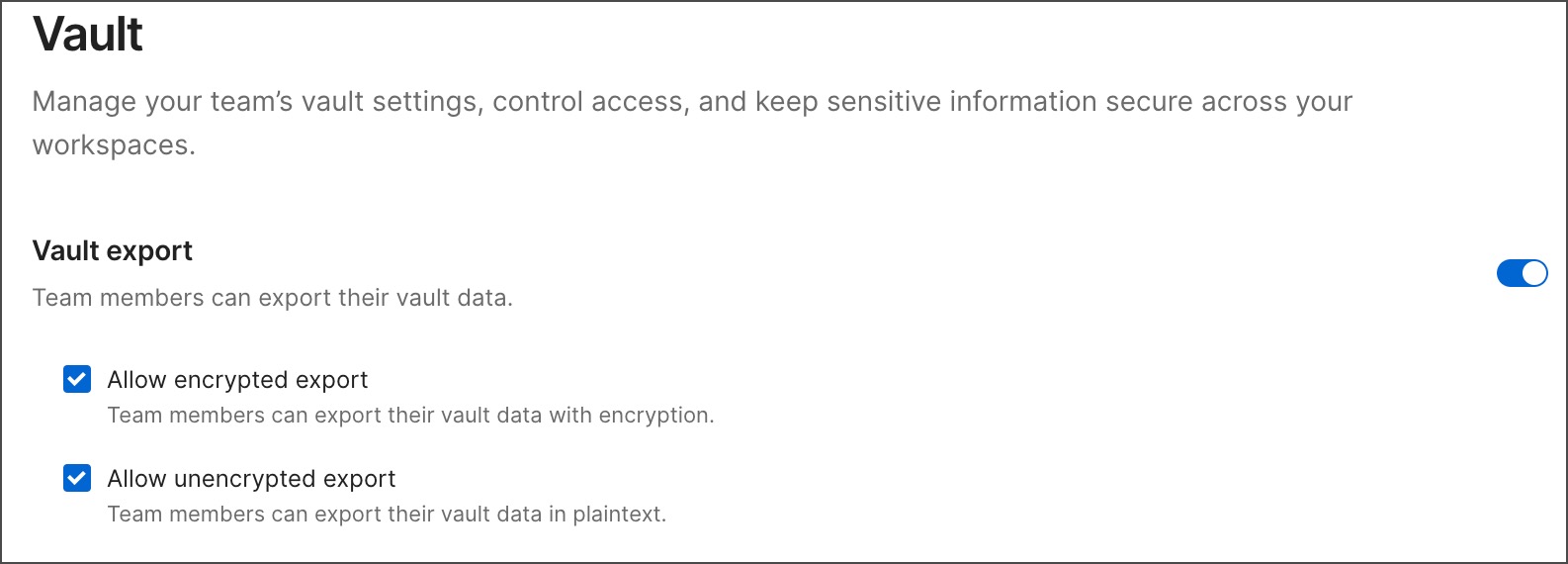
3. Turn on vault export to allow your members to export their vault secrets.
4. Choose any the following:
* Select **Allow encrypted export** to allow your members to export vault secrets in encrypted format, requiring a password to import into Postman.
* Select **Allow unencrypted export** to allow your members to export vault secrets in plaintext format.
To approve a request to create a workspace, click the **Pending requests** tab. This is where you can approve requests to change the visibility of a workspace, for example, when a user wants to make an existing workspace public.
Requests to create a public workspace are approved by Community Managers. Requests to create a Partner Workspace are approved by Partner Managers. If no Partner Manager role is assigned, the Admin is auto-assigned the Partner Manager role when they create their first Partner Workspace.
Community Managers can also approve requests to change a workspace's visibility to public from its workspace settings. Learn more about [converting a workspace to a public workspace](/docs/collaborating-in-postman/using-workspaces/public-workspaces/#convert-an-existing-workspace-to-a-public-workspace).

## Manage collections
Managing sharing and exporting collections is supported on [Postman Team and Enterprise plans](https://www.postman.com/pricing/).
As a [Super Admin or Admin](/docs/administration/roles-and-permissions/#team-roles), you can allow or prohibit Editors from sharing collections with Guests in team workspaces. Super Admins and Admins can also block Editors and Viewers from exporting collections.
### Allow Editors to share collections with Guests
Select **Organization or Team > Organization or Team settings** in the Postman header, click **Organization or Team resources** in the sidebar, then click **Share with guests**. To manage whether Collection Editors can share collections with Guests, select the toggle next to **Editors can share collections with guests**. By default, Collection Editors are allowed to share collections with Guests.
Learn more about [sharing collections with Guests](/docs/collaborating-in-postman/sharing/#share-collections-with-guests).

When you allow this, Collection Editors can choose whether Guests can view a specific collection and send requests in that collection. Guest users are assigned the [Guest role](/docs/administration/roles-and-permissions/#team-roles) at the team level and a limited [Viewer role](/docs/administration/roles-and-permissions/#collection-roles) at the collection level.
When you prohibit this, Collection Editors don't have the option to choose whether Guests can view a specific collection. Guest users already assigned the Guest role will continue to have access to collections previously shared with them. New Guests can no longer be assigned the Guest role.
### Block collection exports
Turn on this toggle to prevent Editors and Viewers from exporting collections. When a user with the Editor or Viewer role tries to export a collection, the **Export collection** dialog displays a message that says exporting has been turned off by their organization. Users can then use the **Export collection** dialog to invite other users to the workspace.
## Manage mock server privacy
Managing mock server privacy is supported on [Postman Team and Enterprise plans](https://www.postman.com/pricing/).
As a [Super Admin or Admin](/docs/administration/roles-and-permissions/#team-roles), you can enable or prohibit users from creating public mock servers.
To prohibit users from creating public mock servers, do the following:
1. Select **Organization or Team > Organization or Team settings** in the Postman header.
2. Click **Organization or Team resources** in the sidebar, then click **Create public mock servers**.
3. Click the toggle to block creating public mock servers.
By default, users are able to create both public and private mock servers. However, new mock servers are set to public by default. Learn more about [private and public mock servers](/docs/design-apis/mock-apis/set-up-mock-servers/#configure-mock-server-details).
## Manage live sessions
By default, users are allowed to start live sessions. As a [Super Admin or Admin](/docs/administration/roles-and-permissions/#team-roles) on an Enterprise team, you can prohibit users from starting live sessions, or turn the feature back on if it's been turned off.
To enable or prohibit users from starting live sessions, do the following:
1. Select **Organization > Organization settings** in the Postman header.
2. Click **Organization resources** in the sidebar, then click **Start live sessions**.
3. Change the toggle next to allow users to start live sessions.
## Manage exporting vault secrets
Managing whether members can export vault secrets is supported on [Postman Team and Enterprise plans](https://www.postman.com/pricing/).
As a [Super Admin or Admin](/docs/administration/roles-and-permissions/#team-roles), you can manage whether your members can export vault secrets from their Postman Vault.
1. Select **Organization or Team > Organization or Team settings** in the Postman header.
2. Click **Organization or Team resources** in the sidebar, then click **Export vault data**.
3. Turn on vault export to allow your members to export their vault secrets.
4. Choose any the following:
* Select **Allow encrypted export** to allow your members to export vault secrets in encrypted format, requiring a password to import into Postman.
* Select **Allow unencrypted export** to allow your members to export vault secrets in plaintext format.
 5. Click **Save**.
To prohibit your members from exporting vault secrets in any format, turn off Vault export.
## Manage external packages
As a [Super Admin or Admin](/docs/administration/roles-and-permissions/#team-roles), you can [allow or prohibit packages from external package registries](#allow-packages-from-external-package-registries), such as npm and JSR, in your members' scripts. Admins can also [configure access to private npm packages](#configure-access-to-private-packages). Learn more about [using external packages](/docs/tests-and-scripts/write-scripts/packages/external-package-registries/) in Postman.
### Allow packages from external package registries
Allowing packages from external registries is supported on [Postman Enterprise plans](https://www.postman.com/pricing/).
You can allow or prohibit your team from using external [npm](https://www.npmjs.com/) and [JSR](https://jsr.io/) packages in their scripts. You can also [specify external packages](#allow-specific-packages-in-your-team) your team members are allowed to use in scripts.
1. Select **Organization or Team > Organization or Team settings** in the Postman header.
2. Click **Organization or Team resources** in the sidebar, then click **Use external packages**.
3. Choose one of the following from the dropdown list:
* **Allow all packages** - Allow your team members to use any [supported external packages](/docs/tests-and-scripts/write-scripts/packages/external-package-registries/#supported-external-packages).
* **Allow selected packages** - Limit the external packages your team members can use. Learn how to [allow specific external packages in your team](#allow-specific-packages-in-your-team).
* **Don't allow** - Prohibit your team members from using any external packages.
#### Allow specific packages in your team
After you've selected **Allow selected packages** in the dropdown list, enter external packages from npm or JSR you want to allow your team to use in their scripts. Note that your team members who aren't Admins can visit this page to view the external packages allowed in your team.
1. Enter an external package using the following syntax:
* **Public package** - `registry-name:package-name@version-number`
* **Private npm package** - `npm:@scope/package-name@version-number`
Learn more about [configuring access to private npm packages](#configure-access-to-private-packages).
2. Click **Add Package** to add the external package to the list of allowed packages. You can also press the **Return** or **Enter** key to add the external package.
To remove an external package from the list of allowed packages, hover over the package and click
5. Click **Save**.
To prohibit your members from exporting vault secrets in any format, turn off Vault export.
## Manage external packages
As a [Super Admin or Admin](/docs/administration/roles-and-permissions/#team-roles), you can [allow or prohibit packages from external package registries](#allow-packages-from-external-package-registries), such as npm and JSR, in your members' scripts. Admins can also [configure access to private npm packages](#configure-access-to-private-packages). Learn more about [using external packages](/docs/tests-and-scripts/write-scripts/packages/external-package-registries/) in Postman.
### Allow packages from external package registries
Allowing packages from external registries is supported on [Postman Enterprise plans](https://www.postman.com/pricing/).
You can allow or prohibit your team from using external [npm](https://www.npmjs.com/) and [JSR](https://jsr.io/) packages in their scripts. You can also [specify external packages](#allow-specific-packages-in-your-team) your team members are allowed to use in scripts.
1. Select **Organization or Team > Organization or Team settings** in the Postman header.
2. Click **Organization or Team resources** in the sidebar, then click **Use external packages**.
3. Choose one of the following from the dropdown list:
* **Allow all packages** - Allow your team members to use any [supported external packages](/docs/tests-and-scripts/write-scripts/packages/external-package-registries/#supported-external-packages).
* **Allow selected packages** - Limit the external packages your team members can use. Learn how to [allow specific external packages in your team](#allow-specific-packages-in-your-team).
* **Don't allow** - Prohibit your team members from using any external packages.
#### Allow specific packages in your team
After you've selected **Allow selected packages** in the dropdown list, enter external packages from npm or JSR you want to allow your team to use in their scripts. Note that your team members who aren't Admins can visit this page to view the external packages allowed in your team.
1. Enter an external package using the following syntax:
* **Public package** - `registry-name:package-name@version-number`
* **Private npm package** - `npm:@scope/package-name@version-number`
Learn more about [configuring access to private npm packages](#configure-access-to-private-packages).
2. Click **Add Package** to add the external package to the list of allowed packages. You can also press the **Return** or **Enter** key to add the external package.
To remove an external package from the list of allowed packages, hover over the package and click  **Remove**.

The following shows examples of how to specify allowed external packages. Note that Postman supports glob pattern syntax for specifying allowed external packages and their version numbers.
* To allow a package from a specific registry with an exact major version number, you can use syntax like:
```txt
npm:ajv@8.12.0
```
* To allow a specific major version and any minor version number, you can use syntax like:
```txt
npm:lodash@4.*
```
* To allow all external package from a specific registry, you can use syntax like:
```txt
jsr:*@*
```
* To allow all external packages in a scope, you can use syntax like:
```txt
npm:@types/*@*
```
### Configure access to private packages
Configuring access to private packages is supported on [Postman Team and Enterprise plans](https://www.postman.com/pricing/).
Admins can configure your team's access to private npm packages in scripts. [Create an access token](https://docs.npmjs.com/creating-and-viewing-access-tokens) in npm that can access the [scope](https://docs.npmjs.com/about-scopes) with your private packages. Then provide your access token and scope to configure your private packages in Postman.
Your access token is encrypted in Postman and only Admins have permission to access and configure it. Postman only decrypts your access token to import the package in your scripts.
Learn more about [supported external packages](/docs/tests-and-scripts/write-scripts/packages/external-package-registries/#supported-external-packages) before configuring access to a private package.
To configure access to a private npm package, do the following:
1. Select **Organization or Team > Organization or Team settings** in the Postman header.
2. Click **Organization or Team resources** in the sidebar, then click **Use external packages**.
3. Under **Private npm packages**, provide the following details:
* **Token** - The access token that has access to the scope with your private packages. Note that you can't view or edit an access token later; you must delete the access token and then replace it.
* **Scope** - The scopes with your private packages. Use the `@scope` syntax. You can specify multiple scopes with a comma-separate list. Make sure your token can access all of the scopes you provide.
4. Click **Save**.

To replace your access token, click
**Remove**.

The following shows examples of how to specify allowed external packages. Note that Postman supports glob pattern syntax for specifying allowed external packages and their version numbers.
* To allow a package from a specific registry with an exact major version number, you can use syntax like:
```txt
npm:ajv@8.12.0
```
* To allow a specific major version and any minor version number, you can use syntax like:
```txt
npm:lodash@4.*
```
* To allow all external package from a specific registry, you can use syntax like:
```txt
jsr:*@*
```
* To allow all external packages in a scope, you can use syntax like:
```txt
npm:@types/*@*
```
### Configure access to private packages
Configuring access to private packages is supported on [Postman Team and Enterprise plans](https://www.postman.com/pricing/).
Admins can configure your team's access to private npm packages in scripts. [Create an access token](https://docs.npmjs.com/creating-and-viewing-access-tokens) in npm that can access the [scope](https://docs.npmjs.com/about-scopes) with your private packages. Then provide your access token and scope to configure your private packages in Postman.
Your access token is encrypted in Postman and only Admins have permission to access and configure it. Postman only decrypts your access token to import the package in your scripts.
Learn more about [supported external packages](/docs/tests-and-scripts/write-scripts/packages/external-package-registries/#supported-external-packages) before configuring access to a private package.
To configure access to a private npm package, do the following:
1. Select **Organization or Team > Organization or Team settings** in the Postman header.
2. Click **Organization or Team resources** in the sidebar, then click **Use external packages**.
3. Under **Private npm packages**, provide the following details:
* **Token** - The access token that has access to the scope with your private packages. Note that you can't view or edit an access token later; you must delete the access token and then replace it.
* **Scope** - The scopes with your private packages. Use the `@scope` syntax. You can specify multiple scopes with a comma-separate list. Make sure your token can access all of the scopes you provide.
4. Click **Save**.

To replace your access token, click  **Delete token**, update the access token, then click **Save**.
To edit your scopes, update the scopes you provided and click **Save**.
Learn how to [import private packages into your scripts](/docs/tests-and-scripts/write-scripts/packages/external-package-registries/#import-a-private-package).
**Delete token**, update the access token, then click **Save**.
To edit your scopes, update the scopes you provided and click **Save**.
Learn how to [import private packages into your scripts](/docs/tests-and-scripts/write-scripts/packages/external-package-registries/#import-a-private-package).